

Menu:
- About Axogram
- Axogram Free and Paid
- Saving and Sharing
- Licenses and Subscriptions
- Installation and Access
- Requirements, Rendering, and Cloud
Axogram provides you with a dedicated workspace for:
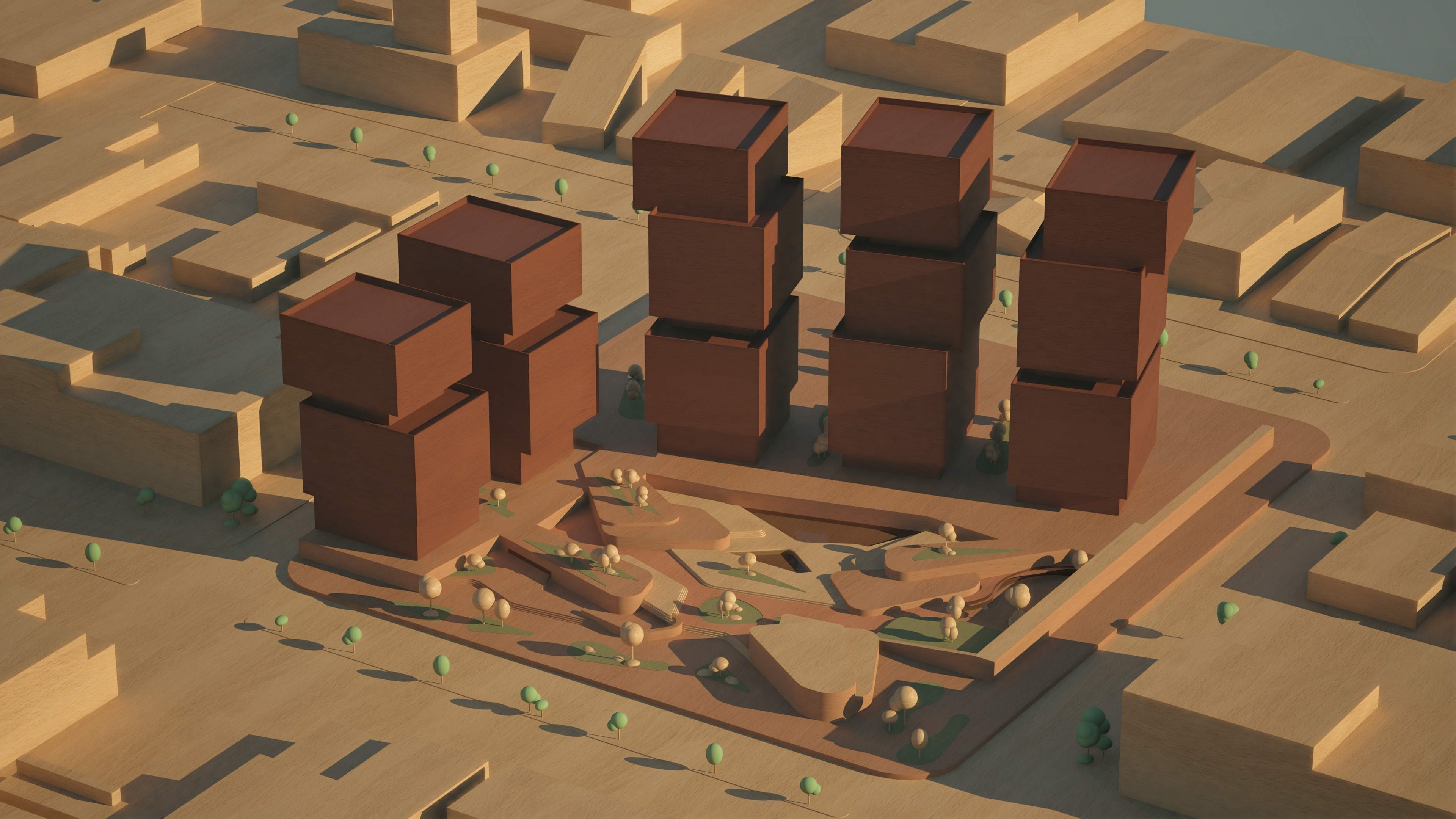
- Transforming your live CAD or BIM model into clear architectural %%Diagrams%%.
- Apply visual %%Styles%%, material overrides, colors, edges, and lighting.
- Add %%Annotations%%, %%Markers%%, %%Zones%%, %%Flow Lines%%, and %%3D Text%%.
- Keep your %%Diagrams%% and their settings saved with the source CAD or BIM project.
- Export JPG and PNG images, including PNG images with a transparent background.
- You can upload and also enhance completed renders directly to Lumion Cloud.
Axogram works alongside supported CAD applications, helping you explain design intent without creating and managing a separate visualization project.
For more information about Axogram, setup, features, and rendering, see these pages:
- Lumion Website: Axogram by Lumion
- Knowledge Base: What is Axogram and how do you get started?
1. About Axogram:
Axogram is a live architectural diagramming plugin for supported CAD and BIM applications. It provides visual %%Styles%%, %%Material Mixer%%, %%Annotations%%, %%Flow Lines%%, %%Zones%%, %%Markers%%, and %%3D Text%%.
- Knowledge Base: What is Axogram and how do you get started?
Axogram currently supports:
- SketchUp 2024 or newer
- Revit 2025 or newer
- Archicad 25 or newer
The currently released plugins require Windows. Support for additional CAD and BIM applications is planned.
2. Axogram Free and Paid:
There is no separate time-limited Axogram Trial. Axogram Free can be used indefinitely, subject to the Free plan limits.
3. Saving and Sharing:
Axogram %%Diagrams%% and their settings are saved inside the source CAD or BIM project. There is no separate Axogram project file.
Yes. Saving and sharing the source CAD or BIM project also includes its Axogram %%Diagrams%% and settings.
The existing %%Diagrams%% remain visible and can be rendered at up to Full HD (1920 × 1080) with an Axogram watermark.
The Free user cannot create another %%Diagram%% or duplicate an existing %%Diagram%% while the project remains above the 5 %%Diagram%% limit. The user can still rename %%Diagrams%%, update their thumbnails, or delete them.
Yes, a free user can delete %%Diagrams%% at any time. Once the total is reduced to five or fewer, the normal Axogram Free features become available again.
Not while the project is above the 5 %%Diagram%% Free limit. Once the project has fewer than 5 %%Diagrams%%, you can create or duplicate another %%Diagram%% until the total reaches five.
Yes. Existing Diagrams can be rendered at up to Full HD (1920 × 1080) with an Axogram watermark.
4. Licenses and Subscriptions:
Paid Axogram currently uses Named-User licensing. Each %%Seat%% is assigned to a specific person and their %%Lumion Account%%.
- Knowledge Base: Access and User Management for Named User Licenses
A license administrator assigns each available %%Seat%% to a specific user. That user signs in using their own %%Lumion Account%% to access paid Axogram.
A Named-User %%Seat%% belongs to the assigned user. It is not a shared pool that can be used by whichever person opens Axogram first.
Yes. A license administrator can remove an existing user and assign the available %%Seat%% to another user through the %%Lumion Account%%.
Yes. The Axogram plugin can be installed on multiple compatible computers with a supported CAD or BIM application.
Installing Axogram does not consume a %%Seat%%. Each paid %%Seat%% must be assigned to a specific user through their %%Lumion Account%%. The number of %%Seats%% determines how many named users receive paid access, not how many computers can have Axogram installed.
No. The same Axogram subscription covers all supported CAD and BIM applications. You still need to install the appropriate plugin separately for each application.
Pricing depends on the subscription term, region, and taxes. Check the current pricing page or contact the relevant Lumion partner for a formal quote.
- Lumion Website: Axogram plans and pricing
Eligible Lumion View subscribers receive paid Axogram access through their existing valid entitlement.
Eligible Lumion Studio subscribers receive paid Axogram access while their qualifying Studio subscription remains valid.
Not automatically. The entitlement must still be active and eligible. An expired subscription does not provide continuing paid Axogram access unless another valid entitlement exists on the account.
- Knowledge Base: From Lumion View to Axogram
No. A Lumion Education License does not include a paid Axogram entitlement. Students can use Axogram Free or obtain a separate paid Axogram subscription.
No. Axogram and Lumion Pro are separate products. Lumion Pro must be purchased separately.
5. Installation and Access:
Download the appropriate Axogram plugin for SketchUp, Revit, or ArchiCAD. Axogram can be downloaded through the available direct download, %%Lumion Account%%, or supported application marketplace options described in the installation guide.
- Knowledge Base: How do you download and access Axogram?
Yes. You need an internet connection to download Axogram, sign in, and validate access.
First, confirm that the installed Axogram version supports the exact Revit version being used. Close Revit before installing Axogram, restart the computer after installation, and check that the plugin was installed with the required Windows permissions.
If Axogram appears only when you run Revit as an administrator, or remains missing after reinstalling, collect the installation logs and contact Lumion Support.
The logs are normally stored in the following locations:
What |
Where |
|
Axogram App |
%Temp%\Act-3D\Axogram\ |
|
Axogram Crashes |
%LocalAppData%\Axogram\Saved\Crashes\ |
|
CAD Plugins |
%Temp%\Act-3D\AxogramPlugin\ |
Supply the exact files Support requests without modifying them.
Test Axogram in a blank project and a supported 3D view. Confirm that the computer meets the system requirements, update the graphics driver, and verify that the correct plugin version is installed.
If the issue continues, provide Support with the computer specifications, Axogram logs, screenshots, and, where possible, a screen recording.
- Knowledge Base: Contact Lumion Support
6. Requirements, Rendering, and Cloud:
The recommended specifications include:
- Windows 11 64-bit
- A quad-core Intel or AMD processor running at 2.5 GHz or faster
- At least 32 GB of system memory
- A DirectX 12 and ray-tracing-compatible graphics card
- At least 6 GB of graphics memory
Check the full requirements and current validated graphics driver versions before selecting hardware:
- Knowledge Base: What kind of computer does Axogram need?
Axogram can render JPG and PNG images. PNG output can include a transparent background.
- Axogram Free supports output up to Full HD (1920 × 1080) and adds an Axogram watermark.
- Paid Axogram supports output up to 4K UHD (3840 × 2160) without an Axogram watermark.
Yes. Axogram users can access Lumion Cloud using their %%Lumion Account%%, including collaboration features and the AI Enhancer linking workflow, subject to the applicable Lumion Cloud terms and usage limits.
- Knowledge Base: How do you customize and render a Diagram in Axogram
Yes. A completed render can be uploaded to Lumion Cloud or opened in the Lumion Cloud %%AI Enhancer%% workflow.
- Knowledge Base: How do you use Lumion Cloud AI Enhancer?
Yes. The %%Style Mixer%% can apply different Axogram %%Styles%% and colors to materials from the source model.
Axogram does not currently provide a separate Lumion-style material library.
See Also:
- Knowledge Base: How do you download and access Axogram?
- Knowledge Base: What kind of computer does Axogram need?
- Knowledge Base: How do you customize and render a Diagram in Axogram?
- Knowledge Base: How do you annotate Diagrams in Axogram?