---
title: How do you troubleshoot Axogram?
description: This article explains how Axogram handles Undo and Redo, Diagram settings, and saved changes. It also provides steps for resolving installation issues and collecting log files for Technical Support.
---
Solutions
[Architectural design All you need to bring your residential, commercial or institutional designs to life](https://lumion.com/product/architectural-design) [Landscape architecture Beautiful terrains and fine-detailed nature for any climate or season](https://lumion.com/product/landscape-architecture)
[Interior design Realistic light, high-quality textures, and an extensive asset library](https://lumion.com/product/interior-design) [Students and Faculties Lumion is free for students, educators, and faculties around the world](https://lumion.com/product/educational-licenses)
[SketchUp](https://lumion.com/compatibility/sketchup-rendering) [Revit](https://lumion.com/compatibility/revit-rendering) [ArchiCAD](https://lumion.com/compatibility/archicad-rendering) [Rhino](https://lumion.com/compatibility/rhino-rendering) [Autocad](https://lumion.com/compatibility/autocad-rendering) [See more](https://lumion.com/compatibility/)
Product
[Discover Axogram New Live architectural diagramming](https://lumion.com/product/axogram) [Lumion Cloud Where design meets collaboration](https://lumion.com/product/lumion-cloud)
[Lumion Pro Advanced visualization solution](https://lumion.com/product/lumion-pro) [Discover AI tools New AI built for architectural work](https://lumion.com/product/ai)
[Lumion Pro 2026.1 is out now! 🚀](https://lumion.com/product/latest-version-pro) [Compatibility](https://lumion.com/compatibility/) [System Requirements](https://lumion.com/product/system-requirements) [Roadmap](https://lumion.com/product/roadmap)
[Pricing](https://lumion.com/product/buy) Resources
[Made with Lumion Get inspired by the stories behind the designs](https://lumion.com/made-with-lumion)
[Tips & Guides Make the most out of Lumion with helpful guides and tutorials](https://lumion.com/tips-guides)
[Knowledge base](https://support.lumion.com/knowledge-base?hsLang=en) [Community](https://community.lumion.com/index.php) [Downloads](https://support.lumion.com/downloads?hsLang=en)
About
[Who we are Learn about our story and mission](https://lumion.com/about) [Careers - We're hiring Let's build the future of architectural visualization](https://lumion.com/about/careers)
[News Discover the latest product news and more](https://lumion.com/news)
[Find your local reseller](https://lumion.com/about/find-reseller) [Contact us](https://lumion.com/about/contact)
[](http://lumion.com)
[My Account](https://account.lumion.com)
Solutions
[Architectural design](https://lumion.com/product/architectural-design) [Interior design](https://lumion.com/product/interior-design) [Landscape architecture](https://lumion.com/product/landscape-architecture) [Students and Faculties](https://lumion.com/product/educational-licenses)
---
[SketchUp](https://lumion.com/compatibility/sketchup-rendering) [Revit](https://lumion.com/compatibility/revit-rendering) [ArchiCAD](https://lumion.com/compatibility/archicad-rendering) [Rhino](https://lumion.com/compatibility/rhino-rendering) [Autocad](https://lumion.com/compatibility/autocad-rendering) [See more](https://lumion.com/compatibility/)
Product
[Axogram New](https://lumion.com/product/axogram) [Lumion Cloud](https://lumion.com/product/lumion-cloud) [Lumion Pro](https://lumion.com/product/lumion-pro) [Discover AI tools New](https://lumion.com/product/ai)
---
[Lumion Pro 2026.1 is out now! 🚀](https://lumion.com/product/latest-version-pro) [Compatibility](https://lumion.com/compatibility/) [System Requirements](https://lumion.com/product/system-requirements) [Roadmap](https://lumion.com/product/roadmap)
[Pricing](https://lumion.com/product/buy) Resources
[Made with Lumion](https://lumion.com/made-with-lumion) [Tips & Guides](https://lumion.com/tips-guides)
---
[Knowledge base](https://support.lumion.com/knowledge-base?hsLang=en) [Community](https://community.lumion.com/index.php) [Downloads](https://support.lumion.com/downloads?hsLang=en)
About
[Who we are](https://lumion.com/about) [Careers - We're hiring](https://lumion.com/about/careers) [News](https://lumion.com/news)
---
[Find your local reseller](https://lumion.com/about/find-reseller) [Contact us](https://lumion.com/about/contact)
[My Account](https://account.lumion.com)
[Submit a request](https://support.lumion.com/hc/en-us/requests/new?hsLang=en)
Lumion Knowledge Base: Axogram
How can we help?
- There are no suggestions because the search field is empty.
[Skip to content](https://support.lumion.com/axogram/how-do-you-troubleshoot-axogram#main-content)
English
Show submenu for translations

Open main navigation
Close main navigation
- English
Show submenu for translations
- Contact us
Contact us
How can we help you?
- There are no suggestions because the search field is empty.
1. [Axogram](https://support.lumion.com/axogram?hsLang=en)
2. [Getting started](https://support.lumion.com/axogram/getting-started?hsLang=en)
# How do you troubleshoot Axogram?
## Find solutions to common issues you may encounter when working with Axogram.
If Axogram is not working as expected, use the sections below to understand specific behaviors, troubleshoot installation and update issues, or collect log files when contacting Technical Support.
IN THIS ARTICLE
1. [Undo and Redo](https://support.lumion.com/axogram/how-do-you-troubleshoot-axogram#H1_Undo_and_Redo)
2. [Diagram settings](https://support.lumion.com/axogram/how-do-you-troubleshoot-axogram#H2_Diagram_settings)
3. [Saving and sharing your work](https://support.lumion.com/axogram/how-do-you-troubleshoot-axogram#H3_Saving_and_sharing_your_work)
4. [Installation and update issues](https://support.lumion.com/axogram/how-do-you-troubleshoot-axogram#H4_Installation_and_update_issues)
5. [Providing log files](https://support.lumion.com/axogram/how-do-you-troubleshoot-axogram#H5_Providing_log_files)
### **1. Undo and Redo**
**Undo** and **Redo** are currently not available directly within Axogram.
Support through your CAD application depends on the Axogram integration:
| CAD application | Undo / Redo support |
| --- | --- |
| SketchUp | Supported |
| Revit | Supported |
| Archicad | Currently not supported |
Where supported, use the **Undo** and **Redo** commands in your CAD application.
### **2. Diagram settings**
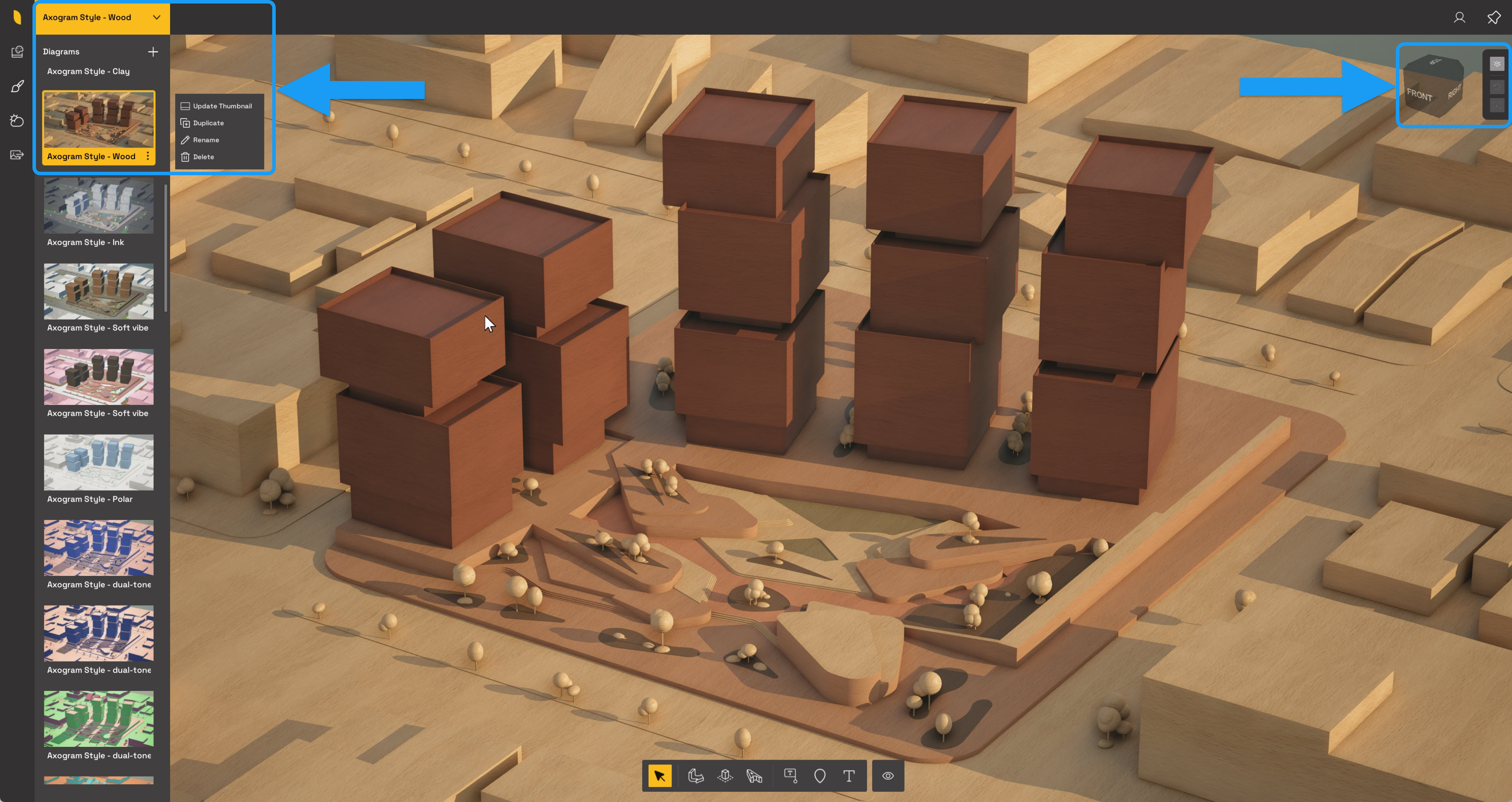
Most settings in Axogram are saved **per Diagram**, rather than applied globally to the entire project. Each ***Diagram*** can have its own settings, including its ***Style*** and ***Environment***.
If your settings appear different after switching between ***Diagrams***, check that the correct ***Diagram*** is selected before making further changes.
### [](https://support.lumion.com/hubfs/TS%20-%20Knowledge%20Base/Axogram/2026-09-14_22-09-111.jpg?hsLang=en)
Select the Diagram you want to edit from the panel on the left.
For more information about managing and customizing ***Diagrams***, see:
- **Knowledge Base:** [How do you customize and render a Diagram in Axogram?](https://support.lumion.com/axogram/how-do-you-customize-and-render-a-diagram-in-axogram?hsLang=en)
### **3. Saving and sharing your work**
All changes made in Axogram are stored within your **CAD project file**. Axogram does not create or require a separate Axogram project file.
The supported CAD project formats are:
| CAD application | Project file format |
| --- | --- |
| SketchUp | `.skp` |
| Revit | `.rvt` |
| Archicad | `.pln` |
> **Important:** Save your CAD project to preserve your Axogram work before closing the application or sharing the file.
Your Axogram ***Diagrams*** remain part of the original CAD project. When you share the project file, other users with access to Axogram can open it and access the ***Diagrams*** included in that project.
### **4. Installation and update issues**
The first release of Axogram may have compatibility issues when updating from the Axogram installer to an installation package downloaded from the **Trimble or Autodesk Marketplace**.
If you experience problems after this type of update, follow these steps:
1. **Save your CAD project**, then close Axogram and your CAD application.
2. **Uninstall all existing Axogram installations** from your PC.
3. **Install Axogram again** using the new installation package and the instructions for your CAD application.
4. **Reopen your CAD application and launch Axogram** to check whether the issue is resolved.
### [](https://support.lumion.com/hs-fs/hubfs/image-png-Sep-14-2026-10-46-31-5777-PM.png?height=357&name=image-png-Sep-14-2026-10-46-31-5777-PM.png&width=457&hsLang=en)
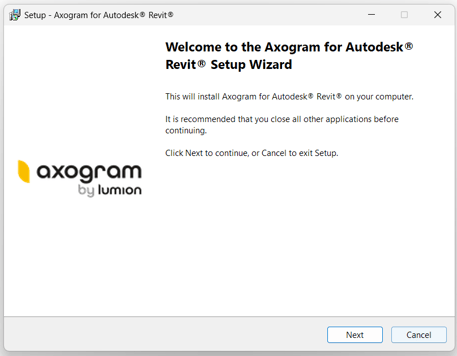
Example: the Axogram setup wizard for Revit. The installation process differs between CAD applications.
For downloads and installation instructions, see:
- **Knowledge Base:** [How do you download and access Axogram?](https://support.lumion.com/axogram/axogram-downloads-and-release-notes?hsLang=en)
If the problem continues, collect the log files described below and contact Technical Support.
### **5. Providing log files**
If you experience problems downloading, installing, or running Axogram, provide the relevant **log files** when contacting Technical Support.
### 5.1. Open the log folder
Open **File Explorer** and navigate to the following folder:
`C:\Users\YourUserName\AppData\Local\Temp\Act-3D\AxogramPlugin`
Replace `YourUserName` with your Windows username. You can paste the completed path into the File Explorer address bar and press **Enter** to open the folder.
### [](https://support.lumion.com/hubfs/TS%20-%20Knowledge%20Base/Axogram/2026-09-14_19-08-31.jpg?hsLang=en)
The folder may contain log files for SketchUp, Revit, or Archicad. Use the file names to identify the relevant CAD application.
### 5.2. Identify the relevant files
Locate the **three most recent log files for the CAD application you are having trouble with**.
For example, if you are using Revit, look for files beginning with:
`Revit_`
Use the **Date modified** column to identify the newest files, then check their **Size**.
> **Important:** Only attach log files that are **larger than 0 KB**. Files showing **0 KB** are empty.
### 5.3. Send the files to Technical Support
Attach the log files to your support request, or to your next reply if you are already speaking with the Technical Support team.
Include a brief description of the issue, the CAD application and version you are using, and any error message you received. A screenshot of the error can also help explain the problem.
If you cannot find the log folder or any files larger than **0 KB**, mention this in your support request.
- **Knowledge Base:** [Contact Lumion Technical Support](https://support.lumion.com/hc/en-us/articles/360042039073?hsLang=en)
- [Visit our other sections](https://support.lumion.com/axogram/visit-our-other-sections?hsLang=en)
- [Getting started](https://support.lumion.com/axogram/getting-started?hsLang=en)
- [General](https://support.lumion.com/axogram/general?hsLang=en)
[](https://lumion.com/)
[mailto:email@email.com](mailto:email@email.com)
Copyright © 2026, Lumion - Act3D B.V.
#### Product
[Plans and pricing](https://lumion.com/product/buy)
[Discover Lumion](https://lumion.com/product/discover-lumion)
[Compatibility](https://lumion.com/compatibility/)
[System Requirements](https://lumion.com/product/system-requirements)
[Find a reseller](https://lumion.com/about/find-reseller)
[Free trial](https://lumion.com/product/free-trial)
#### Solutions
[Architectural design](https://lumion.com/product/architectural-design)
[Interior design](https://lumion.com/product/interior-design)
[Landscape architecture](https://lumion.com/product/landscape-architecture)
[Urban planning](https://lumion.com/product/urban-planning)
[3D rendering](https://lumion.com/product/3d-rendering-software)
[Education](https://lumion.com/product/educational-licenses)
#### Compatibility
[Trimble SketchUp](https://lumion.com/compatibility/sketchup-rendering)
[Autodesk Revit](https://lumion.com/compatibility/revit-rendering)
[Graphisoft ArchiCAD](https://lumion.com/compatibility/archicad-rendering)
[Rhinoceros](https://lumion.com/compatibility/rhino-rendering)
[Autodesk Autocad](https://lumion.com/compatibility/autocad-rendering)
[Autodesk FormIt Pro](https://lumion.com/compatibility/lumion-for-autodesk-formit-pro)
[Nemetschek Allplan](https://lumion.com/compatibility/allplan-rendering)
[Nemetschek Vectorworks](https://lumion.com/compatibility/vectorworks-rendering)
[BricsCAD](https://lumion.com/compatibility/bricscad-rendering)
[3D Studio Max](https://lumion.com/compatibility/3ds-max-rendering)
#### Resources
[Made with Lumion](https://lumion.com/made-with-lumion)
[Tutorials](https://support.lumion.com/video-tutorials?hsLang=en)
[Support and learning](https://support.lumion.com/knowledge-base/api/v2/help_center/en-us/articles/360044608053.json?hsLang=en)
[Downloads](https://support.lumion.com/downloads?hsLang=en)
[Community](https://community.lumion.com/index.php)
#### About
[Our Story](https://lumion.com/about)
[We're hiring!](https://lumion.com/about/careers)
[News](https://lumion.com/news)
[Contact us](https://lumion.com/about/contact)
[Terms & conditions](https://lumion.com/legal/terms-of-service) [EULA](https://lumion.com/legal/eula) [Privacy statement](https://lumion.com/legal/privacy-statement) [CEIP](https://lumion.com/legal/ceip) [Disclaimer](https://lumion.com/legal/disclaimer) © 2026 Lumion