---
title: Axogram Release Notes
description: View the latest Axogram release notes, including new features, improvements, diagramming tools, Styles, Annotations, Action Shapes, and CAD integration.
---
Solutions
[Architectural design All you need to bring your residential, commercial or institutional designs to life](https://lumion.com/product/architectural-design) [Landscape architecture Beautiful terrains and fine-detailed nature for any climate or season](https://lumion.com/product/landscape-architecture)
[Interior design Realistic light, high-quality textures, and an extensive asset library](https://lumion.com/product/interior-design) [Students and Faculties Lumion is free for students, educators, and faculties around the world](https://lumion.com/product/educational-licenses)
[SketchUp](https://lumion.com/compatibility/sketchup-rendering) [Revit](https://lumion.com/compatibility/revit-rendering) [ArchiCAD](https://lumion.com/compatibility/archicad-rendering) [Rhino](https://lumion.com/compatibility/rhino-rendering) [Autocad](https://lumion.com/compatibility/autocad-rendering) [See more](https://lumion.com/compatibility/)
Product
[Discover Axogram New Live architectural diagramming](https://lumion.com/product/axogram) [Lumion Cloud Where design meets collaboration](https://lumion.com/product/lumion-cloud)
[Lumion Pro Advanced visualization solution](https://lumion.com/product/lumion-pro) [Discover AI tools New AI built for architectural work](https://lumion.com/product/ai)
[Lumion Pro 2026.1 is out now! 🚀](https://lumion.com/product/latest-version-pro) [Compatibility](https://lumion.com/compatibility/) [System Requirements](https://lumion.com/product/system-requirements) [Roadmap](https://lumion.com/product/roadmap)
[Pricing](https://lumion.com/product/buy) Resources
[Made with Lumion Get inspired by the stories behind the designs](https://lumion.com/made-with-lumion)
[Tips & Guides Make the most out of Lumion with helpful guides and tutorials](https://lumion.com/tips-guides)
[Knowledge base](https://support.lumion.com/knowledge-base?hsLang=en) [Community](https://community.lumion.com/index.php) [Downloads](https://support.lumion.com/downloads?hsLang=en)
About
[Who we are Learn about our story and mission](https://lumion.com/about) [Careers - We're hiring Let's build the future of architectural visualization](https://lumion.com/about/careers)
[News Discover the latest product news and more](https://lumion.com/news)
[Find your local reseller](https://lumion.com/about/find-reseller) [Contact us](https://lumion.com/about/contact)
[](http://lumion.com)
[My Account](https://account.lumion.com)
Solutions
[Architectural design](https://lumion.com/product/architectural-design) [Interior design](https://lumion.com/product/interior-design) [Landscape architecture](https://lumion.com/product/landscape-architecture) [Students and Faculties](https://lumion.com/product/educational-licenses)
---
[SketchUp](https://lumion.com/compatibility/sketchup-rendering) [Revit](https://lumion.com/compatibility/revit-rendering) [ArchiCAD](https://lumion.com/compatibility/archicad-rendering) [Rhino](https://lumion.com/compatibility/rhino-rendering) [Autocad](https://lumion.com/compatibility/autocad-rendering) [See more](https://lumion.com/compatibility/)
Product
[Axogram New](https://lumion.com/product/axogram) [Lumion Cloud](https://lumion.com/product/lumion-cloud) [Lumion Pro](https://lumion.com/product/lumion-pro) [Discover AI tools New](https://lumion.com/product/ai)
---
[Lumion Pro 2026.1 is out now! 🚀](https://lumion.com/product/latest-version-pro) [Compatibility](https://lumion.com/compatibility/) [System Requirements](https://lumion.com/product/system-requirements) [Roadmap](https://lumion.com/product/roadmap)
[Pricing](https://lumion.com/product/buy) Resources
[Made with Lumion](https://lumion.com/made-with-lumion) [Tips & Guides](https://lumion.com/tips-guides)
---
[Knowledge base](https://support.lumion.com/knowledge-base?hsLang=en) [Community](https://community.lumion.com/index.php) [Downloads](https://support.lumion.com/downloads?hsLang=en)
About
[Who we are](https://lumion.com/about) [Careers - We're hiring](https://lumion.com/about/careers) [News](https://lumion.com/news)
---
[Find your local reseller](https://lumion.com/about/find-reseller) [Contact us](https://lumion.com/about/contact)
[My Account](https://account.lumion.com)
[Submit a request](https://support.lumion.com/hc/en-us/requests/new?hsLang=en)
[](https://lumion.com/) [Login](https://account.lumion.com/)
[](https://lumion.com/)
## Main menu
Solutions
Product
[Pricing](https://lumion.com/product/buy)
Resources
About
[Submit a request](https://support.lumion.com/hc/en-us/requests/new?hsLang=en)
[Login](https://account.lumion.com/)
Start for free
Back
### Solutions
[Architectural design](https://lumion.com/product/architectural-design) [Interior design](https://lumion.com/product/interior-design) [Landscape architecture](https://lumion.com/product/landscape-architecture) [Students and Faculties](https://lumion.com/product/educational-licenses)
---
[SketchUp](https://lumion.com/compatibility/sketchup-rendering) [Revit](https://lumion.com/compatibility/revit-rendering) [ArchiCAD](https://lumion.com/compatibility/archicad-rendering) [Rhino](https://lumion.com/compatibility/rhino-rendering) [Autocad](https://lumion.com/compatibility/autocad-rendering) [See more](https://lumion.com/compatibility/)
Back
### Product
[Axogram — New](https://lumion.com/product/axogram) [Lumion Cloud](https://lumion.com/product/lumion-cloud) [Lumion Pro](https://lumion.com/product/lumion-pro) [Discover AI tools — New](https://lumion.com/product/ai)
---
[Lumion Pro 2026.1 is out now! 🚀](https://lumion.com/product/latest-version-pro) [Compatibility](https://lumion.com/compatibility/) [System Requirements](https://lumion.com/product/system-requirements) [Roadmap](https://lumion.com/product/roadmap)
Back
### Resources
[Made with Lumion](https://lumion.com/made-with-lumion) [Tips & Guides](https://lumion.com/tips-guides)
---
[Knowledge base](https://support.lumion.com/knowledge-base?hsLang=en) [Community](https://community.lumion.com/index.php) [Downloads](https://support.lumion.com/downloads?hsLang=en)
Back
### About
[Who we are](https://lumion.com/about) [Careers - We're hiring](https://lumion.com/about/careers) [News](https://lumion.com/news)
---
[Find your local reseller](https://lumion.com/about/find-reseller) [Contact us](https://lumion.com/about/contact)
Back
### Start for free
[Lumion Pro](https://lumion.com/product/free-trial#request-trial) [Lumion Cloud](https://lumion.com/product/lumion-cloud#start) [Axogram](https://lumion.com/product/axogram#plans-pricing)
Lumion Knowledge Base: Axogram
How can we help?
- There are no suggestions because the search field is empty.
[Skip to content](https://support.lumion.com/axogram/release-notes#main-content)
English
Show submenu for translations

Open main navigation
Close main navigation
- English
Show submenu for translations
- Contact us
Contact us
How can we help you?
- There are no suggestions because the search field is empty.
1. [Axogram](https://support.lumion.com/axogram?hsLang=en)
2. [General](https://support.lumion.com/axogram/general?hsLang=en)
# Axogram Release Notes
## Diagramming, made easy

Meet Axogram, our new plugin created specifically for architectural diagramming.
Working directly alongside your CAD application, Axogram lets you transform your live 3D model into clear, expressive diagrams using visual %%Styles%%, material overrides, %%Annotations%%, %%Flow Lines%%, %%Zones%%, %%3D text%%, and other communication tools.
Learn all about getting started, system requirements, compatibility, and access in the articles below:
- **Knowledge Base:** [What is Axogram and how do you get started?](https://support.lumion.com/axogram/what-is-axogram-and-how-do-you-get-started?hsLang=en)
- **Knowledge Base:** [How do you download and access Axogram?](https://support.lumion.com/axogram/axogram-downloads-and-release-notes?hsLang=en)
- **Knowledge Base:** [What kind of computer does Axogram need?](https://support.lumion.com/axogram/what-kind-of-computer-does-axogram-need?hsLang=en)
### **Release Notes:**
Version 26.2.0
###### October 15, 2026
This is a major update that adds numerous quality of life improvements and new features.
### New Features and changes
#### 1. Action Shapes, Annotations & Zones
● **Multi-selection for %%Action Shapes%% and %%Annotations%%:** You can now select multiple %%Action Shapes%% at once using the #Shift# key to batch-edit styling properties, reposition, copy, or delete them together.
● **Duplication & Copy/Paste:** Quickly duplicate elements using #Alt#+Drag or copy and paste them via #Ctrl#+#C# and #Ctrl#+#V#. Pasting within the same %%Diagram%% places the duplicate at your cursor, while pasting into another %%Diagram%% retains the exact 3D anchor position from where you copied it from.
● **Cross-%%Diagram%% Copy/Paste:** Seamlessly copy and paste %%Annotations%%, %%Markers%%, and %%Callouts%% between different %%Diagrams%% while preserving their 3D anchor coordinates and styling.
● **Elevated %%Zones%% & 3D Prism Lines:** Added full support and UI controls for elevated %%Zones%%, including toggleable downward raycasted lines from boundary nodes to create a clean 3D prism outline effect.
● %%**Flow Line%% Node Arrows:** Replaced vertical arrows on %%Flow Line%% nodes with 3D screen-space arrows for easier, more intuitive manipulation.
● **4-Dot Selection Bounds:** Replaced the blue selection outline with a clean 4-dot bounding box, aligning %%Annotation%% selection visuals with %%Action Shapes%%.
● **Custom Icon Improvements:** Updated custom icon schema, restored custom icon creation reliability, and ensured custom icons persist properly when sharing projects across machines.
#### 2. Camera & Navigation
● **Camera Frame Shortcut Updated** (#Ctrl#+#Shift#+#C#): Updated the camera frame shortcut from #Ctrl#+#C# to #Ctrl#+#Shift#+#C#, freeing up #Ctrl#+#C# for universal copy/paste operations across the application.
● **CAD Camera Alignment on New %%Diagrams%%:** Newly created %%Diagrams%% now inherit the active camera orientation and position directly from your CAD tool instead of copying the previous %%Diagram's%% camera.
#### 3. Visual Styles & Environment
● **%%Style Mixer%% Selection Outline:** Replaced the material stripe pattern with a crisp, constant-width outline rim around selected meshes in the Style Mixer.
● **Slider Visual Overlays:** Added sketch overlays and visual cues to parameter sliders for clearer adjustment feedback.
● **Precision Slider Adjustments:** Enabled holding #Shift# while dragging sliders (including %%Sky Brightness%%, %%Cloudiness%%, and %%Style Scale%%) for fine-grained decimal precision.
● **Material & Glass Rendering Parity:** Restored live %%Glass%% and %%Water%% reflections in %%Oorthographic%% views, matched CAD tint and %%Opacity%% levels from Revit, SketchUp, and Archicad, fixed issues where materials remained opaque after %%Opacity%% adjustments.
#### 4. UI/UX
● **In-App Notifications:** Added an in-app notification panel to deliver updates about new versions, features, and announcements directly inside Axogram.
● **Quick Feedback Button:** Added a feedback shortcut icon to the bottom-left corner of the workspace for quick feedback submission.
● **Responsive Dialogs & Modals:** Paywall and upgrade dialogs are now responsive and scrollable on smaller screens and can be closed using #Esc# or clicking outside. Scene interaction is properly blocked while modal dialogs are open.
● **Diagram Deck Navigation:** Polished the %%Diagram%% deck dropdown arrow behavior and fixed layout state transitions.
● **Font Support & Naming:** Expanded %%Diagram%% title font support for user-defined and international characters, and corrected font dropdown naming.
#### 5. Compatiblity
● **Revit 2025 Compatibility:** Resolved plugin and %%LiveSync%% compatibility issues in Revit 2025 and updated NuGet dependencies.
● **Undo/Redo Stability:** Restored undo/redo support for environment toggles (such as %%Time of Day%%) and prevented grouped undo conflicts during rapid diagram creation.
### Bug Fixes
● Fixed an issue where copying transparent renders resulted in a solid black background.
● Fixed 16:9 %%Aspect Ratio%% cropping being ignored during Full HD and 4K export.
● Resolved an issue where closing Axogram during an active render left the background process running.
● Fixed the "Save As" confirmation dialog appearing behind the main Axogram window when pinned.
● Fixed diagram thumbnails failing to refresh automatically after switching visual %%Styles%%.
● Resolved an issue where the user profile menu would not open after logging in via the login dialog.
● Fixed a bug where double-clicking scene visibility toggles accidentally placed annotations in the scene.
● Standardized UI terminology to US English ("Color" instead of "Colour").
Version 26.1.9
###### September 21, 2026
This is a minor update that includes a few fixes and changes:
- Fixed an caused by Asian and Cirylic fonts
- Added additional telemetry event logging
- Fixed a rendering problem with certain *Materials*
- Holding #SHIFT# while moving a slider now works properly for higher precision adjustments
Version 26.1.8
###### September 15, 2026
Axogram is an evolution of (the now discontinued) Lumion View; however, it has been completely reimagined and redesigned from the ground up with new features, settings, and improvements. See the list of changes below:
### New Features and changes
#### 1. Fully separate plugin
No longer bundled with or tied to Lumion %%LiveSync%%. Axogram and %%LiveSync%% now run as two distinct tools inside SketchUp, Revit, and Archicad, so you choose Axogram for diagramming and %%LiveSync%% for continuing into Lumion Pro.
#### 2. Completely redesigned UI
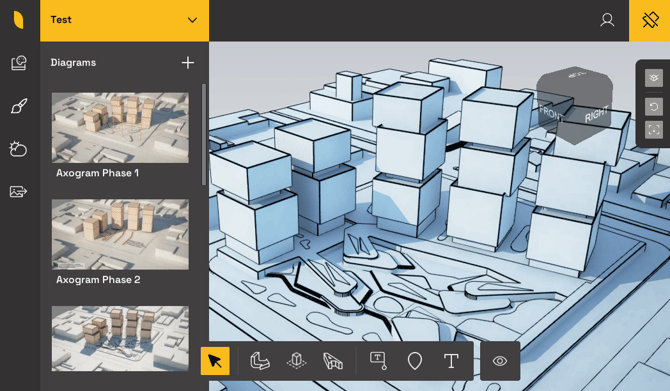
Axogram introduces an entirely new visual identity, distinct from Lumion Pro and the old Lumion View, built around a purpose-made design system:
- **New sidebar layout:** Main modes now live in a sidebar similar to Lumion Pro's structure, but restyled for Axogram's own look and feel.
- **New typography.**
- **New brand identity and logo.**
- **Rebuilt secondary interfaces**: The %%Environment%% tab was redesigned with a cleaner layout and gradient support, and the rendering panel was reorganized, all in the new visual language.
#### 3. Create and manage diagrams
Create multiple %%Diagrams%% (5 on the free version, unlimited on Paid) from the same CAD model without duplicating or altering the source model. You can:
- Create, duplicate, rename, reorder, and delete %%Diagrams%%.
- Save and revert the camera position for each %%Diagram%%.
- Update %%Diagram%% thumbnails automatically.
- Give each %%Diagram%% its own camera, %%Style%%, %%Environment%%, %%Annotations%%, and more.
- Return to your %%Diagrams%% across working sessions.
This makes it possible to develop several views, stories, and presentation %%Styles%% from a single design. %%Environment%% settings are saved separately for each diagram, allowing the same model to be presented under different lighting conditions.
#### 4. Diagrammatic Styles
Quickly define the visual language of a diagram using a selection of ready-made Diagrammatic %%Styles%%.
Styles can change the overall treatment of the model, including:
- Colors and tinting.
- Surface appearance.
- Edge visibility and color.
- Shadows.
- Texture scale.
- Visual effects such as noise and linework.
Each %%Style%% can be adjusted to create anything from a clean technical drawing to a softer conceptual presentation.
#### 5. Style Mixer
The %%Style Mixer%% gives you more control over the appearance of individual materials and parts of your design.
Use it to:
- Identify %%Materials%% by clicking on surfaces.
- Select %%Material%% groups directly from the model.
- Highlight every object using the selected %%Material%%.
- Apply different colors and diagrammatic textures.
- Add or adjust edges for selected materials.
- Review and manage previously styled materials.
%%Style Mixer%% settings are saved between sessions, allowing you to continue refining the visual treatment of your project later.
Learn more about customization, diagrams, and rendering in the article below:
- **Knowledge Base:** [How do you customize and render a Diagram in Axogram?](https://support.lumion.com/axogram/how-do-you-customize-and-render-a-diagram-in-axogram?hsLang=en)
#### 6. Rebuilt Fly/navigation experience
Acrosshair now appears when moving with WASD, right-click-drag lets you orbit around any point on the model, movement carries a touch of inertia for smoother flying, and camera sensitivity is faster overall.
You can see all navigation Keyboard Shortcuts below:
- **Knowledge Base:** [Keyboard Shortcuts in Axogram](https://support.lumion.com/axogram/keyboard-shortcuts-in-axogram?hs_preview=tVEQVrJu-458824700097&hsLang=en)
#### 7. Annotations
It is now possible to add information directly to your model using customizable %%Annotations%%.
Annotations can include:
- Labels and descriptions.
- Leader lines.
- Pin markers.
- Icons and pictograms.
- Custom fonts, colors, and text sizes.
- Bold and italic text.
- Adjustable backgrounds, outlines, and transparency.
%%Annotations%% belong to the %%Diagram%% in which they were created, so each %%Diagram%% can communicate different information without affecting the others.
#### 8. Action Shapes and Zones
Use %%Action Shapes%% to explain movement, circulation, relationships, areas, and design intent.
Available tools include:
- %%3D arrows%%
- %%Flow Lines%%
- %%Zones%%.
- Circles and directional endpoints.
- %%3D Text%%
You can add, move, edit, and remove individual nodes, with snapping support for more precise placement.
%%Zones%% provide real-time drawing feedback and a preview of the next node, helping you create areas more accurately.
You can learn more about all the new %%Action Shapes%% and %%Annotation%% objects in the toolbar from the article below:
- **Knowledge Base:** [How do you annotate diagrams in Axogram?](https://support.lumion.com/axogram/how-do-you-annotate-diagrams-in-axogram?hsLang=en)
#### 9. Exposure slider
#### 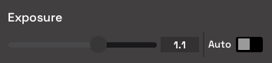
In the %%Environment%% tab, you can now disable %%Auto Exposure%% and adjust it manually using the slider.
#### 10. Gradient Backgrounds
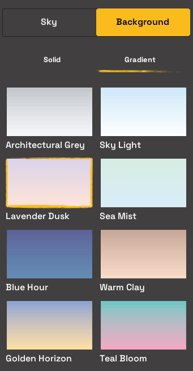
Aside from the %%Sky%% and %%Solid%% colors, there are now 8 different gradient %%Backgrounds%% to choose from:
#### 11. Lumion Cloud AI enhancer integration
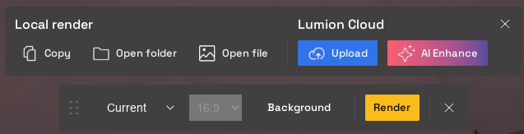
The finished render menu now has an %%AI Enhance%% button. Clicking the button will quickly upload the render and take you to the Lumion Cloud enhancer screen.
#### Moving from Lumion View?
For information about Axogram access, Lumion View availability, and moving to the new plugin, see:
- **Knowledge Base:** [From Lumion View to Axogram](https://support.lumion.com/axogram/from-lumion-view-to-axogram?hs_preview=tVEQVrJu-458824700097&hsLang=en)
#### See Also:
- **Lumion Website:** [Axogram product page](https://lumion.com/product/axogram)
- **Lumion News:** [Lumion launches Axogram](https://lumion.com/news/lumion-launches-axogram)
- [Visit our other sections](https://support.lumion.com/axogram/visit-our-other-sections?hsLang=en)
- [Getting started](https://support.lumion.com/axogram/getting-started?hsLang=en)
- [General](https://support.lumion.com/axogram/general?hsLang=en)
[](https://lumion.com/)
[mailto:email@email.com](mailto:email@email.com)
Copyright © 2026, Lumion - Act3D B.V.
#### Product
[Plans and pricing](https://lumion.com/product/buy)
[Discover Lumion](https://lumion.com/product/discover-lumion)
[Compatibility](https://lumion.com/compatibility/)
[System Requirements](https://lumion.com/product/system-requirements)
[Find a reseller](https://lumion.com/about/find-reseller)
[Free trial](https://lumion.com/product/free-trial)
#### Solutions
[Architectural design](https://lumion.com/product/architectural-design)
[Interior design](https://lumion.com/product/interior-design)
[Landscape architecture](https://lumion.com/product/landscape-architecture)
[Urban planning](https://lumion.com/product/urban-planning)
[3D rendering](https://lumion.com/product/3d-rendering-software)
[Education](https://lumion.com/product/educational-licenses)
#### Compatibility
[Trimble SketchUp](https://lumion.com/compatibility/sketchup-rendering)
[Autodesk Revit](https://lumion.com/compatibility/revit-rendering)
[Graphisoft ArchiCAD](https://lumion.com/compatibility/archicad-rendering)
[Rhinoceros](https://lumion.com/compatibility/rhino-rendering)
[Autodesk Autocad](https://lumion.com/compatibility/autocad-rendering)
[Autodesk FormIt Pro](https://lumion.com/compatibility/lumion-for-autodesk-formit-pro)
[Nemetschek Allplan](https://lumion.com/compatibility/allplan-rendering)
[Nemetschek Vectorworks](https://lumion.com/compatibility/vectorworks-rendering)
[BricsCAD](https://lumion.com/compatibility/bricscad-rendering)
[3D Studio Max](https://lumion.com/compatibility/3ds-max-rendering)
#### Resources
[Made with Lumion](https://lumion.com/made-with-lumion)
[Tutorials](https://support.lumion.com/video-tutorials?hsLang=en)
[Support and learning](https://support.lumion.com/knowledge-base/api/v2/help_center/en-us/articles/360044608053.json?hsLang=en)
[Downloads](https://support.lumion.com/downloads?hsLang=en)
[Community](https://community.lumion.com/index.php)
#### About
[Our Story](https://lumion.com/about)
[We're hiring!](https://lumion.com/about/careers)
[News](https://lumion.com/news)
[Contact us](https://lumion.com/about/contact)
[Terms & conditions](https://lumion.com/legal/terms-of-service) [EULA](https://lumion.com/legal/eula) [Privacy statement](https://lumion.com/legal/privacy-statement) [CEIP](https://lumion.com/legal/ceip) [Disclaimer](https://lumion.com/legal/disclaimer) © 2026 Lumion