⚠️Lumion View has evolved into Axogram
Lumion View has been discontinued and replaced by Axogram, a free tool with new and improved features for creating live architectural diagrams directly from your CAD model.
Learn more about the transition from Lumion View to Axogram →
Menu:
1. Edit the Environment settings
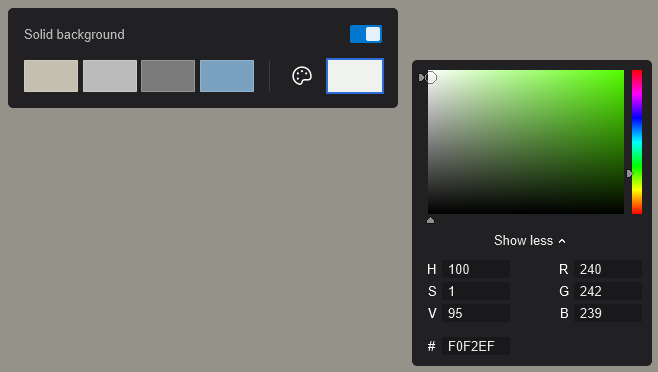
4.1: Enabling Solid Background
The Editors for SketchUp (Win), Revit (Win), and ArchiCAD are very similar and are shown here.
Note (as at 19 February 2026): Sky and Clouds for Lumion View for ArchiCAD is currently in development. Please wait for further changes in a later version update.
For the SketchUp (Mac) edition, see:
-
Knowledge Base: Working in the Lumion View Editor for SketchUp (Mac): Environment: Sun, Sky and Background
1. Edit the Environment settings:
Edit the Environment settings for:
Sun and Sky settings and Background Color.
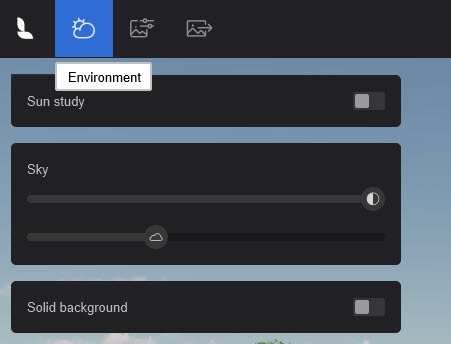
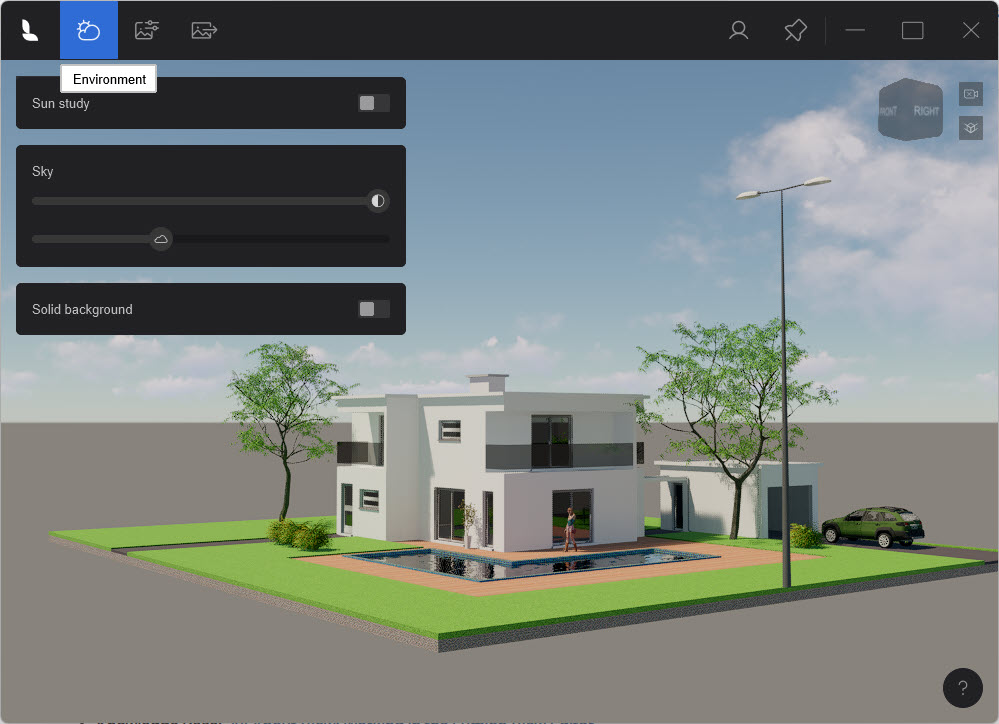
2. Sun Study:
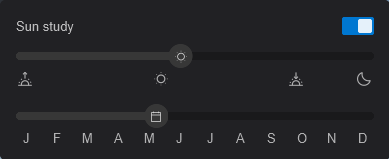
There are different options to sync the Sun Light and Shadows settings from SketchUp.
2.1: Use SketchUp settings
Keeping the Sun Study toggle off will automatically sync the Time of Day and Month from SketchUp:


2.2: Use Lumion View
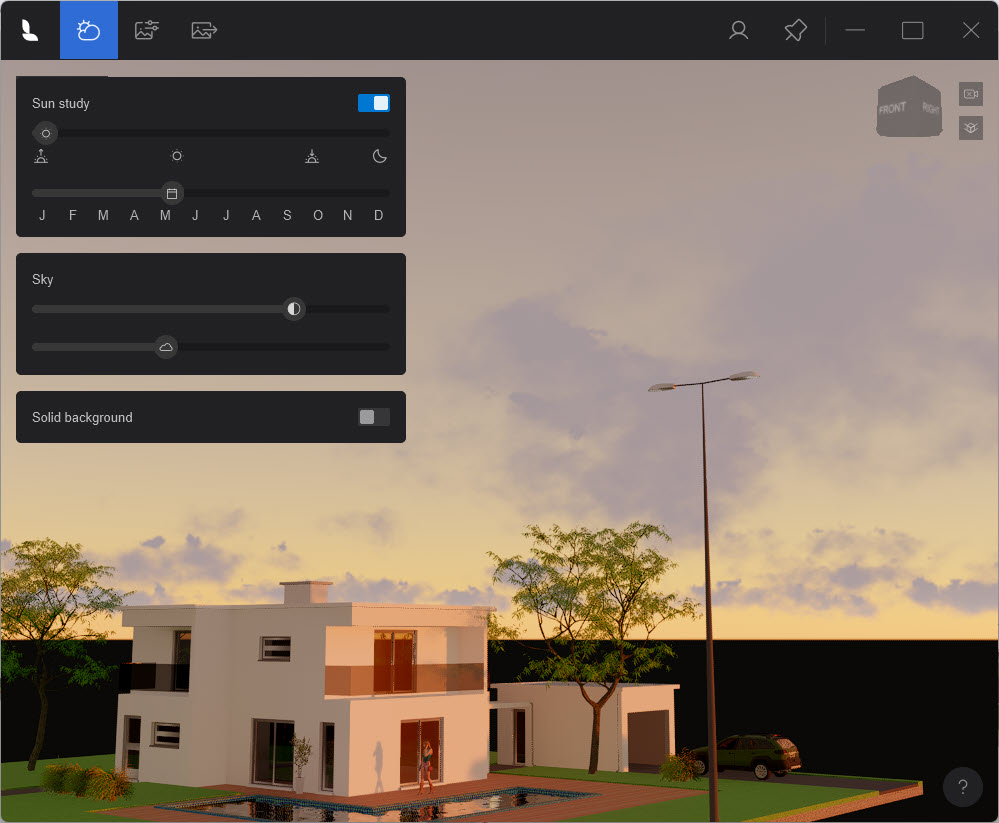
Enabling the Sun Study toggle will allow you to overwrite the Time of Day settings in SketchUp.
You can then use a custom Sun position, and also set the Sky Brightness and amount of cloud - Cloudiness.
3. Sky:
Use in combination with the Sun Study sliders for Time of Day - sun height etc.
Or use by itself with Sun Study turned off to make for simpler, quicker adjustments to just the skies overall impact on direct lighting.
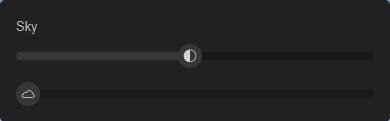
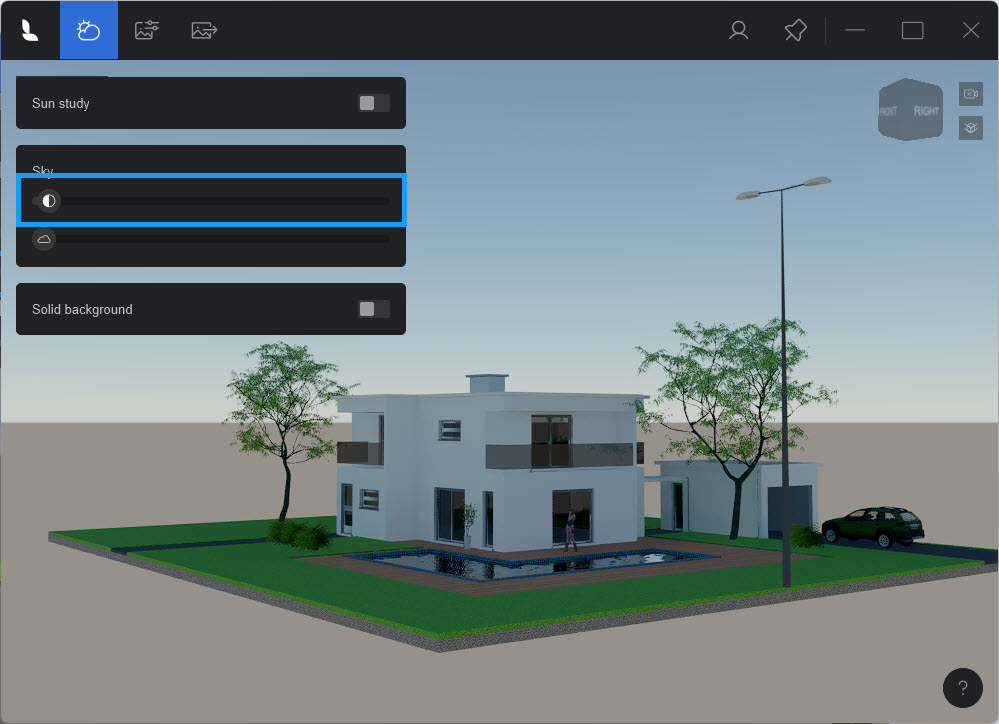
3.1: Sky Brightness
Control of the skies brightness. This will impact on the darkness to brightness of the overall ambient sky lighting of the Scene.
3.2: Cloudiness
More or less cloud is distributed across the sky.
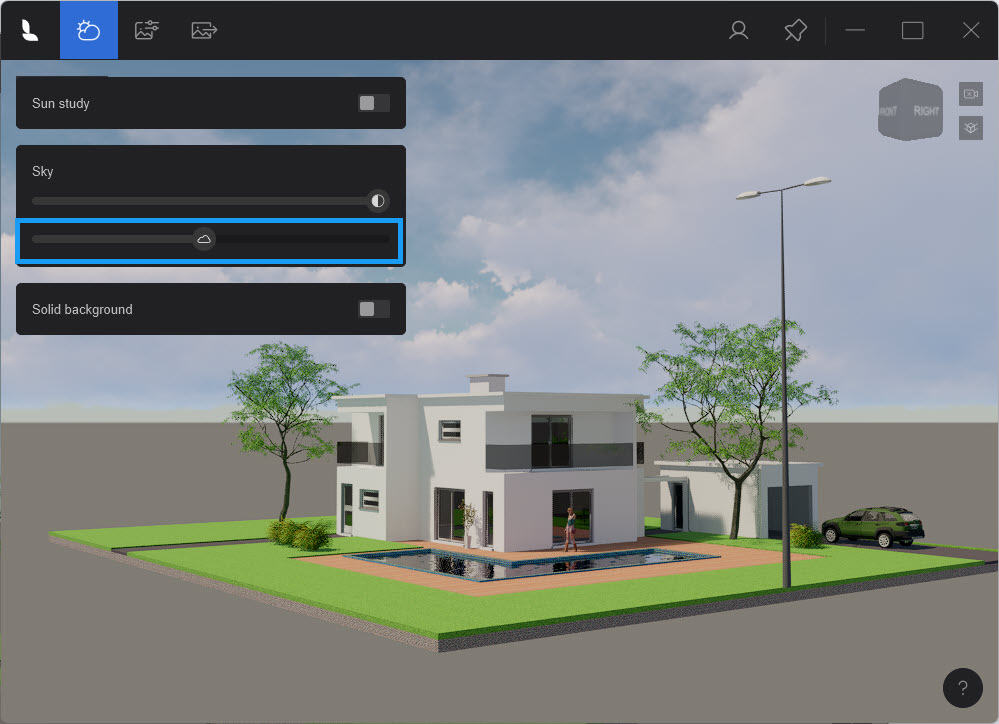
Note: The amount of Cloudiness will have an impact on lighting. Having more clouds will result in softer shadows.
4. Solid Background:
4.1: Enabling Solid Background
Use a solid background for a difference in style than a sky.
By default, the Solid Background (color) is not Enabled until you click the button. When Disabled, Lumion View shows the real-world Sky and Clouds.

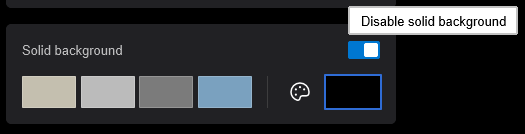
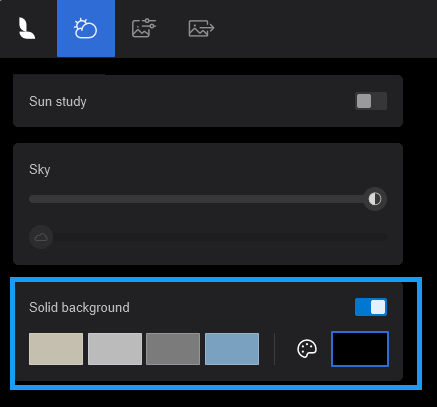
The color chosen will be retained if you disable the solid background. Including when you have a new session of Lumion View (Stop then Start).
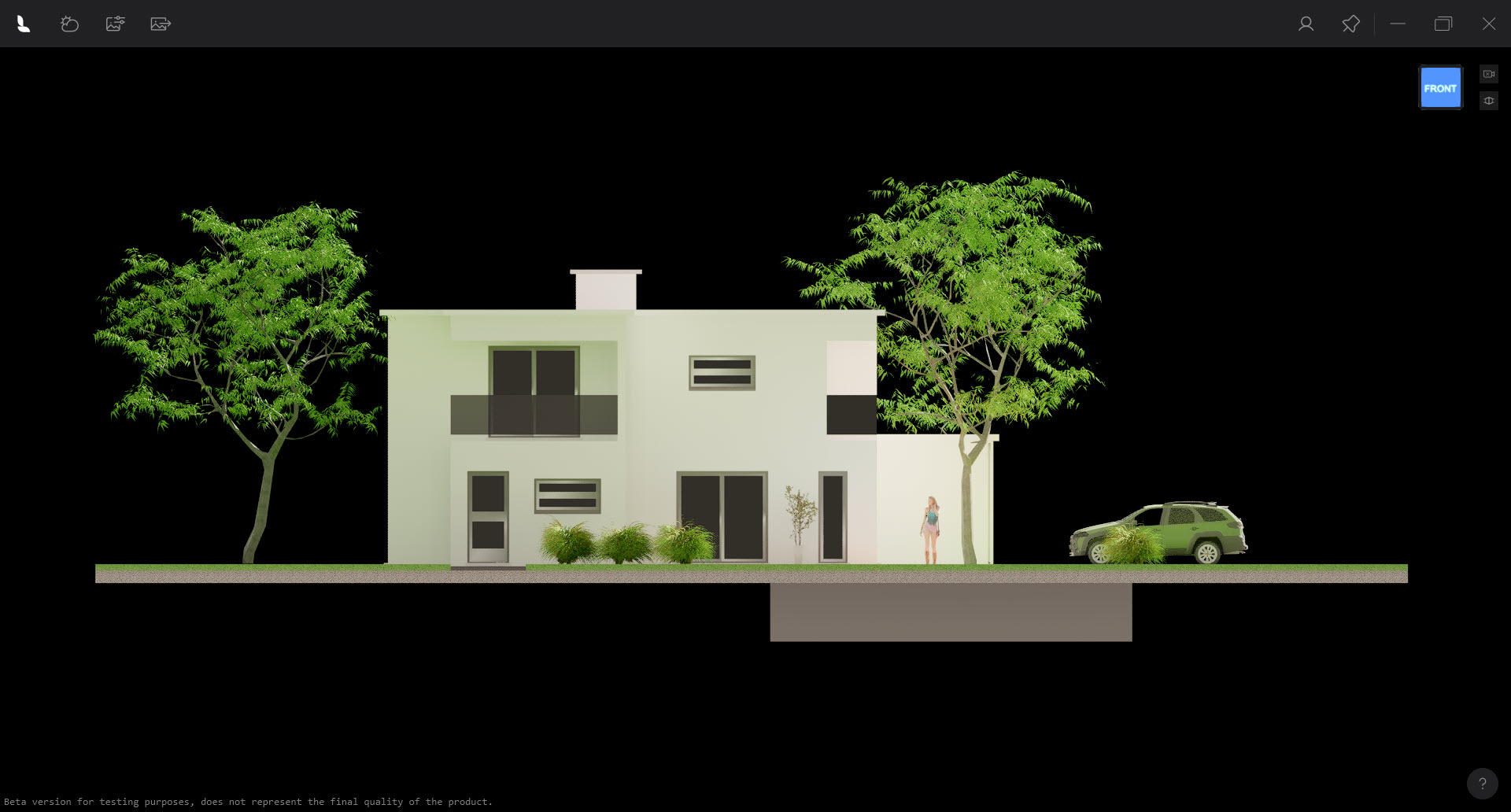
If you choose a single color background, your Sky and Sun settings will still be used to generate correct lighting for the Ray Trace render. However, there will be adjustments for the Exposure from the single color. Along with expected changes in the reflections.
4.2: Background Color Choices
Choose from a palette of four (4) set colors.
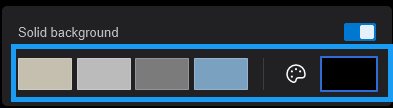
Or select your own Color from the Color Palette.