

⚠️Lumion View has evolved into Axogram
Lumion View has been discontinued and replaced by Axogram, a free tool with new and improved features for creating live architectural diagrams directly from your CAD model.
Learn more about the transition from Lumion View to Axogram →
Menu:
3. Conceptual Styles - Options.
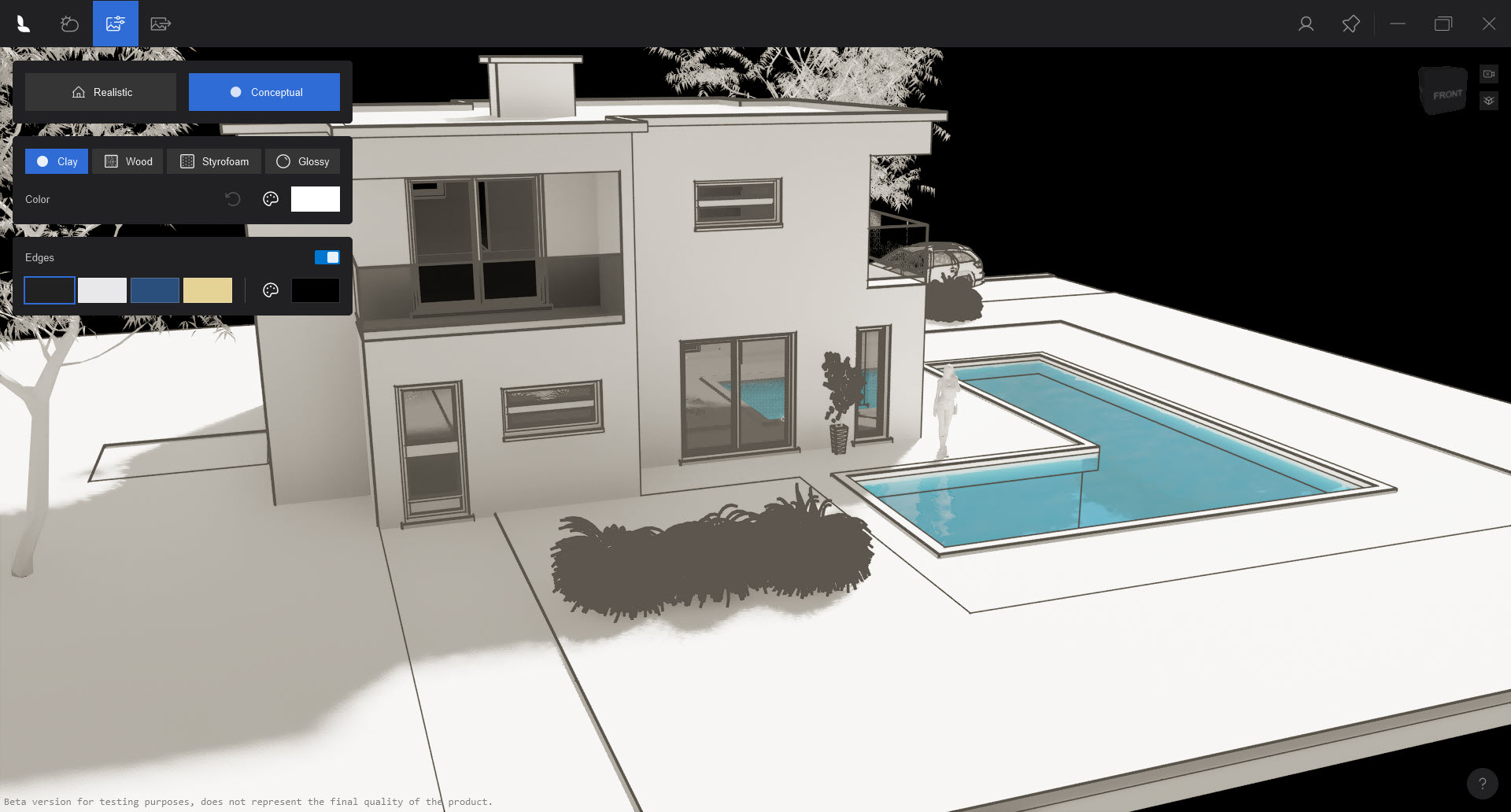
3.1: Conceptual - Edges - Clay.
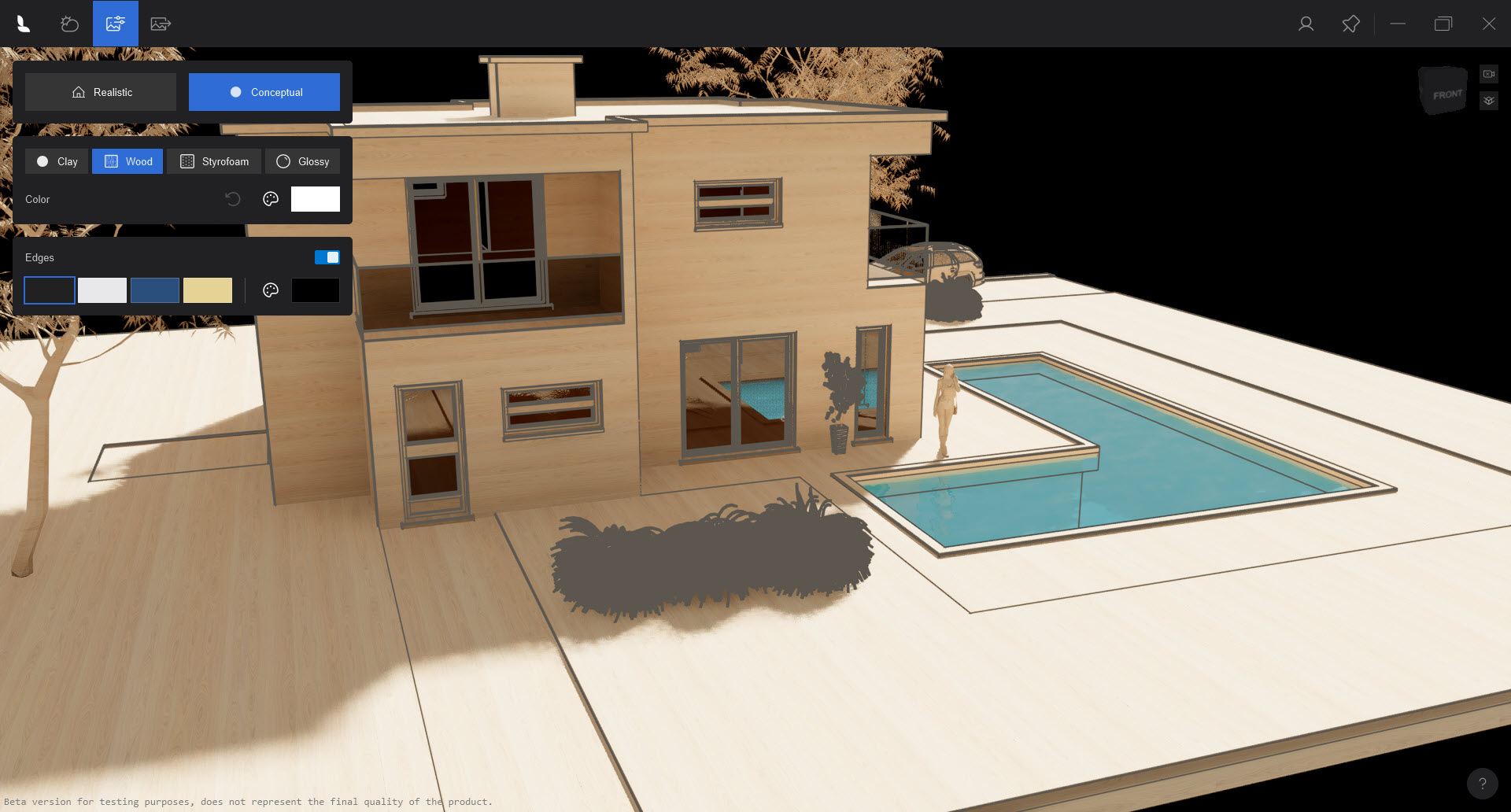
3.2: Conceptual - Edges - Wood.
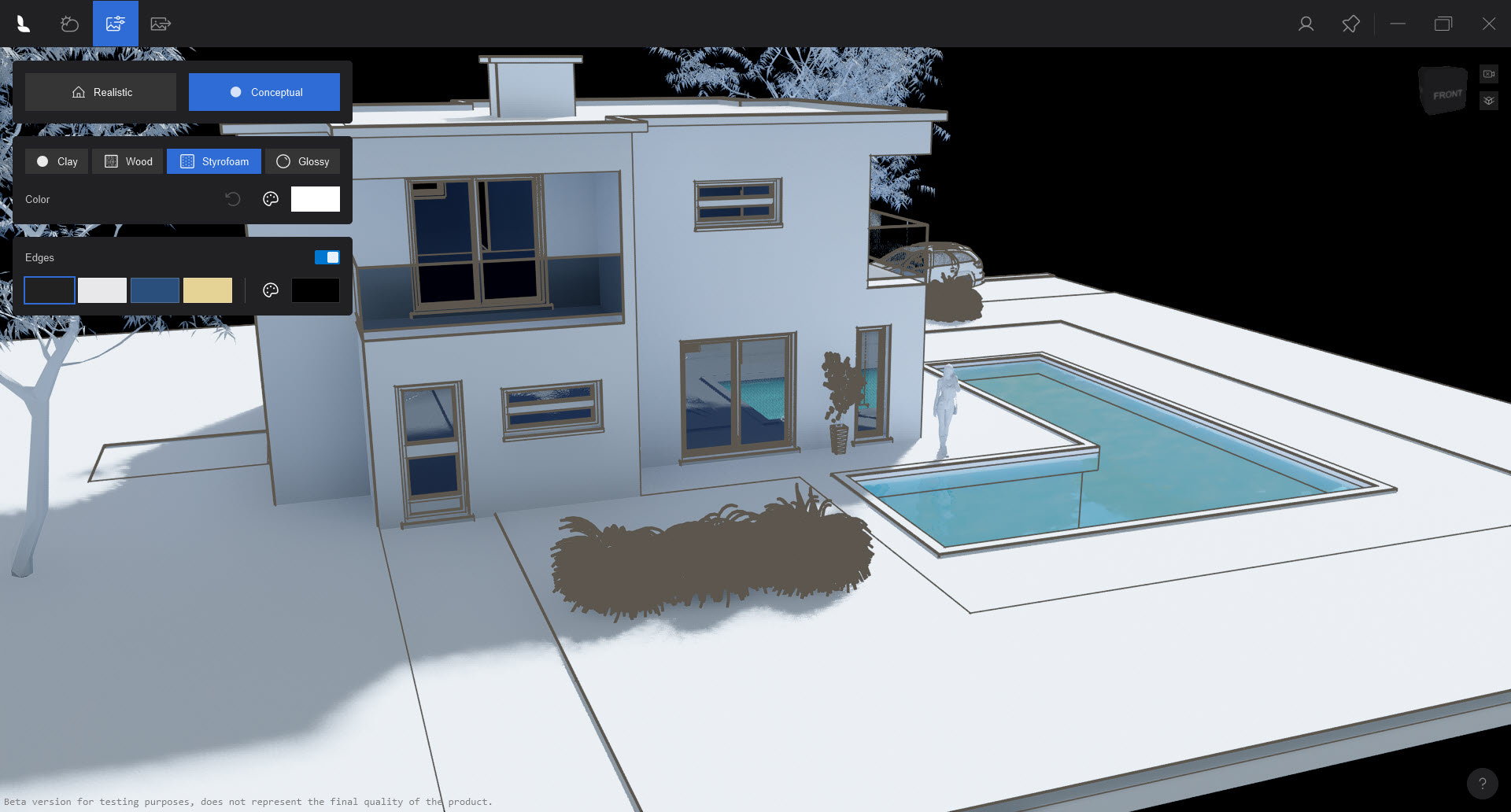
3.3: Conceptual - Edges - Styrofoam.
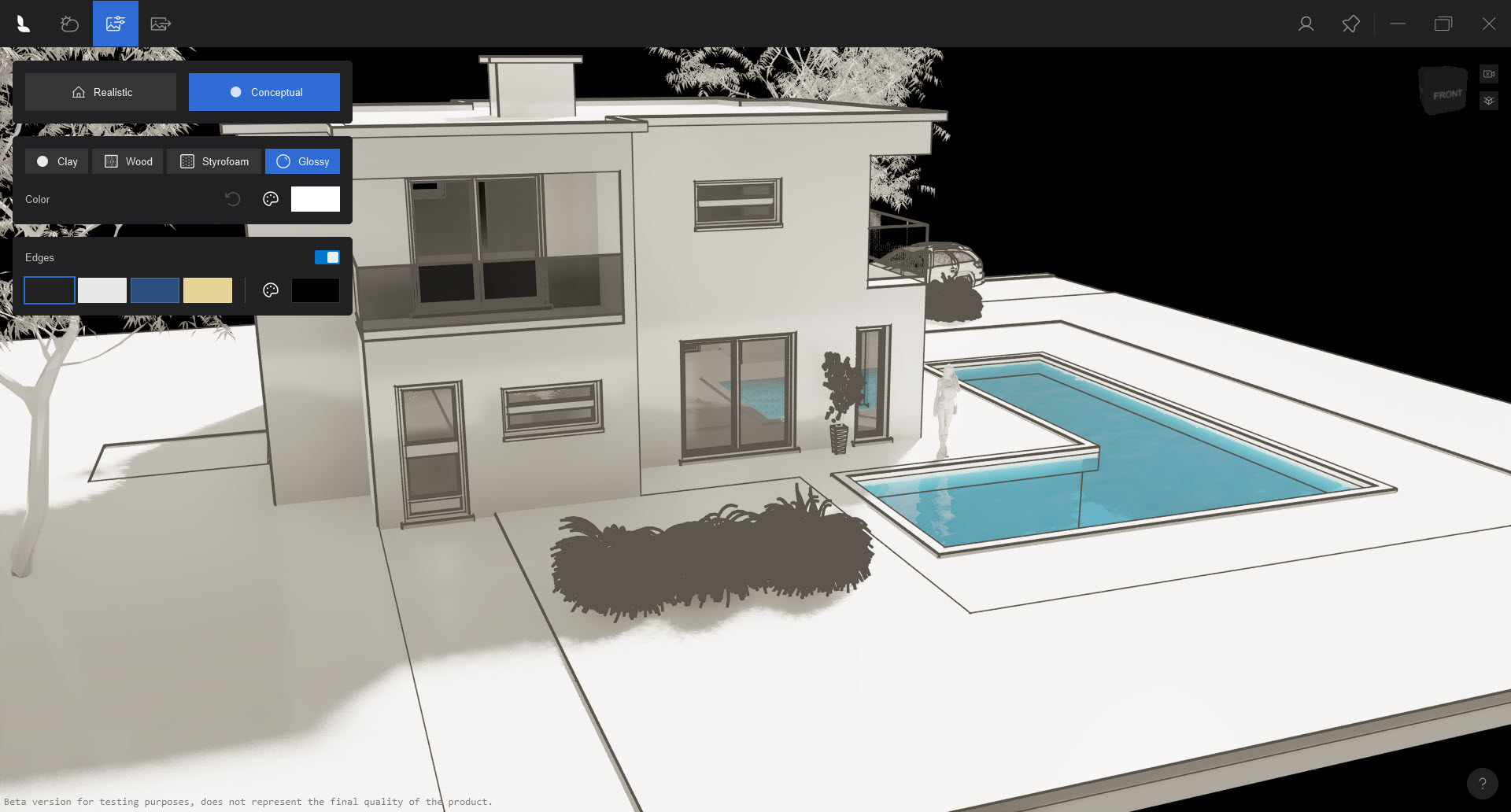
3.4: Conceptual - Edges - Glossy.
(Screenshots show Lumion View for SketchUp for Windows edition )
1. Visual Styles:
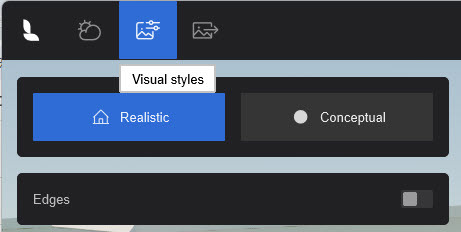
How do you want to communicate the look and feel for your design to the client?
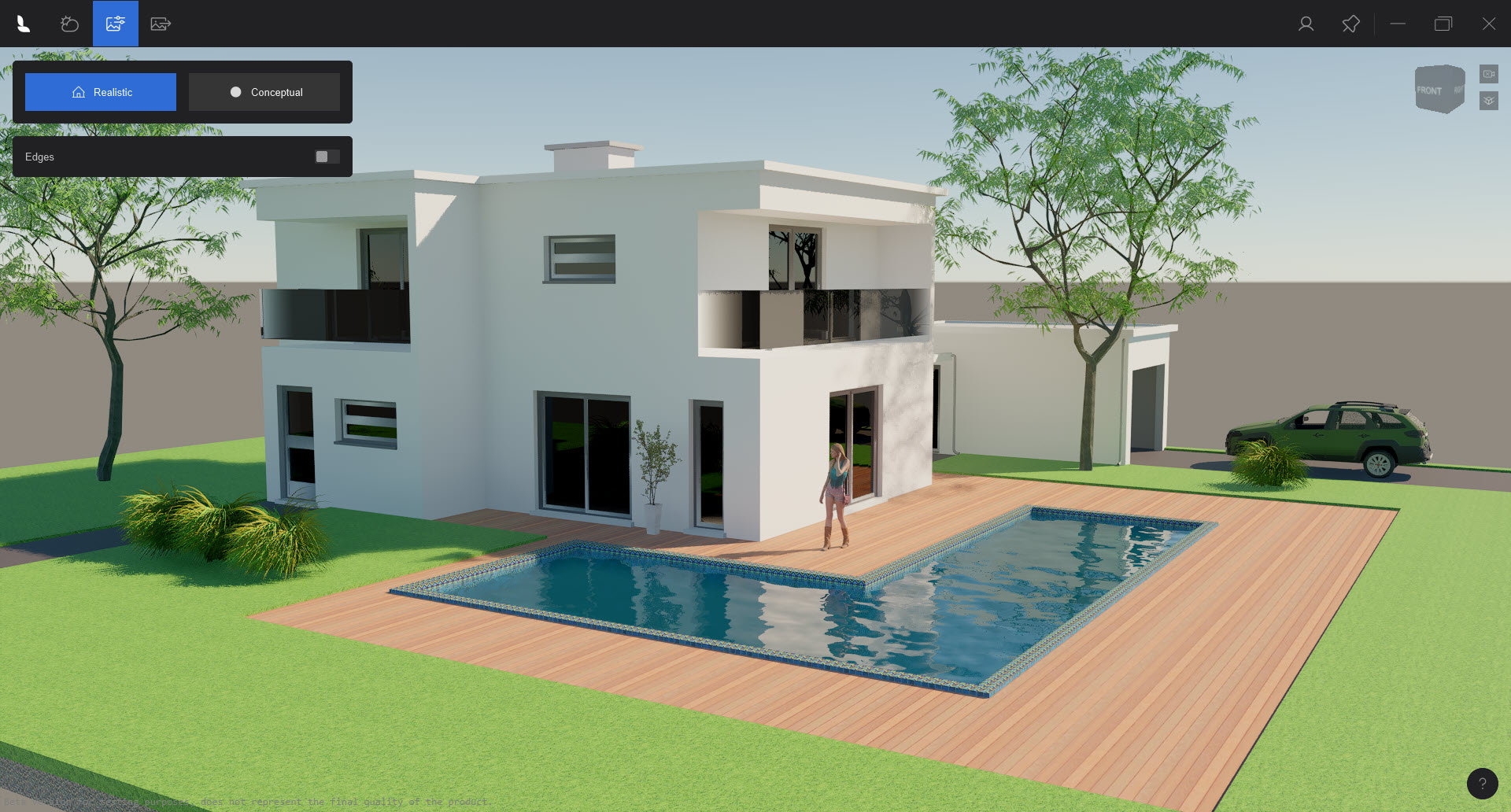
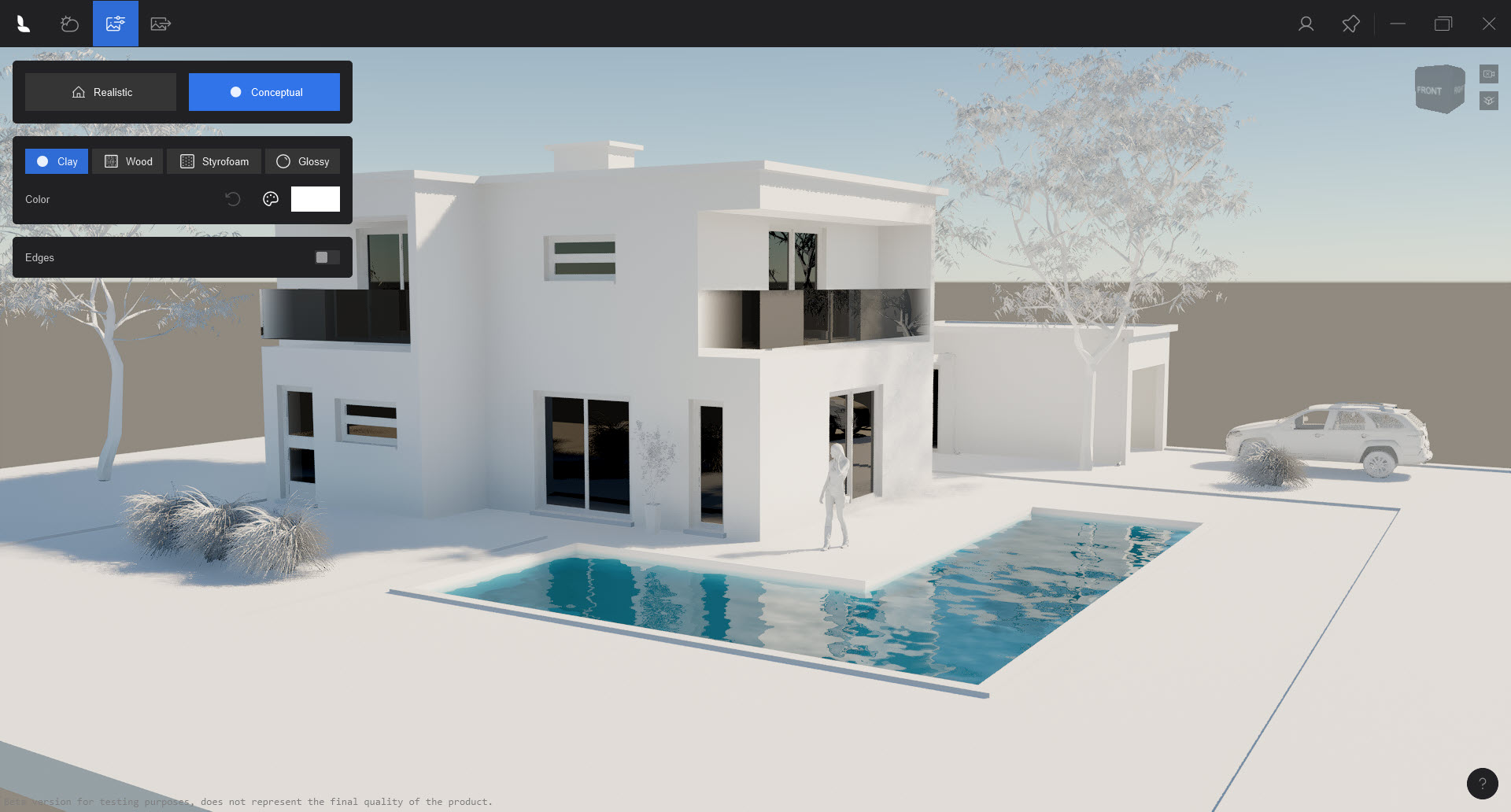
Set one of two overall Styles:
1.1: Realistic
1.2: Conceptual
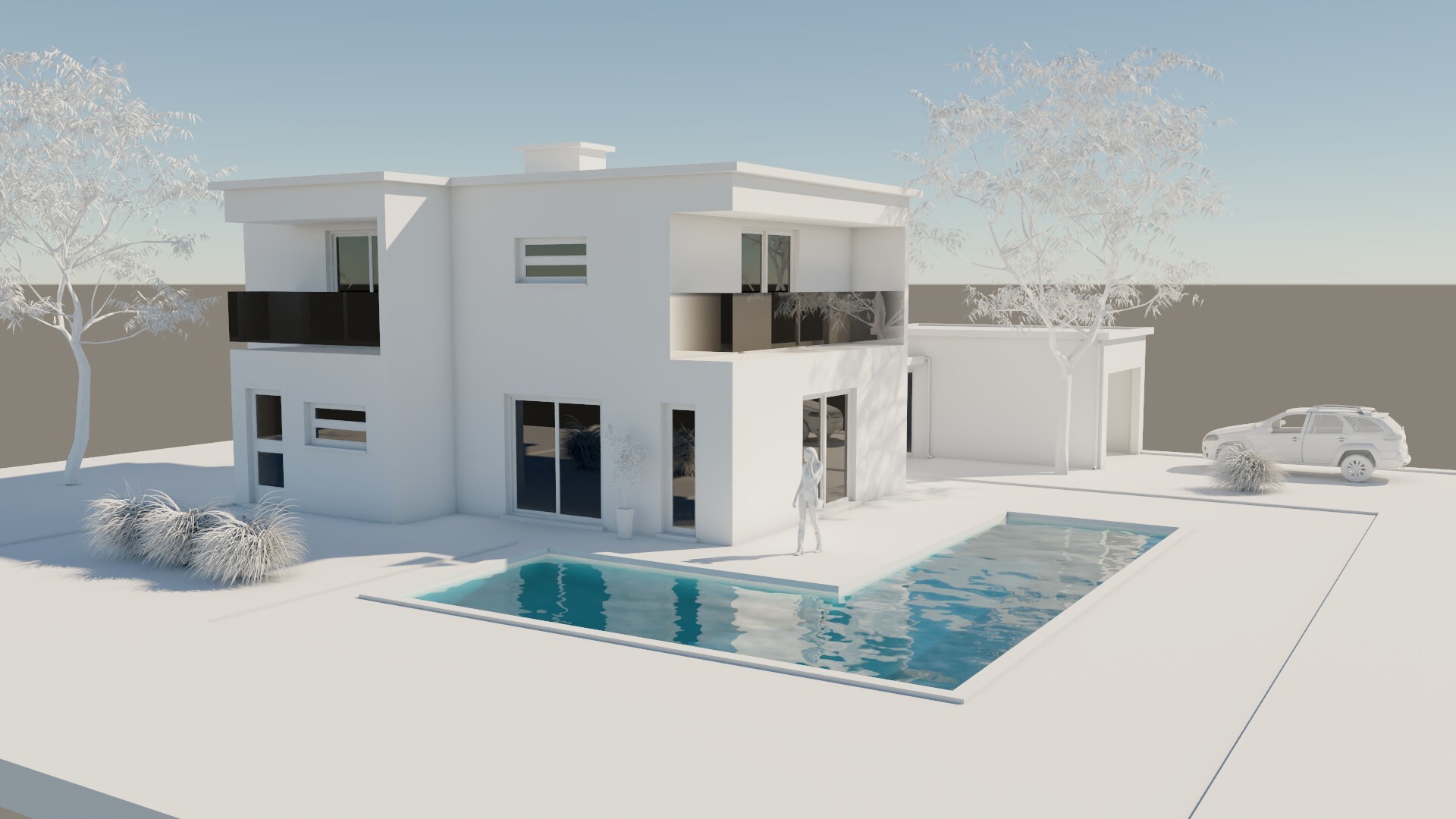
Examples of the options below after adding Edges.
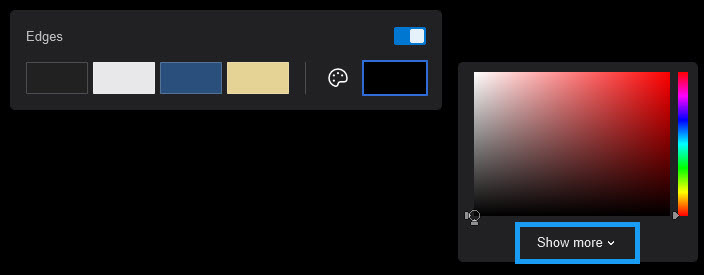
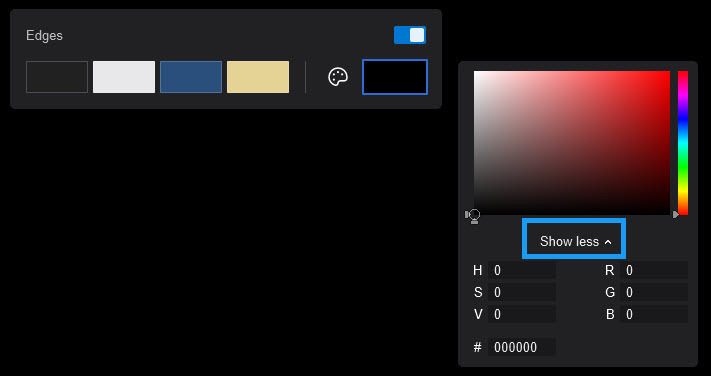
2. Include Edges:
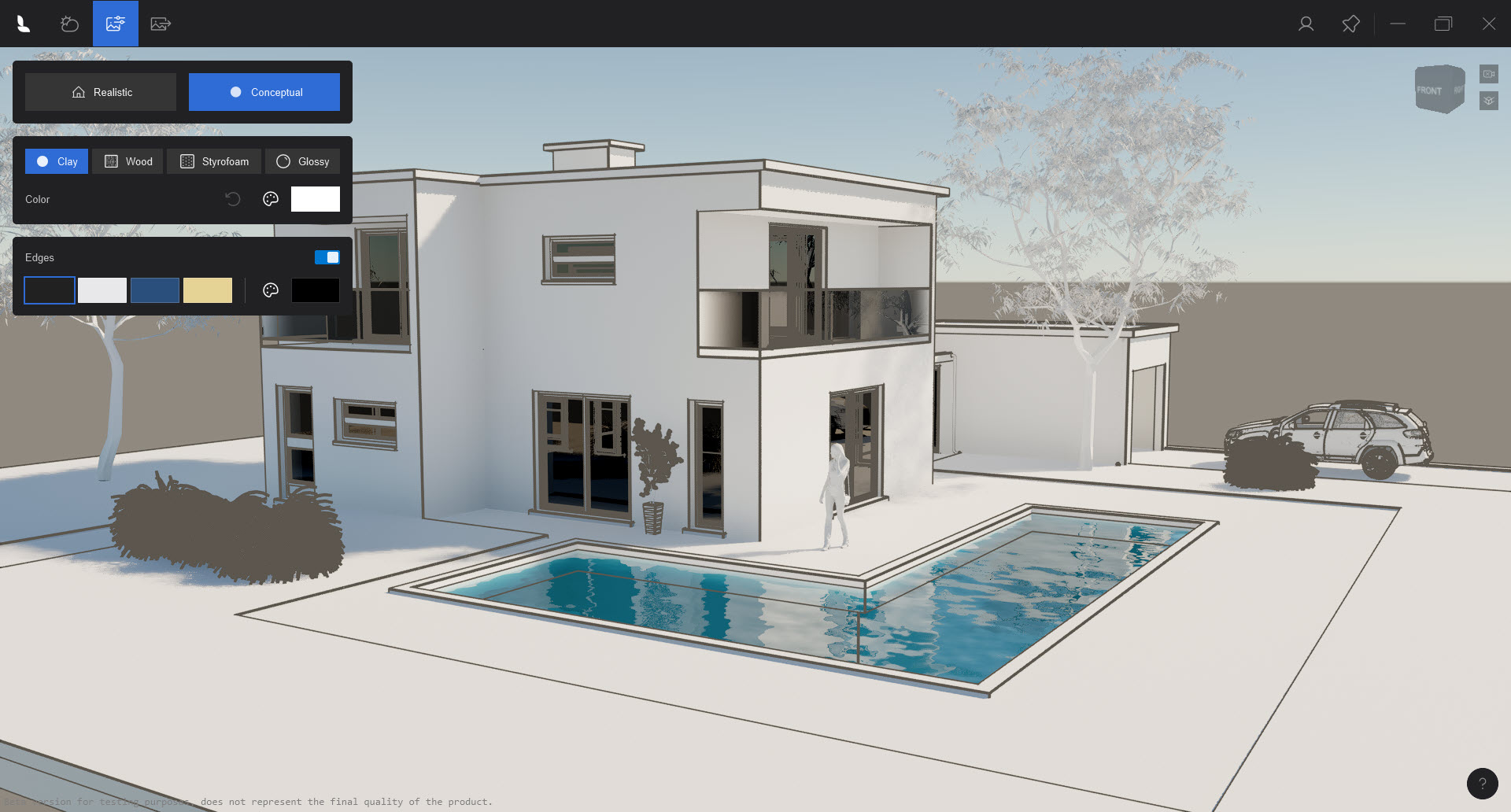
Include Edges as part of your style choices.
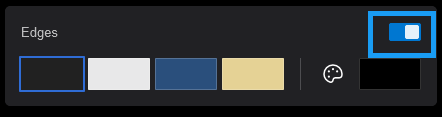
Use one of the four Colors:
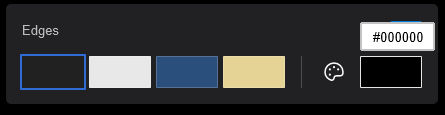
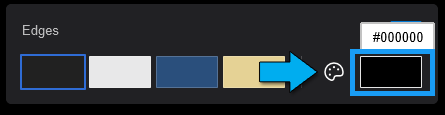
Or use the Color Palette:
3. Conceptual Styles - Options:
Note: We show here screen captures of the real-time Ray Traced window for the setting. Final render may differ only slightly.
3.1: Conceptual - Edges - Clay
3.2: Conceptual - Edges - Wood
3.3: Conceptual - Edges - Styrofoam
3.4: Conceptual - Edges - Glossy
See Also:
- Knowledge Base: All About Lumion View: Working in the Lumion View Editor: Output
- Knowledge Base: All About View: Working in the Lumion View Editor