

Note: Previously, %%LiveSync%% and Lumion View were included in a single plugin. Lumion View has since evolved into Axogram, while the latest %%LiveSync%% plugin once again contains only the %%LiveSync%% functionality.
1. Install:
ArchiCAD |
Lumion |
Download link |
| ArchiCAD 25-29 | Lumion 24.3 and newer |
Download Link: LumionPluginsForArchicad_26.1.8.51712 |
2: Uninstall steps before installing the latest version
2.1: Quit ArchiCAD .
2.2: Uninstall all of these that might be listed: Lumion LiveSync for ArchiCAD, Lumion Plugins for ArchiCAD via 'Installed Apps' or 'Add or remove a program' in Windows.
2.3: If you have any problems with the installation of the plug-in, please remove the following folder:
- C:\Program Files\Graphisoft\Archicad 29\Add-Ons\LiveSync
Then remove all folders/files with the word 'Lumion' or 'LiveSync' from the folders below before installing the plug-in:
- C:\Program Files\Graphisoft\Archicad 29\Add-Ons\LiveSync
3. Older versions of LiveSync download links:
ArchiCAD |
Lumion |
Download link |
| ArchiCAD (versions 21 to 29) (1) |
Lumion 6.0 and newer (2) Important: please see Section 3: Method B: Export to Lumion (Collada .DAE file) in this article:
|
Lumion LiveSync for ArchiCAD 21-29 |
Notes:
(1) Limited available support: We will try our best to fully support any issues you have with the LiveSync plugin; however, older versions of Archicad prior to Archicad 25 no longer receive support from Graphisoft. As such, compatibility with these legacy versions of Archicad is not guaranteed.
(2) Lumion 11 and prior versions are now end-of-life products, so support may be limited.
4. Fast ArchiCAD rendering with one plug-in!
The Lumion LiveSync for ArchiCAD plug-in includes two features - LiveSync and a Collada (.DAE) exporter.
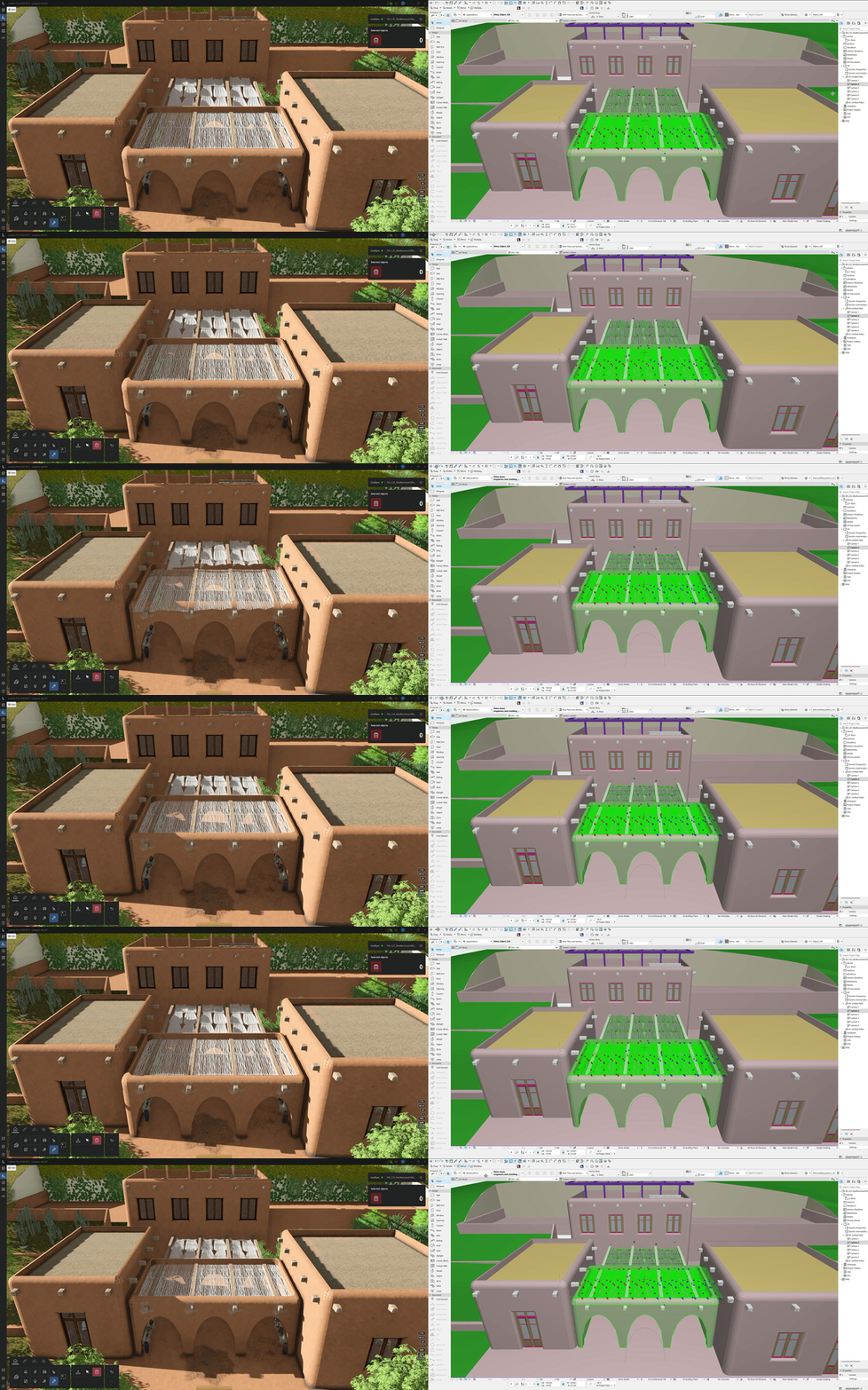
Now, you can view and change your ArchiCAD model in real-time in Lumion using LiveSync.
As well as exporting a Collada (.DAE) file from ArchiCAD and importing it (or re-importing it) seamlessly into Lumion.
You will need Lumion 24.3 (or newer) and ArchiCAD 25 (or newer).

Lumion LiveSync for ArchiCAD
Immediately set up a live, real-time visualization between ArchiCAD and Lumion. Change the ArchiCAD model’s shape, and you’ll see these changes taking place, in real-time, in Lumion’s breathtaking, lifelike environment.
As you continue modeling in ArchiCAD, you can simultaneously view your project in Lumion surrounded by an immersive, fully featured landscape (mountains, water, grass). Beautiful materials make the design 'pop', while photo-realistic lighting suddenly heightens your sense of environment, realism, and depth.
Real-time materials synchronization
Instantly breathe life into your synced ArchiCAD model by applying any of Lumion’s 1000+ high-definition materials in the Lumion editor. As you continue to develop the design, you can tweak the materials exactly to your liking and then save your material layouts for future rendering.
Live point-of-view synchronization
LiveSync now enables live point-of-view synchronization. Turn it on and immediately adopt the ArchiCAD camera perspective, making your work easier, faster, and more enjoyable.
Automatic model imports
When establishing the LiveSync connection, Lumion will automatically import your ArchiCAD model. Continue working on and modifying your project even after you turn off LiveSync, and easily save the file as an .LSF for future rendering or development.
See Also:
-
Knowledge Base: Model import guidelines for ArchiCAD
-
Knowledge Base: Why are you unable to export a model from ArchiCAD?
-
Knowledge Base: How does LiveSync 3 work with existing imported models in Lumion scenes?