---
title: What are the keyboard shortcuts in Lumion 2023?
description: Knowledge Base
---
Solutions
[Architectural design All you need to bring your residential, commercial or institutional designs to life](https://lumion.com/product/architectural-design) [Landscape architecture Beautiful terrains and fine-detailed nature for any climate or season](https://lumion.com/product/landscape-architecture)
[Interior design Realistic light, high-quality textures, and an extensive asset library](https://lumion.com/product/interior-design) [Students and Faculties Lumion is free for students, educators, and faculties around the world](https://lumion.com/product/educational-licenses)
[SketchUp](https://lumion.com/compatibility/sketchup-rendering) [Revit](https://lumion.com/compatibility/revit-rendering) [ArchiCAD](https://lumion.com/compatibility/archicad-rendering) [Rhino](https://lumion.com/compatibility/rhino-rendering) [Autocad](https://lumion.com/compatibility/autocad-rendering) [See more](https://lumion.com/compatibility/)
Product
[Discover Axogram New Live architectural diagramming](https://lumion.com/product/axogram) [Lumion Cloud Where design meets collaboration](https://lumion.com/product/lumion-cloud)
[Lumion Pro Advanced visualization solution](https://lumion.com/product/lumion-pro) [Discover AI tools New AI built for architectural work](https://lumion.com/product/ai)
[Lumion Pro 2026.1 is out now! 🚀](https://lumion.com/product/latest-version-pro) [Compatibility](https://lumion.com/compatibility/) [System Requirements](https://lumion.com/product/system-requirements) [Roadmap](https://lumion.com/product/roadmap)
[Pricing](https://lumion.com/product/buy) Resources
[Made with Lumion Get inspired by the stories behind the designs](https://lumion.com/made-with-lumion)
[Tips & Guides Make the most out of Lumion with helpful guides and tutorials](https://lumion.com/tips-guides)
[Knowledge base](https://support.lumion.com/knowledge-base?hsLang=en-us) [Community](https://community.lumion.com/index.php) [Downloads](https://support.lumion.com/downloads?hsLang=en-us)
About
[Who we are Learn about our story and mission](https://lumion.com/about) [Careers - We're hiring Let's build the future of architectural visualization](https://lumion.com/about/careers)
[News Discover the latest product news and more](https://lumion.com/news)
[Find your local reseller](https://lumion.com/about/find-reseller) [Contact us](https://lumion.com/about/contact)
[](http://lumion.com)
[My Account](https://account.lumion.com)
Solutions
[Architectural design](https://lumion.com/product/architectural-design) [Interior design](https://lumion.com/product/interior-design) [Landscape architecture](https://lumion.com/product/landscape-architecture) [Students and Faculties](https://lumion.com/product/educational-licenses)
---
[SketchUp](https://lumion.com/compatibility/sketchup-rendering) [Revit](https://lumion.com/compatibility/revit-rendering) [ArchiCAD](https://lumion.com/compatibility/archicad-rendering) [Rhino](https://lumion.com/compatibility/rhino-rendering) [Autocad](https://lumion.com/compatibility/autocad-rendering) [See more](https://lumion.com/compatibility/)
Product
[Axogram New](https://lumion.com/product/axogram) [Lumion Cloud](https://lumion.com/product/lumion-cloud) [Lumion Pro](https://lumion.com/product/lumion-pro) [Discover AI tools New](https://lumion.com/product/ai)
---
[Lumion Pro 2026.1 is out now! 🚀](https://lumion.com/product/latest-version-pro) [Compatibility](https://lumion.com/compatibility/) [System Requirements](https://lumion.com/product/system-requirements) [Roadmap](https://lumion.com/product/roadmap)
[Pricing](https://lumion.com/product/buy) Resources
[Made with Lumion](https://lumion.com/made-with-lumion) [Tips & Guides](https://lumion.com/tips-guides)
---
[Knowledge base](https://support.lumion.com/knowledge-base?hsLang=en-us) [Community](https://community.lumion.com/index.php) [Downloads](https://support.lumion.com/downloads?hsLang=en-us)
About
[Who we are](https://lumion.com/about) [Careers - We're hiring](https://lumion.com/about/careers) [News](https://lumion.com/news)
---
[Find your local reseller](https://lumion.com/about/find-reseller) [Contact us](https://lumion.com/about/contact)
[My Account](https://account.lumion.com)
[Submit a request](https://support.lumion.com/hc/en-us/requests/new?hsLang=en-us)
Lumion Knowledge Base
How can we help?
- There are no suggestions because the search field is empty.
[Skip to content](https://support.lumion.com/knowledge-base/api/v2/help_center/en-us/articles/7693744640540.json#main-content)
English - United States
Show submenu for translations

Open main navigation
Close main navigation
- English - United States
Show submenu for translations
- Contact us
Contact us
How can we help you?
- There are no suggestions because the search field is empty.
1. [Knowledge Base](https://support.lumion.com/knowledge-base?hsLang=en-us)
2. [General Questions](https://support.lumion.com/knowledge-base/general-questions?hsLang=en-us)
3. [Keyboard Shortcuts in Lumion](https://support.lumion.com/knowledge-base/general-questions?hsLang=en-us#keyboard-shortcuts-in-lumion)
# What are the keyboard shortcuts in Lumion 2023?
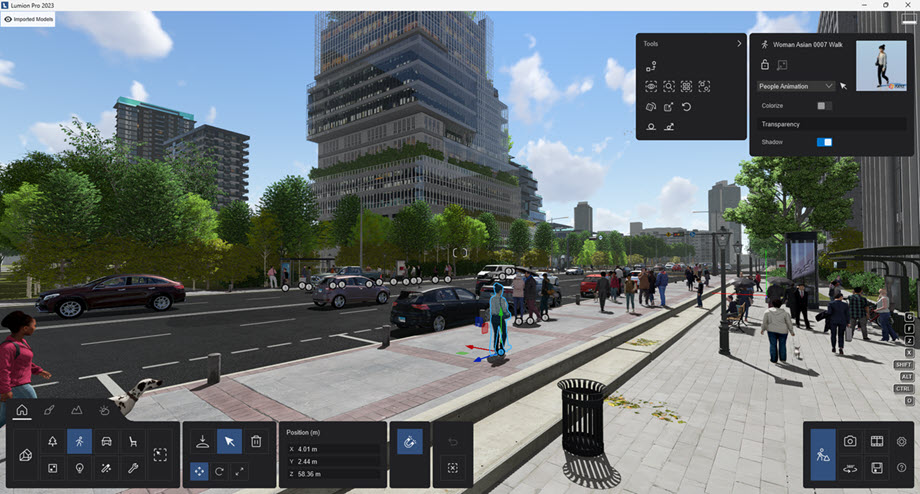
Note that it is not possible to change the keyboard shortcuts.
**1. Navigation**
**Keyboard Navigation:**
**W or Arrow Up**
Move camera forward.
**S or Arrow Down**
Move camera backward.
**A or Arrow Left**
Move camera left.
**D or Arrow Right**
Move camera right.
**Q**
Move camera up.
**E**
Move camera down.
**Change the Speed for Keyboard and Mouse:**
**SPACEBAR + Keyboard or Mouse**
Very slowly.
**SHIFT + Keyboard or Mouse**
Fast.
**SHIFT + SPACEBAR + Keyboard or Mouse**
Very fast.
**Change the Speed for Keyboard Navigation:**
**SPACEBAR + W/S/A/D/Q/E**
Move camera very slowly.
**SHIFT + W/S/A/D/Q/E**
Move camera faster.
**SHIFT + SPACEBAR + W/S/A/D/Q/E**
Move camera very fast.
**Look around:**
**RIGHT MOUSE BUTTON + Move mouse**
Look around.
**Pan:**
**MIDDLE MOUSE BUTTON + Move mouse**
Pan camera.
**SPACEBAR + MIDDLE MOUSE BUTTON + Move mouse**
Pan camera very slowly.
**SHIFT + MIDDLE MOUSE BUTTON + Move mouse**
Pan camera faster.
**SHIFT + SPACEBAR + MIDDLE MOUSE BUTTON + Move mouse**
Pan camera very fast.
**Move camera forwards/backwards:**
**MOUSEWHEEL UP/DOWN**
Move camera forwards/backwards.
**MOUSEWHEEL UP/DOWN + SPACEBAR**
Move camera forwards/backwards very slowly.
**MOUSEWHEEL UP/DOWN + SHIFT**
Move camera forwards/backwards faster.
**MOUSEWHEEL UP/DOWN + SHIFT + SPACEBAR**
Move camera forwards/backwards very fast.
**Other Navigation and View Options:**
**CTRL + H**
Reset camera pitch to horizontal viewpoint.
**O + RIGHT MOUSE BUTTON + Move mouse**
Orbit camera. Move the camera so that the crosshairs \[ \] are placed at the point on a model that you want to orbit around.
**Double-click with RIGHT MOUSE BUTTON on models**
Instantly *teleport* to the position that you clicked on.
**Double-click with LEFT MOUSE BUTTON on an Objects Icon**
**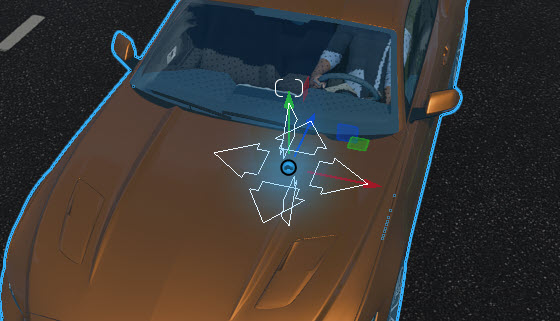**
Instantly move the camera to the model that you clicked on.
**2. Settings and Sliders:**
**Function Key Settings:**
**F1**
**Editor Quality:** 1 Star
All shadow types are off. **Note**: also applies to the *Preview* for *Photo Mode* and *Movie Mode*, including *High Quality Preview*.
Playback of video texture is held at the frame when the key is pressed.
**Note:** the *Lens Flare Effect* does not show for this level of quality.
**F2**
**Editor Quality:** 2 Stars
*Lumion Landscape* shadows and *OmniShadow* off, playback of video texture is held at the frame when the key is pressed.
**F3**
**Editor Quality:** 3 Stars
*Lumion Landscape* shadows off, playback of video texture is held at the frame when the key is pressed.
**F4**
**Editor Quality:** 4 Stars
Highest quality level. Everything on, playback of video texture occurs.
**F6**
Toggle between automatic and manual update of the *High-Quality Preview*.
**F7**
Cycle through each of the five *Editor Resolution* levels.

**F8**
Hold down this key to temporarily show the shadows from *Spotlights*.
**F9**
Toggle between low-quality and high-quality trees and plants.
**F11**
Toggle between *Build Mode* and *Theater Mode*. *Theater Mode* hides the user interface in *Build Mode*.
**Other Settings:**
***Settings* -\> *Full Screen***
Toggle between *Full-screen* and *Windowed Mode*.
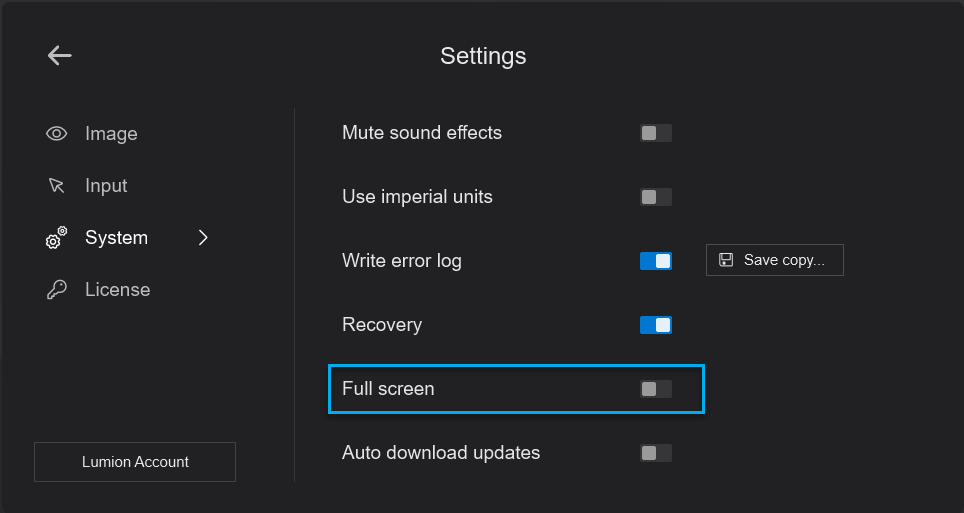
You can also use this in combination with F11 for a full screen *Theatre Mode* presentation.
**Sliders:**
***Sliders: Effects***
You can double-click on most sliders in Lumion to manually type in values. Press Shiftwhile adjusting slider values to fine-tune them (more digits after the decimal point will be displayed).
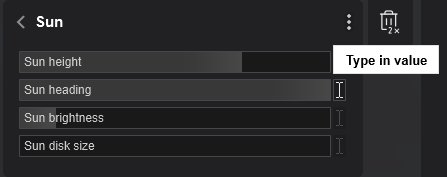
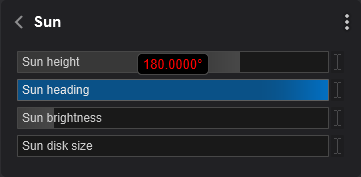
***Sliders:*** updated User Interface sliders
These sliders for the updated interface allow for a single click to type in. (example shown *Materials Editor*)

For these you can also use the Shift key to show the non-rounded value of a slider:

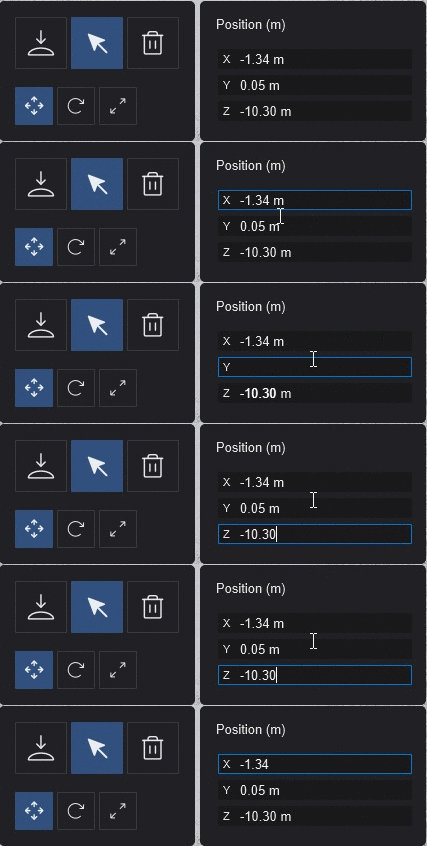
**Keyboard: TAB key**
**TAB:**
Cycle/move through the fields for various settings where you are able to type in a value or text.
Click in one of the fields and then press the TAB key to move to the next field.
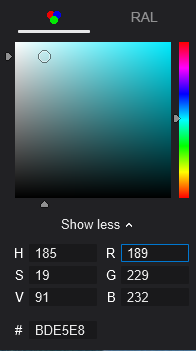
Currently, the order is not always as per visual order on the screen, for example, in the *Color Picker* the first ordered field is the R for RGB.
**TAB + Shift:**
Reverse order to move through the fields.
**3. Placing, selecting, copying, and moving**
#### ***Place*button:**
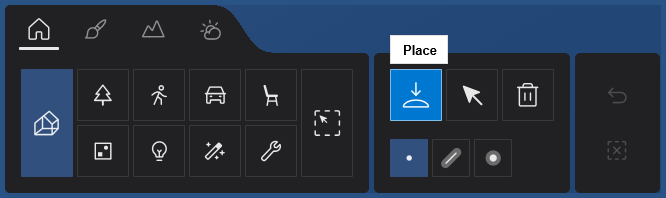
**LEFT MOUSE BUTTON**
Place a copy of the selected model from the *Model Library*.
**LEFT MOUSE BUTTON + V**
Place a new model with +/-0 to 50% random scale.
**H + LEFT MOUSE BUTTON + Move mouse**
Move the selected object(s) up or down when placing.
#### *Place*button -\> *Line Placement*/*Mass Placement*:
**Lumion 2023.3.0:** *Line Placement*
You can add multiple *Objects* to the selection from the active *Object Categories*. You can create a pool and select up to 20 *Objects* per *Placement Line*.
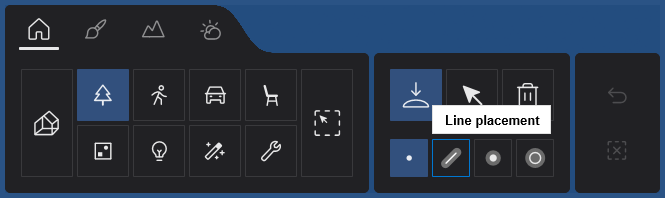

**Note:** *Imported models*, *Groups*, *Lights*, *Nature\\Fine-detail trees, Nature\\Fine-detail plants, Effects\\Sounds, Effects\\Decals*, and *Utilities* are not available in *Line Placement* as those should be placed individually.
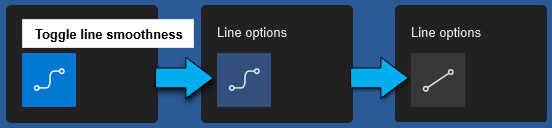
**Line Options:**
When you place a *Line* and add one or more *Control Points:*
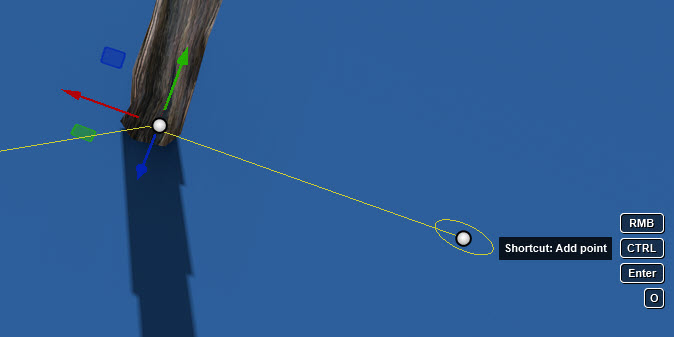
you have the option of switching between a smooth (spline) curved line or a straight line:
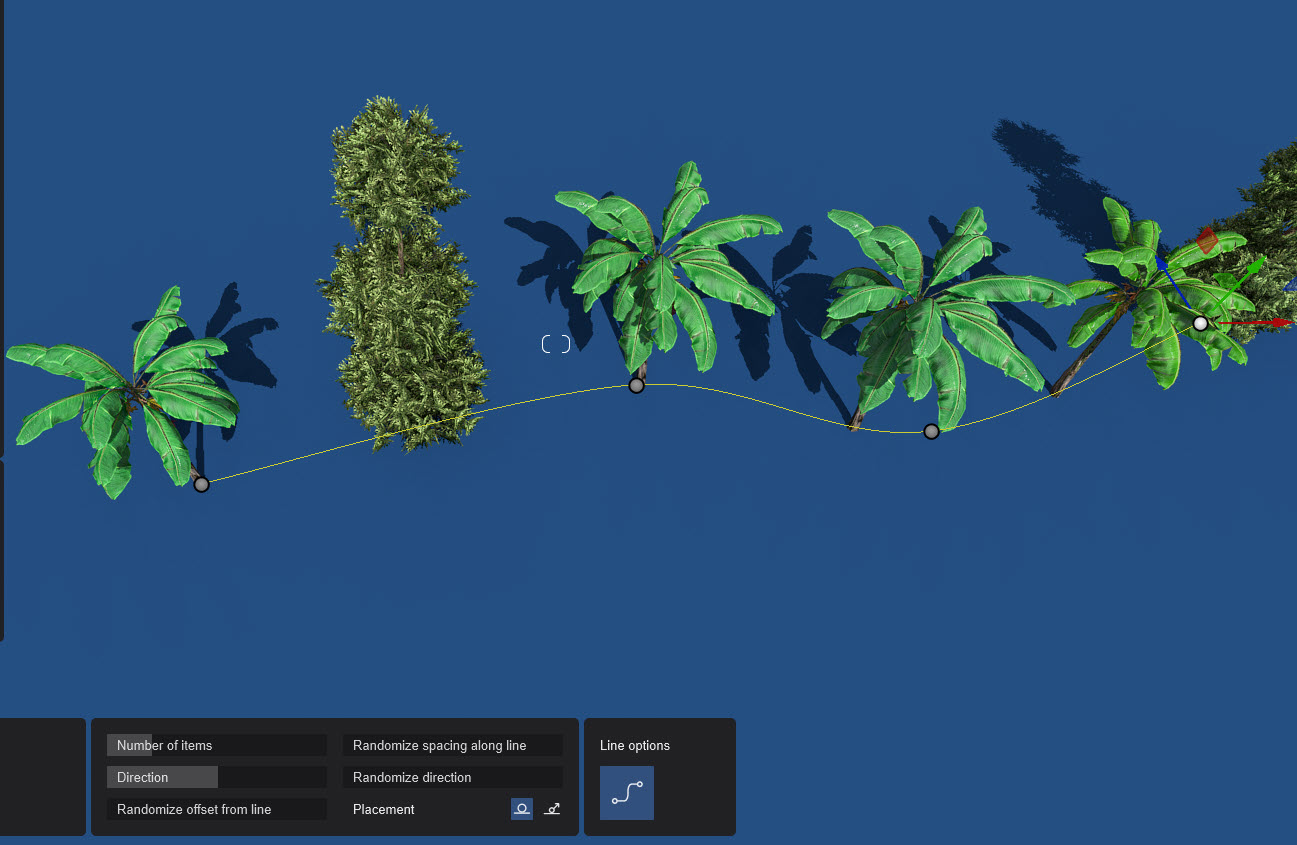
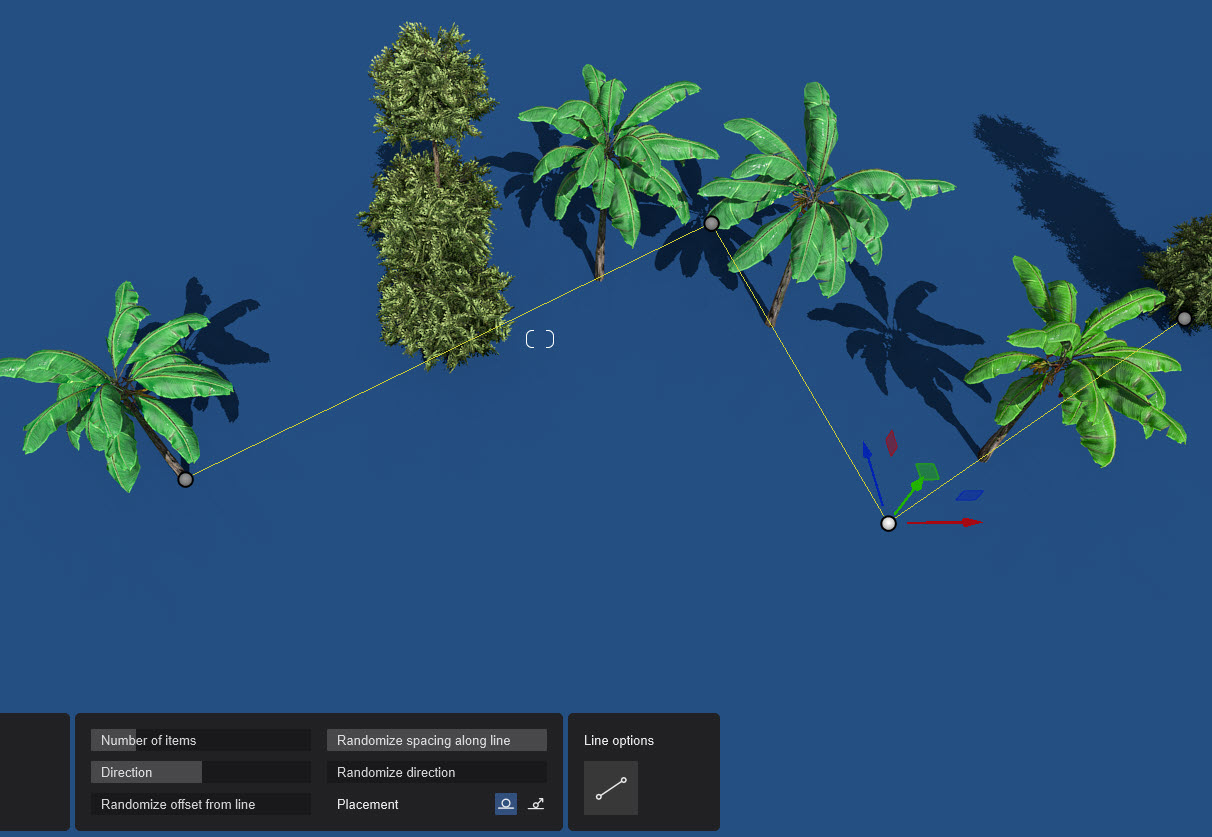
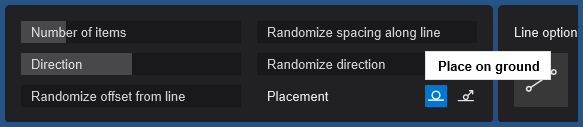
**Placement Options:**
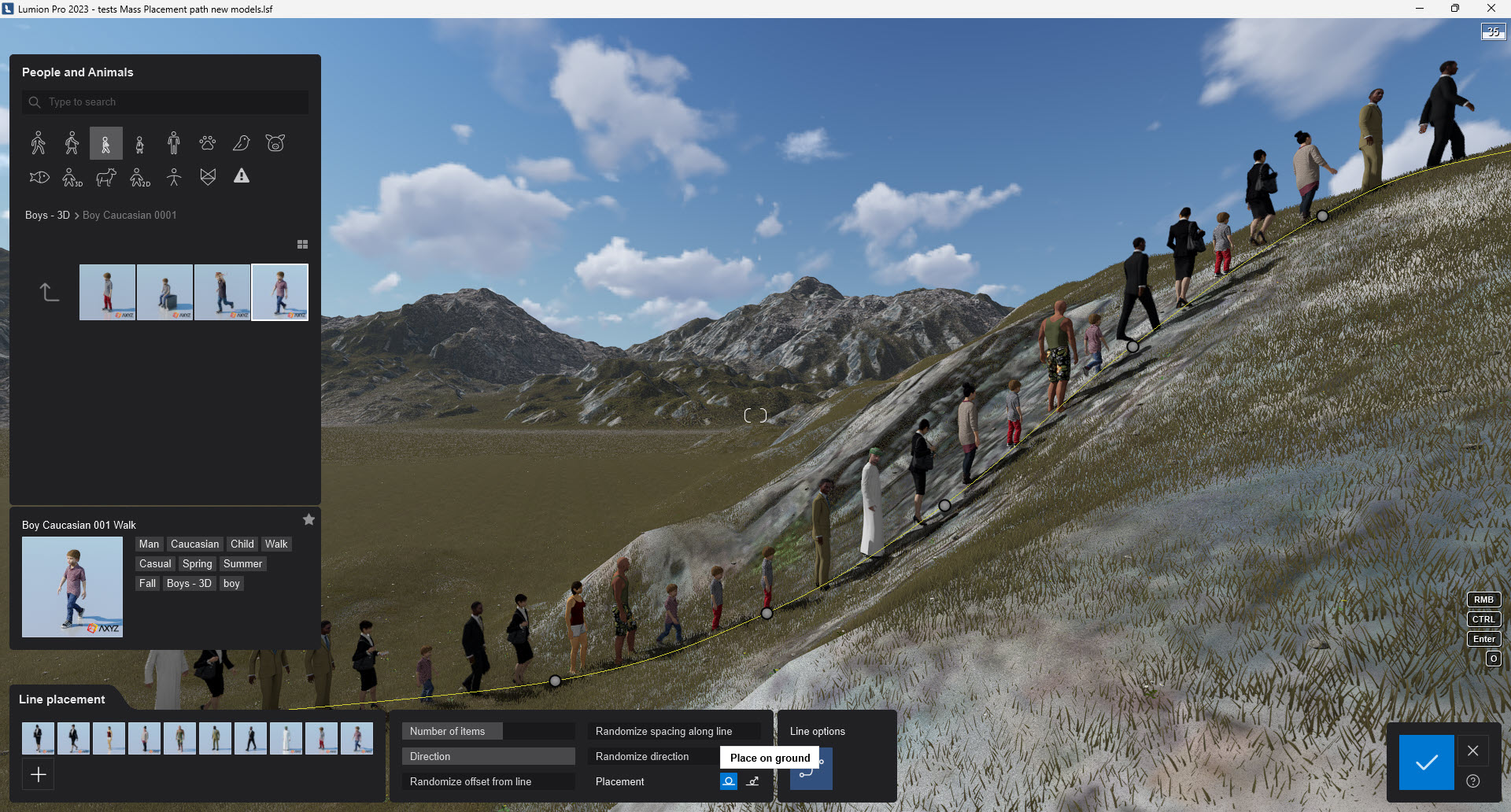
Enable/disable *Conform to Ground* to let the objects align to the curve or to the ground.

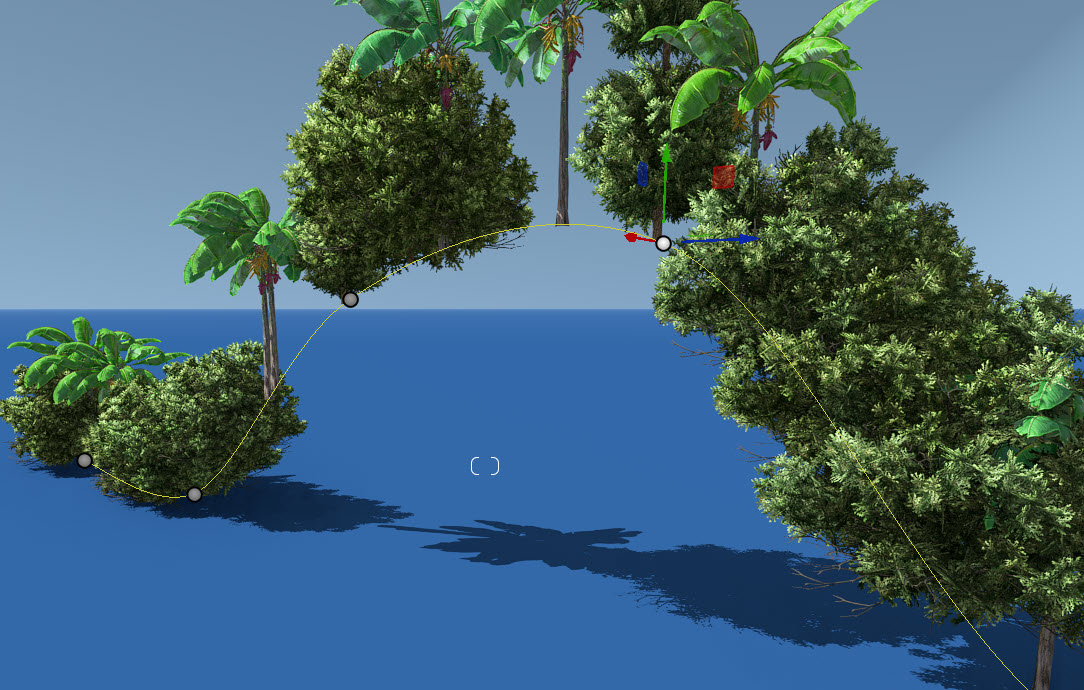
*Control Points* are no longer limited to being on the *Terrain* or an *Imported Model*, but can be moved up into the sky.
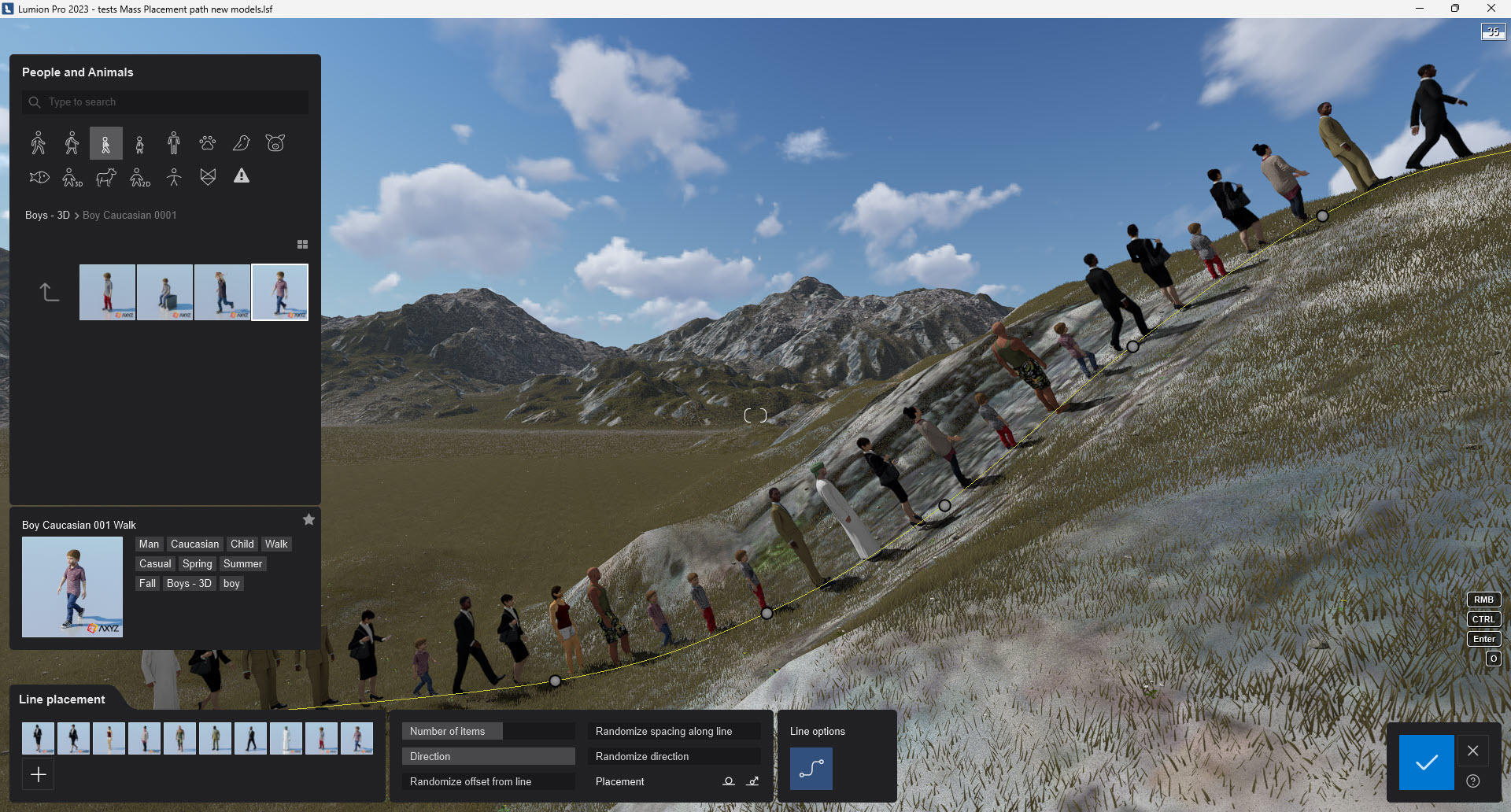
When using the *Line PLacement* tool for *3D People* make sure to click on the *Pla ce On Ground* button so they align vertically and not to the slope of the terrain:
**Other Keys:**
**Enter**
Accept the current *Line* and start a new *Line*.
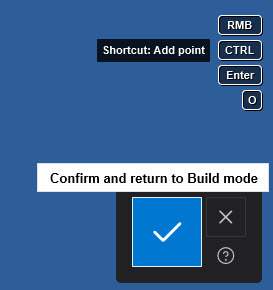
**CTRL + LEFT MOUSE BUTTON**
Add a *Control Point* to the current *Line*.
**RIGHT MOUSE BUTTON**
Remove a point from the current *Line*.
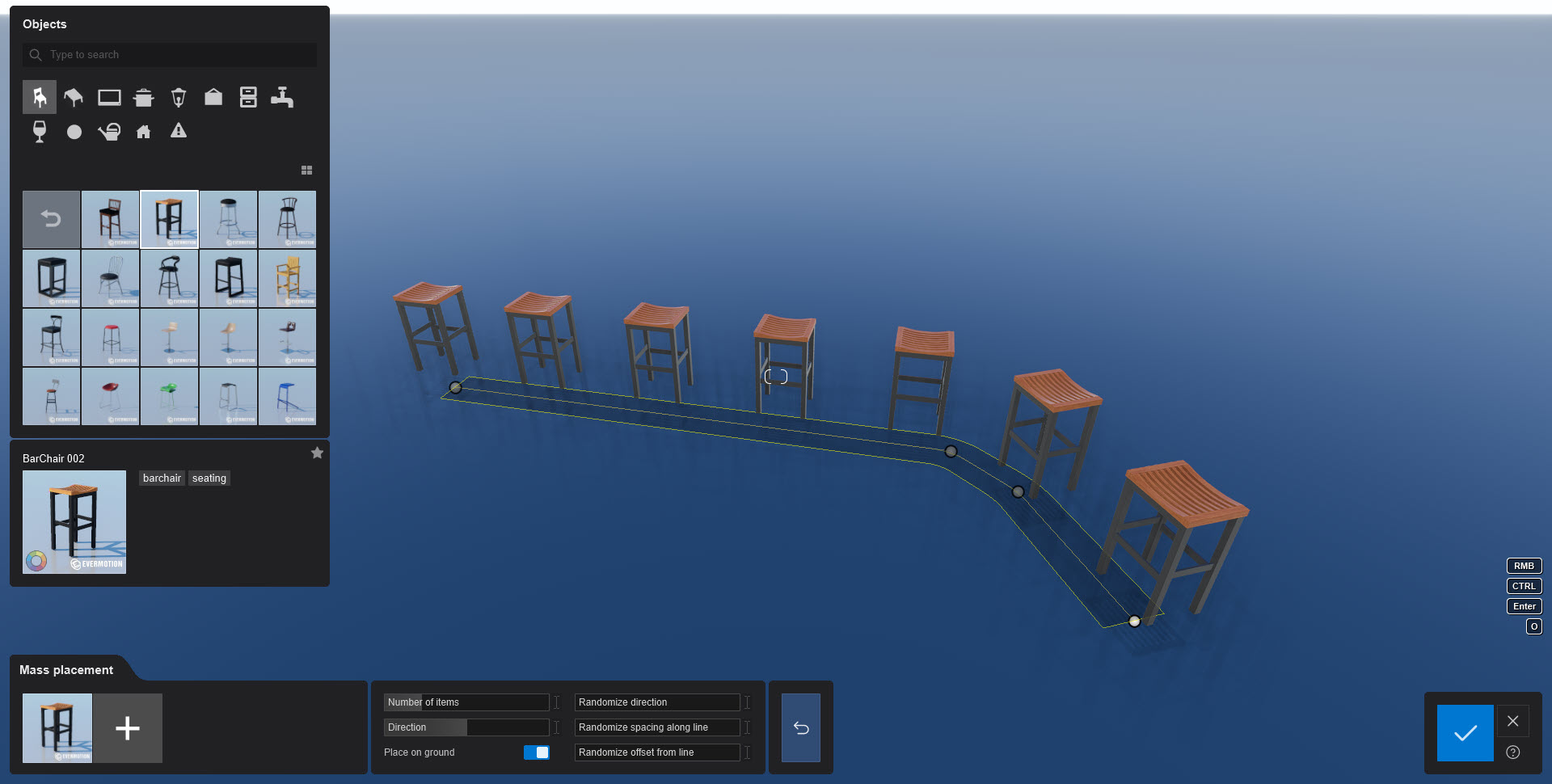
**Prior to Lumion 2023.3.0:** *Mass Placement*:
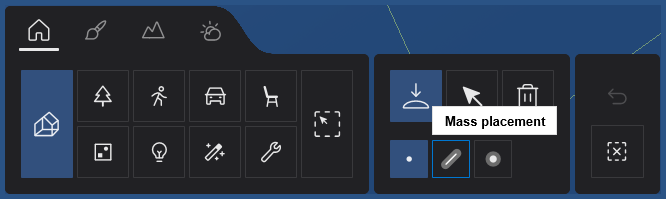

**Enter**
Accept current *Line* and start a new *Line*.
**CTRL + LEFT MOUSE BUTTON**
Add a point to the current *Line*.
**RIGHT MOUSE BUTTON**
Remove a point from the current *Line*.
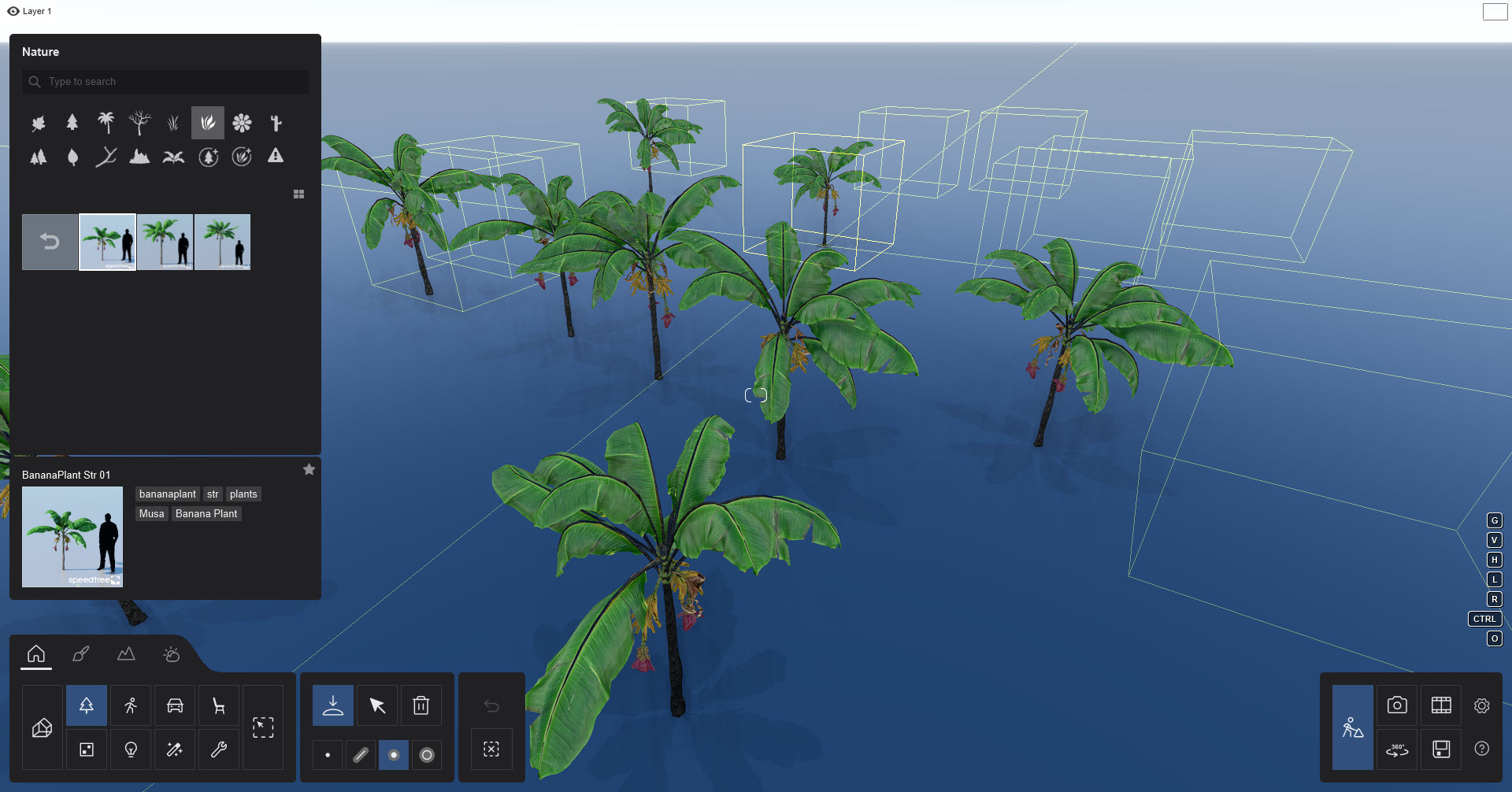
#### ***Place*button -\> *Cluster* *Placement*:**
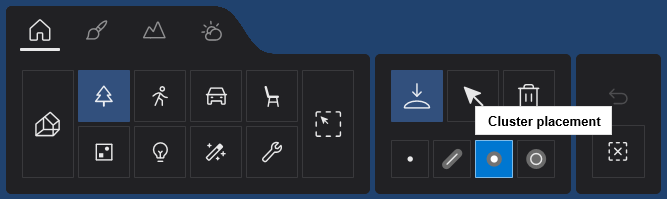
**L key + move mouse**
Control the *Cluster Range*
**R key + move mouse**
Control the rotation/ *Direction* of the *Objects*.
**CTRL + LEFT MOUSE BUTTON**
*Cluster Placement*: Place 10 copies of the selected model from the *Model Library* at random positions.
**CTRL + V + LEFT MOUSE BUTTON**
*Cluster Placement* with random size: Place 10 copies of the selected model from the *Model Library* at random positions with +/-0 to 50% random size.
**Note:** *Imported models*, *Groups*, *Lights*, *Nature\\Fine-detail trees, Nature\\Fine-detail plants, Effects\\Sounds, Effects\\Decals*, and *Utilities* are not available in *Cluster Placement* as those should be placed individually. This also applies to *Paint Placement*.
#### *Select*button*:*
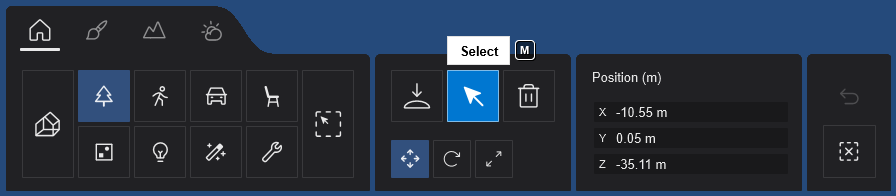
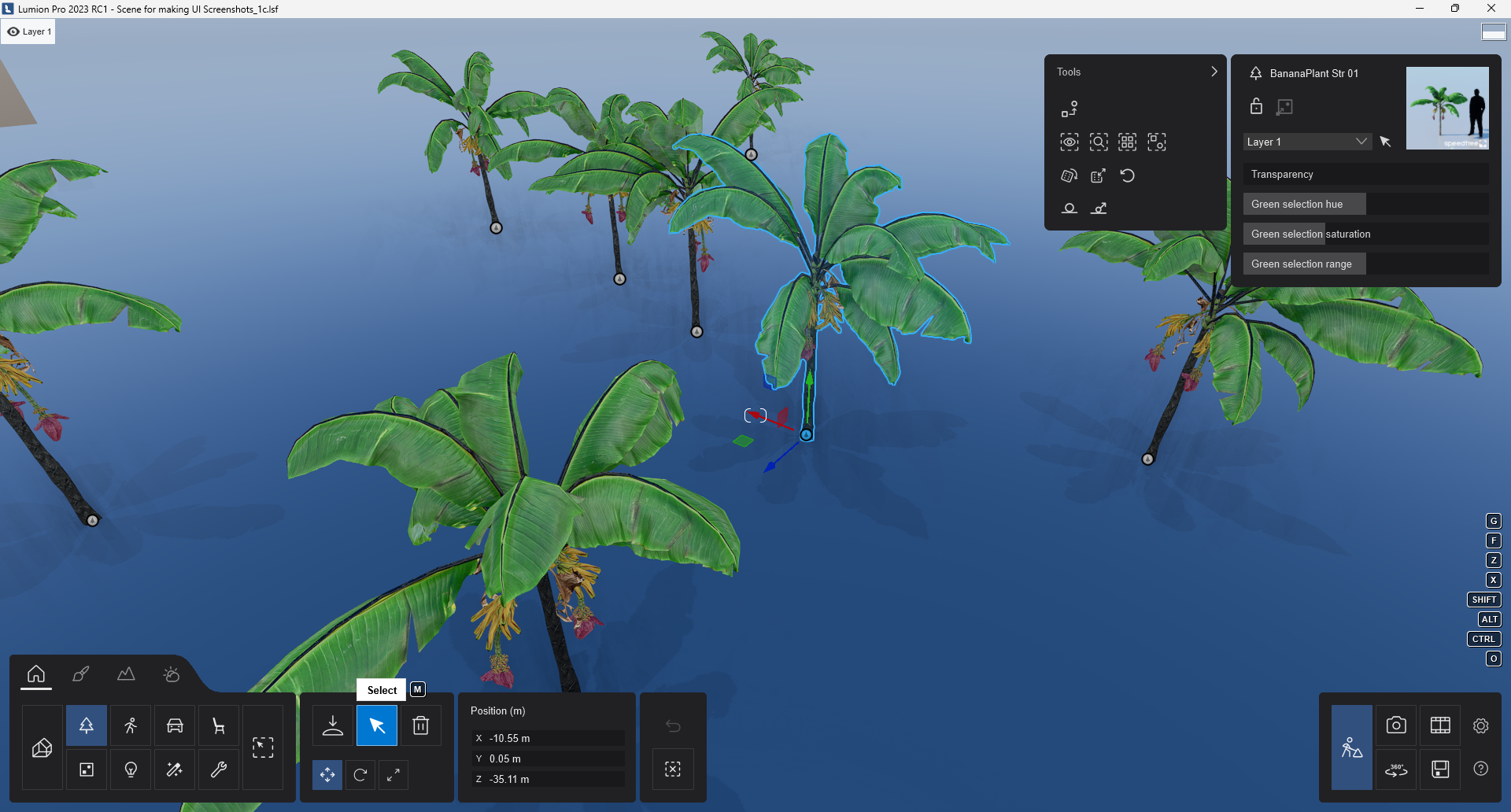
**CTRL + Drag with LEFT MOUSE BUTTON**
Rectangular selection tool for selecting multiple objects.
**CTRL + Click on an *Object Icon***
*Select/De-select* each object from the current selection.
**CTRL + Click anywhere with LEFT MOUSE BUTTON**
*De-select* all objects.
**CTRL + SHIFT + Drag with LEFT MOUSE BUTTON**
Add new rectangular selection to existing selection.
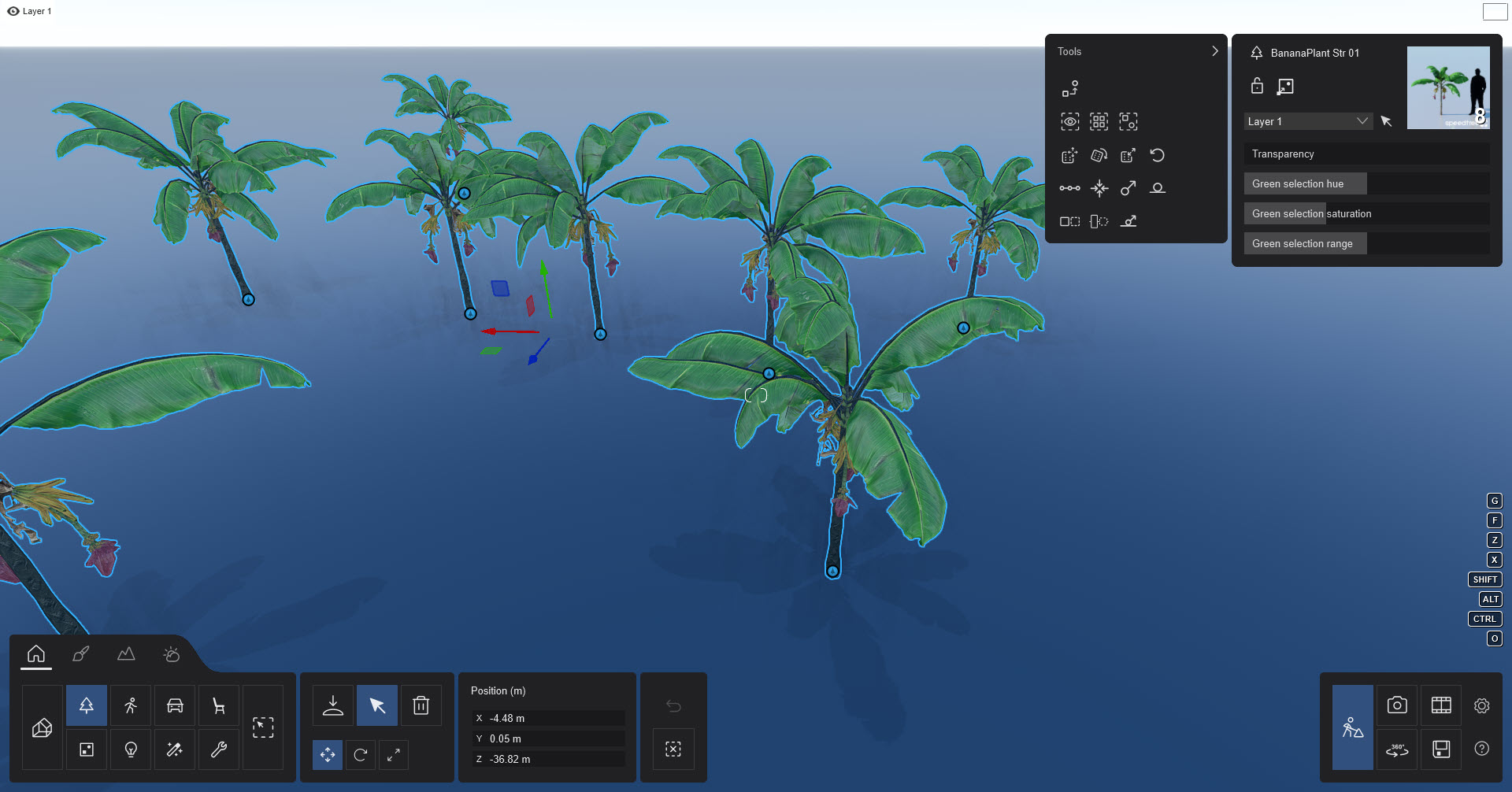
#### *Move free* button:
#### 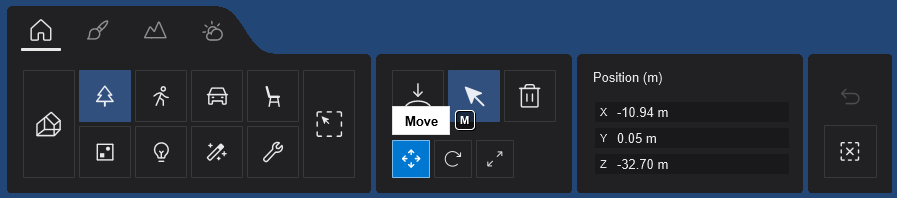
**Select Object Icon to Move freely:**
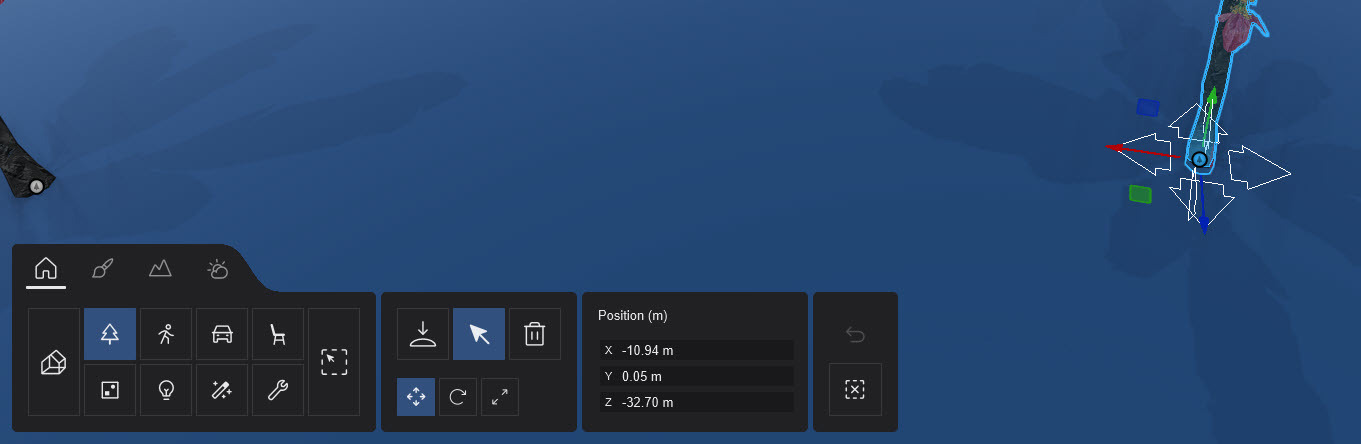
#### Using the *Gizmo* to *Move up/down* or *Move horizontally* on each (world) axis of the *Object*:
**See also:**
- **Knowledge Base:**[How do you use the (new) Gizmo tool?](https://support.lumion.com/knowledge-base/api/v2/help_center/en-us/articles/7712650860188.json?hsLang=en-us)
**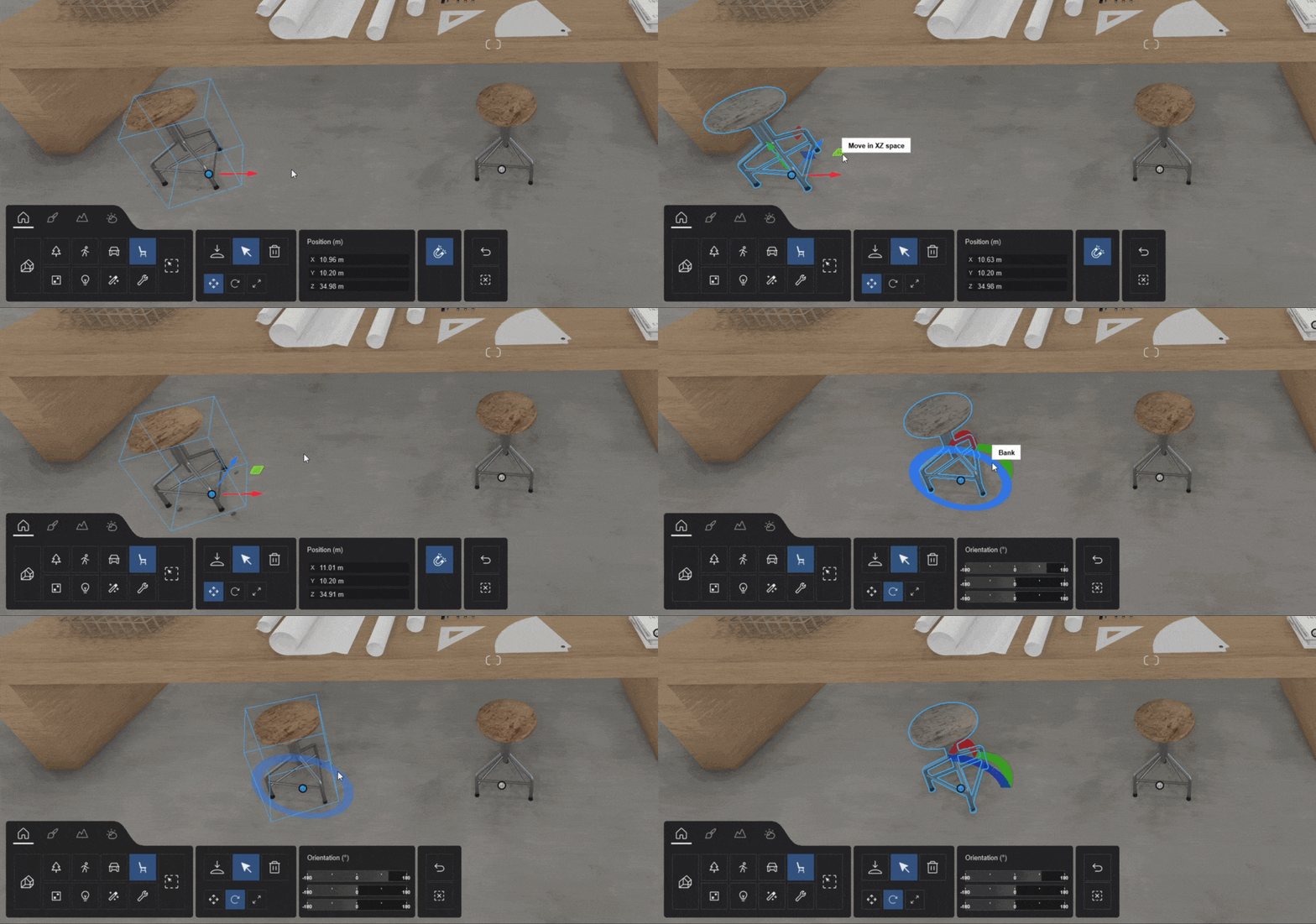**
**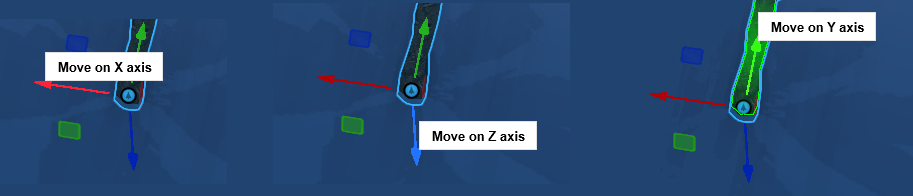**
Click on the red, blue or green arrows of the Gizmo to constrain the movement to an axis.
**Gizmo: LEFT MOUSE BUTTON + Red arrow + Move mouse**
Move along the X axis only.
**Gizmo: LEFT MOUSE BUTTON + Blue arrow + Move mouse**
Move along the Z axis only.
**Gizmo: LEFT MOUSE BUTTON + Green arrow + Move mouse**
Move up or down along the Y axis only.
Click on the red, blue or green squares of the Gizmo to constrain the movement to a plane along two of the axis:
- on Blue plane XY Space -up and down, left and right.
- on Green plane XZ Space -back and forward, left and right.
- on Red plane: YZ Space -up and down, back and forward.
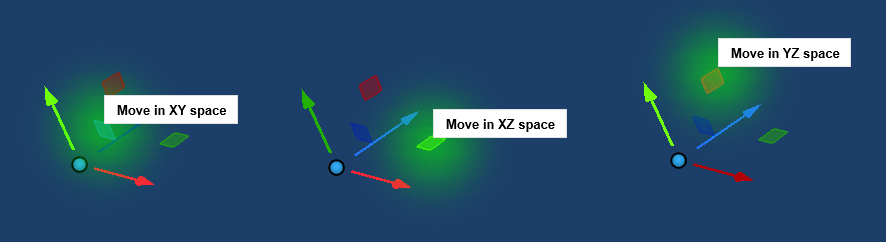
**Copy an Object:**
**ALT + LEFT MOUSE BUTTON + Move mouse**
Duplicate selected object(s).
**ALT + click on the X, or Z or Y axis of the Gismo + LEFT MOUSE BUTTON + Move mouse**
Copy an object using ALT key when pressed and constrain the movement for the copied Object along that axis.

#### *Place*, *Move free*, *Move up* and *Move horizontal*:
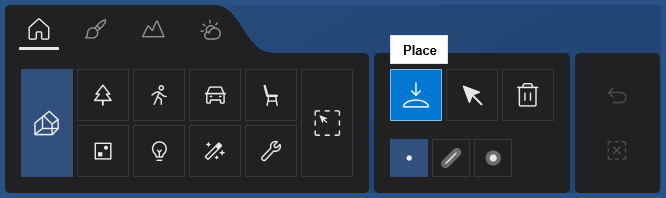
**G + LEFT MOUSE BUTTON + Move mouse**
Place or move object(s) to make them snap to the *Lumion Landscape* while ignoring all other object types.
**F + LEFT MOUSE BUTTON + Move mouse**
Place or move object(s) to make their orientation adapt to the surface below them, provided that the surface is facing the sky, i.e. less than 90 degree angles.
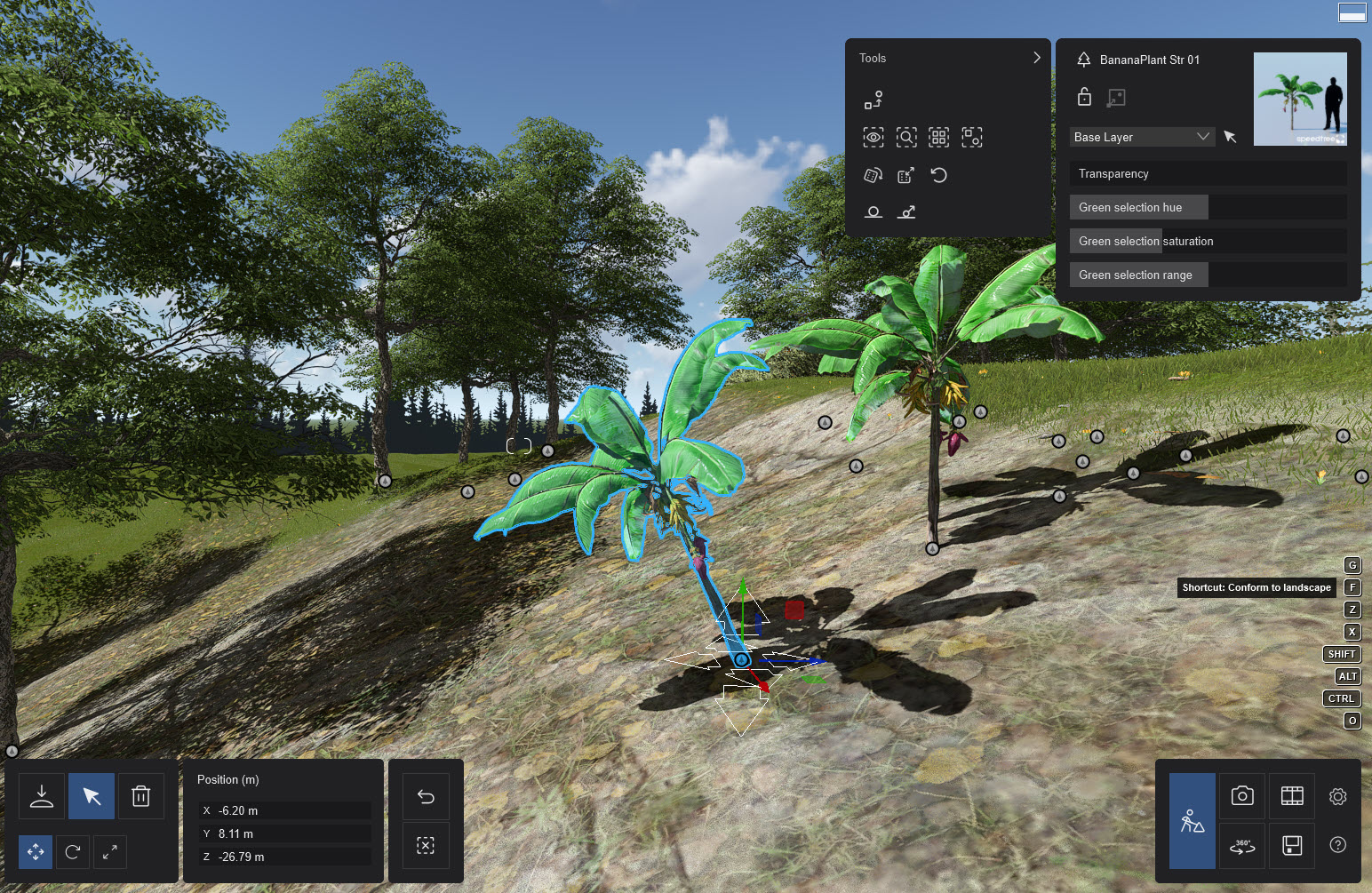
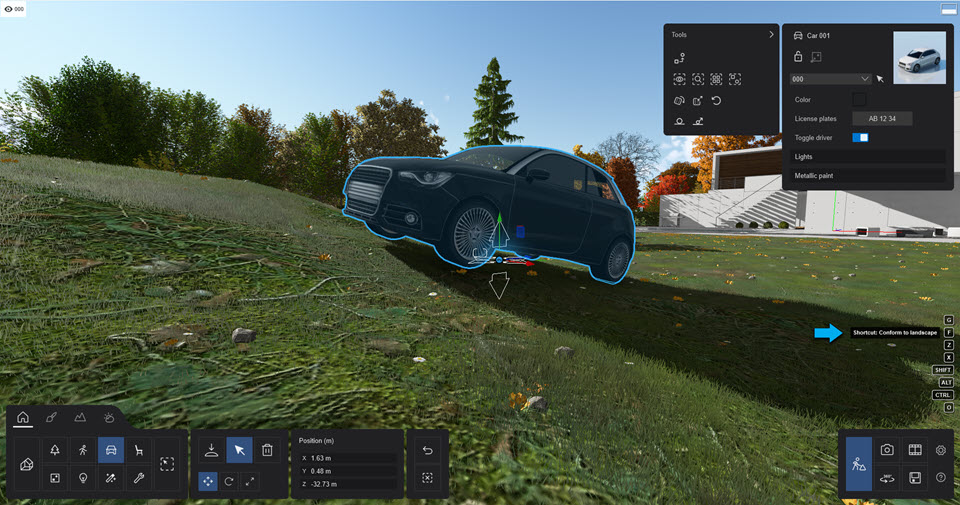
**SHIFT + LEFT MOUSE BUTTON + Move mouse**
Place or move object(s) horizontally with snapping turned off.
#### *Rotate* button:
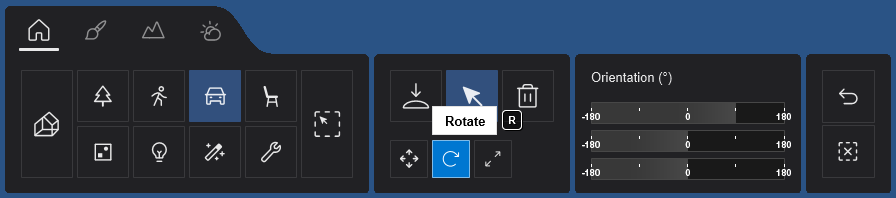
The *Gizmo Tool* provides for rotation in each axis.
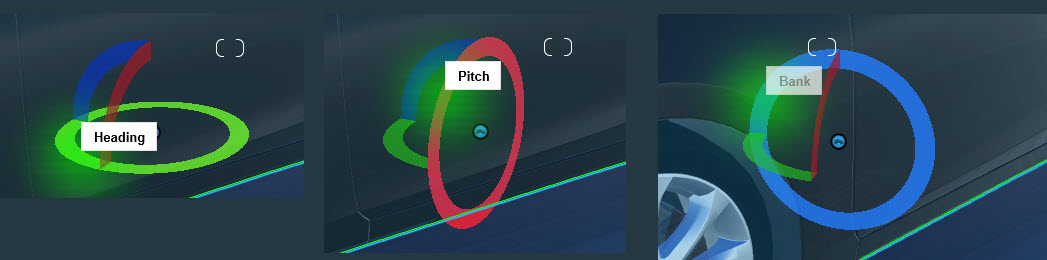
Switch to Rotate Mode using the **R** key.
Change the heading of the selected *Object Icon(s)*.
**R + LEFT MOUSE BUTTON + Move mouse**
Change the heading of the selected object(s).
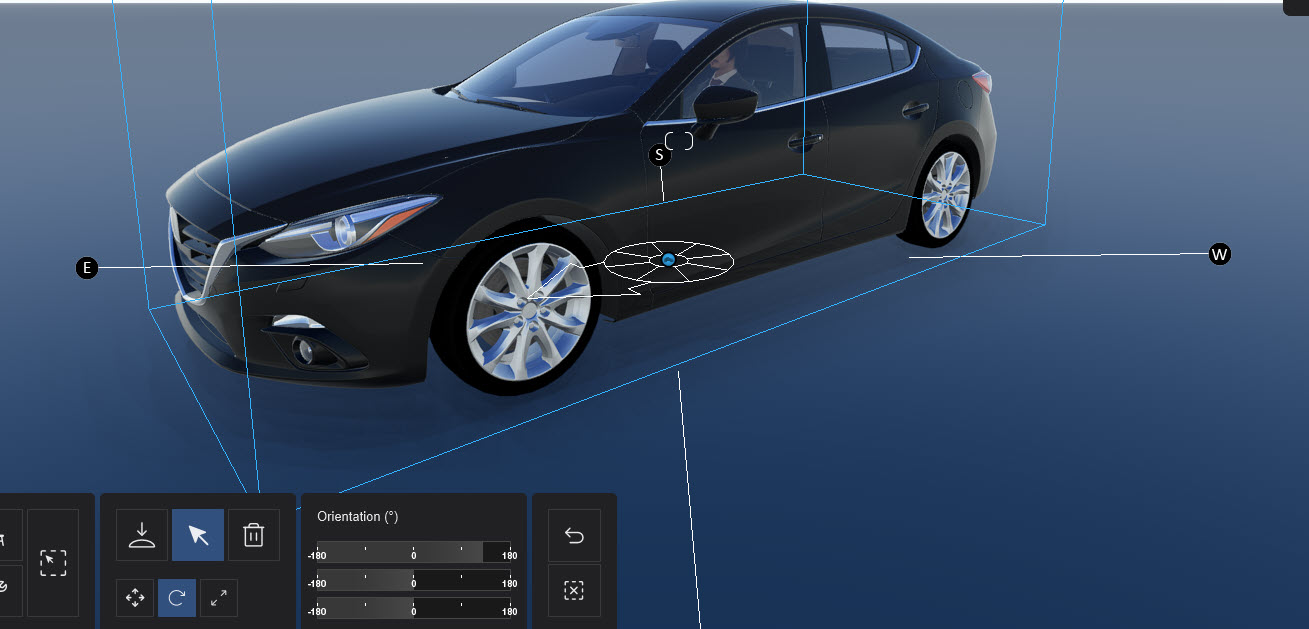
**SHIFT + Rotate selected object(s)**
Temporarily turn the 45 degree angle snapping off.
**F + Rotate selected object(s) + Move the mouse cursor to another surface**
The heading of the selected objects will match the orientation of the surface below the mouse cursor.
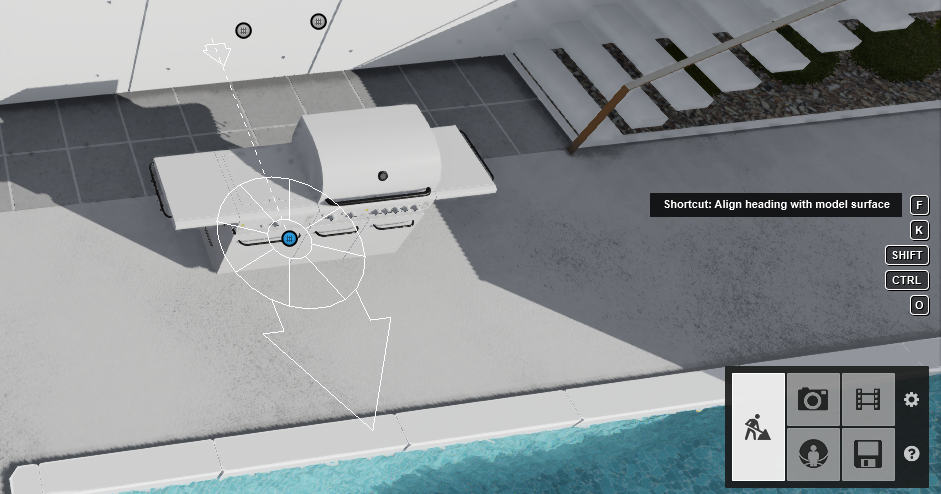
**K + Rotate selected object(s)**
Make all of the objects face the mouse cursor.
#### ***Scale* button:**
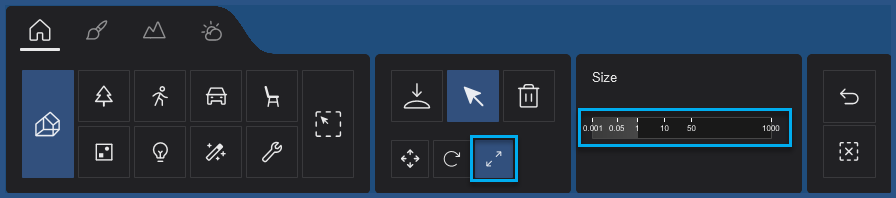
**L + LEFT MOUSE BUTTON + Move mouse**
Scale (size) an object using the mouse.
### Selecting a model when multiple *Object Selection* *icons* are aligned:
Multiple objects can be *aligned* or positioned at the same location. To select the model you want, you can either click on the model you want to select or you can use this method:
1. Place the mouse over the *Object Selection Icons*.
2. Use the W and S or **Arrow Up** and **Arrow Down** keys to cycle through the models.
3. As you scroll through, each model will be highlighted in green.
4. Click on the current *Object Selection Icon* to select it.
### ***Auto-Snap Tool:***
Instantly align/snap your objects to a face of one of the *Objects* in your *Project*, while placing or moving it.

*Snap* (was F + Rotate selected object(s) + Move ) now uses this specialized tool.
In *Place Mode*, the *Auto-Snap Tool* is always visible. And in *Select Mode*, it only becomes visible when a certain ('smart') object is selected.
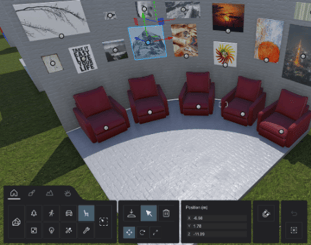 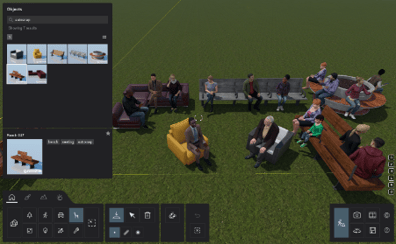
**Auto Snap - Objects Category:**
Models from the *Objects Category* will snap and align to the surface of an *Imported Model*.
Some object types like chairs will by default stay on the ground and align to the vertical surface.
Objects like canvasses, posters, pictures, and paintings will snap and align to a vertical surface. But can also be moved vertically.
**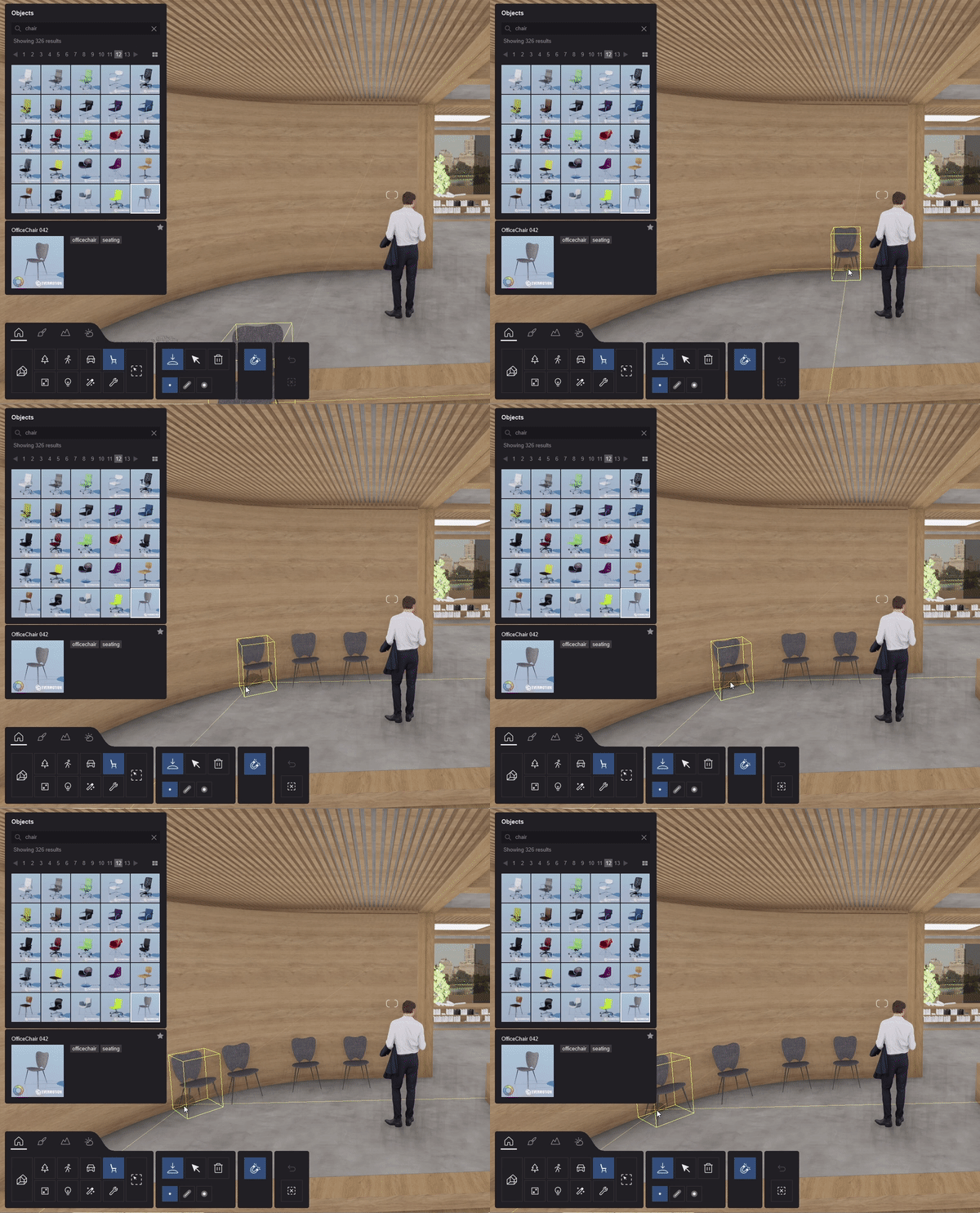**
**Auto Snap - People and Animals Category:**
Seated characters from the *Object Library* will snap and align to chairs for quick, easy placement.
**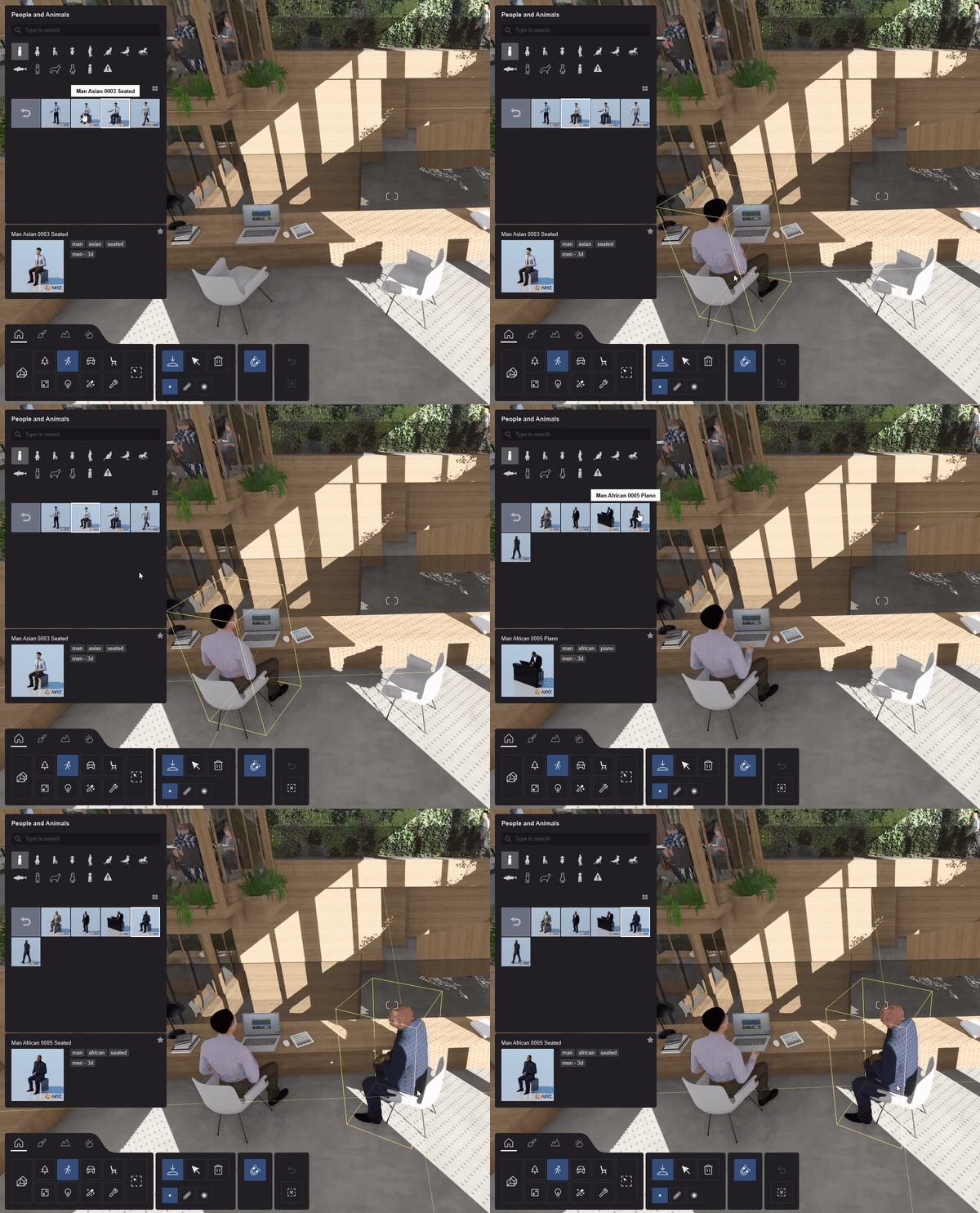**
**4. Build Mode - Lumion Library, Imported Models Library:**
Mouse middle scroll button
scroll forward and back to move through the pages
Mouse back button or
Backspace button (keyboard)
Exit a *Folder* or *Collection* and go up to the next level.
Same as clicking on the *Back* button:
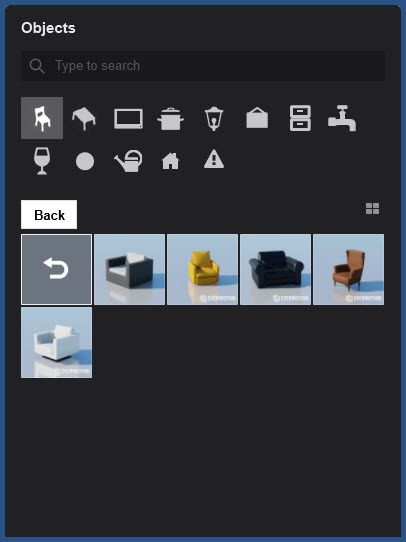
**5. Photo Mode:**
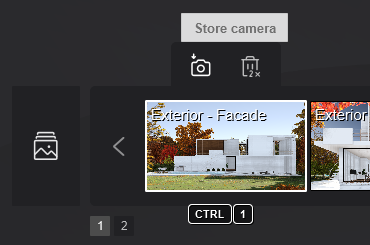
**CTRL + 1 2 3 ... 9 0**
Use these keys to save up to 10 camera viewpoints in *Photo Set* 1 in *Photo Mode*. When using *MyLumion*, the *Photos* are saved only for *MyLumion Panorama Viewpoints*.
**SHIFT + 1 2 3 ... 9 0**
Load previously saved camera *Viewpoints*. The saved slots are also available as easily accessible thumbnail images in *Photo Set* 1 in *Photo Mode*.
**Ctrl+C / Ctrl+ V**
Keyboard Copy and Paste a *Photo* to another *Photo* slot. Alternative to using the *Context Menu*.
#### ***Photo Matching Effect:***
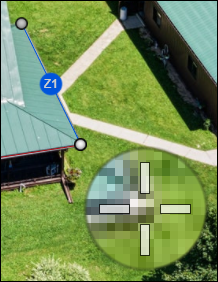
**SHIFT**
Hold down this key while dragging points on the red and blue lines to move them more accurately.
#### ***Orthographic View Effect: Align camera with surface***

**F**
Press this key to align the camera so that it is perpendicular to the surface at the center of the 3D view.
**6. Movie Mode:**
**CTRL + 1 2 3 ... 9 0**
Use these keys to save up to 10 camera *Viewpoints* in *Photo Set* 1 while editing a camera animation in a *Clip*.
**SHIFT + 1 2 3 ... 9 0**
Load previously saved camera *Viewpoints*. The saved slots are also available as easily accessible thumbnail images in *Photo Set* 1 in *Photo Mode*.
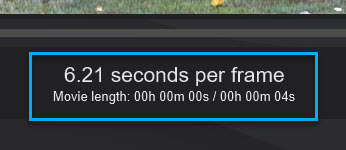
**CTRL (while rendering)**
While rendering, hold down this key to show the frames per second.
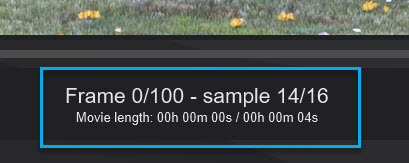
**CTRL (while mouse cursor is over the *Timeline Slider*)**
The frame count can now be displayed above the *Timeline* by pressing the CTRL key whilst the mouse is over the *Timeline Slider*.
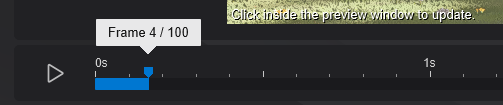
If you select to render to a frame range, the *Timeline Slider* displays the frame count by default, until you choose to render with another option. Whilst using the frame range option, you can toggle the display to show the seconds counter using the CTRL key whilst the mouse cursor is over the *Timeline Slider*.
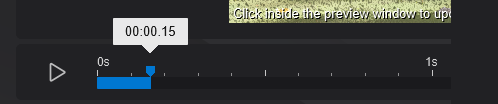
**SPACEBAR (while mouse cursor is over the *Timeline Slider*)**
Plays or stops the *Movie Preview* in *Movie Mode*.
Plays or stops the *Clip Preview* in the *Clip Editor*.

**Ctrl+C / Ctrl+ V**
Keyboard Copy and Paste a *Clip* to another *Clip* slot. Alternative to using the *Context Menu*.
#### ***Mass Move Effect***:
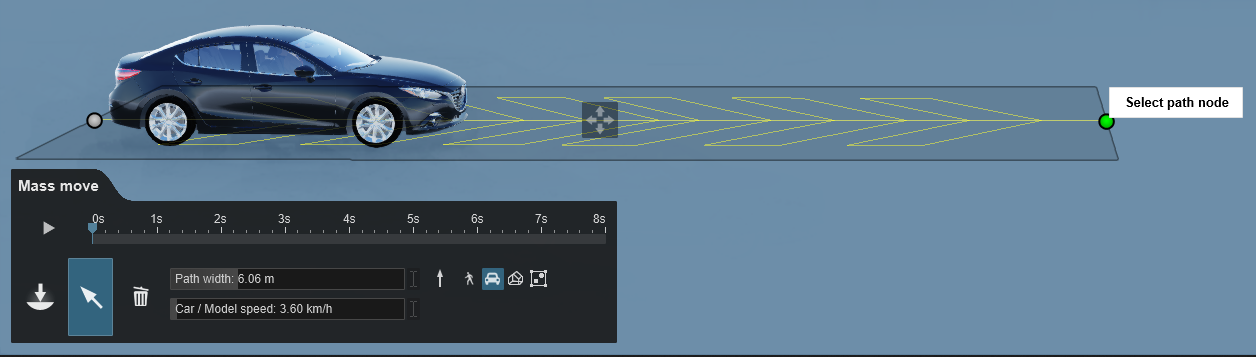
**CTRL + LEFT MOUSE BUTTON**
Add a *Node* to the current *Path*.
**RIGHT MOUSE BUTTON**
Remove a *Node* from the current *Path*.
**SHIFT**
A line is drawn to preview curves and smoothing of the *Path*.
**7. 360 Panorama Mode:**
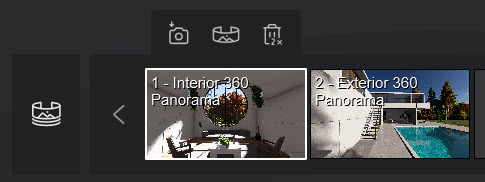
**Ctrl+C / Ctrl+ V**
Keyboard Copy and Paste a *360 Panorama Viewpoint* to another *360 Panorama Viewpoint* slot. Alternative to using the *Context Menu*.
- [Visit our other Sections](https://support.lumion.com/knowledge-base/visit-our-other-sections?hsLang=en-us)
- [Contact Us](https://support.lumion.com/knowledge-base/contact-us?hsLang=en-us)
- [Lumion Account](https://support.lumion.com/knowledge-base/lumion-account?hsLang=en-us)
- [Latest News](https://support.lumion.com/knowledge-base/latest-news?hsLang=en-us#main-content)
- [Major Known Issues](https://support.lumion.com/knowledge-base/latest-news?hsLang=en-us#major-known-issues)
- [Lumion 2025: Major Version Release Details](https://support.lumion.com/knowledge-base/latest-news?hsLang=en-us#lumion-2025-major-version-release-details)
- [Lumion 2024: Major Version Release Details](https://support.lumion.com/knowledge-base/latest-news?hsLang=en-us#lumion-2024-major-version-release-details)
- [Lumion 2023: Major Version Release Details](https://support.lumion.com/knowledge-base/latest-news?hsLang=en-us#lumion-2023-major-version-release-details)
- [Lumion 2023: Update Release Notes](https://support.lumion.com/knowledge-base/latest-news?hsLang=en-us#lumion-2023-update-release-notes)
- [Lumion 12](https://support.lumion.com/knowledge-base/latest-news?hsLang=en-us#lumion-12)
- [Lumion 11](https://support.lumion.com/knowledge-base/latest-news?hsLang=en-us#lumion-11)
- [Lumion 10](https://support.lumion.com/knowledge-base/latest-news?hsLang=en-us#lumion-10)
- [Sales Questions](https://support.lumion.com/knowledge-base/sales-questions?hsLang=en-us)
- [Subscriptions](https://support.lumion.com/knowledge-base/subscriptions?hsLang=en-us)
- [New User Questions](https://support.lumion.com/knowledge-base/new-user-questions?hsLang=en-us)
- [Learning Resources](https://support.lumion.com/knowledge-base/learning-resources?hsLang=en-us)
- [System Requirements Questions](https://support.lumion.com/knowledge-base/system-requirements-questions?hsLang=en-us#main-content)
- [Determining the 'Complexity' of your Projects](https://support.lumion.com/knowledge-base/system-requirements-questions?hsLang=en-us#determining-the-complexity-of-your-projects)
- [System Messages from Lumion](https://support.lumion.com/knowledge-base/system-requirements-questions?hsLang=en-us#system-messages-from-lumion)
- [Requirements for Prior Versions](https://support.lumion.com/knowledge-base/system-requirements-questions?hsLang=en-us#requirements-for-prior-versions)
- [Download & Installation Questions](https://support.lumion.com/knowledge-base/download-installation-questions?hsLang=en-us#main-content)
- [Download/Installation: General Questions](https://support.lumion.com/knowledge-base/download-installation-questions?hsLang=en-us#download-installation-general-questions)
- [Download Questions](https://support.lumion.com/knowledge-base/download-installation-questions?hsLang=en-us#download-questions)
- [Installation Questions](https://support.lumion.com/knowledge-base/download-installation-questions?hsLang=en-us#installation-questions)
- [Lumion Pro Updater](https://support.lumion.com/knowledge-base/download-installation-questions?hsLang=en-us#lumion-pro-updater)
- [Plugins to CAD software](https://support.lumion.com/knowledge-base/download-installation-questions?hsLang=en-us#plugins-to-cad-software)
- [License and General Product Questions](https://support.lumion.com/knowledge-base/license-and-general-product-questions?hsLang=en-us#main-content)
- [License System Messages from Lumion](https://support.lumion.com/knowledge-base/license-and-general-product-questions?hsLang=en-us#license-system-messages-from-lumion)
- [Import & Export Questions](https://support.lumion.com/knowledge-base/import-export-questions?hsLang=en-us#main-content)
- [Model Import Guidelines](https://support.lumion.com/knowledge-base/import-export-questions?hsLang=en-us#model-import-guidelines)
- [Lumion LiveSync and import plugins](https://support.lumion.com/knowledge-base/import-export-questions?hsLang=en-us#lumion-livesync-and-import-plugins)
- [System Messages from Lumion when importing](https://support.lumion.com/knowledge-base/import-export-questions?hsLang=en-us#system-messages-from-lumion-when-importing)
- [General Questions](https://support.lumion.com/knowledge-base/general-questions?hsLang=en-us#main-content)
- [Keyboard Shortcuts in Lumion](https://support.lumion.com/knowledge-base/general-questions?hsLang=en-us#keyboard-shortcuts-in-lumion)
- [Upgrading and Updating your Lumion Version](https://support.lumion.com/knowledge-base/general-questions?hsLang=en-us#upgrading-and-updating-your-lumion-version)
- [Using Lumion 2023](https://support.lumion.com/knowledge-base/general-questions?hsLang=en-us#using-lumion-2023)
- [System Messages from Lumion](https://support.lumion.com/knowledge-base/general-questions?hsLang=en-us#system-messages-from-lumion)
- [Build Mode Questions](https://support.lumion.com/knowledge-base/build-mode-questions?hsLang=en-us#main-content)
- [Landscape and Terrains](https://support.lumion.com/knowledge-base/build-mode-questions?hsLang=en-us#landscape-and-terrains)
- [OpenStreetMap](https://support.lumion.com/knowledge-base/build-mode-questions?hsLang=en-us#openstreetmap)
- [Lighting: Sun and Artificial Lights](https://support.lumion.com/knowledge-base/build-mode-questions?hsLang=en-us#lighting-sun-and-artificial-lights)
- [Questions mainly for older versions than Lumion 12](https://support.lumion.com/knowledge-base/build-mode-questions?hsLang=en-us#questions-mainly-for-older-versions-than-lumion-12)
- [Library Content](https://support.lumion.com/knowledge-base/library-content?hsLang=en-us#main-content)
- [Library Content in Lumion 2026](https://support.lumion.com/knowledge-base/library-content?hsLang=en-us#library-content-in-lumion-2026)
- [Library Content in Lumion 2025](https://support.lumion.com/knowledge-base/library-content?hsLang=en-us#library-content-in-lumion-2025)
- [Library Content in Lumion 2024](https://support.lumion.com/knowledge-base/library-content?hsLang=en-us#library-content-in-lumion-2024)
- [Library Content in Lumion 2023](https://support.lumion.com/knowledge-base/library-content?hsLang=en-us#library-content-in-lumion-2023)
- [Library Content in Lumion 12](https://support.lumion.com/knowledge-base/library-content?hsLang=en-us#library-content-in-lumion-12)
- [Movie & Photo Mode Questions](https://support.lumion.com/knowledge-base/movie-photo-mode-questions?hsLang=en-us#main-content)
- [Photo Mode](https://support.lumion.com/knowledge-base/movie-photo-mode-questions?hsLang=en-us#photo-mode)
- [Movie Mode](https://support.lumion.com/knowledge-base/movie-photo-mode-questions?hsLang=en-us#movie-mode)
- [Animation in Movie Mode](https://support.lumion.com/knowledge-base/movie-photo-mode-questions?hsLang=en-us#animation-in-movie-mode)
- [Effects in Photo or Movie Mode](https://support.lumion.com/knowledge-base/movie-photo-mode-questions?hsLang=en-us#effects-in-photo-or-movie-mode)
- [Reflections](https://support.lumion.com/knowledge-base/movie-photo-mode-questions?hsLang=en-us#reflections)
- [Material Questions](https://support.lumion.com/knowledge-base/material-questions?hsLang=en-us#main-content)
- [Materials in versions 12 and earlier](https://support.lumion.com/knowledge-base/material-questions?hsLang=en-us#materials-in-versions-12-and-earlier)
- [Using LiveSync for Revit and a Section Box](https://support.lumion.com/knowledge-base/material-questions?hsLang=en-us#using-livesync-for-revit-and-a-section-box)
- [Rendering Questions](https://support.lumion.com/knowledge-base/rendering-questions?hsLang=en-us#main-content)
- [General Rendering Questions](https://support.lumion.com/knowledge-base/rendering-questions?hsLang=en-us#general-rendering-questions)
- [Rendering of Photos](https://support.lumion.com/knowledge-base/rendering-questions?hsLang=en-us#rendering-of-photos)
- [Rendering of Clips and Movies](https://support.lumion.com/knowledge-base/rendering-questions?hsLang=en-us#rendering-of-clips-and-movies)
- [Tips to getting the best renders](https://support.lumion.com/knowledge-base/rendering-questions?hsLang=en-us#tips-to-getting-the-best-renders)
- [Rendering Performance](https://support.lumion.com/knowledge-base/rendering-questions?hsLang=en-us#rendering-performance)
- [Technical Issues when Rendering](https://support.lumion.com/knowledge-base/rendering-questions?hsLang=en-us#technical-issues-when-rendering)
- [Panorama Mode Questions](https://support.lumion.com/knowledge-base/panorama-mode-questions?hsLang=en-us#main-content)
- [Technical questions when rendering with Panorama Mode](https://support.lumion.com/knowledge-base/panorama-mode-questions?hsLang=en-us#technical-questions-when-rendering-with-panorama-mode)
- [File & BackUp Questions](https://support.lumion.com/knowledge-base/file-backup-questions?hsLang=en-us#main-content)
- [Saving and Backup](https://support.lumion.com/knowledge-base/file-backup-questions?hsLang=en-us#saving-and-backup)
- [File Saving Issues](https://support.lumion.com/knowledge-base/file-backup-questions?hsLang=en-us#file-saving-issues)
- [Lumion-Documents](https://support.lumion.com/knowledge-base/file-backup-questions?hsLang=en-us#lumion-documents)
- [Transfer, Move or Migrate Files](https://support.lumion.com/knowledge-base/file-backup-questions?hsLang=en-us#transfer-move-or-migrate-files)
- [Troubleshooting](https://support.lumion.com/knowledge-base/troubleshooting?hsLang=en-us#main-content)
- [Reports about your PC](https://support.lumion.com/knowledge-base/troubleshooting?hsLang=en-us#reports-about-your-pc)
- [Photo and Movie Mode Issues](https://support.lumion.com/knowledge-base/troubleshooting?hsLang=en-us#photo-and-movie-mode-issues)
- [Rendering Issues](https://support.lumion.com/knowledge-base/troubleshooting?hsLang=en-us#rendering-issues)
- [Error Messages from Lumion](https://support.lumion.com/knowledge-base/troubleshooting?hsLang=en-us#error-messages-from-lumion)
- [Hardware related Issues](https://support.lumion.com/knowledge-base/troubleshooting?hsLang=en-us#hardware-related-issues)
- [Other Troubleshooting Issues](https://support.lumion.com/knowledge-base/troubleshooting?hsLang=en-us#other-troubleshooting-issues)
- [Article Developments](https://support.lumion.com/knowledge-base/article-developments?hsLang=en-us#main-content)
- [Devs - Multi‑Image Button Viewer](https://support.lumion.com/knowledge-base/article-developments?hsLang=en-us#devs-multi-image-button-viewer)
[](https://lumion.com/)
[mailto:email@email.com](mailto:email@email.com)
Copyright © 2026, Lumion - Act3D B.V.
#### Product
[Plans and pricing](https://lumion.com/product/buy)
[Discover Lumion](https://lumion.com/product/discover-lumion)
[Compatibility](https://lumion.com/compatibility/)
[System Requirements](https://lumion.com/product/system-requirements)
[Find a reseller](https://lumion.com/about/find-reseller)
[Free trial](https://lumion.com/product/free-trial)
#### Solutions
[Architectural design](https://lumion.com/product/architectural-design)
[Interior design](https://lumion.com/product/interior-design)
[Landscape architecture](https://lumion.com/product/landscape-architecture)
[Urban planning](https://lumion.com/product/urban-planning)
[3D rendering](https://lumion.com/product/3d-rendering-software)
[Education](https://lumion.com/product/educational-licenses)
#### Compatibility
[Trimble SketchUp](https://lumion.com/compatibility/sketchup-rendering)
[Autodesk Revit](https://lumion.com/compatibility/revit-rendering)
[Graphisoft ArchiCAD](https://lumion.com/compatibility/archicad-rendering)
[Rhinoceros](https://lumion.com/compatibility/rhino-rendering)
[Autodesk Autocad](https://lumion.com/compatibility/autocad-rendering)
[Autodesk FormIt Pro](https://lumion.com/compatibility/lumion-for-autodesk-formit-pro)
[Nemetschek Allplan](https://lumion.com/compatibility/allplan-rendering)
[Nemetschek Vectorworks](https://lumion.com/compatibility/vectorworks-rendering)
[BricsCAD](https://lumion.com/compatibility/bricscad-rendering)
[3D Studio Max](https://lumion.com/compatibility/3ds-max-rendering)
#### Resources
[Made with Lumion](https://lumion.com/made-with-lumion)
[Tutorials](https://support.lumion.com/video-tutorials?hsLang=en-us)
[Support and learning](https://support.lumion.com/knowledge-base/api/v2/help_center/en-us/articles/360044608053.json?hsLang=en-us)
[Downloads](https://support.lumion.com/downloads?hsLang=en-us)
[Community](https://community.lumion.com/index.php)
#### About
[Our Story](https://lumion.com/about)
[We're hiring!](https://lumion.com/about/careers)
[News](https://lumion.com/news)
[Contact us](https://lumion.com/about/contact)
[Terms & conditions](https://lumion.com/legal/terms-of-service) [EULA](https://lumion.com/legal/eula) [Privacy statement](https://lumion.com/legal/privacy-statement) [CEIP](https://lumion.com/legal/ceip) [Disclaimer](https://lumion.com/legal/disclaimer) © 2026 Lumion