---
title: Access and User Management for Floating License Keys
description: Managing Access and multiple User Seats for a Lumion Pro Floating License Key
---
Solutions
[Architectural design All you need to bring your residential, commercial or institutional designs to life](https://lumion.com/product/architectural-design) [Landscape architecture Beautiful terrains and fine-detailed nature for any climate or season](https://lumion.com/product/landscape-architecture)
[Interior design Realistic light, high-quality textures, and an extensive asset library](https://lumion.com/product/interior-design) [Students and Faculties Lumion is free for students, educators, and faculties around the world](https://lumion.com/product/educational-licenses)
[SketchUp](https://lumion.com/compatibility/sketchup-rendering) [Revit](https://lumion.com/compatibility/revit-rendering) [ArchiCAD](https://lumion.com/compatibility/archicad-rendering) [Rhino](https://lumion.com/compatibility/rhino-rendering) [Autocad](https://lumion.com/compatibility/autocad-rendering) [See more](https://lumion.com/compatibility/)
Product
[Discover Axogram New Live architectural diagramming](https://lumion.com/product/axogram) [Lumion Cloud Where design meets collaboration](https://lumion.com/product/lumion-cloud)
[Lumion Pro Advanced visualization solution](https://lumion.com/product/lumion-pro) [Discover AI tools New AI built for architectural work](https://lumion.com/product/ai)
[Lumion Pro 2026.1 is out now! 🚀](https://lumion.com/product/latest-version-pro) [Compatibility](https://lumion.com/compatibility/) [System Requirements](https://lumion.com/product/system-requirements) [Roadmap](https://lumion.com/product/roadmap)
[Pricing](https://lumion.com/product/buy) Resources
[Made with Lumion Get inspired by the stories behind the designs](https://lumion.com/made-with-lumion)
[Tips & Guides Make the most out of Lumion with helpful guides and tutorials](https://lumion.com/tips-guides)
[Knowledge base](https://support.lumion.com/knowledge-base?hsLang=en-us) [Community](https://community.lumion.com/index.php) [Downloads](https://support.lumion.com/downloads?hsLang=en-us)
About
[Who we are Learn about our story and mission](https://lumion.com/about) [Careers - We're hiring Let's build the future of architectural visualization](https://lumion.com/about/careers)
[News Discover the latest product news and more](https://lumion.com/news)
[Find your local reseller](https://lumion.com/about/find-reseller) [Contact us](https://lumion.com/about/contact)
[](http://lumion.com)
[My Account](https://account.lumion.com)
Solutions
[Architectural design](https://lumion.com/product/architectural-design) [Interior design](https://lumion.com/product/interior-design) [Landscape architecture](https://lumion.com/product/landscape-architecture) [Students and Faculties](https://lumion.com/product/educational-licenses)
---
[SketchUp](https://lumion.com/compatibility/sketchup-rendering) [Revit](https://lumion.com/compatibility/revit-rendering) [ArchiCAD](https://lumion.com/compatibility/archicad-rendering) [Rhino](https://lumion.com/compatibility/rhino-rendering) [Autocad](https://lumion.com/compatibility/autocad-rendering) [See more](https://lumion.com/compatibility/)
Product
[Axogram New](https://lumion.com/product/axogram) [Lumion Cloud](https://lumion.com/product/lumion-cloud) [Lumion Pro](https://lumion.com/product/lumion-pro) [Discover AI tools New](https://lumion.com/product/ai)
---
[Lumion Pro 2026.1 is out now! 🚀](https://lumion.com/product/latest-version-pro) [Compatibility](https://lumion.com/compatibility/) [System Requirements](https://lumion.com/product/system-requirements) [Roadmap](https://lumion.com/product/roadmap)
[Pricing](https://lumion.com/product/buy) Resources
[Made with Lumion](https://lumion.com/made-with-lumion) [Tips & Guides](https://lumion.com/tips-guides)
---
[Knowledge base](https://support.lumion.com/knowledge-base?hsLang=en-us) [Community](https://community.lumion.com/index.php) [Downloads](https://support.lumion.com/downloads?hsLang=en-us)
About
[Who we are](https://lumion.com/about) [Careers - We're hiring](https://lumion.com/about/careers) [News](https://lumion.com/news)
---
[Find your local reseller](https://lumion.com/about/find-reseller) [Contact us](https://lumion.com/about/contact)
[My Account](https://account.lumion.com)
[Submit a request](https://support.lumion.com/hc/en-us/requests/new?hsLang=en-us)
[](https://lumion.com/) [Login](https://account.lumion.com/)
[](https://lumion.com/)
## Main menu
Solutions
Product
[Pricing](https://lumion.com/product/buy)
Resources
About
[Submit a request](https://support.lumion.com/hc/en-us/requests/new?hsLang=en-us)
[Login](https://account.lumion.com/)
Start for free
Back
### Solutions
[Architectural design](https://lumion.com/product/architectural-design) [Interior design](https://lumion.com/product/interior-design) [Landscape architecture](https://lumion.com/product/landscape-architecture) [Students and Faculties](https://lumion.com/product/educational-licenses)
---
[SketchUp](https://lumion.com/compatibility/sketchup-rendering) [Revit](https://lumion.com/compatibility/revit-rendering) [ArchiCAD](https://lumion.com/compatibility/archicad-rendering) [Rhino](https://lumion.com/compatibility/rhino-rendering) [Autocad](https://lumion.com/compatibility/autocad-rendering) [See more](https://lumion.com/compatibility/)
Back
### Product
[Axogram — New](https://lumion.com/product/axogram) [Lumion Cloud](https://lumion.com/product/lumion-cloud) [Lumion Pro](https://lumion.com/product/lumion-pro) [Discover AI tools — New](https://lumion.com/product/ai)
---
[Lumion Pro 2026.1 is out now! 🚀](https://lumion.com/product/latest-version-pro) [Compatibility](https://lumion.com/compatibility/) [System Requirements](https://lumion.com/product/system-requirements) [Roadmap](https://lumion.com/product/roadmap)
Back
### Resources
[Made with Lumion](https://lumion.com/made-with-lumion) [Tips & Guides](https://lumion.com/tips-guides)
---
[Knowledge base](https://support.lumion.com/knowledge-base?hsLang=en-us) [Community](https://community.lumion.com/index.php) [Downloads](https://support.lumion.com/downloads?hsLang=en-us)
Back
### About
[Who we are](https://lumion.com/about) [Careers - We're hiring](https://lumion.com/about/careers) [News](https://lumion.com/news)
---
[Find your local reseller](https://lumion.com/about/find-reseller) [Contact us](https://lumion.com/about/contact)
Back
### Start for free
[Lumion Pro](https://lumion.com/product/free-trial#request-trial) [Lumion Cloud](https://lumion.com/product/lumion-cloud#start) [Axogram](https://lumion.com/product/axogram#plans-pricing)
Lumion Knowledge Base
How can we help?
- There are no suggestions because the search field is empty.
[Skip to content](https://support.lumion.com/knowledge-base/access-and-user-management-for-floating-license-keys#main-content)
English - United States
Show submenu for translations

Open main navigation
Close main navigation
- English - United States
Show submenu for translations
- Contact us
Contact us
How can we help you?
- There are no suggestions because the search field is empty.
1. [Knowledge Base](https://support.lumion.com/knowledge-base?hsLang=en-us)
2. [License and General Product Questions](https://support.lumion.com/knowledge-base/license-and-general-product-questions?hsLang=en-us)
# Access and User Management for Floating License Keys
## How to register, log in, and manage Seats
### 
### 👥︎ Floating License Keys
This article explains how ***Floating License Keys*** work and how to provide users with access to Lumion. The ***Floating*** system is used by:
- ***Floating Subscriptions*** (previously known as *Lumion Studio*)
- ***Faculty License Keys***
- ***Perpetual License Keys*** (no longer available)
For ***Named-User*** ***Subscription*** access and user management, see this article instead:
- **Knowledge Base:** [Named-User based Login for Lumion Pro and Lumion View](https://support.lumion.com/knowledge-base/api/v2/help_center/en-us/articles/19339789610268.json?hsLang=en-us)
#### 1. How do Floating Seats work?
A ***Floating License Key*** can be used on different computers. Its number of ***Seats*** determines how many computers can run Lumion at the same time. For example, a 3-***Seat*** ***Floating License Key*** allows Lumion to run on up to 3 computers simultaneously. Closing Lumion on one computer releases that ***Seat*** so it can be used on another computer.
***Floating Seat*** are therefore based on simultaneous use, not on a list of assigned ***Users***. Registering the ***License Key*** to different authorized ***Lumion Accounts*** does not reserve or consume ***Seat*** . A ***Seat*** is used only while Lumion is running.
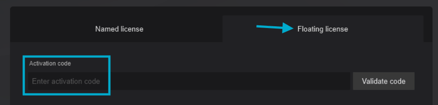
A ***Lumion Account*** and sign-in is required when starting Lumion 2025.1 or newer, but ***Floating*** users do not need to be assigned through *User Management* or have a license registered. Instead they can access Lumion by entering the ***Activation Code*** in the floating tab:
- **Knowledge Base:** [Where can you find your Lumion License Key and Activation Code?](https://support.lumion.com/knowledge-base/api/v2/help_center/en-us/articles/360043257654.json?hsLang=en-us)
**Note:** The same ***Lumion Account*** can be logged in and used to access Lumion on multiple PCs simultaneously as long as there are still free available ***Seats*** (not active) on the ***License Key**.* For example, an account that has registered a 3-***Seat*** license may be logged into Lumion on 3 different PCs at the same time.
The ***License Key*** will be automatically registered on an account created with the email used to make the purchase.
For information on the ***Lumion Account*** creation process and login, see these articles:
- **Knowledge Base:** [What is a Lumion Account?](https://support.lumion.com/knowledge-base/api/v2/help_center/en-us/articles/360043127434.json?hsLang=en-us)
- **Knowledge Base:** [Why do I need a Lumion Account?](https://support.lumion.com/knowledge-base/why-do-i-need-a-lumion-account?hsLang=en-us)
- **Knowledge Base:** [Why does Lumion require sign in to start](https://support.lumion.com/knowledge-base/api/v2/help_center/en-us/articles/21543347074332.json?hsLang=en-us)
#### 2. How do you manage and assign Floating Seats to Users?
User assignment is not used to control access to Lumion Pro under a ***Floating License Key***. There are two ways an administrator can provide access to users:
##### **Option A)** Locking the license to bypass license selection screen for Users
This is the recommended approach for shared offices, classrooms, or computer labs where administrators would rather avoid sharing the ***License Key*** details with the users. Here's how it works:
1. The license administrator signs in to their ***Lumion Account*** and downloads the Lumion ***Installer***.
2. The administrator installs Lumion on the authorized computers using the ***Activation Code.*** It is also possible to install Lumion on multiple PCs at the same time by using the silent deploy method:
- - **Knowledge Base:** [How do you install or uninstall Lumion silently?](https://support.lumion.com/knowledge-base/api/v2/help_center/en-us/articles/360003475593.json?hsLang=en-us)
3. The administrator locks the ***Floating License Key*** to each computer. Locking the license on the PC means users can freely sign in and out, without requiring any license registered on their Account , and without ever changing the license on the existing Lumion installation.
Here's how to do that:
- - **Knowledge Base:** [How do you lock a Lumion License Key to a PC?](https://support.lumion.com/knowledge-base/how-do-you-lock-a-lumion-license-key-to-a-pc?hsLang=en-us)
4. Each User signs in with their own ***Lumion Account*** when starting Lumion, however no license selection is required.
Alternatively, the administrator can also log in on all PCs so that the users don't need to log in or create an account at all. If the license is not locked, then the users will need to have a license registered on their account in order to access Lumion.
**Note:** Lumion sign in on an existing installation is tied to the active Windows User Account. So if a different Windows User Account logs in, that will also require a new ***Lumion Account*** sign in when starting up Lumion.
##### **Option B)** Register the Floating License Key on the User(s') Lumion Account
This approach can be used when an authorized User needs to download, install, or select the ***Floating License Key*** themselves when logging in. However, it means every user needs their own ***Lumion Account***, and have the license registered on it.
Here's how that works:
- The user creates or signs in to their existing ***Lumion Account***.
- The user registers the ***Floating License Key*** number as explained in this article:
- **Knowledge Base:** [How do you register a License Key on your Lumion Account?](https://support.lumion.com/knowledge-base/api/v2/help_center/en-us/articles/360044183854.json?hsLang=en-us)
- The user downloads and installs the corresponding Lumion version.
- The user then signs in when starting Lumion and selects the registered ***Floating License Key:***
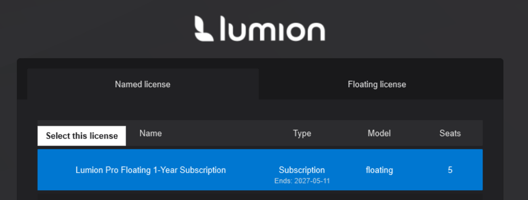
Note that registering the key makes the license number, ***Activation Code****,* and downloads available in that user's ***Lumion Account***. It does not assign the user a ***Seat*** or reserve one of the available ***Floating Seat*** (unless Lumion is currently open and logged in).
The license administrator should provide ***License Key*** information only to authorized users. In case a user leaves the company and should no longer have access to the license number, or there's an unauthorized user activating the license without permission, please contact us:
- **Knowledge Base:** [Contact Lumion Technical Support](https://support.lumion.com/knowledge-base/api/v2/help_center/en-us/articles/360041760194.json?hsLang=en-us)
### **Frequently Asked Questions and Troubleshooting**
1\. Why must Floating users sign in?
Starting with Lumion 2025.1, everyone must sign in to a ***Lumion Account*** when Lumion starts. This identifies the user and provides access to supported Lumion Cloud features.
This requirement does not convert a ***Floating License Key*** into a ***Named-user License Key***. Floating users still do not need to be assigned through User Management.
- **If the License Key is locked to the computer:** The user can sign in with a ***Lumion Account*** that has no ***License Key*** registered.
- **If the License Key is not locked:** The user must have a license registered and select it when starting Lumion and logging in.
For more information, see:
- - **Knowledge Base:** [Why does Lumion require a sign-in to start?](https://support.lumion.com/knowledge-base/api/v2/help_center/en-us/articles/21543347074332.json?hsLang=en-us)
2\. How does a Floating License Key appear in a Lumion Account?
This depends on when and how it was purchased:
- Current Floating purchases: The ***License Key*** is automatically linked to the ***Lumion Account*** associated with the purchase email address. A separate ***License Key*** and ***Activation Code*** email may not be sent.
- Additional authorized users: They can register the ***Floating License Key*** manually if the license administrator chooses to provide them with the ***License Key*** number.
- **Knowledge Base:** [How do you register a License Key on your Lumion Account?](https://support.lumion.com/knowledge-base/api/v2/help_center/en-us/articles/360044183854.json?hsLang=en-us)
**Note:** For Lumion Studio (now discontinued) it was also possible for the administrator to register a the Floating license on a different user via their *Lumion Account,* using the ***Named User*** manager for Lumion View.
More information on this can be found in question 3.
- Older Floating Perpetual License Keys: The ***License Key*** number and ***Activation Code*** were provided by email. An authorized user could then register the License Key manually.
If a recently purchased ***License Key*** is not visible, confirm that you signed in using the same email address used for the purchase.
3\. What happens with Legacy Lumion Studio subscriptions?
Lumion Studio was a bundle containing two products with different access models.
| Product included with Lumion Studio | Access model | How access is managed |
| --- | --- | --- |
| **Lumion Pro** | Floating | Through an installed and locked license, or by registering the Floating License Key |
| **Lumion View** | Named-user | Through User Management in the *Lumion Account* |
It is now a legacy offering and no longer available for new purchases. New Lumion ***Floating*** subscriptions do not include Lumion View.
In the past, assigning a Lumion View user could also make the ***Studio License Key*** visible in that person's ***Lumion Account***. Some organizations therefore used View assignments as a way to distribute Lumion Pro. However, this did not make Lumion Pro a ***Named-user*** product, and the assignments were never required for Floating access.
Existing Lumion Studio customers retain Lumion View access based on the current entitlement of one Lumion View user for each Lumion Studio ***Seat***. The previous promotional allowance of up to x10 View users per Studio seat is no longer available.
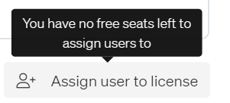In case you are receiving the following error when attempting to assign users, it is because you have more users assigned than the current number of *Seats* on the license (which was previously possible due to the 10x View ***Seat*** promotion). No additional View users can be invited while the account is at or above its current limit.
To invite a different View user, remove users who no longer require View until the number of assignments is below the current entitlement. These View assignments do not need to be maintained for access to Lumion Pro. More information on Named-User assignment can be found in this article:
- - **Knowledge Base:** [Named-User based Login for Lumion Pro and Lumion View](https://support.lumion.com/knowledge-base/api/v2/help_center/en-us/articles/19357192364188.json?hsLang=en-us)
4\. When I sign into Lumion, there is no License Key to select
The ***License Key*** may not be registered to your ***Lumion Account.***
Options:
- Ask the administrator for the ***License Key*** number and register it on your account.
- OR enter the ***Activation Code*** on the ***Floating*** tab in the sign in screen.
- Or ask the administrator to log in with their account and lock the ***License Key*** to the computer.
5\. There's an error when attempting to register a license
If you see this:

It means you are trying to register a Named-User license. This type of license cannot be registered from here, only ***Floating License Key*** can.
6\. 'No Seats available' error when accessing Lumion
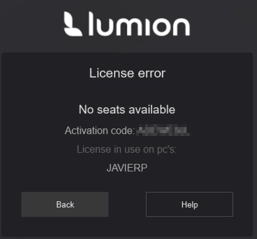If you see the following error when logging in and selecting a license or entering the ***Activation Code***, it means that all the ***Seats*** on the license are already taken.
You'll see a list of all the PCs who currently have a license ***Seat*** activated. To release a ***Seat****,* simply close Lumion.
7\. I'm unable to sign in
If you are having issues logging in when starting Lumion, try follow the troubleshooting steps in section **3.** of this article .
- **Knowledge Base:** [Why does Lumion require sign in to start?](https://support.lumion.com/knowledge-base/api/v2/help_center/en-us/articles/21543347074332.json?hsLang=en-us)
In case that doesn't help, please [contact technical support](https://support.lumion.com/knowledge-base/api/v2/help_center/en-us/articles/360041760194.json?hsLang=en-us).
#### **See Also:**
- - **Knowledge Base:** [How does the License System work?](https://support.lumion.com/knowledge-base/api/v2/help_center/en-us/articles/360003455434.json?hsLang=en-us)
- [Visit our other Sections](https://support.lumion.com/knowledge-base/visit-our-other-sections?hsLang=en-us)
- [Contact Us](https://support.lumion.com/knowledge-base/contact-us?hsLang=en-us)
- [Lumion Account](https://support.lumion.com/knowledge-base/lumion-account?hsLang=en-us)
- [Latest News](https://support.lumion.com/knowledge-base/latest-news?hsLang=en-us#main-content)
- [Major Known Issues](https://support.lumion.com/knowledge-base/latest-news?hsLang=en-us#major-known-issues)
- [Lumion 2025: Major Version Release Details](https://support.lumion.com/knowledge-base/latest-news?hsLang=en-us#lumion-2025-major-version-release-details)
- [Lumion 2024: Major Version Release Details](https://support.lumion.com/knowledge-base/latest-news?hsLang=en-us#lumion-2024-major-version-release-details)
- [Lumion 2023: Major Version Release Details](https://support.lumion.com/knowledge-base/latest-news?hsLang=en-us#lumion-2023-major-version-release-details)
- [Lumion 2023: Update Release Notes](https://support.lumion.com/knowledge-base/latest-news?hsLang=en-us#lumion-2023-update-release-notes)
- [Lumion 12](https://support.lumion.com/knowledge-base/latest-news?hsLang=en-us#lumion-12)
- [Lumion 11](https://support.lumion.com/knowledge-base/latest-news?hsLang=en-us#lumion-11)
- [Lumion 10](https://support.lumion.com/knowledge-base/latest-news?hsLang=en-us#lumion-10)
- [Sales Questions](https://support.lumion.com/knowledge-base/sales-questions?hsLang=en-us)
- [Subscriptions](https://support.lumion.com/knowledge-base/subscriptions?hsLang=en-us)
- [New User Questions](https://support.lumion.com/knowledge-base/new-user-questions?hsLang=en-us)
- [Learning Resources](https://support.lumion.com/knowledge-base/learning-resources?hsLang=en-us)
- [System Requirements Questions](https://support.lumion.com/knowledge-base/system-requirements-questions?hsLang=en-us#main-content)
- [Determining the 'Complexity' of your Projects](https://support.lumion.com/knowledge-base/system-requirements-questions?hsLang=en-us#determining-the-complexity-of-your-projects)
- [System Messages from Lumion](https://support.lumion.com/knowledge-base/system-requirements-questions?hsLang=en-us#system-messages-from-lumion)
- [Requirements for Prior Versions](https://support.lumion.com/knowledge-base/system-requirements-questions?hsLang=en-us#requirements-for-prior-versions)
- [Download & Installation Questions](https://support.lumion.com/knowledge-base/download-installation-questions?hsLang=en-us#main-content)
- [Download/Installation: General Questions](https://support.lumion.com/knowledge-base/download-installation-questions?hsLang=en-us#download-installation-general-questions)
- [Download Questions](https://support.lumion.com/knowledge-base/download-installation-questions?hsLang=en-us#download-questions)
- [Installation Questions](https://support.lumion.com/knowledge-base/download-installation-questions?hsLang=en-us#installation-questions)
- [Lumion Pro Updater](https://support.lumion.com/knowledge-base/download-installation-questions?hsLang=en-us#lumion-pro-updater)
- [Plugins to CAD software](https://support.lumion.com/knowledge-base/download-installation-questions?hsLang=en-us#plugins-to-cad-software)
- [License and General Product Questions](https://support.lumion.com/knowledge-base/license-and-general-product-questions?hsLang=en-us#main-content)
- [License System Messages from Lumion](https://support.lumion.com/knowledge-base/license-and-general-product-questions?hsLang=en-us#license-system-messages-from-lumion)
- [Import & Export Questions](https://support.lumion.com/knowledge-base/import-export-questions?hsLang=en-us#main-content)
- [Model Import Guidelines](https://support.lumion.com/knowledge-base/import-export-questions?hsLang=en-us#model-import-guidelines)
- [Lumion LiveSync and import plugins](https://support.lumion.com/knowledge-base/import-export-questions?hsLang=en-us#lumion-livesync-and-import-plugins)
- [System Messages from Lumion when importing](https://support.lumion.com/knowledge-base/import-export-questions?hsLang=en-us#system-messages-from-lumion-when-importing)
- [General Questions](https://support.lumion.com/knowledge-base/general-questions?hsLang=en-us#main-content)
- [Keyboard Shortcuts in Lumion](https://support.lumion.com/knowledge-base/general-questions?hsLang=en-us#keyboard-shortcuts-in-lumion)
- [Upgrading and Updating your Lumion Version](https://support.lumion.com/knowledge-base/general-questions?hsLang=en-us#upgrading-and-updating-your-lumion-version)
- [Using Lumion 2023](https://support.lumion.com/knowledge-base/general-questions?hsLang=en-us#using-lumion-2023)
- [System Messages from Lumion](https://support.lumion.com/knowledge-base/general-questions?hsLang=en-us#system-messages-from-lumion)
- [Build Mode Questions](https://support.lumion.com/knowledge-base/build-mode-questions?hsLang=en-us#main-content)
- [Landscape and Terrains](https://support.lumion.com/knowledge-base/build-mode-questions?hsLang=en-us#landscape-and-terrains)
- [OpenStreetMap](https://support.lumion.com/knowledge-base/build-mode-questions?hsLang=en-us#openstreetmap)
- [Lighting: Sun and Artificial Lights](https://support.lumion.com/knowledge-base/build-mode-questions?hsLang=en-us#lighting-sun-and-artificial-lights)
- [Questions mainly for older versions than Lumion 12](https://support.lumion.com/knowledge-base/build-mode-questions?hsLang=en-us#questions-mainly-for-older-versions-than-lumion-12)
- [Library Content](https://support.lumion.com/knowledge-base/library-content?hsLang=en-us#main-content)
- [Library Content in Lumion 2026](https://support.lumion.com/knowledge-base/library-content?hsLang=en-us#library-content-in-lumion-2026)
- [Library Content in Lumion 2025](https://support.lumion.com/knowledge-base/library-content?hsLang=en-us#library-content-in-lumion-2025)
- [Library Content in Lumion 2024](https://support.lumion.com/knowledge-base/library-content?hsLang=en-us#library-content-in-lumion-2024)
- [Library Content in Lumion 2023](https://support.lumion.com/knowledge-base/library-content?hsLang=en-us#library-content-in-lumion-2023)
- [Library Content in Lumion 12](https://support.lumion.com/knowledge-base/library-content?hsLang=en-us#library-content-in-lumion-12)
- [Movie & Photo Mode Questions](https://support.lumion.com/knowledge-base/movie-photo-mode-questions?hsLang=en-us#main-content)
- [Photo Mode](https://support.lumion.com/knowledge-base/movie-photo-mode-questions?hsLang=en-us#photo-mode)
- [Movie Mode](https://support.lumion.com/knowledge-base/movie-photo-mode-questions?hsLang=en-us#movie-mode)
- [Animation in Movie Mode](https://support.lumion.com/knowledge-base/movie-photo-mode-questions?hsLang=en-us#animation-in-movie-mode)
- [Effects in Photo or Movie Mode](https://support.lumion.com/knowledge-base/movie-photo-mode-questions?hsLang=en-us#effects-in-photo-or-movie-mode)
- [Reflections](https://support.lumion.com/knowledge-base/movie-photo-mode-questions?hsLang=en-us#reflections)
- [Material Questions](https://support.lumion.com/knowledge-base/material-questions?hsLang=en-us#main-content)
- [Materials in versions 12 and earlier](https://support.lumion.com/knowledge-base/material-questions?hsLang=en-us#materials-in-versions-12-and-earlier)
- [Using LiveSync for Revit and a Section Box](https://support.lumion.com/knowledge-base/material-questions?hsLang=en-us#using-livesync-for-revit-and-a-section-box)
- [Rendering Questions](https://support.lumion.com/knowledge-base/rendering-questions?hsLang=en-us#main-content)
- [General Rendering Questions](https://support.lumion.com/knowledge-base/rendering-questions?hsLang=en-us#general-rendering-questions)
- [Rendering of Photos](https://support.lumion.com/knowledge-base/rendering-questions?hsLang=en-us#rendering-of-photos)
- [Rendering of Clips and Movies](https://support.lumion.com/knowledge-base/rendering-questions?hsLang=en-us#rendering-of-clips-and-movies)
- [Tips to getting the best renders](https://support.lumion.com/knowledge-base/rendering-questions?hsLang=en-us#tips-to-getting-the-best-renders)
- [Rendering Performance](https://support.lumion.com/knowledge-base/rendering-questions?hsLang=en-us#rendering-performance)
- [Technical Issues when Rendering](https://support.lumion.com/knowledge-base/rendering-questions?hsLang=en-us#technical-issues-when-rendering)
- [Panorama Mode Questions](https://support.lumion.com/knowledge-base/panorama-mode-questions?hsLang=en-us#main-content)
- [Technical questions when rendering with Panorama Mode](https://support.lumion.com/knowledge-base/panorama-mode-questions?hsLang=en-us#technical-questions-when-rendering-with-panorama-mode)
- [File & BackUp Questions](https://support.lumion.com/knowledge-base/file-backup-questions?hsLang=en-us#main-content)
- [Saving and Backup](https://support.lumion.com/knowledge-base/file-backup-questions?hsLang=en-us#saving-and-backup)
- [File Saving Issues](https://support.lumion.com/knowledge-base/file-backup-questions?hsLang=en-us#file-saving-issues)
- [Lumion-Documents](https://support.lumion.com/knowledge-base/file-backup-questions?hsLang=en-us#lumion-documents)
- [Transfer, Move or Migrate Files](https://support.lumion.com/knowledge-base/file-backup-questions?hsLang=en-us#transfer-move-or-migrate-files)
- [Troubleshooting](https://support.lumion.com/knowledge-base/troubleshooting?hsLang=en-us#main-content)
- [Reports about your PC](https://support.lumion.com/knowledge-base/troubleshooting?hsLang=en-us#reports-about-your-pc)
- [Photo and Movie Mode Issues](https://support.lumion.com/knowledge-base/troubleshooting?hsLang=en-us#photo-and-movie-mode-issues)
- [Rendering Issues](https://support.lumion.com/knowledge-base/troubleshooting?hsLang=en-us#rendering-issues)
- [Error Messages from Lumion](https://support.lumion.com/knowledge-base/troubleshooting?hsLang=en-us#error-messages-from-lumion)
- [Hardware related Issues](https://support.lumion.com/knowledge-base/troubleshooting?hsLang=en-us#hardware-related-issues)
- [Other Troubleshooting Issues](https://support.lumion.com/knowledge-base/troubleshooting?hsLang=en-us#other-troubleshooting-issues)
- [Article Developments](https://support.lumion.com/knowledge-base/article-developments?hsLang=en-us#main-content)
- [Devs - Multi‑Image Button Viewer](https://support.lumion.com/knowledge-base/article-developments?hsLang=en-us#devs-multi-image-button-viewer)
[](https://lumion.com/)
[mailto:email@email.com](mailto:email@email.com)
Copyright © 2026, Lumion - Act3D B.V.
#### Product
[Plans and pricing](https://lumion.com/product/buy)
[Discover Lumion](https://lumion.com/product/discover-lumion)
[Compatibility](https://lumion.com/compatibility/)
[System Requirements](https://lumion.com/product/system-requirements)
[Find a reseller](https://lumion.com/about/find-reseller)
[Free trial](https://lumion.com/product/free-trial)
#### Solutions
[Architectural design](https://lumion.com/product/architectural-design)
[Interior design](https://lumion.com/product/interior-design)
[Landscape architecture](https://lumion.com/product/landscape-architecture)
[Urban planning](https://lumion.com/product/urban-planning)
[3D rendering](https://lumion.com/product/3d-rendering-software)
[Education](https://lumion.com/product/educational-licenses)
#### Compatibility
[Trimble SketchUp](https://lumion.com/compatibility/sketchup-rendering)
[Autodesk Revit](https://lumion.com/compatibility/revit-rendering)
[Graphisoft ArchiCAD](https://lumion.com/compatibility/archicad-rendering)
[Rhinoceros](https://lumion.com/compatibility/rhino-rendering)
[Autodesk Autocad](https://lumion.com/compatibility/autocad-rendering)
[Autodesk FormIt Pro](https://lumion.com/compatibility/lumion-for-autodesk-formit-pro)
[Nemetschek Allplan](https://lumion.com/compatibility/allplan-rendering)
[Nemetschek Vectorworks](https://lumion.com/compatibility/vectorworks-rendering)
[BricsCAD](https://lumion.com/compatibility/bricscad-rendering)
[3D Studio Max](https://lumion.com/compatibility/3ds-max-rendering)
#### Resources
[Made with Lumion](https://lumion.com/made-with-lumion)
[Tutorials](https://support.lumion.com/video-tutorials?hsLang=en-us)
[Support and learning](https://support.lumion.com/knowledge-base/api/v2/help_center/en-us/articles/360044608053.json?hsLang=en-us)
[Downloads](https://support.lumion.com/downloads?hsLang=en-us)
[Community](https://community.lumion.com/index.php)
#### About
[Our Story](https://lumion.com/about)
[We're hiring!](https://lumion.com/about/careers)
[News](https://lumion.com/news)
[Contact us](https://lumion.com/about/contact)
[Terms & conditions](https://lumion.com/legal/terms-of-service) [EULA](https://lumion.com/legal/eula) [Privacy statement](https://lumion.com/legal/privacy-statement) [CEIP](https://lumion.com/legal/ceip) [Disclaimer](https://lumion.com/legal/disclaimer) © 2026 Lumion