---
title: How do you use the Area Placement Tool?
description: How you use the Area Placement Tool
---
Solutions
[Architectural design All you need to bring your residential, commercial or institutional designs to life](https://lumion.com/product/architectural-design) [Landscape architecture Beautiful terrains and fine-detailed nature for any climate or season](https://lumion.com/product/landscape-architecture)
[Interior design Realistic light, high-quality textures, and an extensive asset library](https://lumion.com/product/interior-design) [Students and Faculties Lumion is free for students, educators, and faculties around the world](https://lumion.com/product/educational-licenses)
[SketchUp](https://lumion.com/compatibility/sketchup-rendering) [Revit](https://lumion.com/compatibility/revit-rendering) [ArchiCAD](https://lumion.com/compatibility/archicad-rendering) [Rhino](https://lumion.com/compatibility/rhino-rendering) [Autocad](https://lumion.com/compatibility/autocad-rendering) [See more](https://lumion.com/compatibility/)
Product
[Discover Axogram New Live architectural diagramming](https://lumion.com/product/axogram) [Lumion Cloud Where design meets collaboration](https://lumion.com/product/lumion-cloud)
[Lumion Pro Advanced visualization solution](https://lumion.com/product/lumion-pro) [Discover AI tools New AI built for architectural work](https://lumion.com/product/ai)
[Lumion Pro 2026.1 is out now! 🚀](https://lumion.com/product/latest-version-pro) [Compatibility](https://lumion.com/compatibility/) [System Requirements](https://lumion.com/product/system-requirements) [Roadmap](https://lumion.com/product/roadmap)
[Pricing](https://lumion.com/product/buy) Resources
[Made with Lumion Get inspired by the stories behind the designs](https://lumion.com/made-with-lumion)
[Tips & Guides Make the most out of Lumion with helpful guides and tutorials](https://lumion.com/tips-guides)
[Knowledge base](https://support.lumion.com/knowledge-base?hsLang=en-us) [Community](https://community.lumion.com/index.php) [Downloads](https://support.lumion.com/downloads?hsLang=en-us)
About
[Who we are Learn about our story and mission](https://lumion.com/about) [Careers - We're hiring Let's build the future of architectural visualization](https://lumion.com/about/careers)
[News Discover the latest product news and more](https://lumion.com/news)
[Find your local reseller](https://lumion.com/about/find-reseller) [Contact us](https://lumion.com/about/contact)
[](http://lumion.com)
[My Account](https://account.lumion.com)
Solutions
[Architectural design](https://lumion.com/product/architectural-design) [Interior design](https://lumion.com/product/interior-design) [Landscape architecture](https://lumion.com/product/landscape-architecture) [Students and Faculties](https://lumion.com/product/educational-licenses)
---
[SketchUp](https://lumion.com/compatibility/sketchup-rendering) [Revit](https://lumion.com/compatibility/revit-rendering) [ArchiCAD](https://lumion.com/compatibility/archicad-rendering) [Rhino](https://lumion.com/compatibility/rhino-rendering) [Autocad](https://lumion.com/compatibility/autocad-rendering) [See more](https://lumion.com/compatibility/)
Product
[Axogram New](https://lumion.com/product/axogram) [Lumion Cloud](https://lumion.com/product/lumion-cloud) [Lumion Pro](https://lumion.com/product/lumion-pro) [Discover AI tools New](https://lumion.com/product/ai)
---
[Lumion Pro 2026.1 is out now! 🚀](https://lumion.com/product/latest-version-pro) [Compatibility](https://lumion.com/compatibility/) [System Requirements](https://lumion.com/product/system-requirements) [Roadmap](https://lumion.com/product/roadmap)
[Pricing](https://lumion.com/product/buy) Resources
[Made with Lumion](https://lumion.com/made-with-lumion) [Tips & Guides](https://lumion.com/tips-guides)
---
[Knowledge base](https://support.lumion.com/knowledge-base?hsLang=en-us) [Community](https://community.lumion.com/index.php) [Downloads](https://support.lumion.com/downloads?hsLang=en-us)
About
[Who we are](https://lumion.com/about) [Careers - We're hiring](https://lumion.com/about/careers) [News](https://lumion.com/news)
---
[Find your local reseller](https://lumion.com/about/find-reseller) [Contact us](https://lumion.com/about/contact)
[My Account](https://account.lumion.com)
[Submit a request](https://support.lumion.com/hc/en-us/requests/new?hsLang=en-us)
Lumion Knowledge Base
How can we help?
- There are no suggestions because the search field is empty.
[Skip to content](https://support.lumion.com/knowledge-base/how-do-you-use-the-area-placement-tool#main-content)
English - United States
Show submenu for translations

Open main navigation
Close main navigation
- English - United States
Show submenu for translations
- Contact us
Contact us
How can we help you?
- There are no suggestions because the search field is empty.
1. [Knowledge Base](https://support.lumion.com/knowledge-base?hsLang=en-us)
2. [Build Mode Questions](https://support.lumion.com/knowledge-base/build-mode-questions?hsLang=en-us)
# How do you use the Area Placement Tool?
## Placement tools for Objects now include an Area Placement tool in Lumion 2026.0. Here's how it works and what you can do with it.
### Menu:
| [1. Introduction:](https://support.lumion.com/knowledge-base/how-do-you-use-the-area-placement-tool#H1_Introduction) [1.1: You can](https://support.lumion.com/knowledge-base/how-do-you-use-the-area-placement-tool#H1.1_You_can:) [1.2: The Area Placement Tools](https://support.lumion.com/knowledge-base/how-do-you-use-the-area-placement-tool#H1.2_TheAreaPlacementTools) [1.3: Example Scene](https://support.lumion.com/knowledge-base/how-do-you-use-the-area-placement-tool#H1.3_ExampleScene) [2. Key Features](https://support.lumion.com/knowledge-base/how-do-you-use-the-area-placement-tool#H2_KeyFeatures) [3. Using the Area Placement Tools](https://support.lumion.com/knowledge-base/how-do-you-use-the-area-placement-tool#H3_UsingtheAreaPlacementTools) [4. Key Steps](https://support.lumion.com/knowledge-base/how-do-you-use-the-area-placement-tool#H4_KeySteps) [5. Key Capabilities](https://support.lumion.com/knowledge-base/how-do-you-use-the-area-placement-tool#H5_KeyCapabilities) [5.1: Surface Placement](https://support.lumion.com/knowledge-base/how-do-you-use-the-area-placement-tool#H5.1_SurfacePlacement) [5.2: Area Placement](https://support.lumion.com/knowledge-base/how-do-you-use-the-area-placement-tool#H5.2_AreaPlacement) | [6. Steps to Using Area Placement](https://support.lumion.com/knowledge-base/how-do-you-use-the-area-placement-tool#H6_StepstoUsingAreaPlacement) [7. Steps to Using Fill (Surface) Placement](https://support.lumion.com/knowledge-base/how-do-you-use-the-area-placement-tool#H7_StepstoUsingFillSurfacePlacement) In Detail: [8. Properties and Sliders](https://support.lumion.com/knowledge-base/how-do-you-use-the-area-placement-tool#H8_PropertiesandSliders:) [8.1: Common Properties - UI Sliders](https://support.lumion.com/knowledge-base/how-do-you-use-the-area-placement-tool#H8.1_CommonProperties_UISliders) [8.2: Object Properties Panel](https://support.lumion.com/knowledge-base/how-do-you-use-the-area-placement-tool#H8.2_ObjectPropertiesPanel) [9. How It Works](https://support.lumion.com/knowledge-base/how-do-you-use-the-area-placement-tool#H9_HowItWorks) [10. Limitations](https://support.lumion.com/knowledge-base/how-do-you-use-the-area-placement-tool#H10_Limitations) [11. FAQ](https://support.lumion.com/knowledge-base/how-do-you-use-the-area-placement-tool#H11_FAQ) |
| --- | --- |
### 1. Introduction:
#### 1.1: You can:
#### Place Objects on a selected Surface:
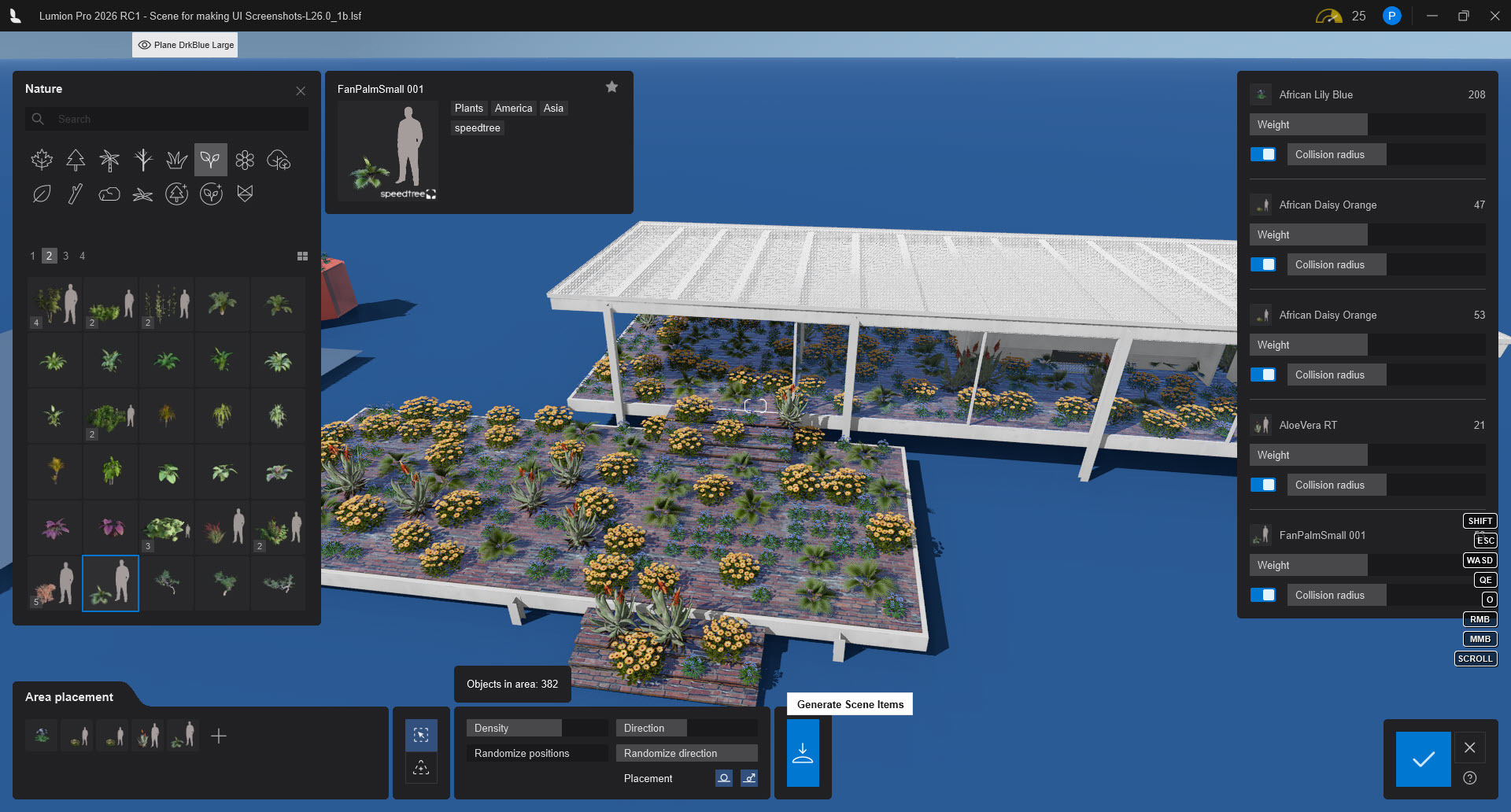
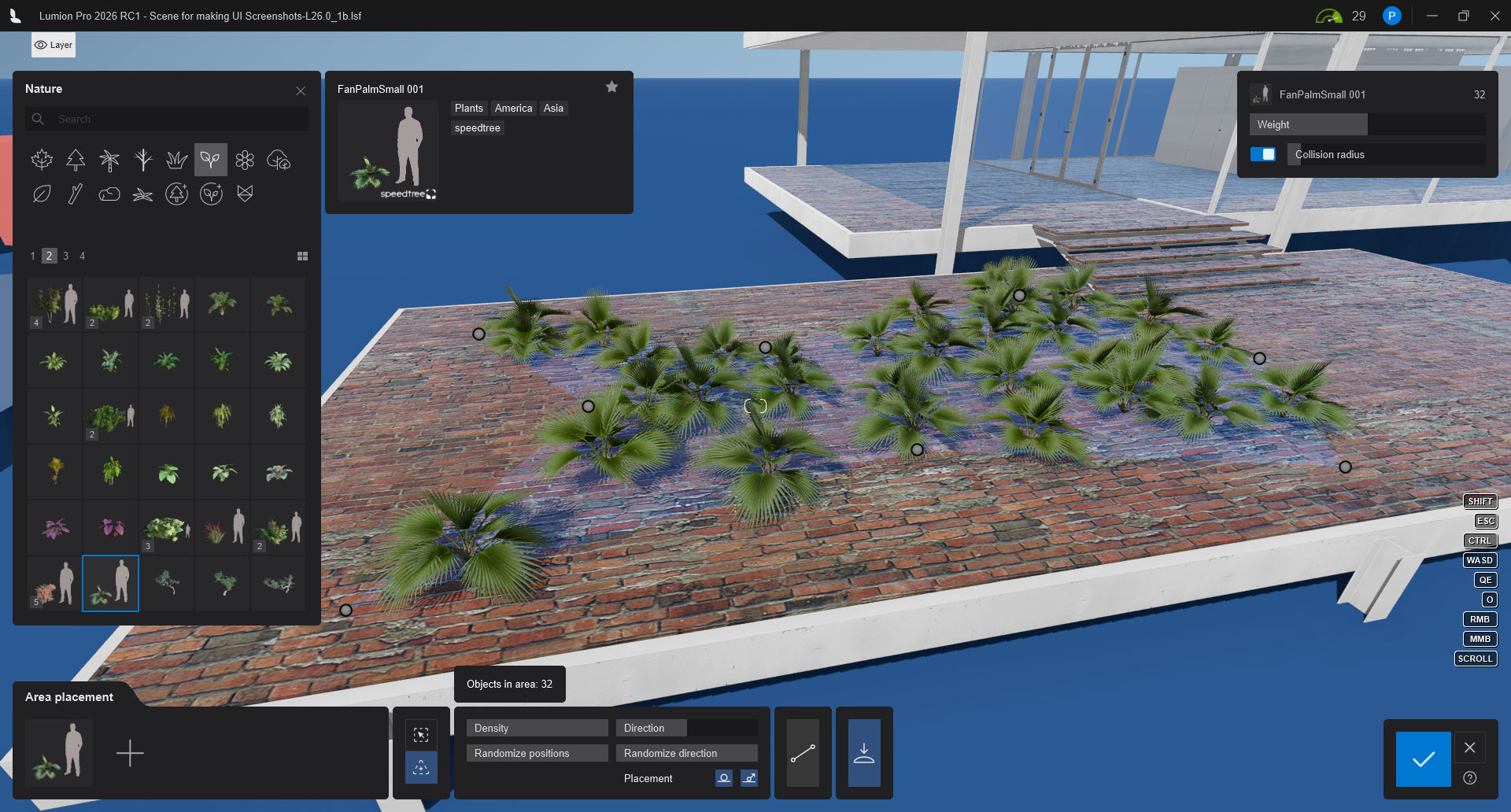
#### Place Objects on an Area you create.
##### The area can be a simple or more complex shape. The shape is determined by the closed-line area.
##### Also:
- Control how many *Objects* should be placed
- Control the distribution via the *Density* and *Collision* factors of the model size.
- Control how the *Objects* will be placed for Direction, Position and relative to the ground:
#### Notes:
**Important:** There is a required upper limit of 5,000 *Objects* to manage memory issues.
This implementation for Lumion 2026.0 applies only to outdoor use and placing Nature Objects. This might be extended to some of the other *Object* Categories in future versions.
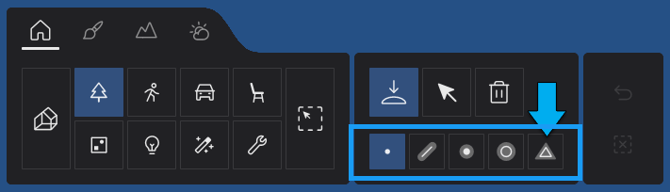
#### 1.2: The Area Placement Tools
This new ***Area Placement Tool*** sits alongside the other Placement Tools (there may be some overlapping of functionality, but this tool provides two key requested features from customer feedback)


#### 1.3: Example Scene
##### 1.3.1: Surface Placement
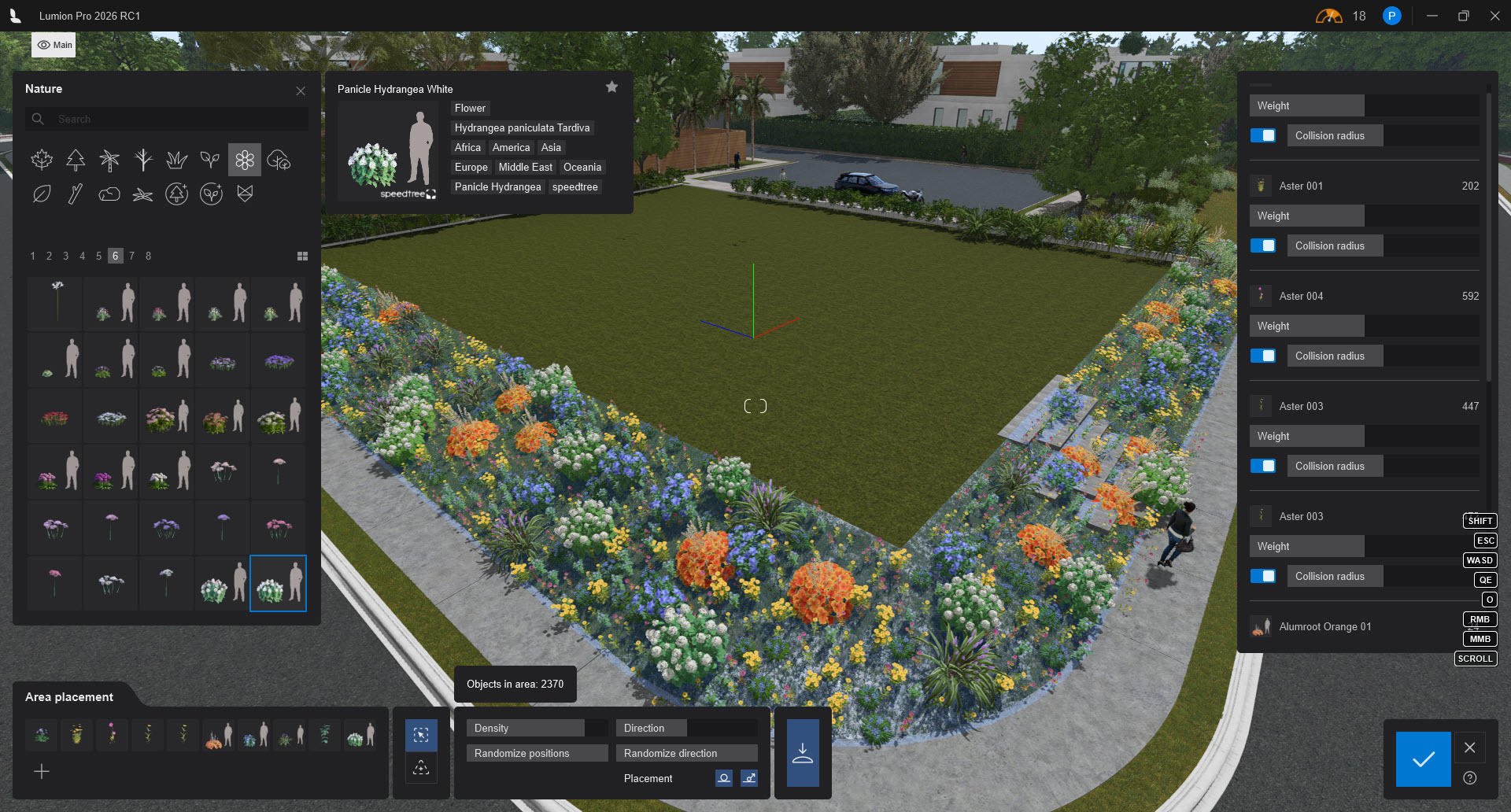
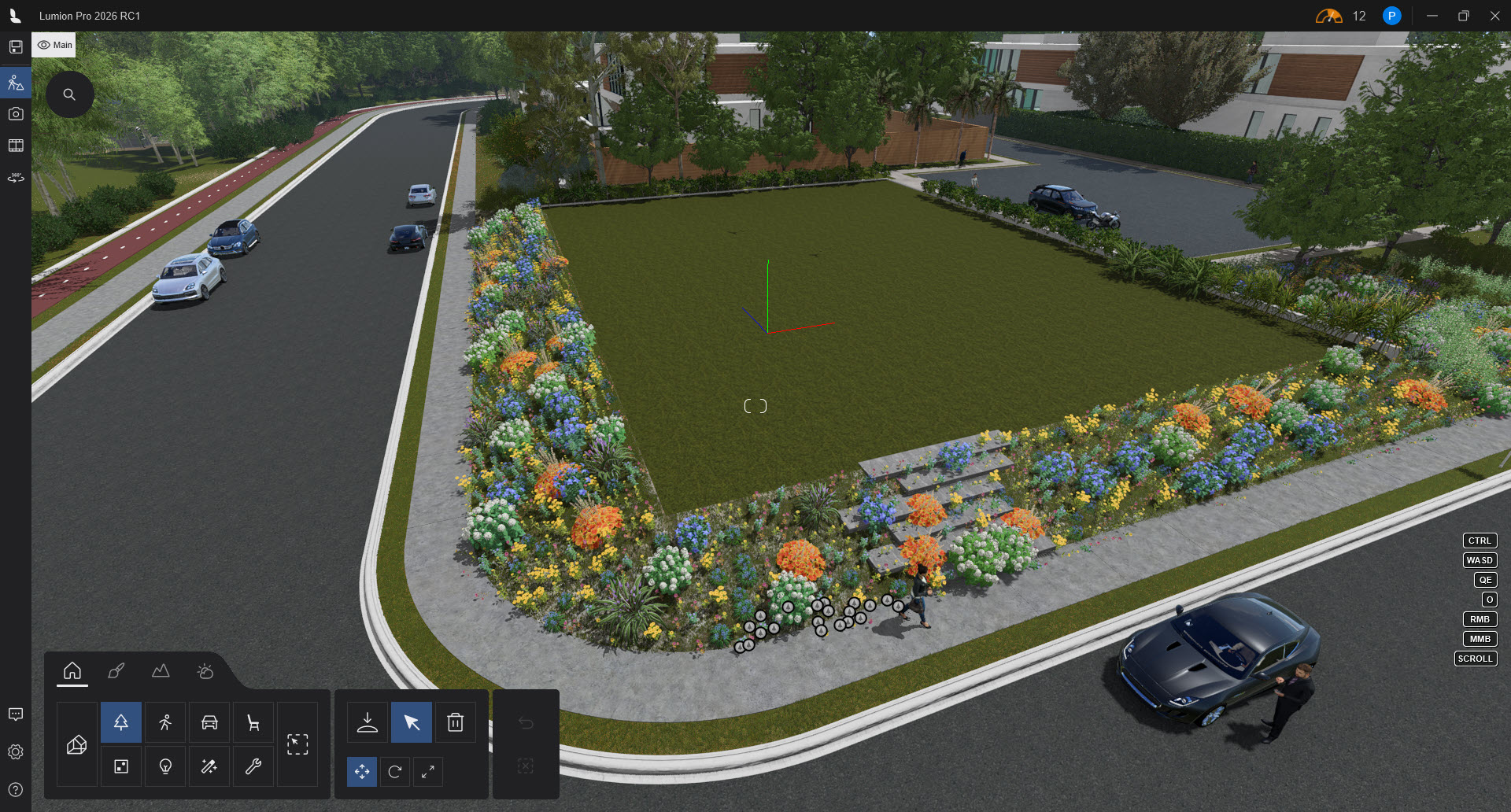
##### 1.3.2: Area Placement
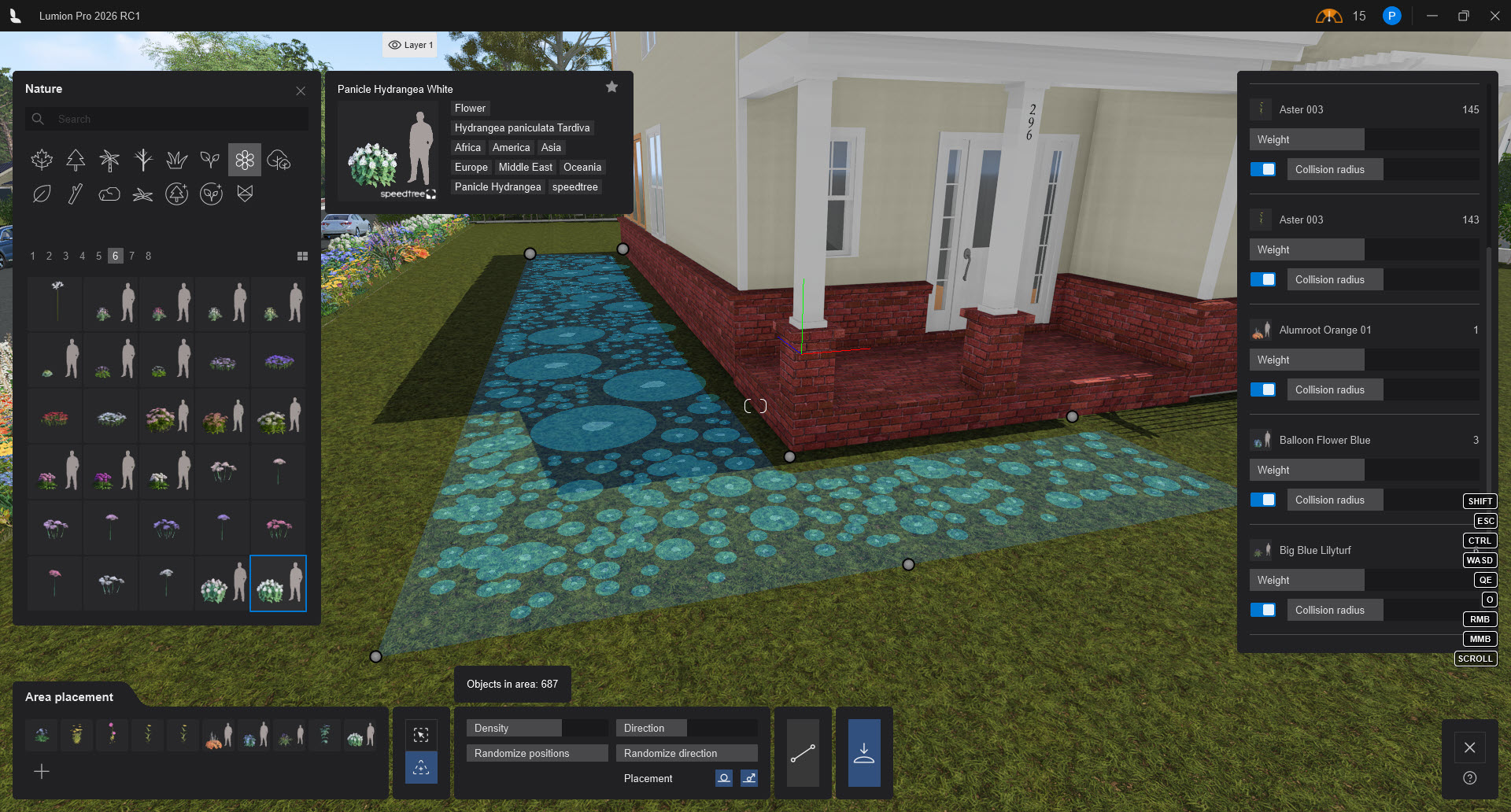
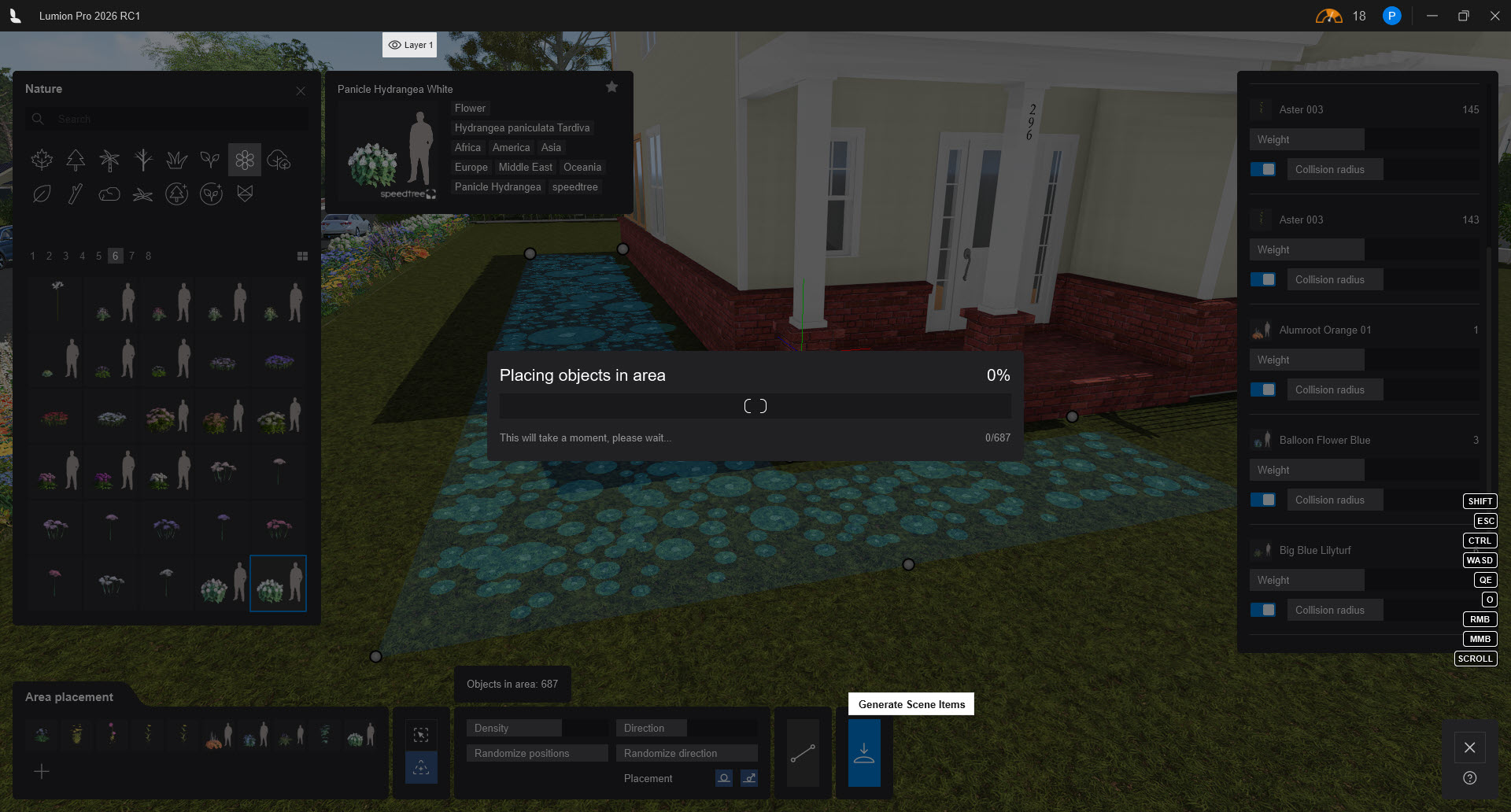
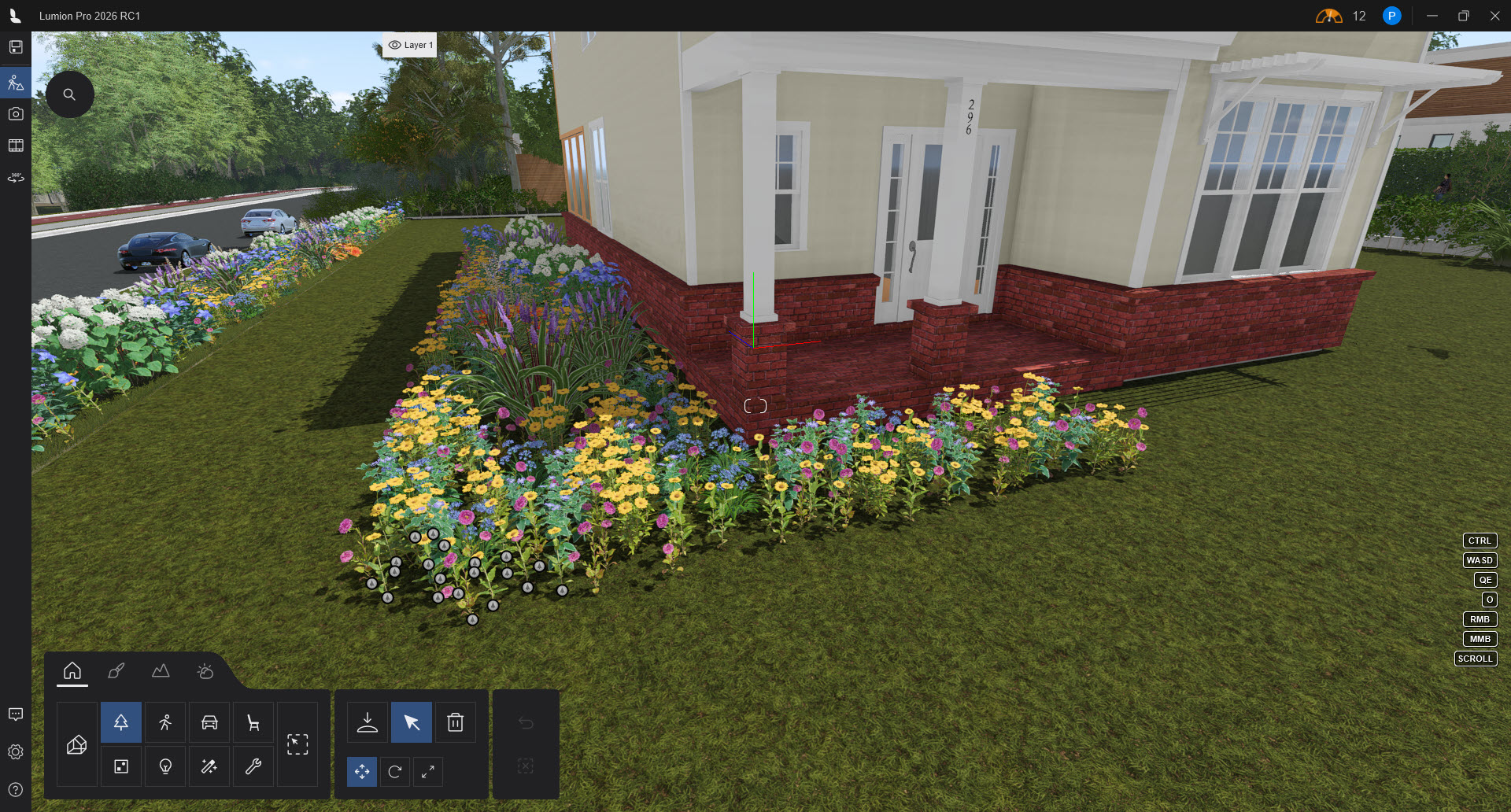
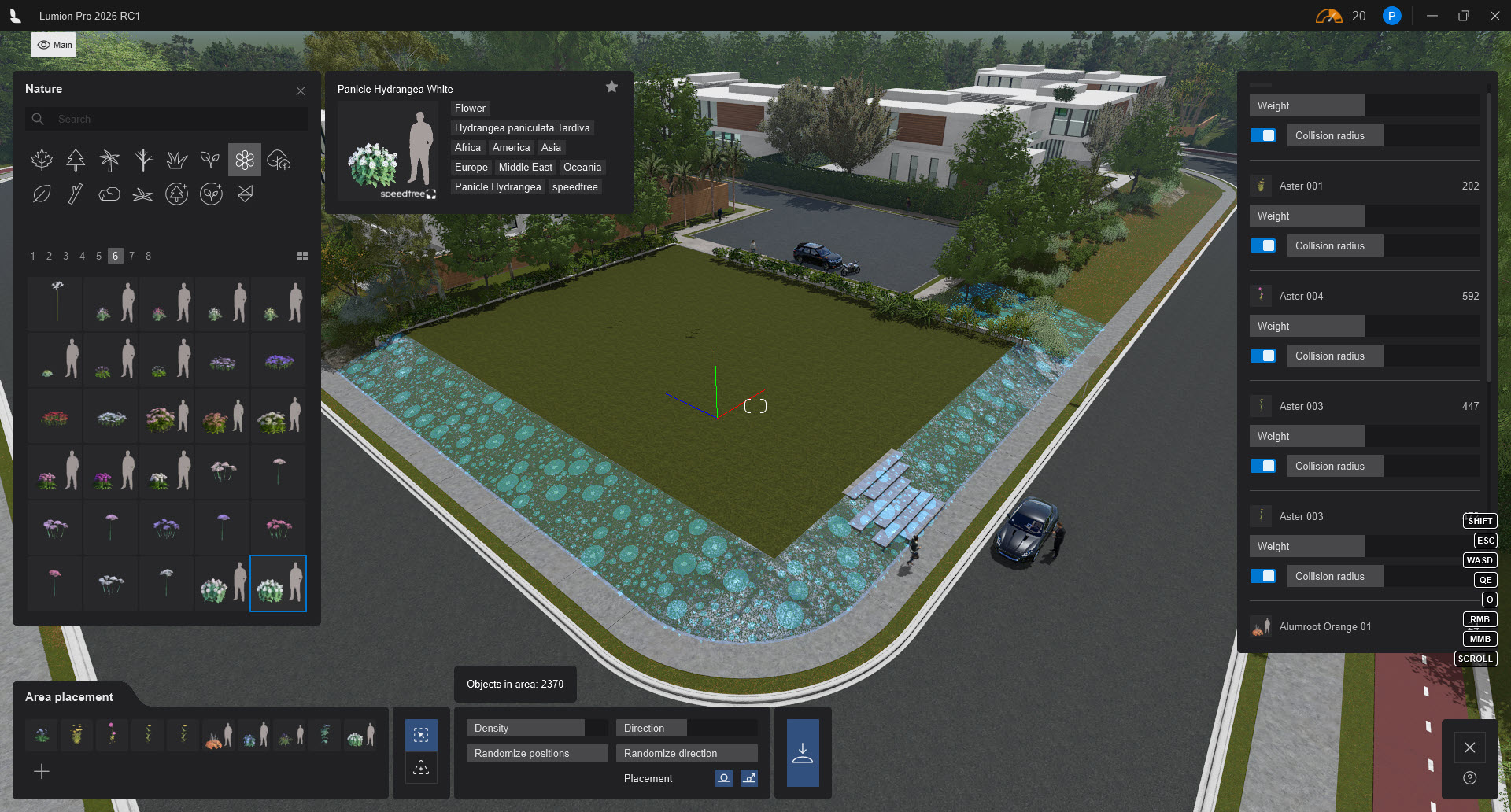
##### 1.3.3: Any shape
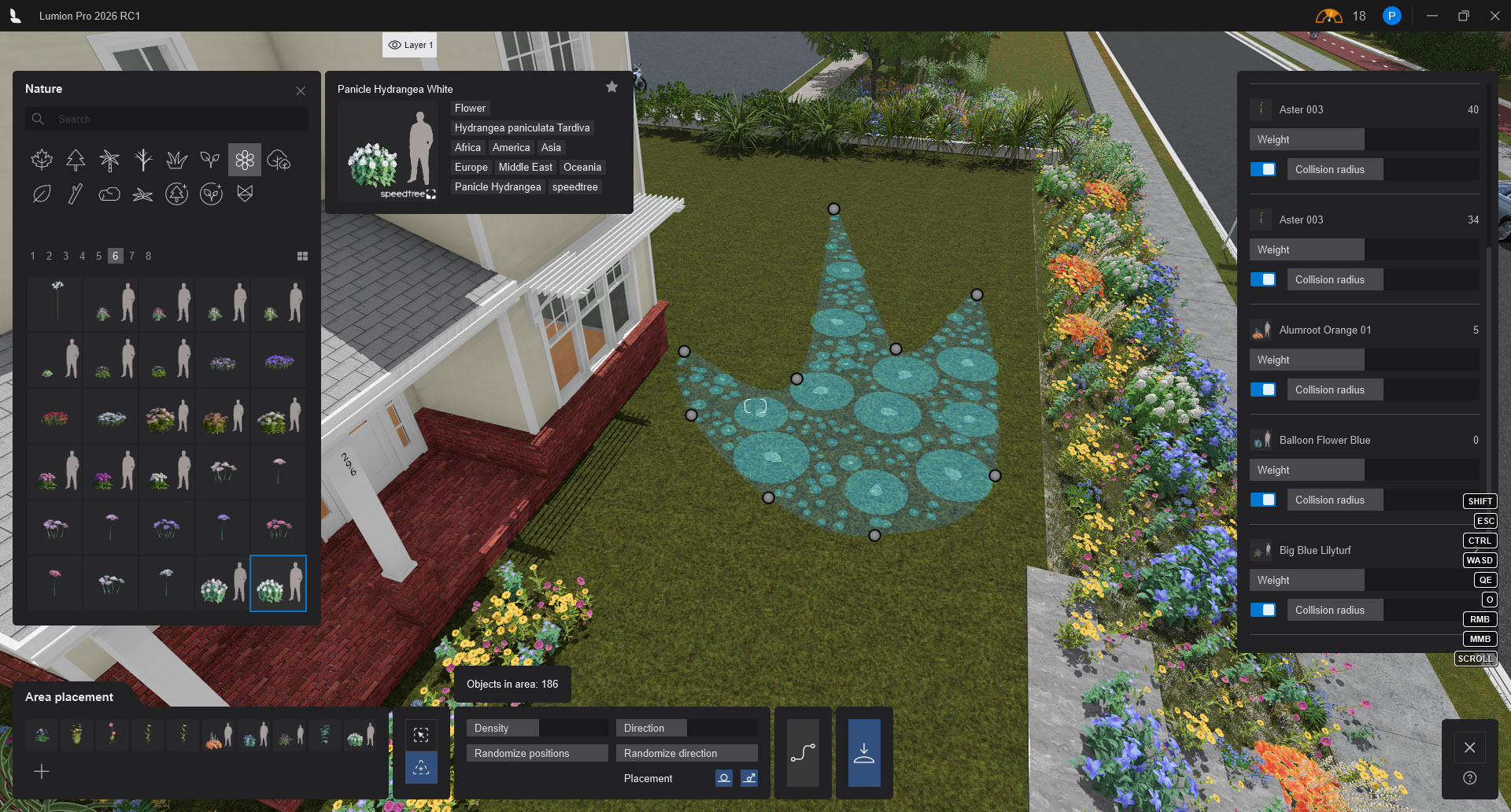
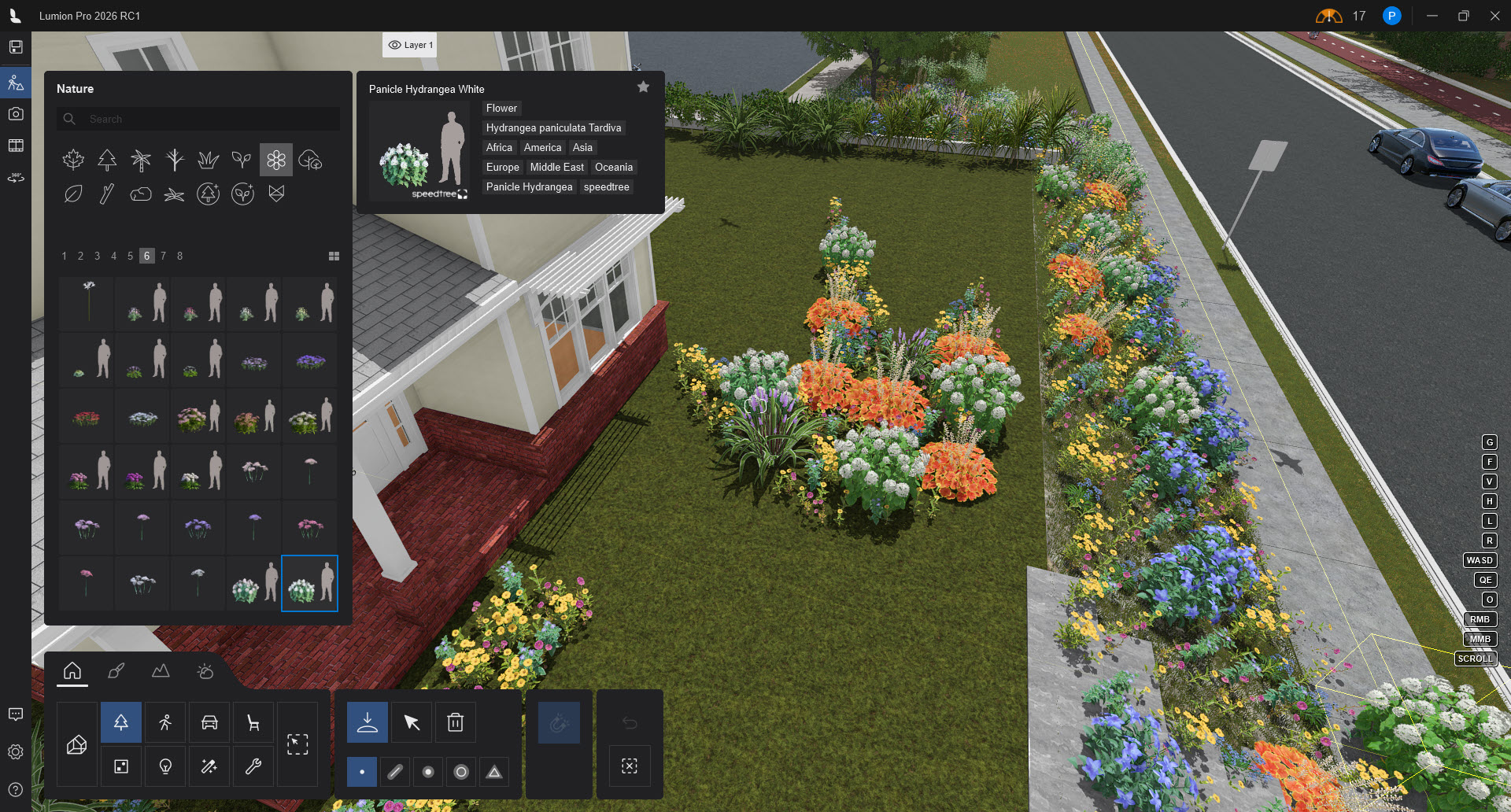
### 2. Key Features:
Place Objects (Models) from the *Lumion Nature Library*.
#### 2.1: Placing, Adding and Mixing Objects
You can populate a single area with multiple different assets (e.g., a mix of grass, flowers, and trees).
With the area and nature asset selected, click the ***Add*** button (plus icon) in the properties panel.
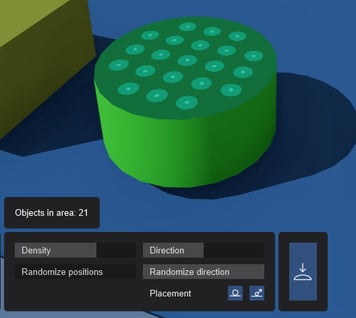
You can adjust the global ***Direction***, ***Randomize Positions***, and ***Randomize Direction*** and overall ***Density*** sliders to vary the look of all objects within the boundary.
#### Controlling Density and Collision
To fine-tune the distribution, you can adjust settings for each specific object in the mix.
Use the ***Area Placement Properties Panel*** with individual settings for each and all the objects in the Placement. See Section: [Object Properties Panel](https://support.lumion.com/knowledge-base/how-do-you-use-the-area-placement-tool#H8.2_ObjectPropertiesPanel).
#### Important Note:
There are required upper limits in place to manage memory issues across all use cases.
***Area Placement*** supports a maximum of **5,000 objects** per area. If you exceed this limit, Lumion will prompt you to either lower the *Density* or reduce the size of the area.
The ***Generate*** button is disabled until you can bring the number below the limit.
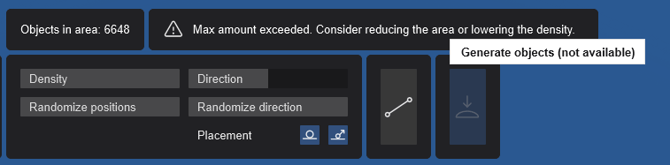
You can reduce the number of *Objects* placed by reducing the area or reducing the density slider.
This monitoring of the maximum number allowed is done **during the visual guide - (Nodes) placement diagram stage**:
| 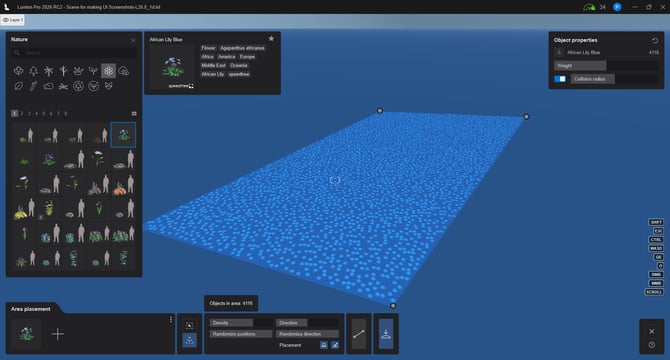 | 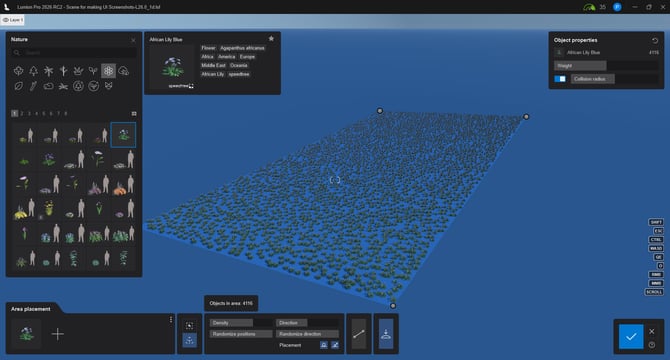 After the *Objects* are Generated - Placed: |
| --- | --- |
You can add more *Objects*:
| 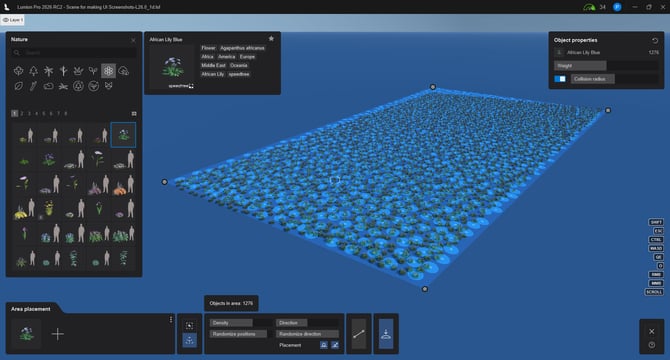 | 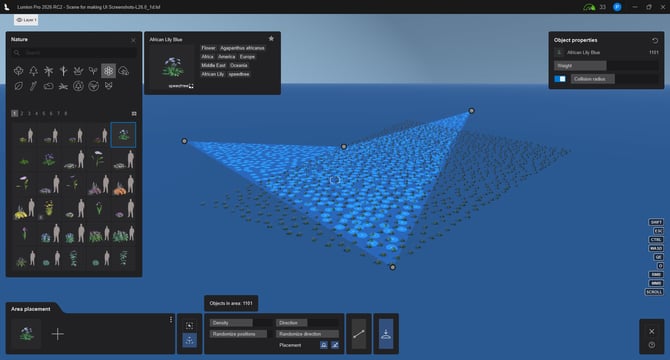 |
| --- | --- |
### 3. Using the Area Placement Tools
#### 3.1: Expected Usage
- Landscape design.
- Placing of *Nature Objects* for added context in a visualization *Scene*.
- A unique shape exists to be populated by plants.
- A surface modeled in your CAD can be used to define the required area for one or a mix of plants.
- You can create and define areas in your CAD to make more powerful workflows in Lumion to place *Nature Objects*.
- The shapes to be populated for either Area or Surface cannot be populated as easily by the other tools.
This tool makes it especially useful for **landscaping workflows**, such as placing mixed vegetation, underbrush, trees, or ground cover with natural variation and minimal repetition.
• Mixed planting zones with multiple species
• Large grass or ground-cover areas
• Forest undergrowth and tree clustering
• Natural variation without manual repetition
• Rapid population of large landscape scenes
#### 3.2: When do you use Area Placement rather than one of the other placement Tools?
**Single Placement:** You want more than 1 (one) Object for the area.
**Line Placement:** Your shape to fill is determined by a Surface or manually made shape that is not a line. Some settings will allow you to place in a linearly.
**Cluster Placement:** You do not need the clustered circular shape. And may need stricter control around the shape's borders.
**Paint Placement:** You do not need the brush anywhere approach to placing Objects. Area Placement offers a more controlled, specific place to add your Objects.
### 4. Key Steps:
**1.** Click on the ***Area Placement Tool***:
\>***Build Mode*** \> select ***Nature Category*** \> click on ***Place Tool*** \> ***Area Placement***
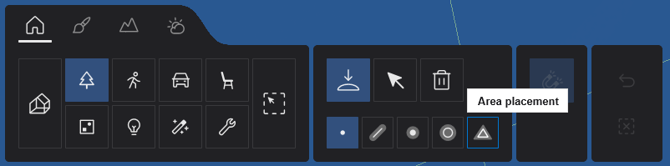
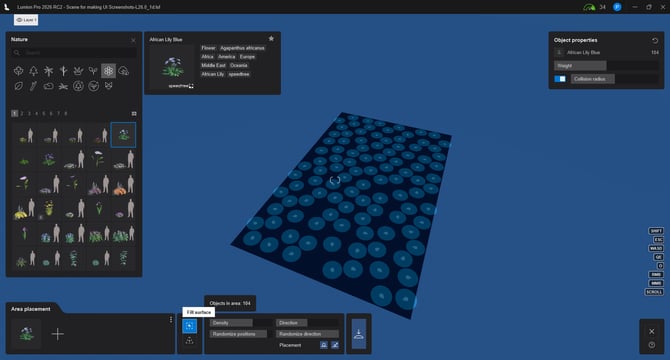
**2a.** Either, select ***Fill Surface Tool:***

**2b.** Or, select Create ***Area Surface Tool:***

**3.** Using the Visual Placement Guide - Diagram, decide on the number of *Objects* and set their *Density* and Positions and *Direction*:
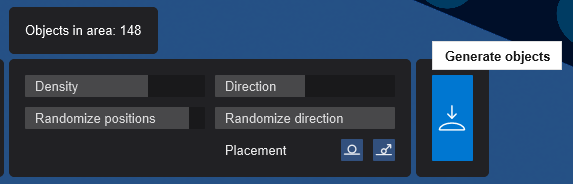
**4.** Generate the Objects for the Surface or Area:
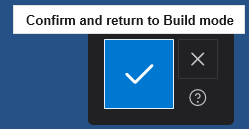
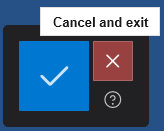
**5.** After the Objects are Generated-Placed,
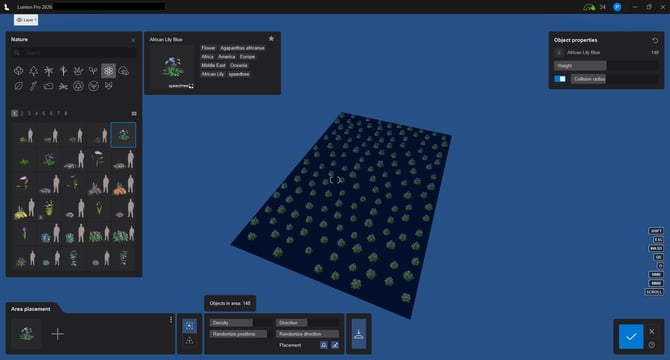
decide to accept-Confirm or Cancel the Placement:
##### Exit Mode:
To avoid accidentally exiting the mode without placing any items, the big friendly blue button is disabled if you have not generated any items. If you want to exit without placing any *Objects* then click the red Exit button.
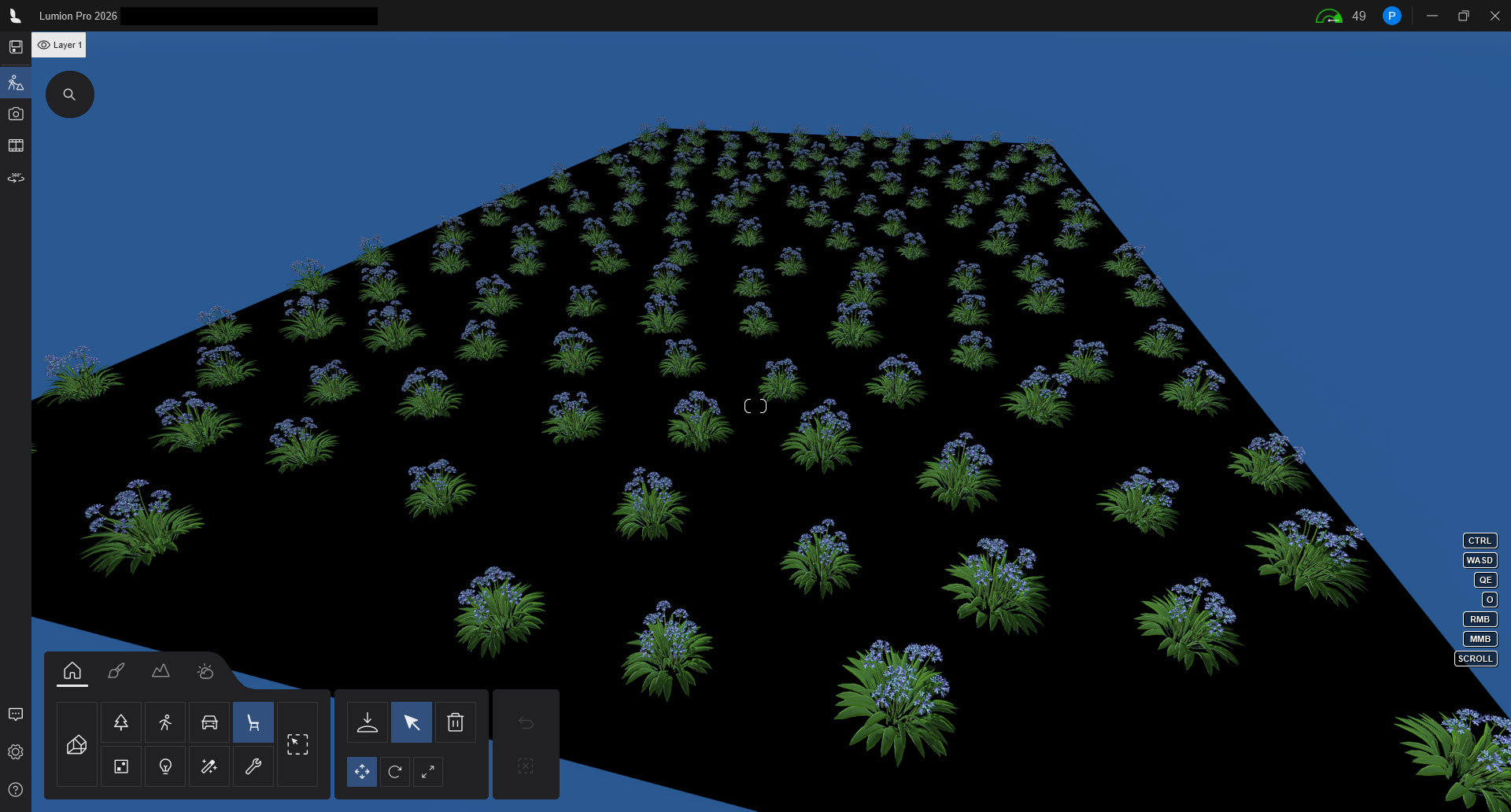
Placement done:
### 5. Main Capabilities:
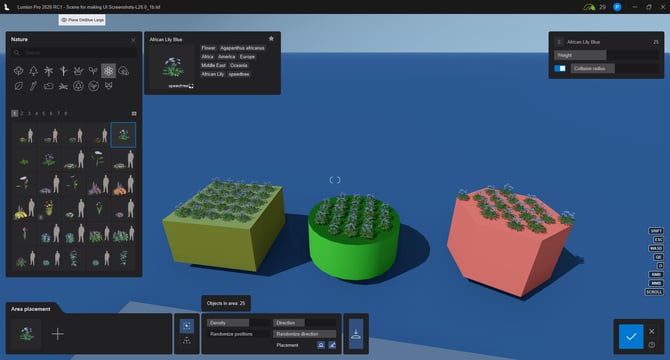
#### 5.1: Surface Placement
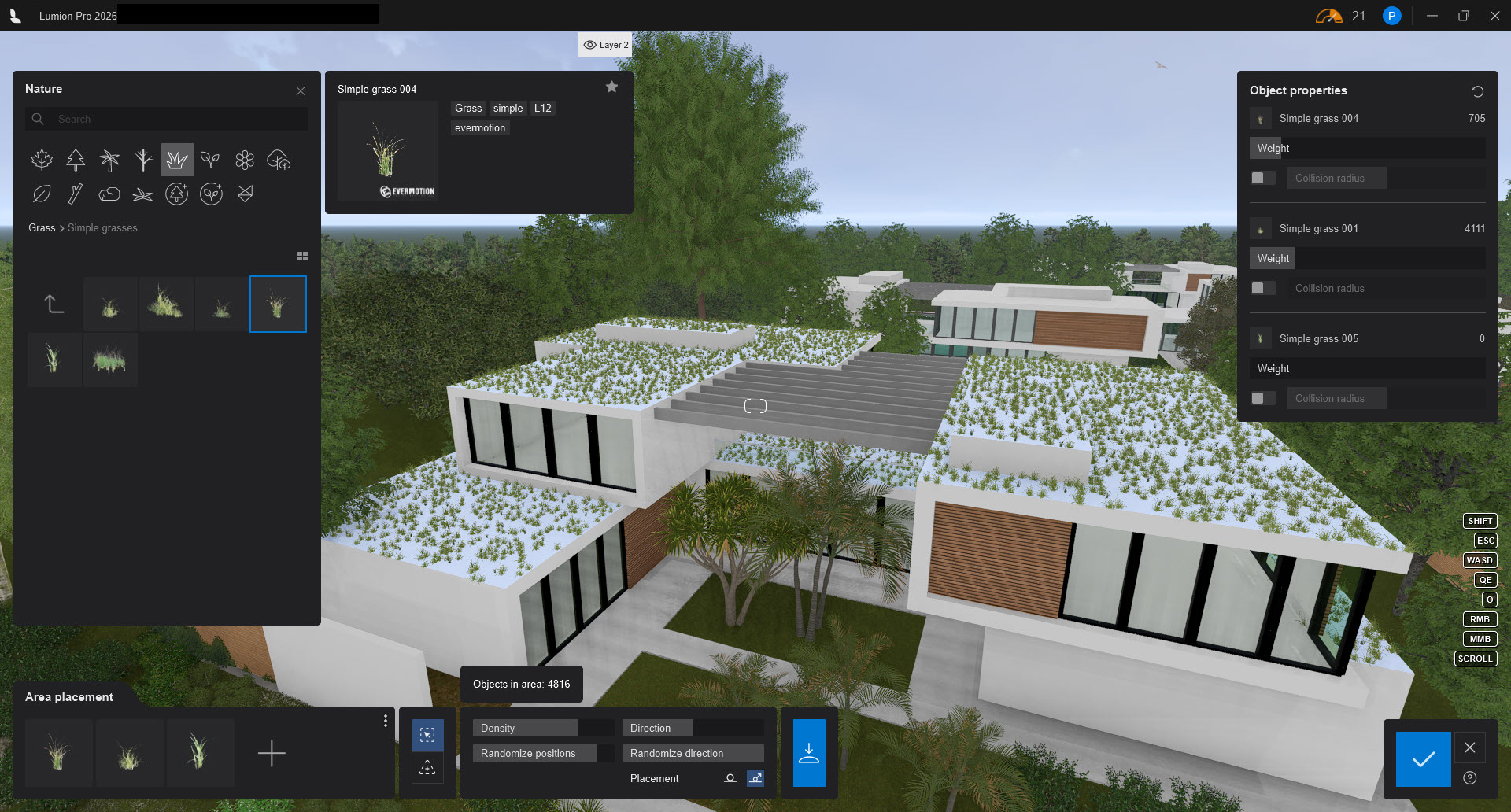
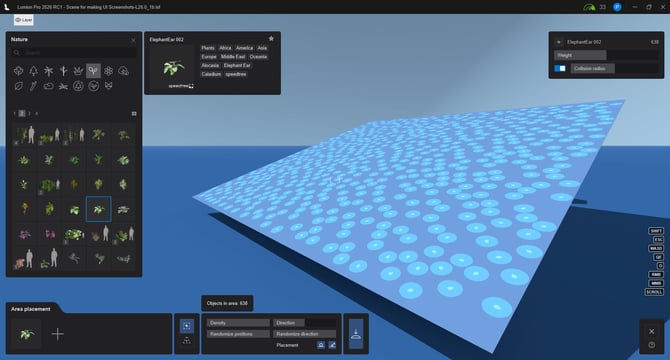
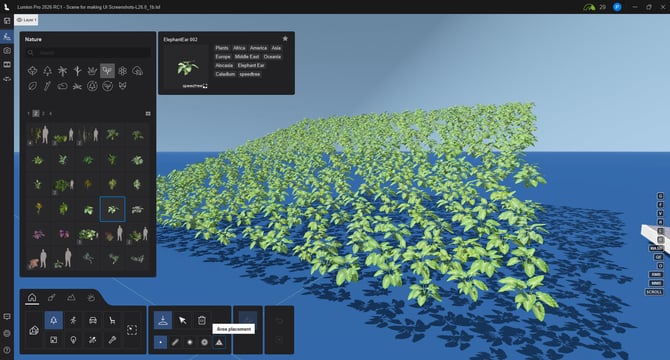
You can place *Objects* on any surface that is not vertical.
|  |  |
| --- | --- |
Including where a surface is on more than one plane:
|  |  |
| --- | --- |
##### Excluded Surface: Lumion Landscape/Terrain:
Surface does not mean the surface of the Lumion Landscape, which is excluded from selection. Use other Placement Tools such as *Line*, *Paint* or *Cluster Placement*.
You can place on an **almost** vertical:
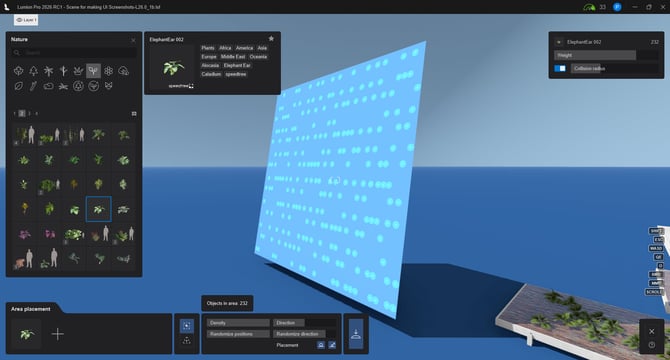
See also: 11.2: [Can you use Area Placement to plant a wall for a Vertical Wall planting?](https://support.lumion.com/knowledge-base/how-do-you-use-the-area-placement-tool#H11_FAQ)
#### 5.2: Area Placement
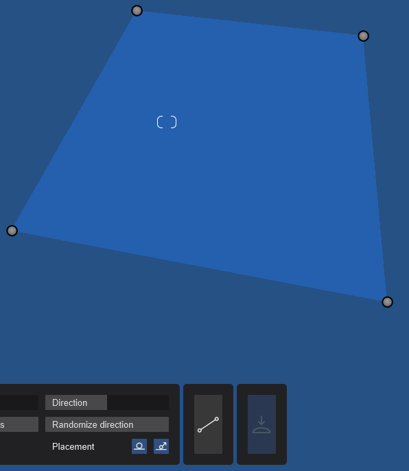
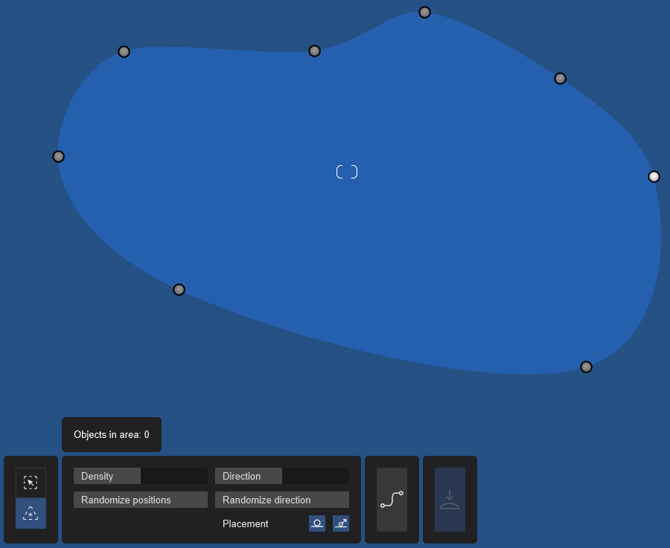
Create a shape for the Objects to be placed.
The shape is determined by the closed-line area.
|  |  |
| --- | --- |
| Or control the **smoothness - curve** of the joining lines. From: straight  to curved:  | |
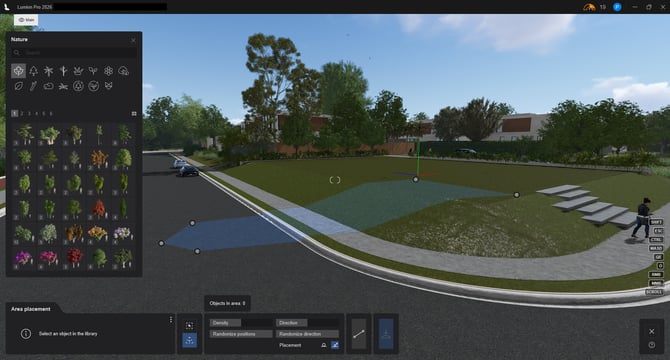
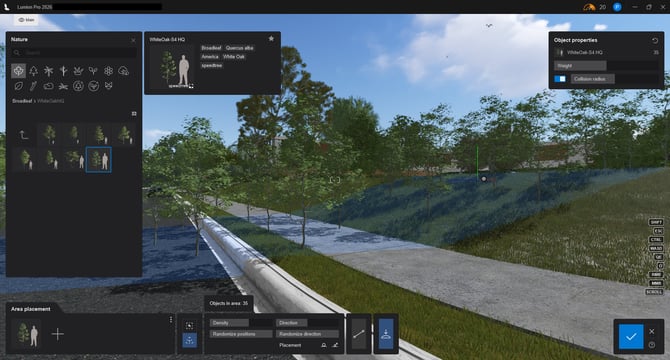
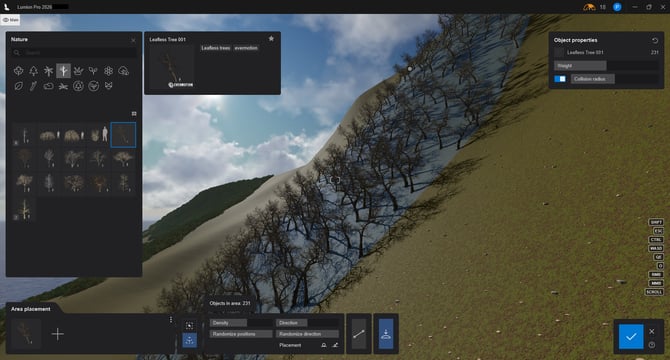
The shape can conform to the underlying surfaces or Lumion Landscape:
|  |  |
| --- | --- |
|  | |
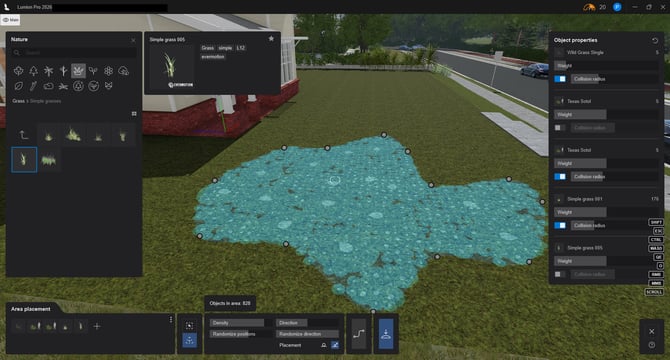
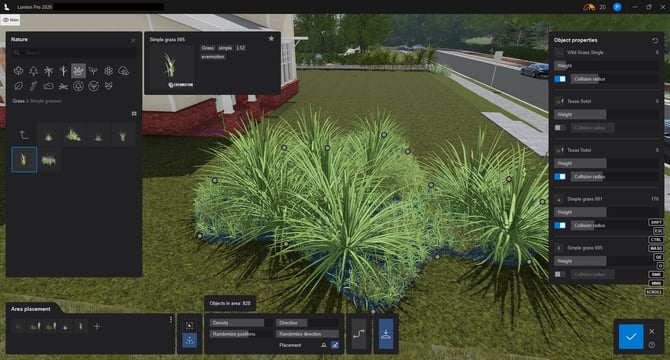
Fill curved shape, heavy with limited Collision - Object: Grasses
|  |  |
| --- | --- |
You can only create one boundary/area at a time.
### 6. Steps to Using Area Placement:

**6.1:** Click Create Area.
**6.2:** A default rectangular area is placed in the *Scene.*
**6.3:** Add Control Points (nodes) to reshape the area.
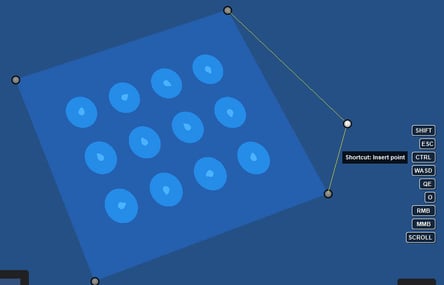
**6.4:** You can change the shape using the Control Points that you are familiar with when using the *Line Placement Tool* when placing in *Build Mode* or *Mass Move Effect* - create a Path in *Movie Mode.*
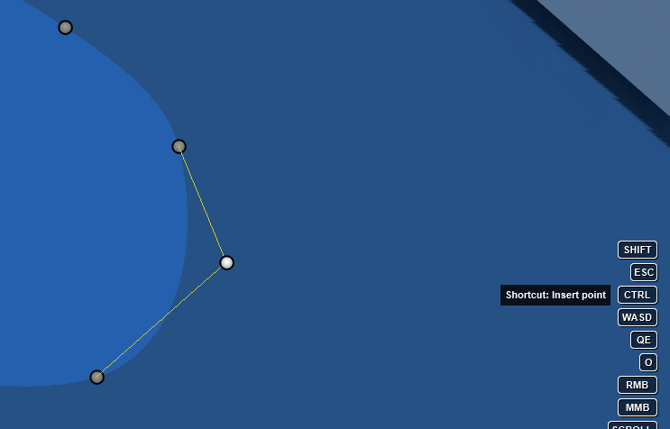
| *Area Placement* - Control Points - Add (RMB) | *Line Placement* uses the same Control Points (nodes) |
| --- | --- |
|  | 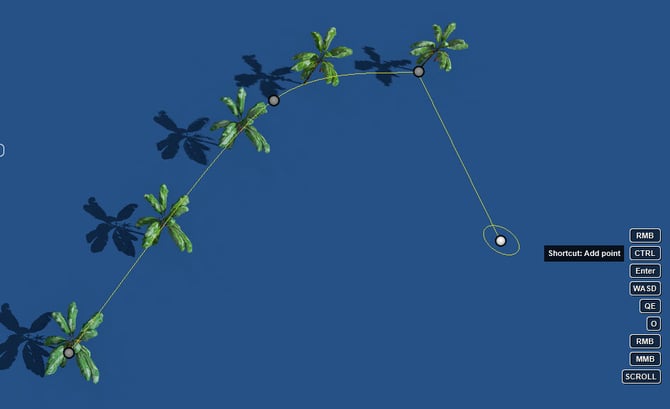 |
The Control Points (nodes) allow you to:
- Reshape: Click and drag any of the corner nodes to change the shape of the area.
- Add Nodes: To create a more complex polygon, hold the Ctrl key and click on the area line to add a new node.
- Remove Nodes: To simplify the shape, Right-click on an existing node to remove it.
- Smoothness: Click the Toggle line smoothness button in the interface to switch between sharp, angular corners and rounded, organic edges.
### 7. Steps to Using Fill (Surface) Placement:

This mode requires less steps than for Area Placement.
**7.1:** Select a Surface to fill
**Note**: if you do select a Surface to fill and decide that it's not the surface you want, then you can **use the Shift hotkey** to reselect some other surface: This hotkey usage is under review and may not be available in a future version.
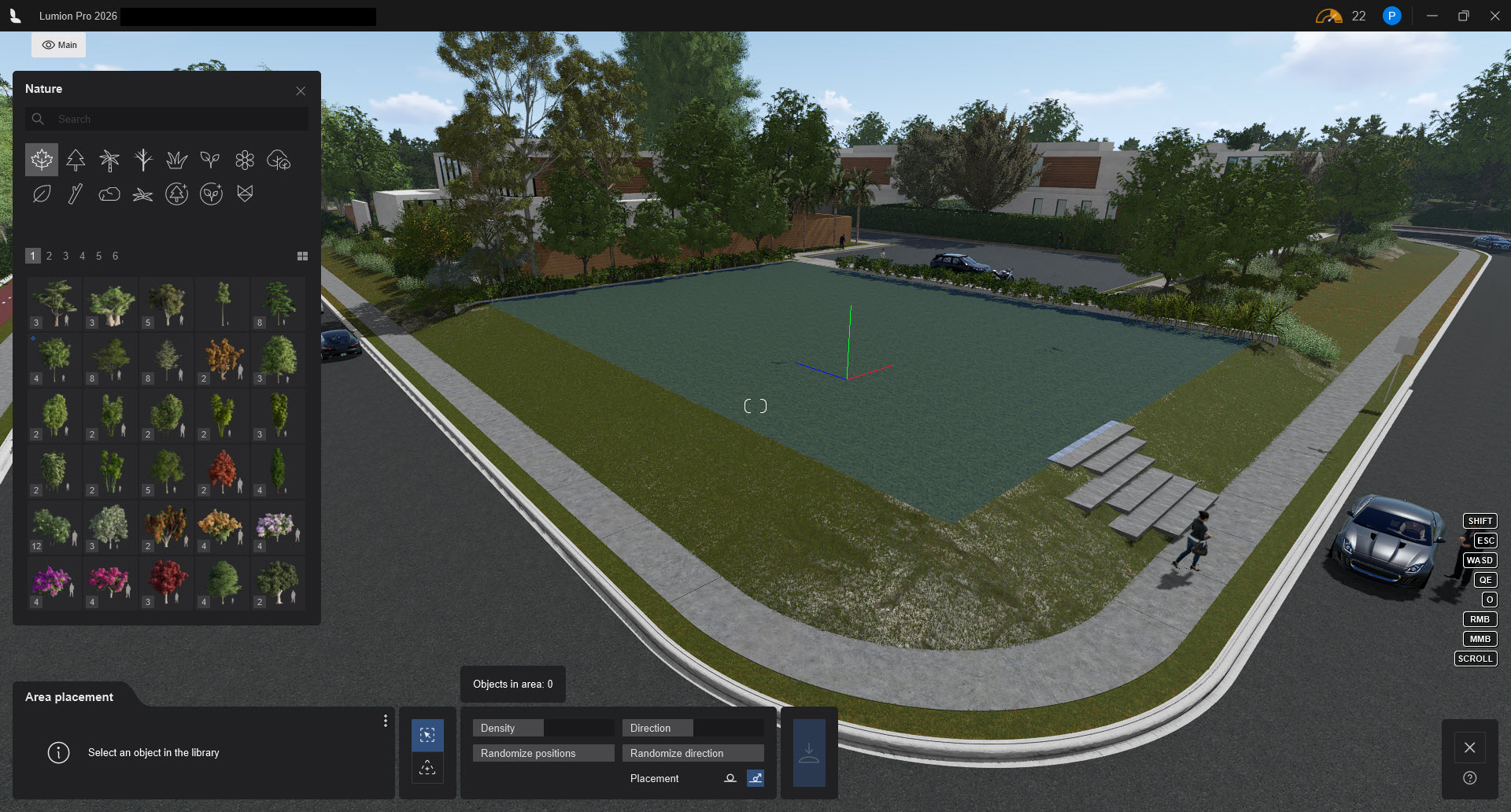
And click on the other surface you do want for Fill Placement:
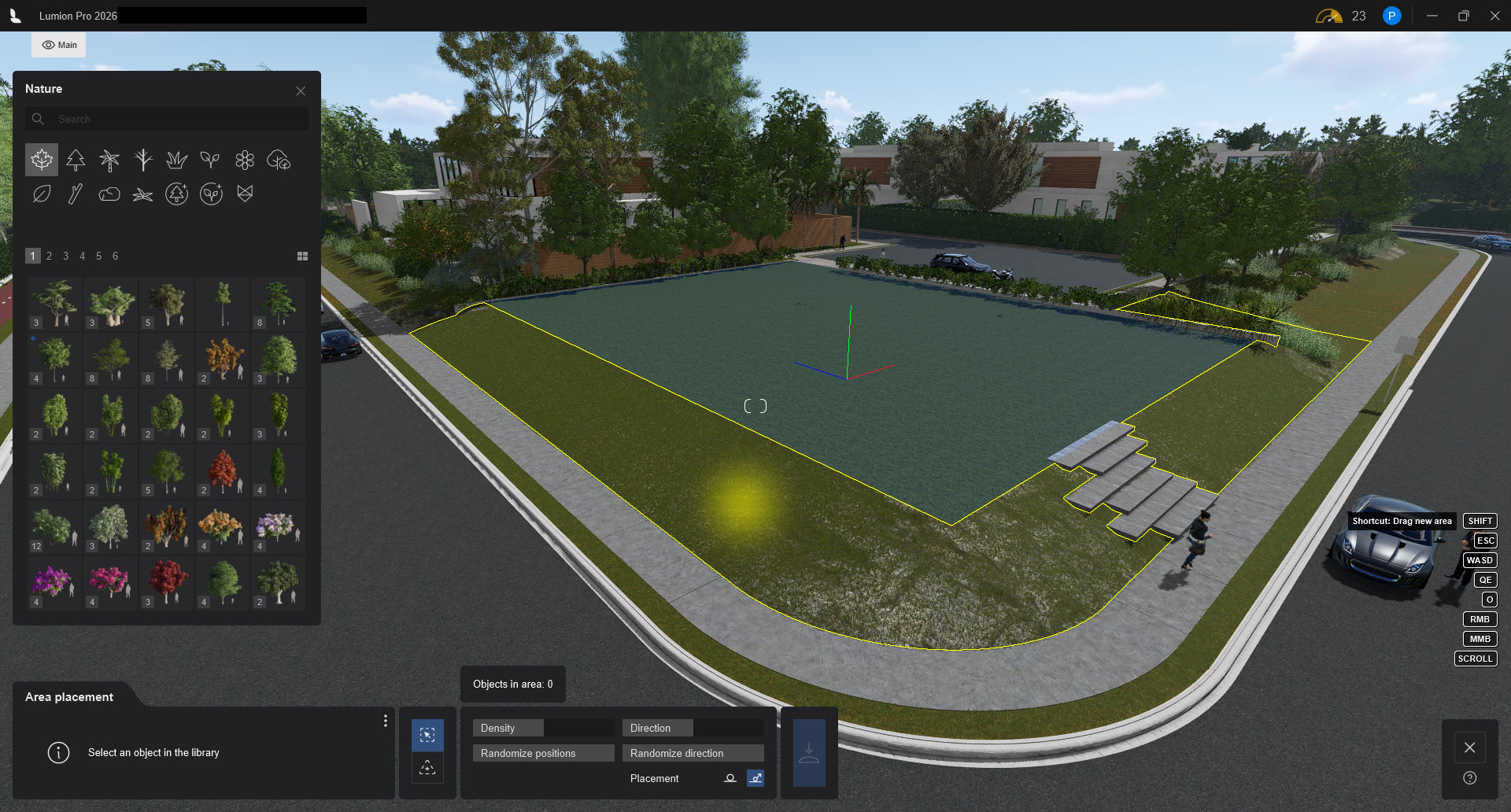
Or, use the Cancel button and the Area Placement Tool again, then re-select the surface:

#### In Detail:
### 8. Properties and Sliders:
#### 8.1: Common Properties - UI Sliders:
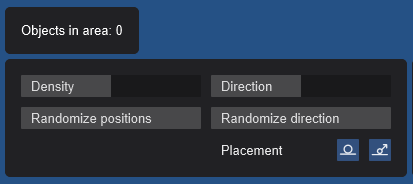
#### 8.1.1: Objects in Area
Gives you a real-time count of the *Objects*.
The lower limit value is:
The upper limit value is: 5,000. Although this may vary on some factors.
##### Sliders Affecting the number of Objects for the Placement
#### 8.1.2: Density
The % (ratio) of all Objects for the area.
This is used along with the sliders for each Object in the ***Area Placement Properties Panel***.
8.1.3: Randomize Position
Varying the Positions will also vary how many Objects there will be as they may collide with other Objects.
You might find it useful to first set this slider value to 0. Then do changes to the Density and per Object Weighting and Collision sliders to give a base number you are after.
#### 8.1.4: Direction
As for other Placement Tools, the Heading you chose for all Objects to apply to.
#### 8.1.5: Randomize Direction
As for other Placement Tools, this randomly changes the Heading for an Object that you set using the Direction slider.
#### 8.1.6: Placement
##### Place on Ground:
As for other Placement Tools, this pushes the Object down to the Landscape surface at a point below where the Object's Pivot Point is located.
Note: This option will not be visible/enabled when you select the Fill Surface Mode.
##### Conform to Ground:
As for other Placement Tools, this sets the Pitch of the Object to the same as the underlying Slope of the surface, usually a Lumion Landscape Terrain, or imported surface for Landscape.
See also: [Placing and Changing Objects](https://support.lumion.com/learning-pathways/api/v2/help-center/en-us/articles/placing-and-changing-objects?hsLang=en-us), Section: [4. Advanced Object Settings](https://support.lumion.com/learning-pathways/api/v2/help-center/en-us/articles/placing-and-changing-objects?hsLang=en-us#H_AdvancedObjectSettings)
#### 8.1.7: Generate Scene Items
#### 8.2: Object Properties Panel
| 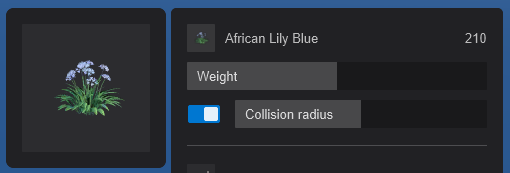 | 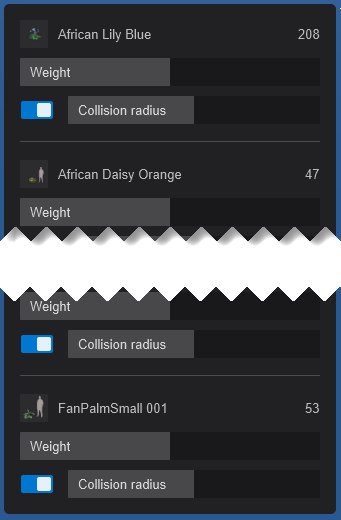 Scrollable panels for each Object for the Library Assets Selected |
| --- | --- |
#### 8.2.1: Weight
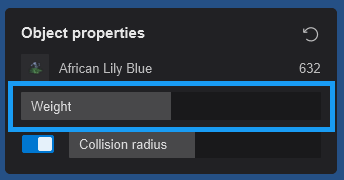
How frequently the Object will be in the area, The *Weight* controls the likelihood (probability) of this *Object* being placed compared to others in the selection set of Library Objects you have chosen.
A slider from 0 to 100% to 200%. Default is 100%. Meaning if all other *Objects* also had a weight of 100% (or 1) then they would all appear the same number of times if the other properties such as collision radius (generalized Object size) were the same.
#### 8.2.2: Toggle Collision
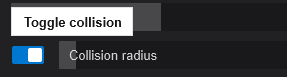
#### 8.2.3: Collision Radius
Defines the minimum distance between objects based on the Objects Bounding Box. Y
You can toggle this ***On*** or ***Off*** or adjust the radius to prevent geometry from intersecting.
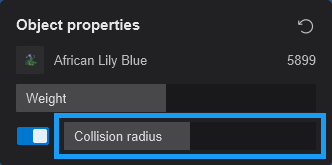
This slider/value also enables you to make sure the Objects stays within the designated area.
##### 8.2.4: Toggle Collision
You need to have the Toggle Collision button On for the slider to be active.
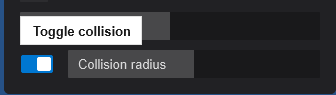
Turning the Toggle Collision button to Off means no collision data is calculated and Objects may intersect or even more fully overlay another Object.
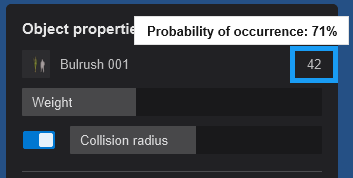
##### 8.2.5: Count
A count of the Objects that make up the final count (above the common Properties).
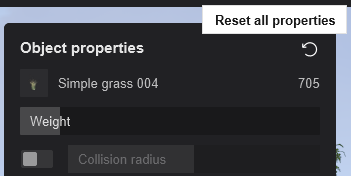
##### 8.2.6: Reset
You can reset all Properties for *Weight*, *Collision*, and *Collision Radius* here:
### 9. How It Works:
#### 9.1: Visual Placement Map - Shape Nodes
#### *Collision Radius, Direction Indicator, Object of interest highlighted*
You see the placement and distribution approximations for you visually by the circles and direction pointers of the ***Placement Map***:
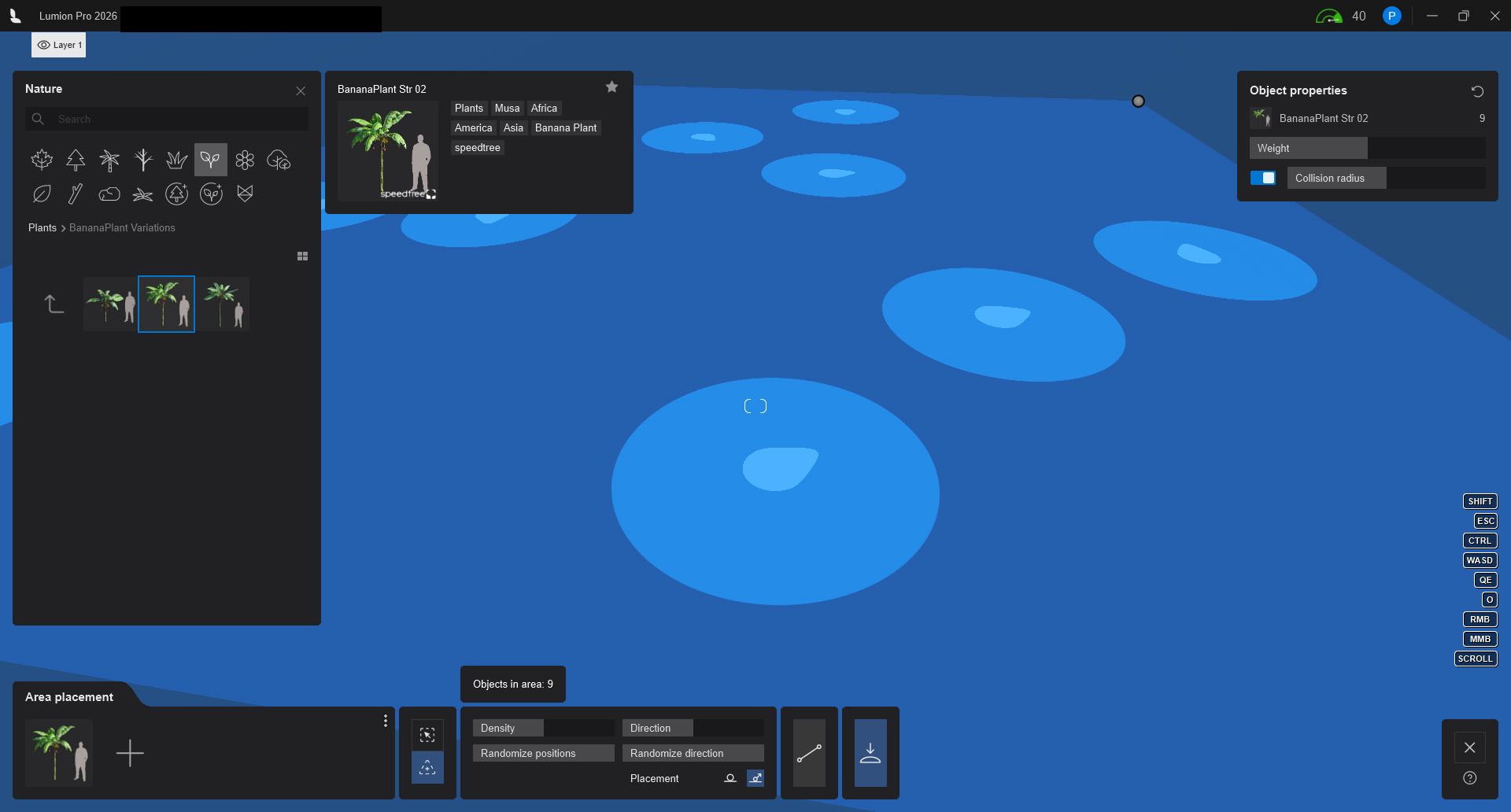
Moving your mouse over the *Object Properties Panel* interactively indicates/highlights the Object in a lighter blue:
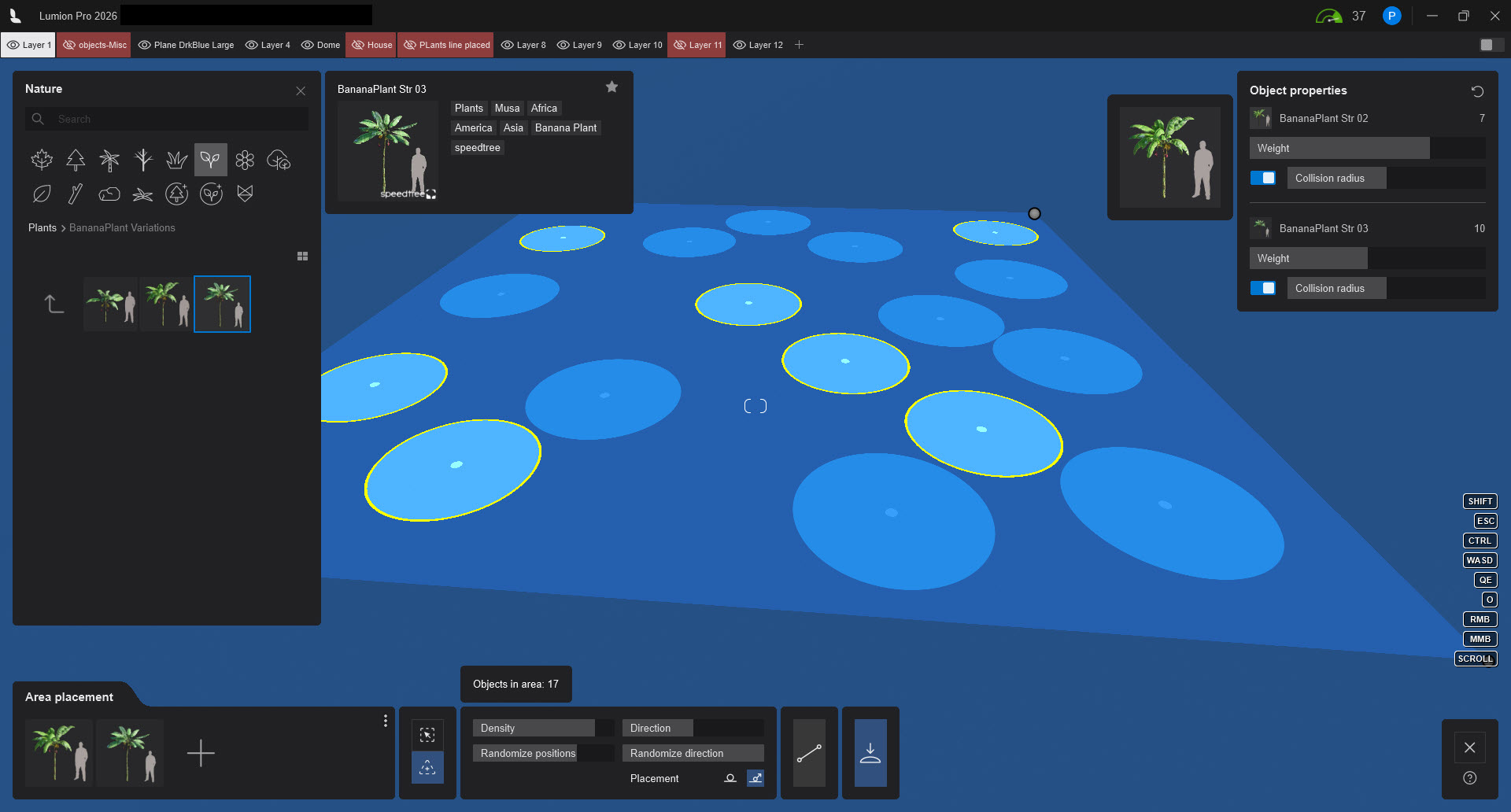
Placements are highlighted anywhere in the interface for this Object:
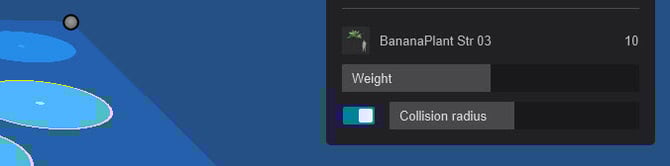
The Collision Radius is shown by the yellow circle. It might be more or less than the sized area (100%) of the Object:
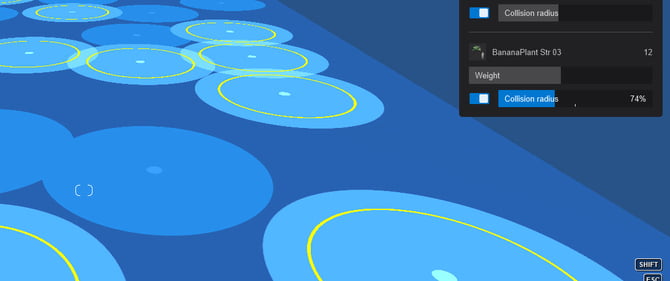
A smaller *Collision Radius* allows for more of all Objects to be placed closer.
A larger *Collision Radius* will add further distance between any two Objects.
The inner light blue indicator shows Direction:
| The inner light blue indicator shows Direction: 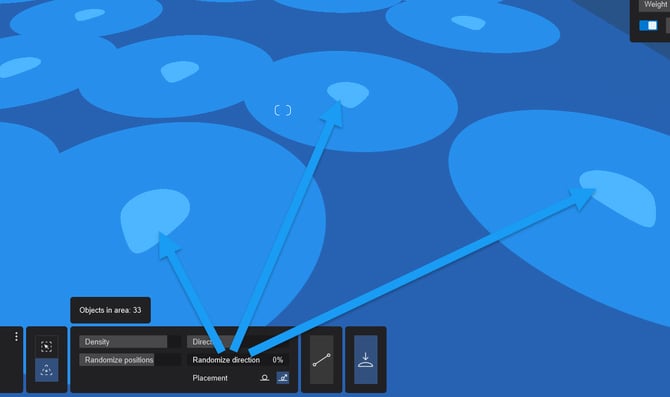 | When randomized, you visually see the different Direction Indicator: 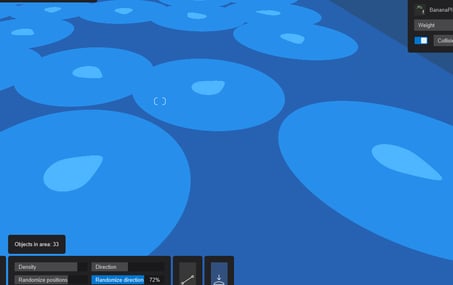 |
| --- | --- |
#### 9.2: Basics of how the Object Distribution and Number of Objects is Determined
See also: Section 8.2: [Object Properties Panel](https://support.lumion.com/knowledge-base/how-do-you-use-the-area-placement-tool#H8.2_ObjectPropertiesPanel).
The system places Objects on a grid of cells, which is controlled by the *Density* slider value. There are distribution factors such as the size of the smallest Objects to be placed, and the Weights. It will
To calculate the probability/likelihood of an Object being placed and for how many times it is going to be placed.
It will randomly select one of the Objects in your collection from the Library to determine the number and position.
##### 9.2.1: Control
You can control the weight and collision per Object (See Section 8.2: [Object Properties Panel](https://support.lumion.com/knowledge-base/how-do-you-use-the-area-placement-tool#H8.2_ObjectPropertiesPanel)). Giving you control over how an item is treated, whether it overlaps with other items, and keeps them nicely inside the Area Shape or Surface. Control like this is useful if you’re combining plants such as underbrush and trees.
Some further Notes:
- The grid will never match up perfectly with your shape.
- Objects will be culled if they're too close to the border. Every attempt is made in the calculations to ensure Objects do not go over the edge/border.
- Objects will be culled if they overlap.
- There is a cell size that is based on the smallest item size x a factor for the highest/largest Density, And also the largest cell, for the lowest density.
- The collision system has some limitations, and performance depends on the Density and the difference between your smallest item and the largest.
### 10. Limitations:
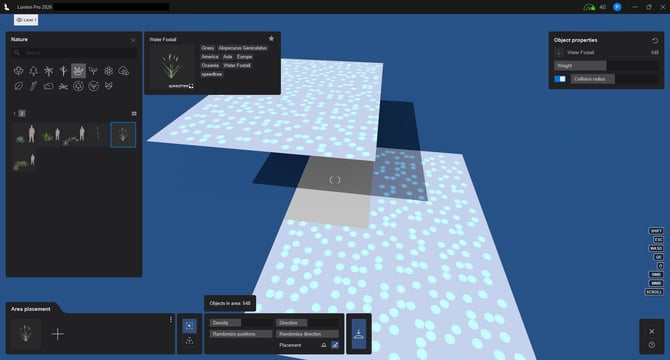
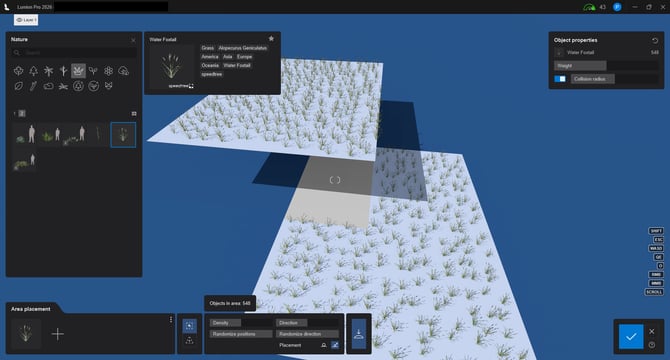
Fill Surface - Overlapping Surfaces:
***Area Placement*** will do a top-down projection to determine what surface is below for calculating and then generating Objects. It cannot place any Objects where the surface overlaps.
This is by design. You would generally not want Objects overflowing into possible internal spaces.
|  |  |
| --- | --- |
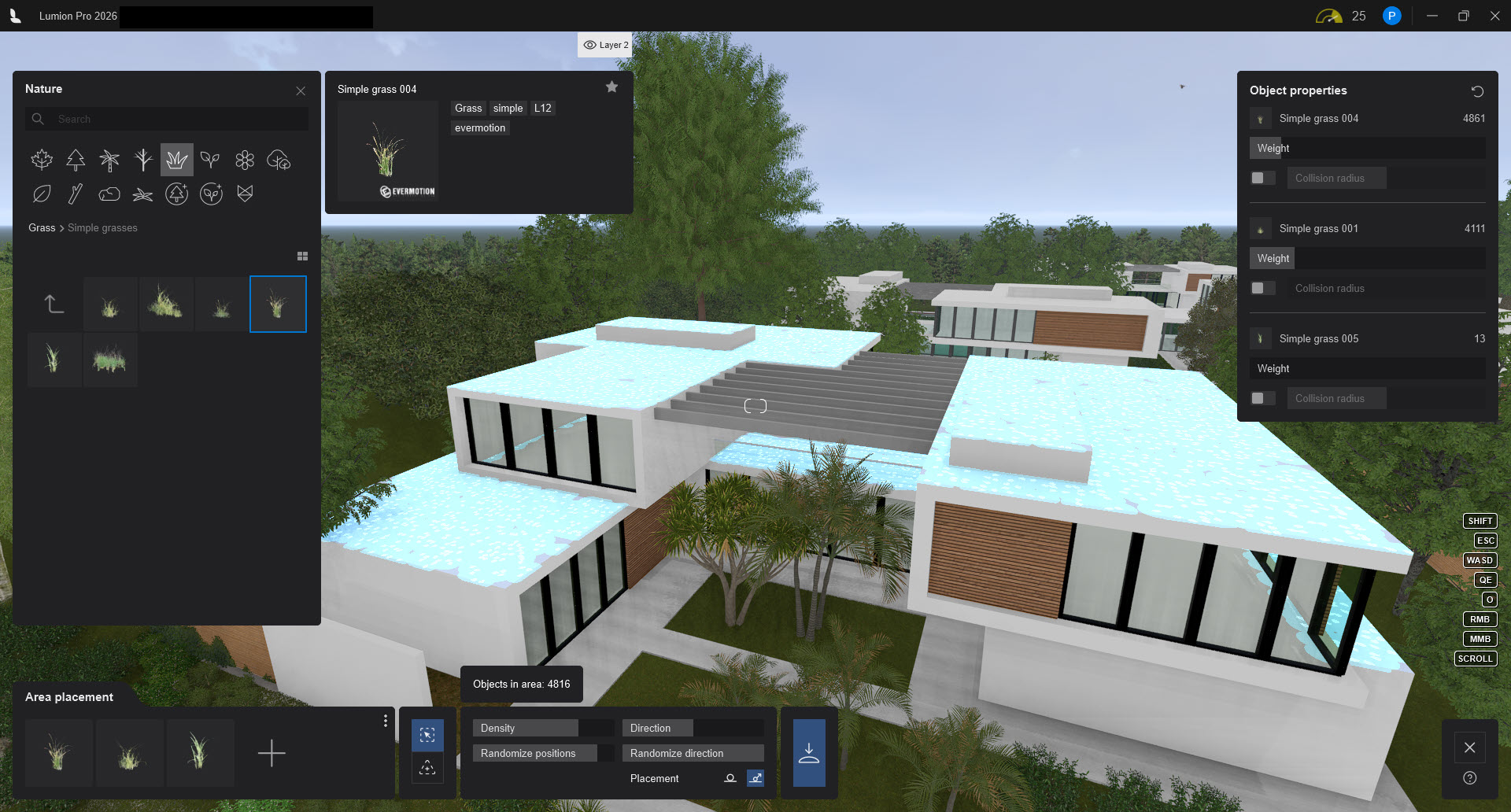
If that was required, then create/model the two surfaces with different material names so each can be specifically selected and used in the Area Placement.
In most cases, different surfaces of the same name can be selected at once (see earlier):
### 11. FAQ
#### 11.1: How can I get some more screen space - room to see what I am doing with the Area Placement?
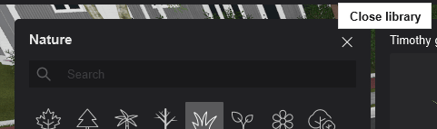
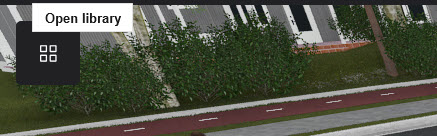
You can now close the Library Picker - freeing up space to better see and tweak your items:
#### 11.2: Can you use Area Placement to plant a wall for a Vertical Wall planting?
##### 11.2.1: The Design Requirements for the Area Placement Tool is not intended for this
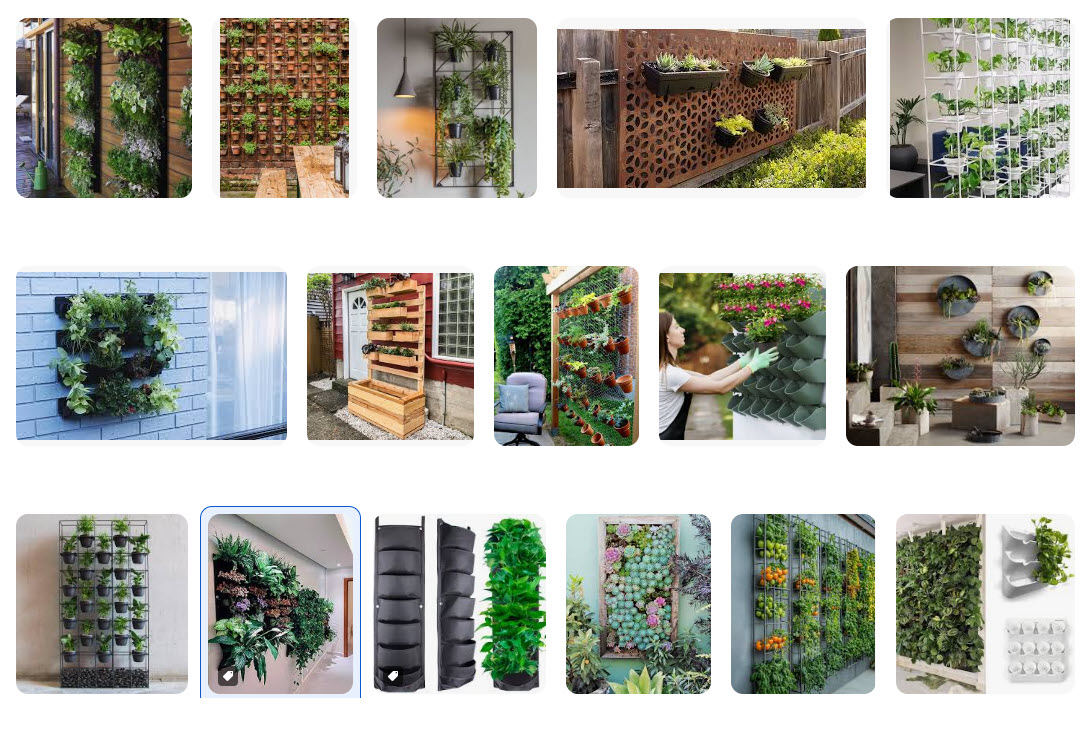
*(Credits: image courtesy of Google Images search)*
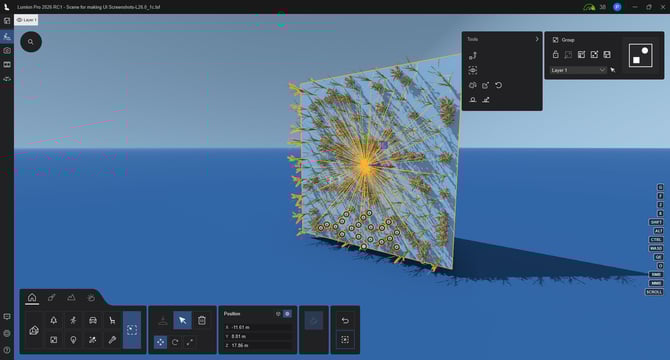
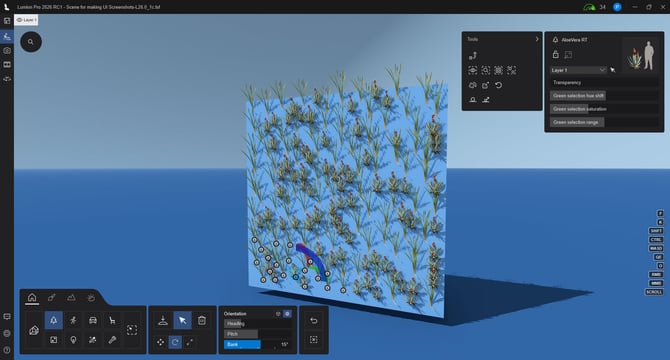
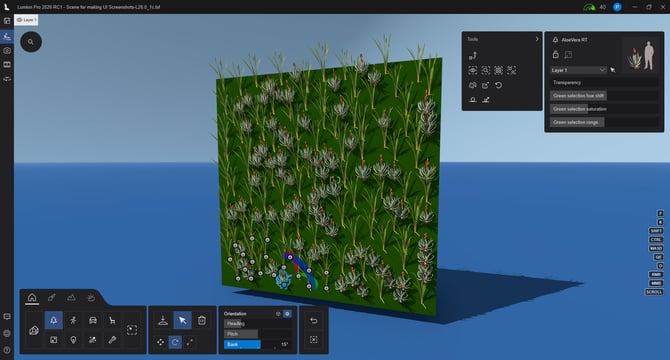
Vertical Wall plantings/vertical surfaces or shapes are not a usage intended. Also, it will ignore any surfaces that are pointing sideways (there's a cutoff).
There is a performance gain using the methodology chosen for the tool. But, that does of course, have some limitations when it comes to somewhat exotic scenarios.
We strongly suggest making use of specific assets designed for use in vertical landscaping design. See also:
- **Website: Tips and Guides:** [A quick guide to building a green wall in Lumion](https://lumion.com/tips-guides/green-wall-guide)
##### 11.3: How does it work for an Angled Surface?
You can place Objects on up to near-vertical surfaces. However, the closer to vertical, the more linear spacing there is. In effect, there is no top down surface to look at and apply to.
| At **85 degrees**: 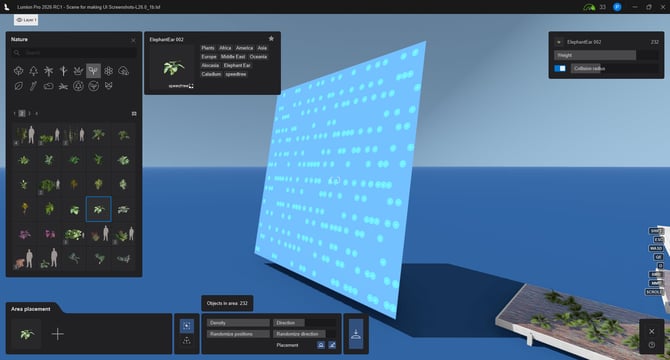 | At vertical, **90 degrees**: 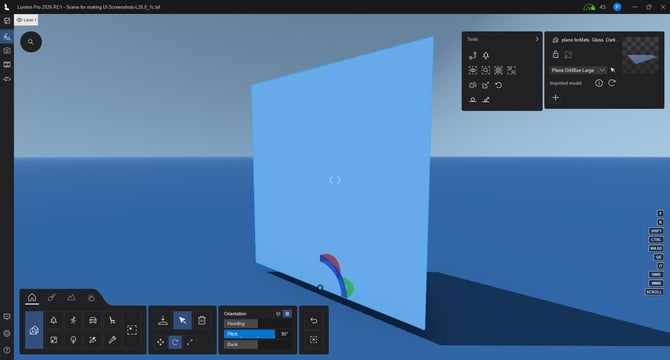 |
| --- | --- |
| Setting the Randomness to a lower value may change how lined this layout becomes. | |
We suggest that where needed, you first do your placements on an horizontal area. Then *Group* and change the *Pitch* to vertical. *Un-group* and alter the Objects again for any variations in vertical alignment wanted.
| 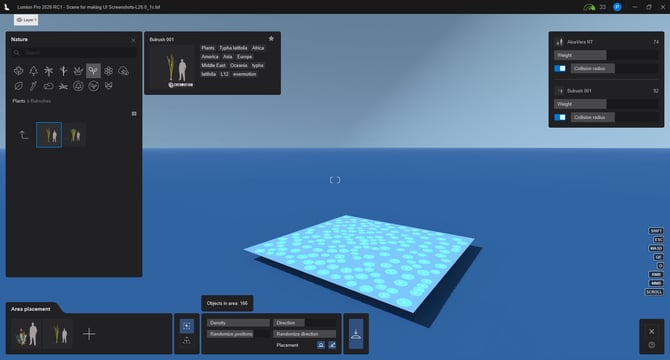 |  |
| --- | --- |
|  |  |
### OTHER LINKS:
- **Tips and Guides:** [5 essential tools for faster asset placement](https://lumion.com/tips-guides/easy-asset-placement)
#### In the Guide:
- **Lumion Website: Tips and Guides:** [5 essential tools for faster asset placement](https://lumion.com/tips-guides/easy-asset-placement)
**Date:** Oct 15, 2024
- Arrange assets with ease.
- Paint placement.
- Line placement.
- Cluster placement.
- Gizmo.
- Auto snap.
### Inspiration:
Need some inspiration on how to set up your scenes? Follow our **Visualization Guides**:
[](https://lumion.com/tips-guides/exterior-scene-building) [](https://lumion.com/tips-guides/interior-scene-building) [](https://lumion.com/tips-guides/landscape-scene-building)
[](https://lumion.com/tips-guides/lumion10-content-library-updates) [](https://lumion.com/tips-guides/express-yourself-with-lumion)
- [Visit our other Sections](https://support.lumion.com/knowledge-base/visit-our-other-sections?hsLang=en-us)
- [Contact Us](https://support.lumion.com/knowledge-base/contact-us?hsLang=en-us)
- [Lumion Account](https://support.lumion.com/knowledge-base/lumion-account?hsLang=en-us)
- [Latest News](https://support.lumion.com/knowledge-base/latest-news?hsLang=en-us#main-content)
- [Major Known Issues](https://support.lumion.com/knowledge-base/latest-news?hsLang=en-us#major-known-issues)
- [Lumion 2025: Major Version Release Details](https://support.lumion.com/knowledge-base/latest-news?hsLang=en-us#lumion-2025-major-version-release-details)
- [Lumion 2024: Major Version Release Details](https://support.lumion.com/knowledge-base/latest-news?hsLang=en-us#lumion-2024-major-version-release-details)
- [Lumion 2023: Major Version Release Details](https://support.lumion.com/knowledge-base/latest-news?hsLang=en-us#lumion-2023-major-version-release-details)
- [Lumion 2023: Update Release Notes](https://support.lumion.com/knowledge-base/latest-news?hsLang=en-us#lumion-2023-update-release-notes)
- [Lumion 12](https://support.lumion.com/knowledge-base/latest-news?hsLang=en-us#lumion-12)
- [Lumion 11](https://support.lumion.com/knowledge-base/latest-news?hsLang=en-us#lumion-11)
- [Lumion 10](https://support.lumion.com/knowledge-base/latest-news?hsLang=en-us#lumion-10)
- [Sales Questions](https://support.lumion.com/knowledge-base/sales-questions?hsLang=en-us)
- [Subscriptions](https://support.lumion.com/knowledge-base/subscriptions?hsLang=en-us)
- [New User Questions](https://support.lumion.com/knowledge-base/new-user-questions?hsLang=en-us)
- [Learning Resources](https://support.lumion.com/knowledge-base/learning-resources?hsLang=en-us)
- [System Requirements Questions](https://support.lumion.com/knowledge-base/system-requirements-questions?hsLang=en-us#main-content)
- [Determining the 'Complexity' of your Projects](https://support.lumion.com/knowledge-base/system-requirements-questions?hsLang=en-us#determining-the-complexity-of-your-projects)
- [System Messages from Lumion](https://support.lumion.com/knowledge-base/system-requirements-questions?hsLang=en-us#system-messages-from-lumion)
- [Requirements for Prior Versions](https://support.lumion.com/knowledge-base/system-requirements-questions?hsLang=en-us#requirements-for-prior-versions)
- [Download & Installation Questions](https://support.lumion.com/knowledge-base/download-installation-questions?hsLang=en-us#main-content)
- [Download/Installation: General Questions](https://support.lumion.com/knowledge-base/download-installation-questions?hsLang=en-us#download-installation-general-questions)
- [Download Questions](https://support.lumion.com/knowledge-base/download-installation-questions?hsLang=en-us#download-questions)
- [Installation Questions](https://support.lumion.com/knowledge-base/download-installation-questions?hsLang=en-us#installation-questions)
- [Lumion Pro Updater](https://support.lumion.com/knowledge-base/download-installation-questions?hsLang=en-us#lumion-pro-updater)
- [Plugins to CAD software](https://support.lumion.com/knowledge-base/download-installation-questions?hsLang=en-us#plugins-to-cad-software)
- [License and General Product Questions](https://support.lumion.com/knowledge-base/license-and-general-product-questions?hsLang=en-us#main-content)
- [License System Messages from Lumion](https://support.lumion.com/knowledge-base/license-and-general-product-questions?hsLang=en-us#license-system-messages-from-lumion)
- [Import & Export Questions](https://support.lumion.com/knowledge-base/import-export-questions?hsLang=en-us#main-content)
- [Model Import Guidelines](https://support.lumion.com/knowledge-base/import-export-questions?hsLang=en-us#model-import-guidelines)
- [Lumion LiveSync and import plugins](https://support.lumion.com/knowledge-base/import-export-questions?hsLang=en-us#lumion-livesync-and-import-plugins)
- [System Messages from Lumion when importing](https://support.lumion.com/knowledge-base/import-export-questions?hsLang=en-us#system-messages-from-lumion-when-importing)
- [General Questions](https://support.lumion.com/knowledge-base/general-questions?hsLang=en-us#main-content)
- [Keyboard Shortcuts in Lumion](https://support.lumion.com/knowledge-base/general-questions?hsLang=en-us#keyboard-shortcuts-in-lumion)
- [Upgrading and Updating your Lumion Version](https://support.lumion.com/knowledge-base/general-questions?hsLang=en-us#upgrading-and-updating-your-lumion-version)
- [Using Lumion 2023](https://support.lumion.com/knowledge-base/general-questions?hsLang=en-us#using-lumion-2023)
- [System Messages from Lumion](https://support.lumion.com/knowledge-base/general-questions?hsLang=en-us#system-messages-from-lumion)
- [Build Mode Questions](https://support.lumion.com/knowledge-base/build-mode-questions?hsLang=en-us#main-content)
- [Landscape and Terrains](https://support.lumion.com/knowledge-base/build-mode-questions?hsLang=en-us#landscape-and-terrains)
- [OpenStreetMap](https://support.lumion.com/knowledge-base/build-mode-questions?hsLang=en-us#openstreetmap)
- [Lighting: Sun and Artificial Lights](https://support.lumion.com/knowledge-base/build-mode-questions?hsLang=en-us#lighting-sun-and-artificial-lights)
- [Questions mainly for older versions than Lumion 12](https://support.lumion.com/knowledge-base/build-mode-questions?hsLang=en-us#questions-mainly-for-older-versions-than-lumion-12)
- [Library Content](https://support.lumion.com/knowledge-base/library-content?hsLang=en-us#main-content)
- [Library Content in Lumion 2026](https://support.lumion.com/knowledge-base/library-content?hsLang=en-us#library-content-in-lumion-2026)
- [Library Content in Lumion 2025](https://support.lumion.com/knowledge-base/library-content?hsLang=en-us#library-content-in-lumion-2025)
- [Library Content in Lumion 2024](https://support.lumion.com/knowledge-base/library-content?hsLang=en-us#library-content-in-lumion-2024)
- [Library Content in Lumion 2023](https://support.lumion.com/knowledge-base/library-content?hsLang=en-us#library-content-in-lumion-2023)
- [Library Content in Lumion 12](https://support.lumion.com/knowledge-base/library-content?hsLang=en-us#library-content-in-lumion-12)
- [Movie & Photo Mode Questions](https://support.lumion.com/knowledge-base/movie-photo-mode-questions?hsLang=en-us#main-content)
- [Photo Mode](https://support.lumion.com/knowledge-base/movie-photo-mode-questions?hsLang=en-us#photo-mode)
- [Movie Mode](https://support.lumion.com/knowledge-base/movie-photo-mode-questions?hsLang=en-us#movie-mode)
- [Animation in Movie Mode](https://support.lumion.com/knowledge-base/movie-photo-mode-questions?hsLang=en-us#animation-in-movie-mode)
- [Effects in Photo or Movie Mode](https://support.lumion.com/knowledge-base/movie-photo-mode-questions?hsLang=en-us#effects-in-photo-or-movie-mode)
- [Reflections](https://support.lumion.com/knowledge-base/movie-photo-mode-questions?hsLang=en-us#reflections)
- [Material Questions](https://support.lumion.com/knowledge-base/material-questions?hsLang=en-us#main-content)
- [Materials in versions 12 and earlier](https://support.lumion.com/knowledge-base/material-questions?hsLang=en-us#materials-in-versions-12-and-earlier)
- [Using LiveSync for Revit and a Section Box](https://support.lumion.com/knowledge-base/material-questions?hsLang=en-us#using-livesync-for-revit-and-a-section-box)
- [Rendering Questions](https://support.lumion.com/knowledge-base/rendering-questions?hsLang=en-us#main-content)
- [General Rendering Questions](https://support.lumion.com/knowledge-base/rendering-questions?hsLang=en-us#general-rendering-questions)
- [Rendering of Photos](https://support.lumion.com/knowledge-base/rendering-questions?hsLang=en-us#rendering-of-photos)
- [Rendering of Clips and Movies](https://support.lumion.com/knowledge-base/rendering-questions?hsLang=en-us#rendering-of-clips-and-movies)
- [Tips to getting the best renders](https://support.lumion.com/knowledge-base/rendering-questions?hsLang=en-us#tips-to-getting-the-best-renders)
- [Rendering Performance](https://support.lumion.com/knowledge-base/rendering-questions?hsLang=en-us#rendering-performance)
- [Technical Issues when Rendering](https://support.lumion.com/knowledge-base/rendering-questions?hsLang=en-us#technical-issues-when-rendering)
- [Panorama Mode Questions](https://support.lumion.com/knowledge-base/panorama-mode-questions?hsLang=en-us#main-content)
- [Technical questions when rendering with Panorama Mode](https://support.lumion.com/knowledge-base/panorama-mode-questions?hsLang=en-us#technical-questions-when-rendering-with-panorama-mode)
- [File & BackUp Questions](https://support.lumion.com/knowledge-base/file-backup-questions?hsLang=en-us#main-content)
- [Saving and Backup](https://support.lumion.com/knowledge-base/file-backup-questions?hsLang=en-us#saving-and-backup)
- [File Saving Issues](https://support.lumion.com/knowledge-base/file-backup-questions?hsLang=en-us#file-saving-issues)
- [Lumion-Documents](https://support.lumion.com/knowledge-base/file-backup-questions?hsLang=en-us#lumion-documents)
- [Transfer, Move or Migrate Files](https://support.lumion.com/knowledge-base/file-backup-questions?hsLang=en-us#transfer-move-or-migrate-files)
- [Troubleshooting](https://support.lumion.com/knowledge-base/troubleshooting?hsLang=en-us#main-content)
- [Reports about your PC](https://support.lumion.com/knowledge-base/troubleshooting?hsLang=en-us#reports-about-your-pc)
- [Photo and Movie Mode Issues](https://support.lumion.com/knowledge-base/troubleshooting?hsLang=en-us#photo-and-movie-mode-issues)
- [Rendering Issues](https://support.lumion.com/knowledge-base/troubleshooting?hsLang=en-us#rendering-issues)
- [Error Messages from Lumion](https://support.lumion.com/knowledge-base/troubleshooting?hsLang=en-us#error-messages-from-lumion)
- [Hardware related Issues](https://support.lumion.com/knowledge-base/troubleshooting?hsLang=en-us#hardware-related-issues)
- [Other Troubleshooting Issues](https://support.lumion.com/knowledge-base/troubleshooting?hsLang=en-us#other-troubleshooting-issues)
- [Article Developments](https://support.lumion.com/knowledge-base/article-developments?hsLang=en-us#main-content)
- [Devs - Multi‑Image Button Viewer](https://support.lumion.com/knowledge-base/article-developments?hsLang=en-us#devs-multi-image-button-viewer)
[](https://lumion.com/)
[mailto:email@email.com](mailto:email@email.com)
Copyright © 2026, Lumion - Act3D B.V.
#### Product
[Plans and pricing](https://lumion.com/product/buy)
[Discover Lumion](https://lumion.com/product/discover-lumion)
[Compatibility](https://lumion.com/compatibility/)
[System Requirements](https://lumion.com/product/system-requirements)
[Find a reseller](https://lumion.com/about/find-reseller)
[Free trial](https://lumion.com/product/free-trial)
#### Solutions
[Architectural design](https://lumion.com/product/architectural-design)
[Interior design](https://lumion.com/product/interior-design)
[Landscape architecture](https://lumion.com/product/landscape-architecture)
[Urban planning](https://lumion.com/product/urban-planning)
[3D rendering](https://lumion.com/product/3d-rendering-software)
[Education](https://lumion.com/product/educational-licenses)
#### Compatibility
[Trimble SketchUp](https://lumion.com/compatibility/sketchup-rendering)
[Autodesk Revit](https://lumion.com/compatibility/revit-rendering)
[Graphisoft ArchiCAD](https://lumion.com/compatibility/archicad-rendering)
[Rhinoceros](https://lumion.com/compatibility/rhino-rendering)
[Autodesk Autocad](https://lumion.com/compatibility/autocad-rendering)
[Autodesk FormIt Pro](https://lumion.com/compatibility/lumion-for-autodesk-formit-pro)
[Nemetschek Allplan](https://lumion.com/compatibility/allplan-rendering)
[Nemetschek Vectorworks](https://lumion.com/compatibility/vectorworks-rendering)
[BricsCAD](https://lumion.com/compatibility/bricscad-rendering)
[3D Studio Max](https://lumion.com/compatibility/3ds-max-rendering)
#### Resources
[Made with Lumion](https://lumion.com/made-with-lumion)
[Tutorials](https://support.lumion.com/video-tutorials?hsLang=en-us)
[Support and learning](https://support.lumion.com/knowledge-base/api/v2/help_center/en-us/articles/360044608053.json?hsLang=en-us)
[Downloads](https://support.lumion.com/downloads?hsLang=en-us)
[Community](https://community.lumion.com/index.php)
#### About
[Our Story](https://lumion.com/about)
[We're hiring!](https://lumion.com/about/careers)
[News](https://lumion.com/news)
[Contact us](https://lumion.com/about/contact)
[Terms & conditions](https://lumion.com/legal/terms-of-service) [EULA](https://lumion.com/legal/eula) [Privacy statement](https://lumion.com/legal/privacy-statement) [CEIP](https://lumion.com/legal/ceip) [Disclaimer](https://lumion.com/legal/disclaimer) © 2026 Lumion
```json
{
"@context" : "https://schema.org",
"@type" : "VideoObject",
"contentUrl" : "https://25757866.fs1.hubspotusercontent-eu1.net/hubfs/25757866/video_assets/366435601644/inherited/web_optimized.mp4",
"dateModified" : "2026-02-20T09:05:46.857Z",
"description" : "Scene Example for Area Placement",
"duration" : "PT10S",
"height" : 2160,
"name" : "Scene Example for Area Placement _UltraHDNRD2",
"thumbnailUrl" : "https://25757866.fs1.hubspotusercontent-eu1.net/hubfs/25757866/Knowledge%20Base%20Import/Area%20Placement/scene-example-for-area-placement-ultrahdnrd2.mp4/medium.jpg",
"uploadDate" : "2026-02-20T09:01:35.231Z",
"width" : 3840
}
```
```json
{
"@context" : "https://schema.org",
"@type" : "VideoObject",
"contentUrl" : "https://25757866.fs1.hubspotusercontent-eu1.net/hubfs/25757866/video_assets/368754449626/inherited/web_optimized.mp4",
"dateModified" : "2026-02-24T22:06:17.112Z",
"duration" : "PT6S",
"height" : 1080,
"name" : "pro-26-area-placement-layer-animation",
"thumbnailUrl" : "https://25757866.fs1.hubspotusercontent-eu1.net/hubfs/25757866/Knowledge%20Base%20Import/Area%20Placement/pro-26-area-placement-layer-animation.mp4/medium.jpg",
"uploadDate" : "2026-02-24T22:05:23.825Z",
"width" : 1920
}
```
```json
{
"@context" : "https://schema.org",
"@type" : "VideoObject",
"contentUrl" : "https://25757866.fs1.hubspotusercontent-eu1.net/hubfs/25757866/video_assets/368754278619/inherited/web_optimized.mp4",
"dateModified" : "2026-02-24T22:06:39.229Z",
"duration" : "PT7S",
"height" : 1080,
"name" : "pro-26-area-placement-create-area",
"thumbnailUrl" : "https://25757866.fs1.hubspotusercontent-eu1.net/hubfs/25757866/Knowledge%20Base%20Import/Area%20Placement/pro-26-area-placement-create-area.mp4/medium.jpg",
"uploadDate" : "2026-02-24T22:05:23.531Z",
"width" : 1920
}
```
```json
{
"@context" : "https://schema.org",
"@type" : "VideoObject",
"contentUrl" : "https://25757866.fs1.hubspotusercontent-eu1.net/hubfs/25757866/video_assets/368754278620/inherited/web_optimized.mp4",
"dateModified" : "2026-02-24T22:07:03.306Z",
"duration" : "PT8S",
"height" : 1080,
"name" : "pro-26-area-placement-collision-radius",
"thumbnailUrl" : "https://25757866.fs1.hubspotusercontent-eu1.net/hubfs/25757866/Knowledge%20Base%20Import/Area%20Placement/pro-26-area-placement-collision-radius.mp4/medium.jpg",
"uploadDate" : "2026-02-24T22:05:24.810Z",
"width" : 1920
}
```
```json
{
"@context" : "https://schema.org",
"@type" : "VideoObject",
"contentUrl" : "https://25757866.fs1.hubspotusercontent-eu1.net/hubfs/25757866/video_assets/363747129590/inherited/web_optimized.mp4",
"dateModified" : "2026-02-14T20:11:38.818Z",
"duration" : "PT5S",
"height" : 1080,
"name" : "PLACEHOLDER1 Xlayer-animation",
"thumbnailUrl" : "https://25757866.fs1.hubspotusercontent-eu1.net/hubfs/25757866/Knowledge%20Base%20Import/Area%20Placement/PLACEHOLDER1%20Xlayer-animation.mp4/medium.jpg",
"uploadDate" : "2026-02-14T20:10:23.470Z",
"width" : 1920
}
```