---
title: How do you use the Lumion Cloud AI Material Generator
description: How do you use the Lumion Cloud PBR Material Generator
---
Solutions
[Architectural design All you need to bring your residential, commercial or institutional designs to life](https://lumion.com/product/architectural-design) [Landscape architecture Beautiful terrains and fine-detailed nature for any climate or season](https://lumion.com/product/landscape-architecture)
[Interior design Realistic light, high-quality textures, and an extensive asset library](https://lumion.com/product/interior-design) [Students and Faculties Lumion is free for students, educators, and faculties around the world](https://lumion.com/product/educational-licenses)
[SketchUp](https://lumion.com/compatibility/sketchup-rendering) [Revit](https://lumion.com/compatibility/revit-rendering) [ArchiCAD](https://lumion.com/compatibility/archicad-rendering) [Rhino](https://lumion.com/compatibility/rhino-rendering) [Autocad](https://lumion.com/compatibility/autocad-rendering) [See more](https://lumion.com/compatibility/)
Product
[Discover Axogram New Live architectural diagramming](https://lumion.com/product/axogram) [Lumion Cloud Where design meets collaboration](https://lumion.com/product/lumion-cloud)
[Lumion Pro Advanced visualization solution](https://lumion.com/product/lumion-pro) [Discover AI tools New AI built for architectural work](https://lumion.com/product/ai)
[Lumion Pro 2026.1 is out now! 🚀](https://lumion.com/product/latest-version-pro) [Compatibility](https://lumion.com/compatibility/) [System Requirements](https://lumion.com/product/system-requirements) [Roadmap](https://lumion.com/product/roadmap)
[Pricing](https://lumion.com/product/buy) Resources
[Made with Lumion Get inspired by the stories behind the designs](https://lumion.com/made-with-lumion)
[Tips & Guides Make the most out of Lumion with helpful guides and tutorials](https://lumion.com/tips-guides)
[Knowledge base](https://support.lumion.com/knowledge-base?hsLang=en-us) [Community](https://community.lumion.com/index.php) [Downloads](https://support.lumion.com/downloads?hsLang=en-us)
About
[Who we are Learn about our story and mission](https://lumion.com/about) [Careers - We're hiring Let's build the future of architectural visualization](https://lumion.com/about/careers)
[News Discover the latest product news and more](https://lumion.com/news)
[Find your local reseller](https://lumion.com/about/find-reseller) [Contact us](https://lumion.com/about/contact)
[](http://lumion.com)
[My Account](https://account.lumion.com)
Solutions
[Architectural design](https://lumion.com/product/architectural-design) [Interior design](https://lumion.com/product/interior-design) [Landscape architecture](https://lumion.com/product/landscape-architecture) [Students and Faculties](https://lumion.com/product/educational-licenses)
---
[SketchUp](https://lumion.com/compatibility/sketchup-rendering) [Revit](https://lumion.com/compatibility/revit-rendering) [ArchiCAD](https://lumion.com/compatibility/archicad-rendering) [Rhino](https://lumion.com/compatibility/rhino-rendering) [Autocad](https://lumion.com/compatibility/autocad-rendering) [See more](https://lumion.com/compatibility/)
Product
[Axogram New](https://lumion.com/product/axogram) [Lumion Cloud](https://lumion.com/product/lumion-cloud) [Lumion Pro](https://lumion.com/product/lumion-pro) [Discover AI tools New](https://lumion.com/product/ai)
---
[Lumion Pro 2026.1 is out now! 🚀](https://lumion.com/product/latest-version-pro) [Compatibility](https://lumion.com/compatibility/) [System Requirements](https://lumion.com/product/system-requirements) [Roadmap](https://lumion.com/product/roadmap)
[Pricing](https://lumion.com/product/buy) Resources
[Made with Lumion](https://lumion.com/made-with-lumion) [Tips & Guides](https://lumion.com/tips-guides)
---
[Knowledge base](https://support.lumion.com/knowledge-base?hsLang=en-us) [Community](https://community.lumion.com/index.php) [Downloads](https://support.lumion.com/downloads?hsLang=en-us)
About
[Who we are](https://lumion.com/about) [Careers - We're hiring](https://lumion.com/about/careers) [News](https://lumion.com/news)
---
[Find your local reseller](https://lumion.com/about/find-reseller) [Contact us](https://lumion.com/about/contact)
[My Account](https://account.lumion.com)
[Submit a request](https://support.lumion.com/hc/en-us/requests/new?hsLang=en-us)
Lumion Knowledge Base: Lumion Cloud
How can we help?
- There are no suggestions because the search field is empty.
[Skip to content](https://support.lumion.com/lumion-cloud/how-do-you-use-the-lumion-cloud-ai-material-generator#main-content)
English - United States
Show submenu for translations

Open main navigation
Close main navigation
- English - United States
Show submenu for translations
- Contact us
Contact us
How can we help you?
- There are no suggestions because the search field is empty.
1. [Lumion Cloud](https://support.lumion.com/lumion-cloud?hsLang=en-us)
2. [Lumion Cloud](https://support.lumion.com/lumion-cloud/lumion-cloud?hsLang=en-us)
3. [Feature Guides](https://support.lumion.com/lumion-cloud/lumion-cloud?hsLang=en-us#feature-guides)
# How do you use the Lumion Cloud AI Material Generator
## Create custom materials fast using the AI Material Generator in Lumion Cloud.
The Lumion Cloud AI Material Generator is a cloud based tool designed to streamline your PBR (Physically Based Rendering) workflow. By analyzing a single color image, the AI generates the necessary maps to create realistic, high quality *Materials* for Lumion.
**Knowledge Base Tip:** For the best results, ensure your source image is a "clean" texture without pre-baked shadows or highlights.
**[1. Uploading the Source Map](https://support.lumion.com/lumion-cloud/how-do-you-use-the-lumion-cloud-ai-material-generator#Uploading_the_source_map)**
**[2. Fine tuning the Map Settings](https://support.lumion.com/lumion-cloud/how-do-you-use-the-lumion-cloud-ai-material-generator#Fine_tuning_the_map_settings)**
**[3. Downloading and Applying to Lumion](https://support.lumion.com/lumion-cloud/how-do-you-use-the-lumion-cloud-ai-material-generator#Downloading_and_applying_to_lumion)**
### 1. Uploading the Source Map
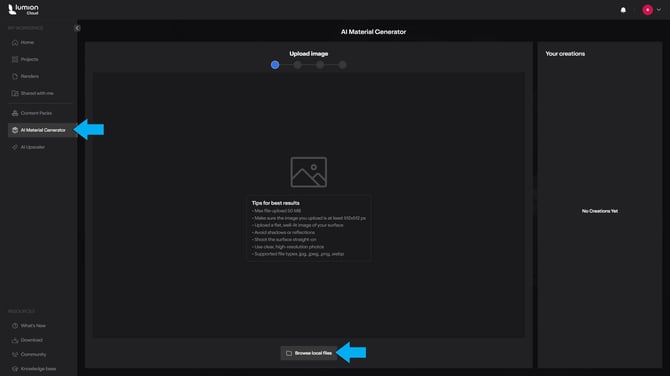
The generator requires an Albedo or Color map to begin. As shown in the Albedo Map Settings, this represents the flat, "true" color of your material. It acts as the raw surface pigment without any lighting, shadows, or reflections.
**1.1** Import your *Color Map*, you can use photos here or any *Color Map *you want to try.
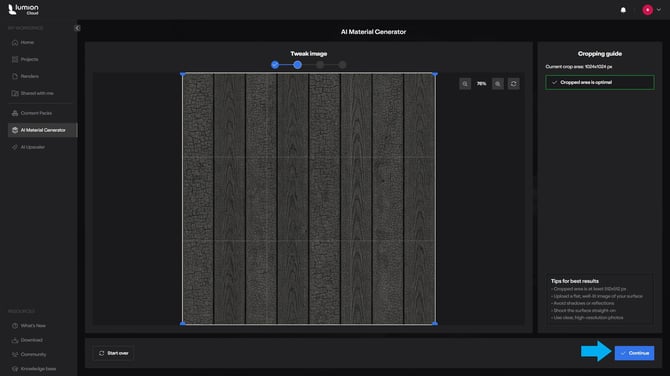
**1.2.** Crop your image and click generate, follow the optimize guide, here is where you affect how seamless the *Material *should turn out.
### 2. Fine tuning the Map Settings
Once the AI processes your image, you can generate four additional maps. You can adjust each one using the sidebar sliders:
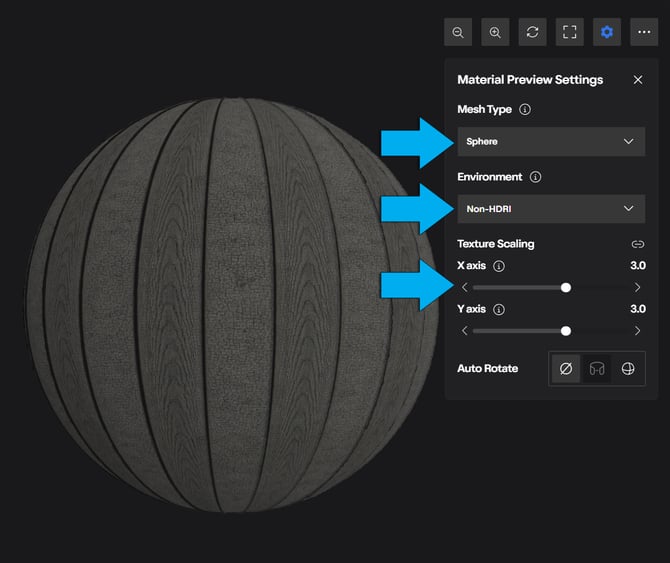
**2.1.** *Color Map* *Material *preview lets you change the preview mesh type, change the HDRI environment to check how your *Material *looks in different lighting conditions and to change the scaling.
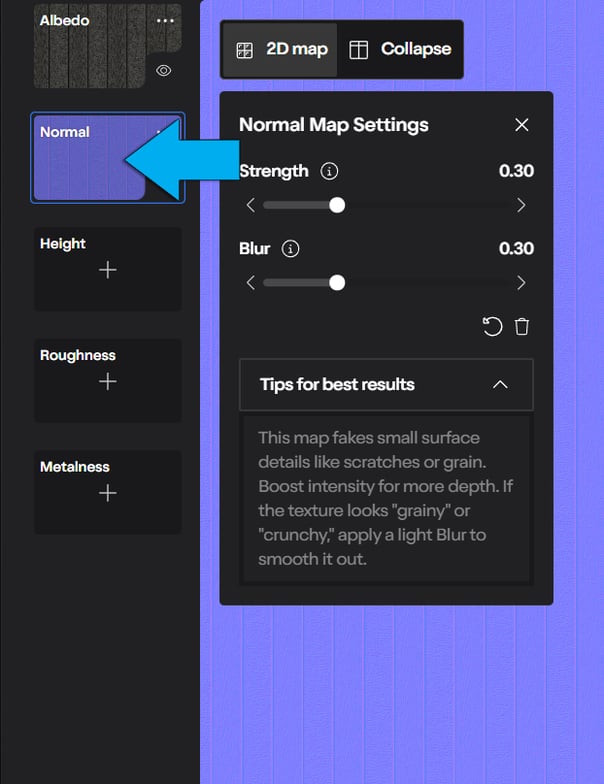
**2.2.** The *Normal Map* adds small scale surface details like scratches or grain by manipulating how light bounces off the surface.
**2.3.** The *Height Map* simulates depth, allowing surfaces like bricks or stones to appear volumetric without increasing the actual geometry
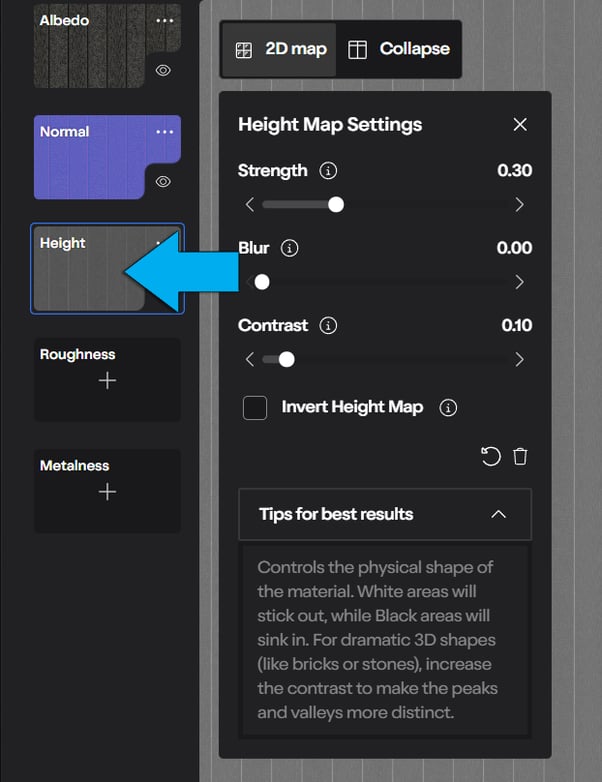
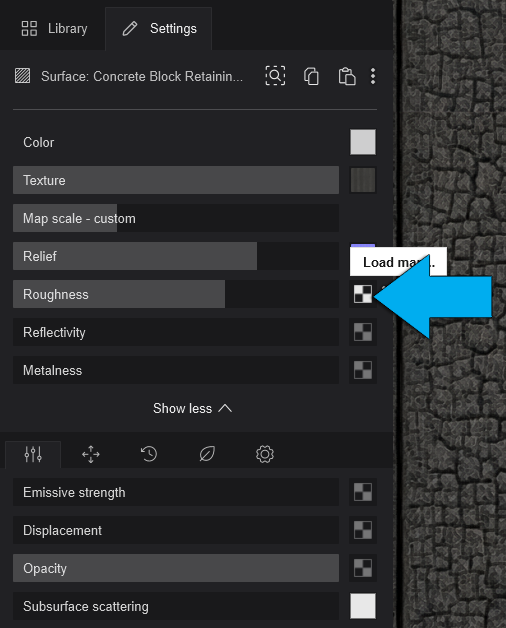
**2.4.** The *Roughness Map* determines surface shininess, where black represents a glossy, mirror like finish and white represents a dull, matte surface.
.png?width=604&height=785&name=AIMatGenerator6%20(1).png)
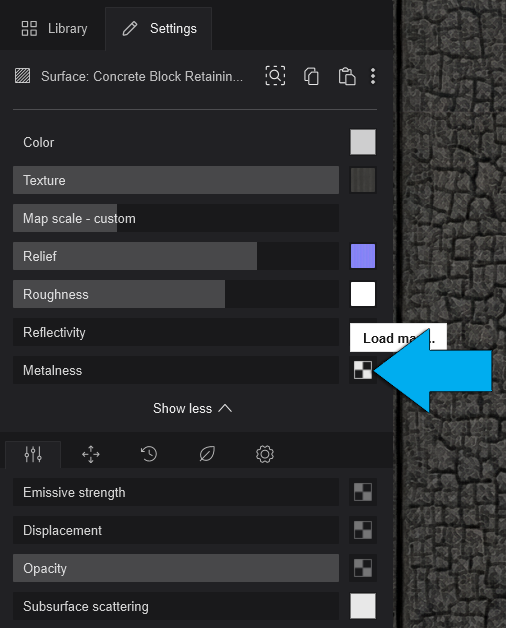
**2.5.** The *Metalness Map* defines which parts of the surface are metallic, influencing how the *Material* reflects light compared to non metallic surfaces.
.png?width=602&height=782&name=AIMatGenerator7%20(2).png)
### **3. Downloading and Applying to Lumion**
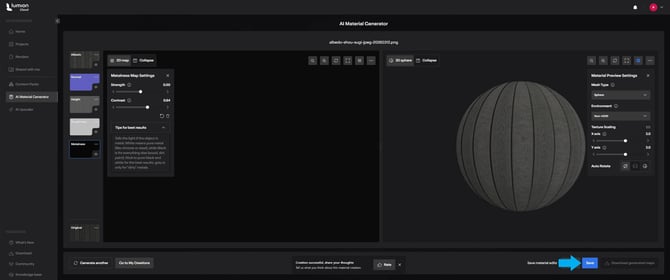
**3.1.** Once you are satisfied save and Download the generated maps:
**3.2.** Open your *Project *in Lumion. For a full *Material *workflow also see here:
- **Knowledge Base:** [What do the properties of the Standard Material mean in Lumion 2023 and newer?](https://support.lumion.com/_hcms/analytics/search/conversion?redirect=aHR0cHM6Ly9zdXBwb3J0Lmx1bWlvbi5jb20va25vd2xlZGdlLWJhc2UvYXBpL3YyL2hlbHBfY2VudGVyL2VuLXVzL2FydGljbGVzLzc3NjQwMzQyODQxODguanNvbg%3D%3D&ct=SEARCH&pid=25757866&cid=265919817929&t=c3RhbmRhcmQ%3D&d=support.lumion.com&c=5&rp=4&ab=false&opcid=&rs=UNKNOWN&hs-expires=1806098422&hs-version=1&hs-signature=APUk-v4SHIJ22KAModXVH4velHrwzTHyWQ&hsLang=en-us)
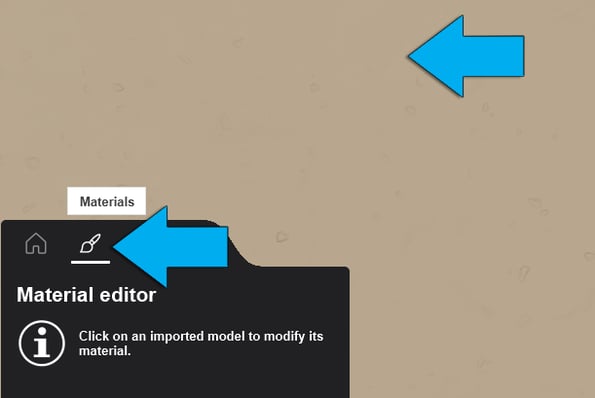
**3.3** In *Material Editor* select your surface you will be applying the *Material *to.
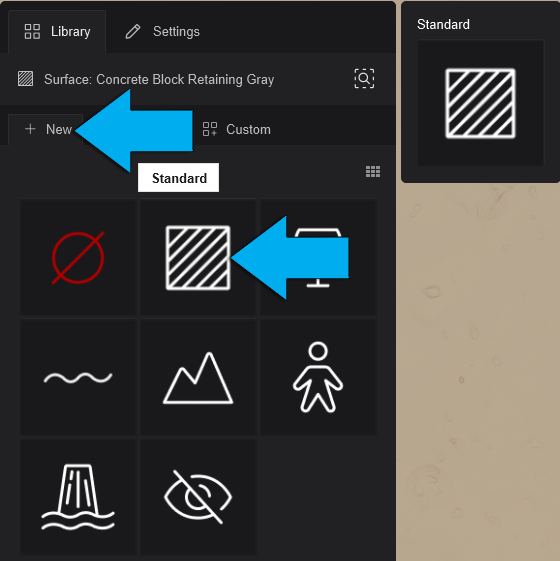
**3.4.** Go to New and *Standard Material.*
**3.5.** Select *Material Settings* and load your *Color Map,* in the *Texture Slot* and adjust the scale
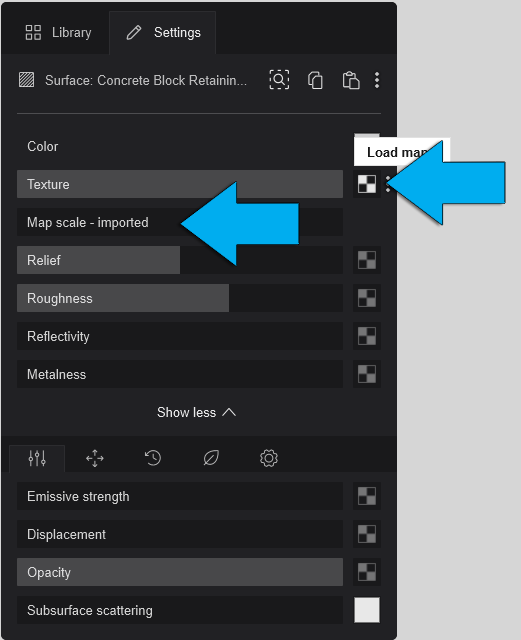
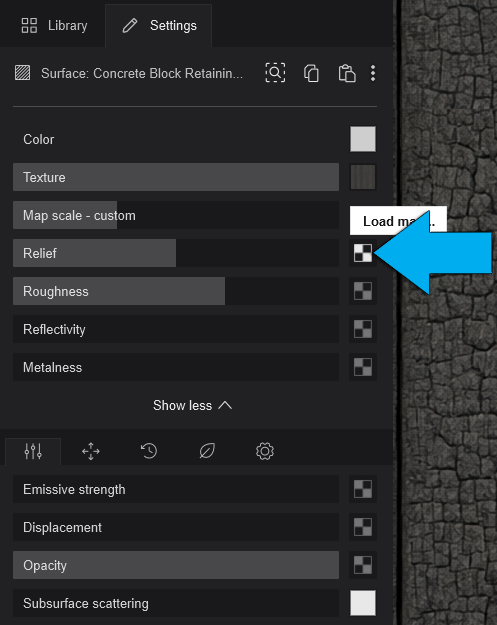
**3.6.** Add the *Normal Map *in the *Relief *slot.
**3.7.** Add the *Roughness Map*
**
**3.8.** Add the *Metalness Map*
**
**3.9.** Finally add your *Height Map* in the *Displacement slot* and increase to a desired value
.png?width=589&height=731&name=AIMatGenerator14%20(1).png)
And just like that, a full custom PBR *Material* in Lumion.
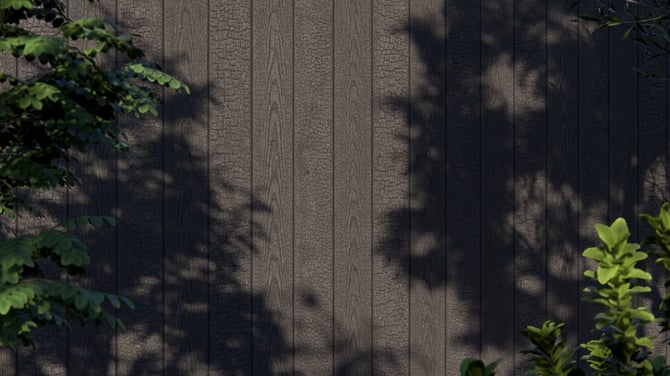
**Knowledge Base Tip:** If you need the *Maps *to be a higher resolution simply use the *Lumion Upscaler *to increase it.
- [Visit our other Sections](https://support.lumion.com/lumion-cloud/visit-our-other-sections?hsLang=en-us)
- [Lumion Cloud](https://support.lumion.com/lumion-cloud/lumion-cloud?hsLang=en-us#main-content)
- [Feature Guides](https://support.lumion.com/lumion-cloud/lumion-cloud?hsLang=en-us#feature-guides)
- [Video Tutorials](https://support.lumion.com/lumion-cloud/lumion-cloud?hsLang=en-us#video-tutorials)
[](https://lumion.com/)
[mailto:email@email.com](mailto:email@email.com)
Copyright © 2026, Lumion - Act3D B.V.
#### Product
[Plans and pricing](https://lumion.com/product/buy)
[Discover Lumion](https://lumion.com/product/discover-lumion)
[Compatibility](https://lumion.com/compatibility/)
[System Requirements](https://lumion.com/product/system-requirements)
[Find a reseller](https://lumion.com/about/find-reseller)
[Free trial](https://lumion.com/product/free-trial)
#### Solutions
[Architectural design](https://lumion.com/product/architectural-design)
[Interior design](https://lumion.com/product/interior-design)
[Landscape architecture](https://lumion.com/product/landscape-architecture)
[Urban planning](https://lumion.com/product/urban-planning)
[3D rendering](https://lumion.com/product/3d-rendering-software)
[Education](https://lumion.com/product/educational-licenses)
#### Compatibility
[Trimble SketchUp](https://lumion.com/compatibility/sketchup-rendering)
[Autodesk Revit](https://lumion.com/compatibility/revit-rendering)
[Graphisoft ArchiCAD](https://lumion.com/compatibility/archicad-rendering)
[Rhinoceros](https://lumion.com/compatibility/rhino-rendering)
[Autodesk Autocad](https://lumion.com/compatibility/autocad-rendering)
[Autodesk FormIt Pro](https://lumion.com/compatibility/lumion-for-autodesk-formit-pro)
[Nemetschek Allplan](https://lumion.com/compatibility/allplan-rendering)
[Nemetschek Vectorworks](https://lumion.com/compatibility/vectorworks-rendering)
[BricsCAD](https://lumion.com/compatibility/bricscad-rendering)
[3D Studio Max](https://lumion.com/compatibility/3ds-max-rendering)
#### Resources
[Made with Lumion](https://lumion.com/made-with-lumion)
[Tutorials](https://support.lumion.com/video-tutorials?hsLang=en-us)
[Support and learning](https://support.lumion.com/knowledge-base/api/v2/help_center/en-us/articles/360044608053.json?hsLang=en-us)
[Downloads](https://support.lumion.com/downloads?hsLang=en-us)
[Community](https://community.lumion.com/index.php)
#### About
[Our Story](https://lumion.com/about)
[We're hiring!](https://lumion.com/about/careers)
[News](https://lumion.com/news)
[Contact us](https://lumion.com/about/contact)
[Terms & conditions](https://lumion.com/legal/terms-of-service) [EULA](https://lumion.com/legal/eula) [Privacy statement](https://lumion.com/legal/privacy-statement) [CEIP](https://lumion.com/legal/ceip) [Disclaimer](https://lumion.com/legal/disclaimer) © 2026 Lumion
```json
{
"@context" : "https://schema.org",
"@type" : "VideoObject",
"caption" : {
"@type" : "MediaObject",
"contentUrl" : "https://support.lumion.com/media-transcripts/384046518488/en.vtt",
"inLanguage" : "en",
"name" : "en Captions"
},
"contentUrl" : "https://25757866.fs1.hubspotusercontent-eu1.net/hubfs/25757866/video_assets/384046518488/inherited/web_optimized.mp4",
"dateModified" : "2026-03-26T21:45:35.086Z",
"duration" : "PT2M5S",
"height" : 1080,
"name" : "LCloudMaterialEditor",
"thumbnailUrl" : "https://25757866.fs1.hubspotusercontent-eu1.net/hubfs/25757866/LCloudMaterialEditor.mp4/medium.jpg",
"uploadDate" : "2026-03-26T21:45:10.966Z",
"width" : 1920
}
```