You can find Lumion View via your Lumion Account.
Lumion View for ArchiCAD 2026 (Win) Releases
Early Access Commercial Release - 3 February 2026: Release 26.0.0
-
Lumion View is now available to all ArchiCAD users on Windows PCs that meet or exceed the minimum hardware requirements and support Ray Tracing.
Previous Release - 19 February 2026: Release 26.0.1
-
Lumion View for ArchiCAD including LiveSync®
Previous Release – 19 March 2026: Release 26.0.2
-
Introduces additional improvements and fixes, including new controls for Sky Brightness and Cloudiness in the Environment tab.
Latest Release – 29 July 2026: Release 26.0.5
-
Addressed stability and bug fixes
Menu:
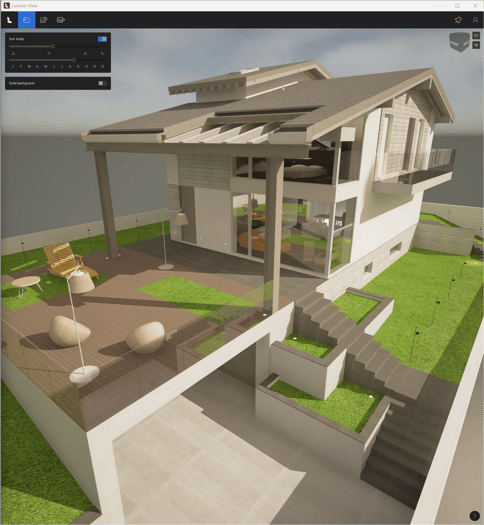
Lumion View integrates real-time visualization into your workflow, letting you preview your project without leaving your modeling software.
By relying on your model’s existing lighting and material data, it keeps the setup fast and straightforward.
Lumion View comes included in Lumion Studio and can also be purchased separately. Learn more below:
- Lumion Website: Lumion View
For a complete overview of Lumion View and guidance specific to the SketchUp edition, see:
- Knowledge Base: All About Lumion View
- Knowledge Base: Getting Started with Lumion View: An Introduction
1. Via your Lumion Account:
1.1: Log in to your Lumion Account (if not already logged in)
1.2: Click on License Keys:
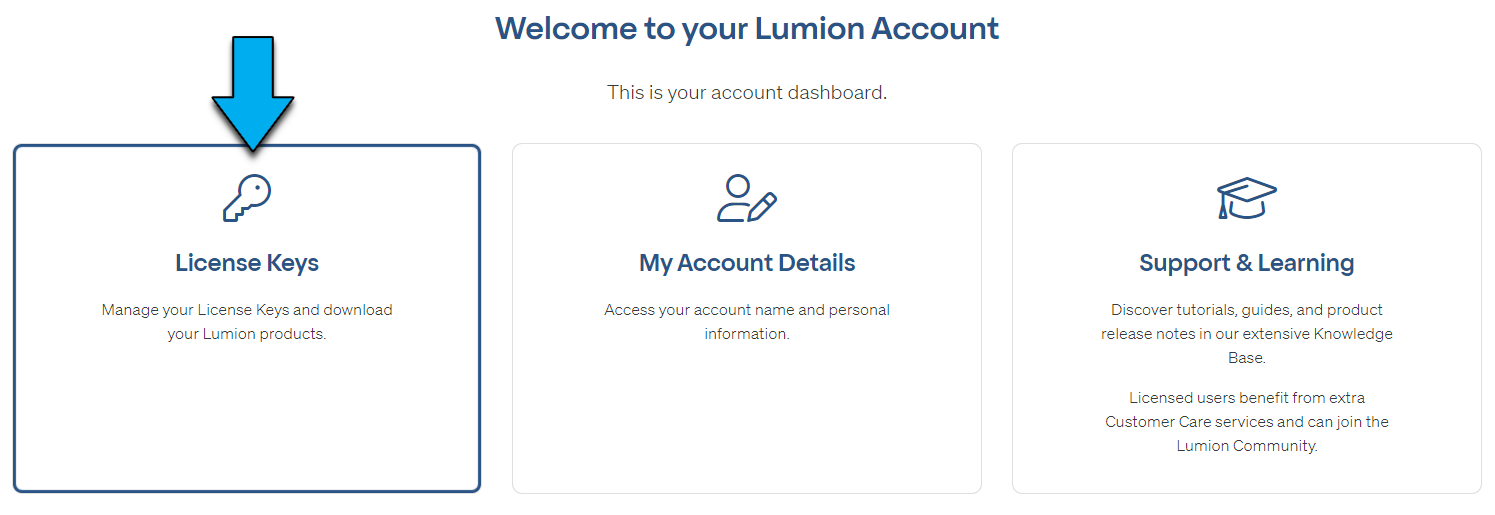
1.3: Your Account will be populated with the Lumion View product:
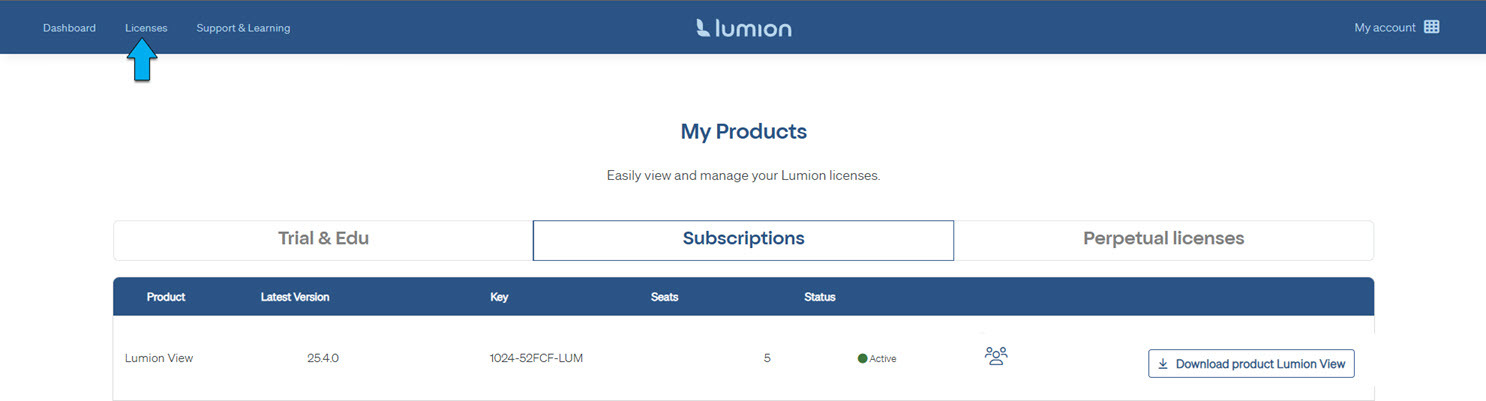
2.0: If you do not see the Lumion View in your Lumion Account, then:
2.1 Check to ensure you are in the correct Product Tab.
-
Your product should be in the Subscriptions Tab.
-
If you are a student, then check the Trial & Edu Tab.
2.2: Check that, if you have a valid Subscription License Key (for Lumion View, or Lumion Studio), that it is Registered to your Lumion Account:
-
Knowledge Base: How do you register a License Key on your Lumion Account?
2.3: If you have a valid Subscription License Key and you are part of an organization where someone else looks after the License Keys, then contact the person who looks after the keys and ask them to Register Lumion View for your Lumion Account or give you user permissions to Lumion View.
Note: The Registration, so long as you are using the same email for the Lumion Account, should be automatically done for you.
2.4: Still having problems?
Contact us for further assistance after the above steps 2.1 to 2.3 have been taken:
-
Knowledge Base: Contact Lumion Customer Care
-
Knowledge Base: Contact Lumion Technical Support
- Your product should be in the Subscriptions Tab.
- If you are a student, then check the Trial & Edu Tab.
2.3.2: Check that, if you have a valid Subscription License Key (for Lumion View, or Lumion Studio), it is Registered to your Lumion Account:
- Knowledge Base: How do you register a License Key on your Lumion Account?
2.3.3: If you have a valid Subscription License Key and you are part of an organization where someone else looks after the License Keys), then contact the person who looks after the keys and ask them to Register Lumion View for your Lumion Account or give you user permissions to Lumion View.
Note: the Registration, so long as you are using the same email for the Account should be automatically done for you.
2.3.4: Still having problems?
Contact us for further assistance after the above steps 3.1 to 3.3 have been taken:
- Knowledge Base: Contact Lumion Customer Care
- Knowledge Base: Contact Lumion Technical Support2.3: Lumion Account: if you do not see the Lumion View product line, th
3. Full steps for Download and Install:
3.1: Make sure ArchiCAD is closed.
3.2: Click the Download button from your Lumion Account:

(button text may vary)
3.3: Once downloaded (usually to your browser's default download location - folder Downloads), then double-click the .exe file to run the Installer on your system.
-
File: LumionPluginsForArchicad_26.0.5 (202MB)
3.4: Follow the steps to install the .exe plugin file:
Both Lumion View for ArchiCAD and LiveSync will be installed.
The Installer will install to all supported versions of ArchiCAD you have on your PC.
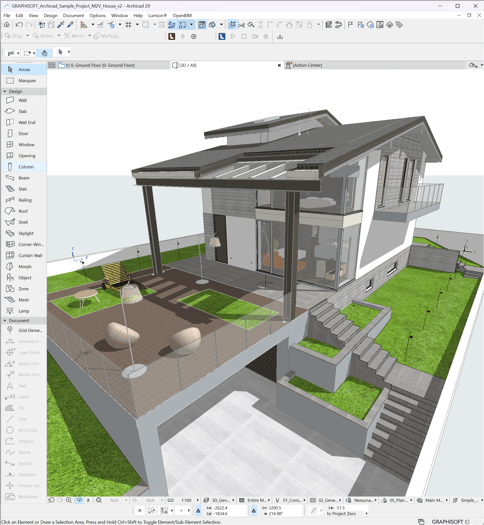
3.5: Installed and Available in ArchiCAD:
ArchiCAD menu and as a Toolbar:
3.6: If you do not see anything, then first see this article:
And if needed, please contact us.
3.7: You can check that the version you have installed is the most current version available, as mentioned in the section above
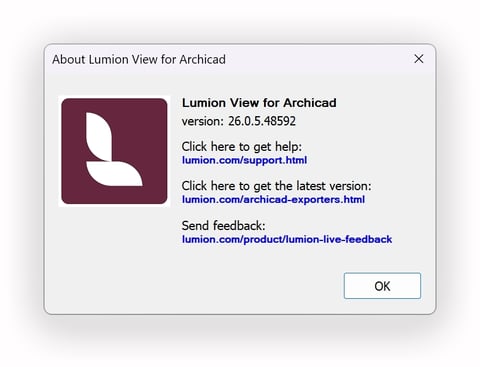
You are now ready to render your ArchiCAD model in Lumion View.
4. Ready to go!
Lumion View requires User Authentication.
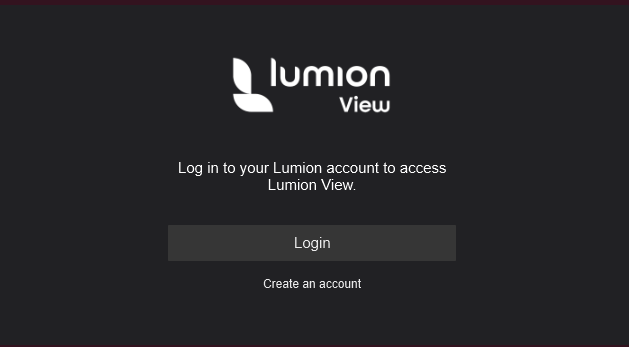
Go to this article for information about login and the User License system:
-
Knowledge Base: Lumion View Account and License Management
5. Install Problems or Technical Support needed?
-
Knowledge Base: Contact Lumion Technical Support
6. Version Changes?
Version changes will be automatically applied to the Product in your Lumion Account.
Lumion View Support Team will advise via the usual Lumion channels about (major and minor) version changes:
1. Updates to the Knowledge Base articles - Release Notes:
-
Knowledge Base: Lumion Latest News
2. News in the Lumion Community:
-
Lumion Community: News, blogs and articles
3. Lumion Newsletter email (if you have opted in): for major marketing and news only.
4. Limited direct Technical Support is available:
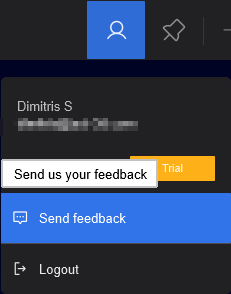
5. Use the in-product Feedback Form to report bugs or submit feature suggestions:
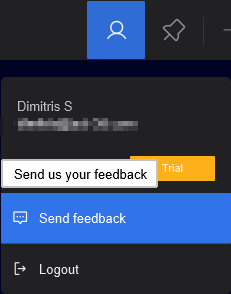
Or one of our many other ways to provide feedback:
-
Knowledge Base: How do you provide feedback on Lumion?
Version changes will be automatically done as an update to the Extension plugin and to the Product in your Lumion Account.
Lumion View Support Team will advise via the usual Lumion channels about (major and minor) version changes:
1. Updates to the Knowledge Base articles - Release Notes:
- Knowledge Base: Lumion View News
2. News in the Lumion Community.
- Lumion Community: News, blogs and articles
3. Lumion Newsletter email (if you have opted in): for major marketing and news only.
4. Limited direct Technical Support is available:
Use the in-product Feedback Form to report bugs or submit feature suggestions: