
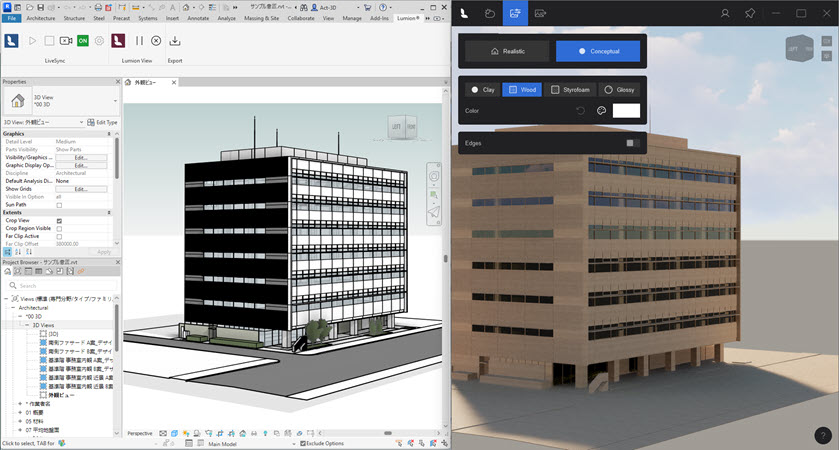
You can find it as an Autodesk Plugin via the Autodesk App Store or via your Lumion Account.
1. Commercial Release:
-
May 20, 2026 - Latest Release: Lumion View for Revit 2026.0.4, including LiveSync® for Autodesk Revit® version 26.0.4
-
September 8, 2025 - Early Access Commercial Release: Release 25.4.2. Lumion View is now offered to all users of Revit on Windows PC hardware that meets or exceeds the minimum hardware requirements.
-
Lumion Website: Get Lumion - Products
-
2. Available from either:
2.1: Autodesk Apps Warehouse:
Sign in to your Autodesk Account.
Search for "Lumion" or "Lumion View" and download:
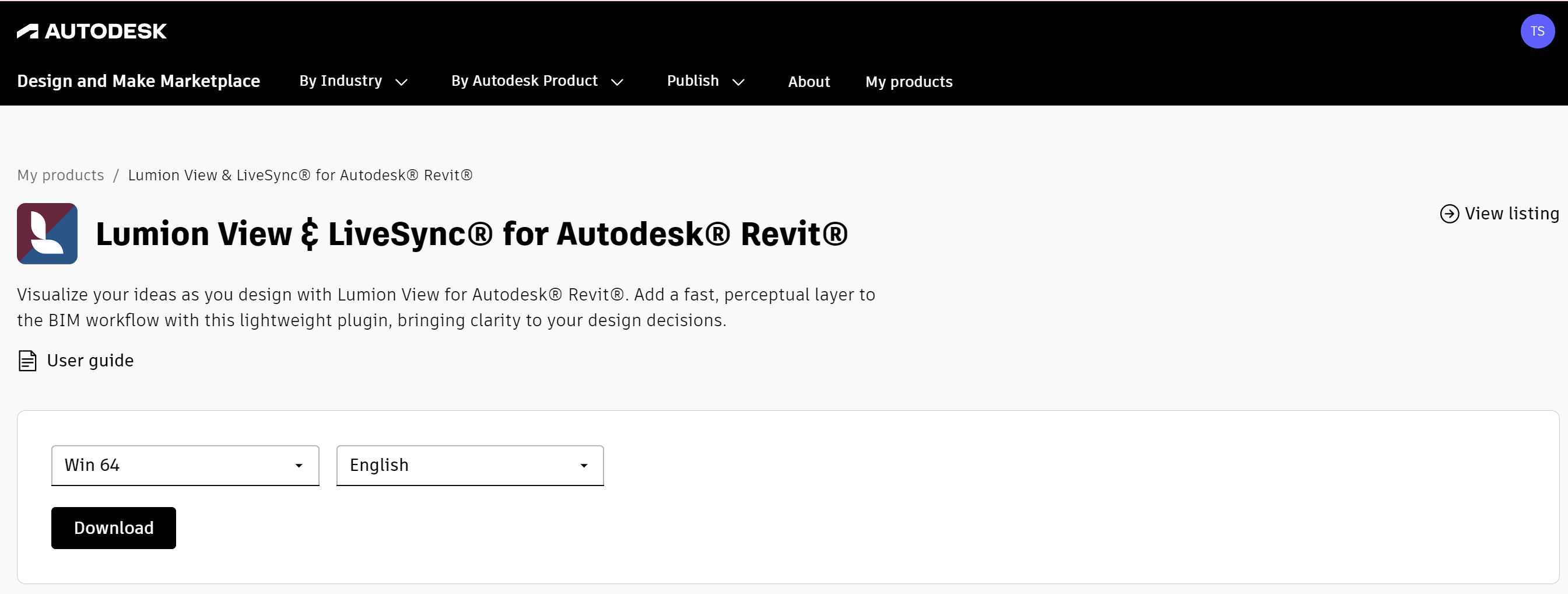
2.2: Or, your Lumion Account:
2.2.1: Log in to your Lumion Account (if not already logged in)
2.2.2: Click on License Keys:
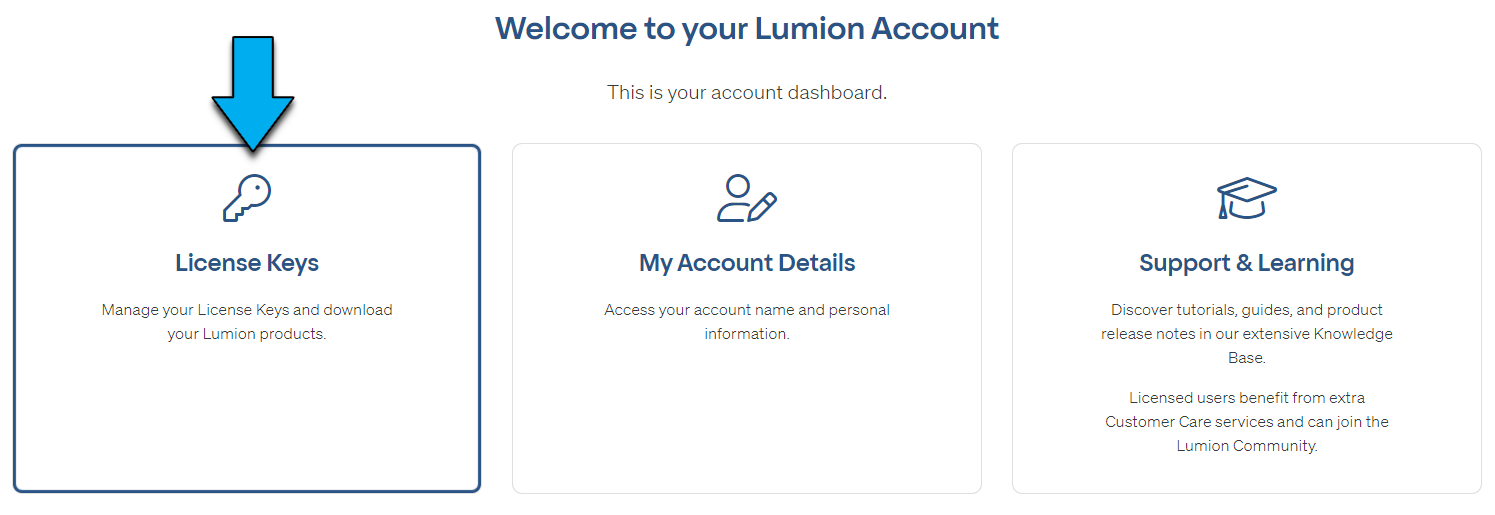
2.2.3: Your Account will be populated with the Lumion View product:
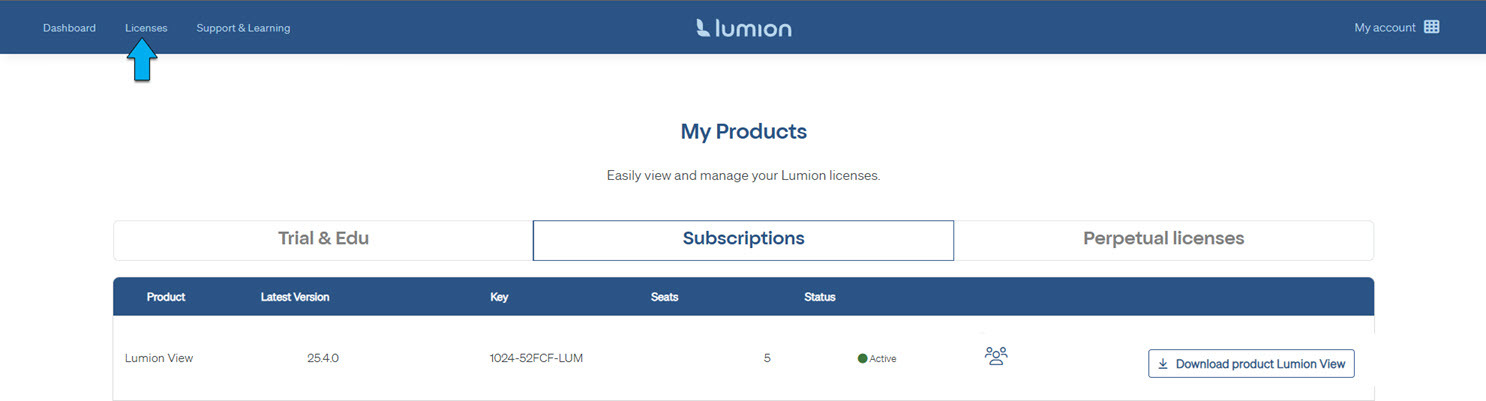
2.3: Lumion Account: If you do not see the Lumion View product line, then:
2.3.1: Check to ensure you are in the correct Product Tab.
- Your product should be in the Subscriptions Tab.
- If you are a student, then check the Trial & Edu Tab.
2.3.2: Check that, if you have a valid Subscription License Key (for Lumion View), it is Registered to your Lumion Account:
- Knowledge Base: How do you register a License Key on your Lumion Account?
2.3.3: If you have a valid Subscription License Key and you are part of an organization where someone else looks after the License Keys), then contact the person who looks after the keys and ask them to Register Lumion View for your Lumion Account or give you user permissions to Lumion View.
Note: the Registration, so long as you are using the same email for the Account should be automatically done for you.
2.3.4: Still having problems?
Contact us for further assistance after the above steps 3.1 to 3.3 have been taken:
- Knowledge Base: Contact Lumion Customer Care
- Knowledge Base: Contact Lumion Technical Support
3. Full steps for Download and Install:
3.1: Make sure Revit is closed.
3.2: Click the Download button.
from Autodesk Apps Store:

from Your Lumion Account:
(button text may vary)
3.3: Once downloaded (usually to your browser's default download location - folder Downloads), then double-click the MSI file to run the Windows MSI installer system.
File: Lumion_Plugins_For_Revit_2026.0.4 (225MB).
3.4: Follow the steps to install the MSI plugin file:
Both Lumion View for Revit and LiveSync will be installed.
The installation will install to the default Revit plugins path for Single-User installs. See Also:
- Knowledge Base: Download Lumion LiveSync and Lumion View single plugin for Revit
For multi-user installs requiring Administrative rights under the new security protocol for Autodesk plugins, you may need to contact us.
The installer will install to all supported versions of Revit you have on your PC.
3.5: Installed and Available in Revit:
Revit menu and as a Toolbar:

3.6: If you do not see anything, then first see this article:
- Knowledge Base: Download Lumion LiveSync and Lumion View single plugin for Revit
And if needed, please contact us.
3.7: You can check that the version you have installed is the most current version available, as mentioned in the section above:- Current Version:
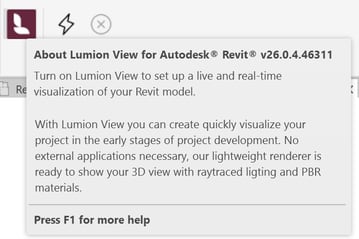
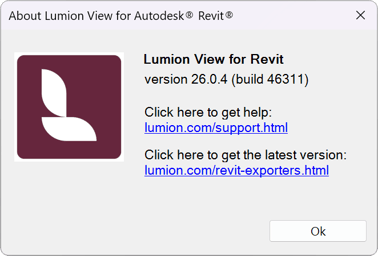
You are now ready to render your Revit model in Lumion View.
4. Ready to go!:
Lumion View requires User Authentication.
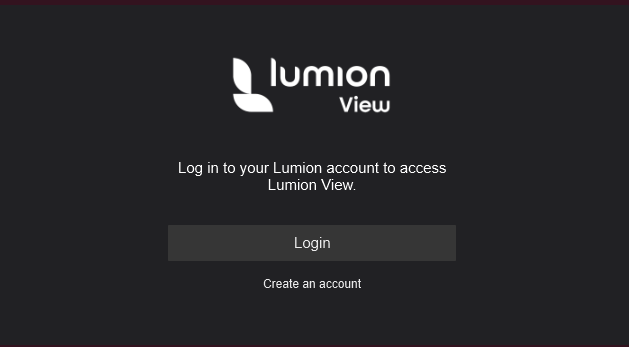
Go to this article for information about login in and the User License system:
- Knowledge Base: Lumion View Account and License Management
5. Install Problems or Technical Support needed?
- Knowledge Base: Contact Lumion Technical Support
6. Version Changes?
6.1: Version Updates
Version changes will be automatically done as an update to the Extension plugin and to the Product in your Lumion Account.
Lumion View Support Team will advise via the usual Lumion channels about (major and minor) version changes:
1. Updates to the Knowledge Base articles - Release Notes:
- Knowledge Base: Lumion View News
2. News in the Lumion Community.
- Lumion Community: News, blogs and articles
3. Lumion Newsletter email (if you have opted in): for major marketing and news only.
4. Limited direct Technical Support is available:
Use the in-product Feedback Form to report bugs or submit feature suggestions: