


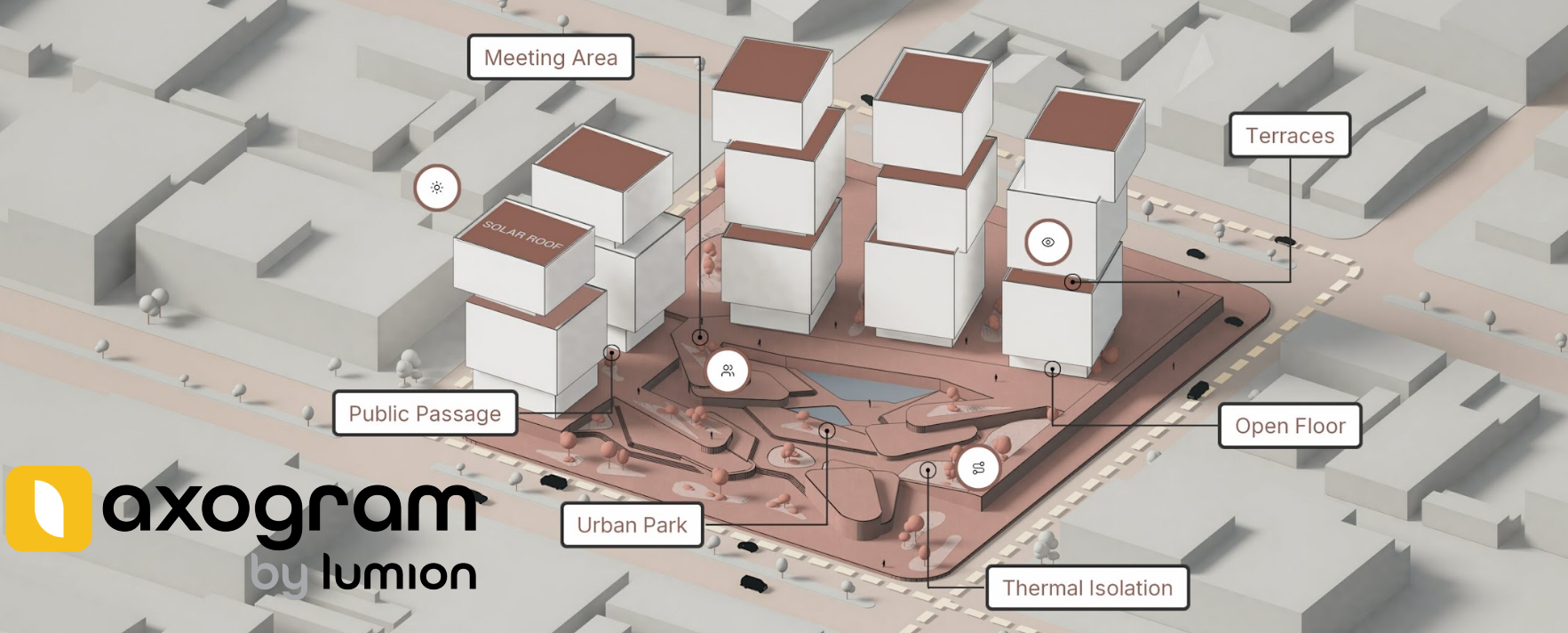
Axogram is a live architectural diagramming plugin, currently available for SketchUp, Revit, and Archicad (more CAD software on the way).
It works alongside your modeling application and provides a dedicated real-time workspace where you can transform your model using tools such as:
- Varied, customizable diagrammatic visual %%Styles%%.
- %%Annotations%% and %%Labels%%, and %%3D text.%%
- %%Arrows%% and flow %%Lines%%.
- %%Zones%% and highlighted areas.
- %%Environment%% and lighting controls.
For an overview of Axogram’s features, plans, and output options:
- Lumion Website: Axogram
Your CAD or BIM model remains the source of truth. Axogram keeps your diagrams connected to it, so you can continue developing the design without rebuilding its visual explanation every time something changes.
There is no separate Axogram project file to manage. Your diagrams and their settings are saved with the source CAD or BIM file.
1. What you communicate with Axogram
Axogram is designed for creating diagrams that explain a specific idea rather than simply showing the entire project.
Some examples:
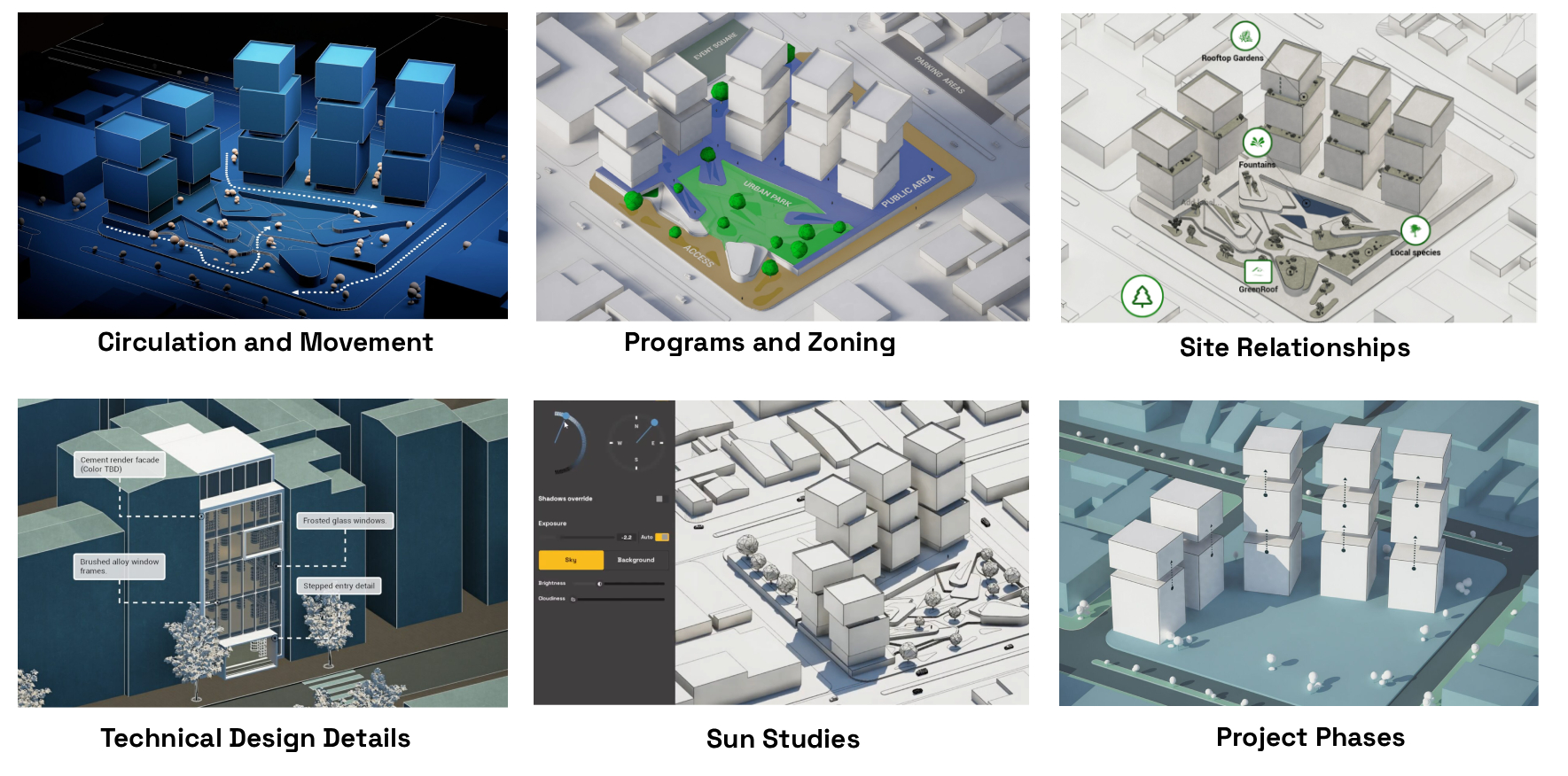
Other examples include massing developments, wind studies, highlighting access/entry or emergency points, environmental context and considerations, different design options or configurations, or just areas of focus within a design.
2. Where Axogram fits in the design workflow
Axogram becomes useful as soon as your design begins taking shape in 3D. It stays connected to the modeling and iteration process before the project moves into detailed visualization and final presentation.
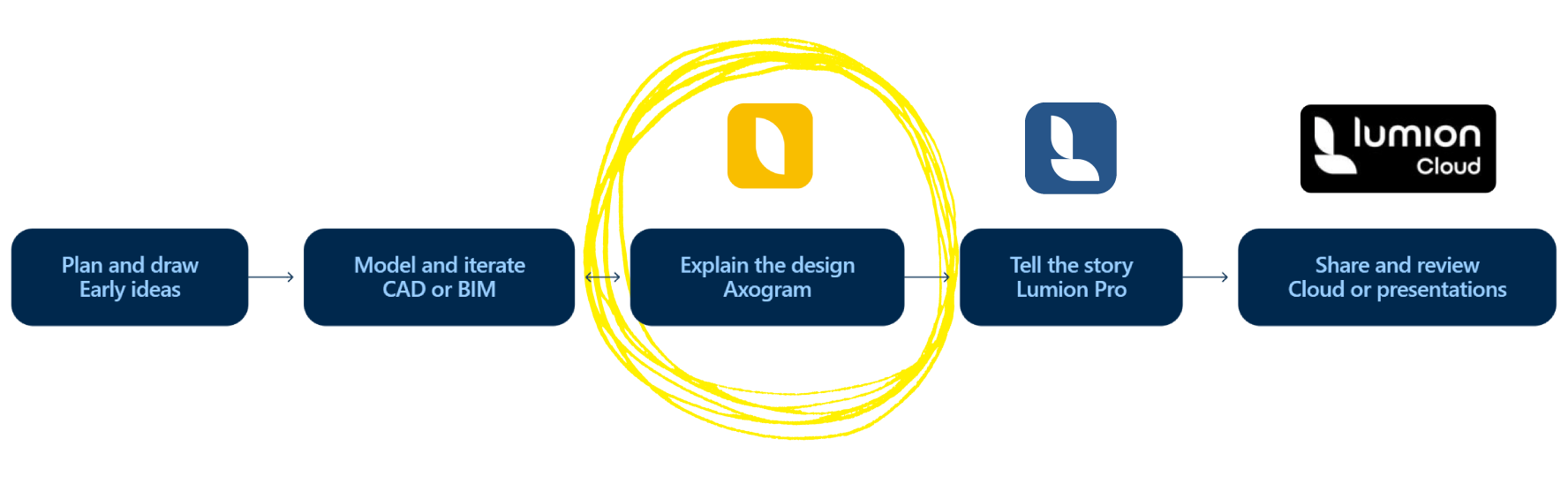
The connection between modeling and Axogram goes both ways: you can develop the model, evaluate it through diagrams, return to the design, and keep refining the explanation as the project evolves.
3. How does it work?
The following articles cover how to use Axogram:
- Knowledge Base: How do you customize and render a Diagram in Axogram?
- Knowledge Base: How do you annotate diagrams in Axogram?
-
Knowledge Base: Keyboard Shortcuts in Axogram
All Release Notes can be found here:
- Knowledge Base: Axogram Release Notes
Note: Unlike Lumion View (now discontinued), Axogram and Lumion %%LiveSync%% are separate plugins. You can use Axogram for architectural diagramming and Lumion %%LiveSync%% when connecting your model to Lumion Pro.
3. System Requirements and Compatibility
To use Axogram, you need:
- A supported version of SketchUp, Revit, or Archicad.
- At least 500MB of available storage.
- A PC running Windows 11.
- A graphics card meeting the minimum Axogram requirements and the minimum driver version.
- At least 32 GB of system memory.
- An internet connection for downloading, signing in, and license validation.
- A %%Lumion Account%% and Axogram license.
For the complete minimum and recommended specifications, see:
-
Knowledge Base: What kind of computer does Axogram need?
4. Download and Access
Here's where you can download Axogram and how to access it:
-
Knowledge Base: How do you download and access Axogram?
Note that Axogram does not have a time-limited trial. Instead, you can start with Axogram Free and continue using it for as long as you like, with a few limitations:
| Feature | Free | Paid |
|---|---|---|
| Saved Diagrams | 5 at a time | Unlimited |
| Maximum Output resolution | Full HD (1920 × 1080) | 4K (3840 × 2160) |
| Watermark | Yes | No watermark |
If you begin with Axogram Free and later purchase the full version, both licenses will remain visible in your %%Lumion Account%%. This is expected.
Eligible Lumion View and Lumion Studio subscribers also receive access to Axogram through their existing subscription.
5. Sending Feedback:
Use the in-product Feedback Form to report bugs or submit feature suggestions:
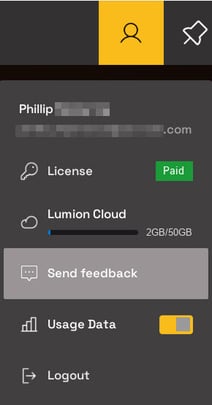
Or one of our many other ways to provide feedback:
- Knowledge Base: How do you provide feedback on Lumion?
See Also:
-
Lumion Website: Axogram product page
-
Lumion News: Lumion launches Axogram