

1. Plugin Options:
We have a new product and version that now supports SketchUp 2025 and newer, and is for Lumion 2025 and newer versions of Lumion.
This new plugin is the go forward plugin and the older LiveSync (only) for SketchUp plugin is now frozen with the existing set of features.
See below for the two options.
1.1: [New] Lumion Plugin for SketchUp 2025 and newer:
The new Plugin product includes LiveSync for SketchUp and Lumion View.
It will install both.
If you do not use Lumion View, that's fine, simply set the Lumion View toolbar to not show on the SketchUp Toolbar.
This Plugin is available only at the Trimble Extension Warehouse.
For Lumion 2025 and newer.
Installation steps are covered in this article:
- Knowledge Base: Lumion View: Installation guide: SketchUp
1.2: LiveSync (only) for SketchUp:
We provide the final version of LiveSync for SketchUp here, It is not available at the Extension Warehouse.
Click on this link to download LiveSync for SketchUp V3.60.786
The table below lists the supported versions of SketchUp, Lumion and for LiveSync.
In other words, LiveSync for SketchUp V3.60.786 supports versions of SketchUp 2020 to 2025, along with Lumion 10.3 and newer. Lumion 10.3 and Lumion 11 prior to Lumion 12.0 are no longer officially supported versions.
1.3:. Select the import method for your version of SketchUp and Lumion
SketchUp 2025
Lumion 2025.0 or newer: Install the Lumion Plugin for SketchUp 25.0 or newer (see also above section1.1):
- Knowledge Base: Lumion View: Installation guide: SketchUp
SketchUp 2025
Lumion 2024.0 to 2024.4.3: Use LiveSync for SketchUp 2025 (3.60.786), which is available here (or, as above), or import as .SKP.
Note: Using the previous LiveSync version (3.60.785) with SketchUp 2025 may result in issues with the model or materials
Lumion 12.0 - 12.5: LiveSync
SketchUp 2024
Lumion 2024.0 or newer: LiveSync or import .SKP file.
Lumion 2023.0 to Lumion 2023.4.4: import .SKP file.
Lumion 12.0 - 12.5: LiveSync
SketchUp 2024 no longer provides for saving to an earlier version.
From Lumion 12.0 or newer you may be able to import your model from the Skp file. However, please see (below) Section 3.11: Why might some part of your model in SketchUp not show in Lumion?
SketchUp 2023
Lumion 2023.0 or newer: LiveSync or import .SKP file
Lumion 12.0 - 12.5: LiveSync or import .SKP file (File -> Save as -> SketchUp 2020 format)
SketchUp 2022
Lumion 12.0 or newer: LiveSync or import .SKP file
SketchUp 2021
Lumion 12.0 or newer: LiveSync or import .SKP file
2. How to install the LiveSync (only) plug-in:
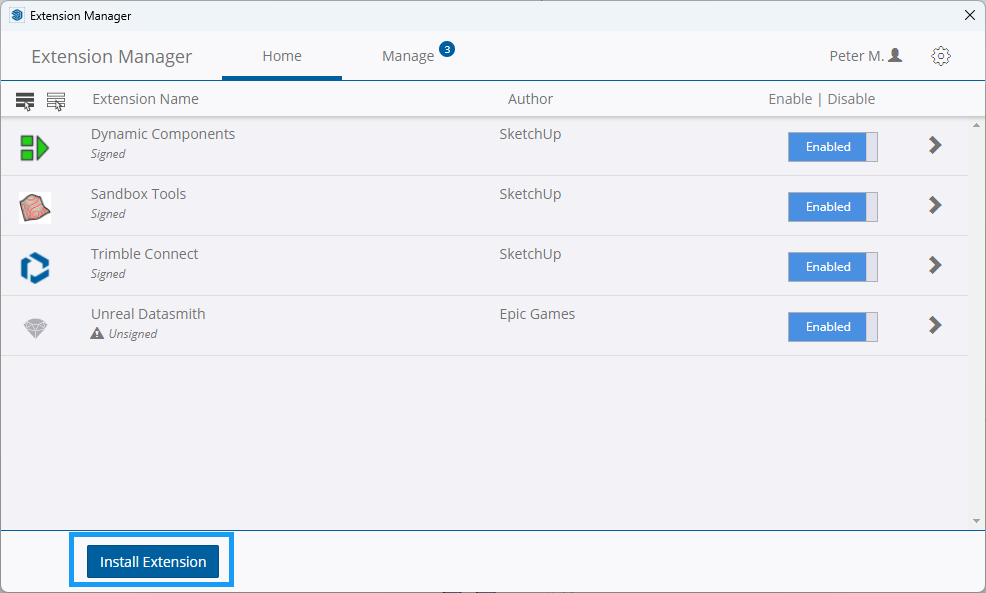
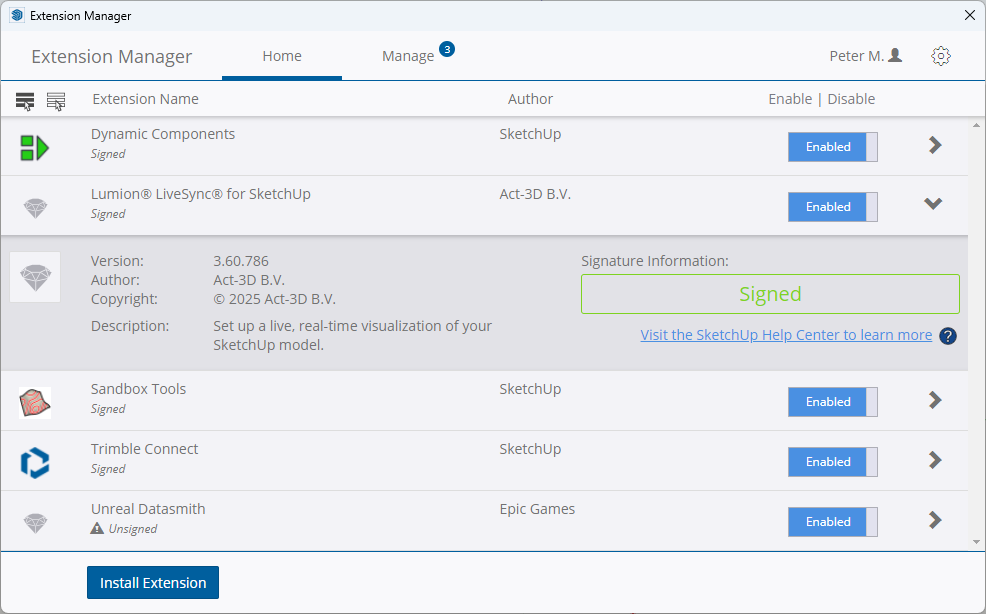
2.1: Install Extension
Install via the SketchUp Extension Manager: (no longer available at the Extension Warehouse)
2.2: Any problems?
- Knowledge Base: Contact Lumion Technical Support
3. Supercharge SketchUp with one plug-in!
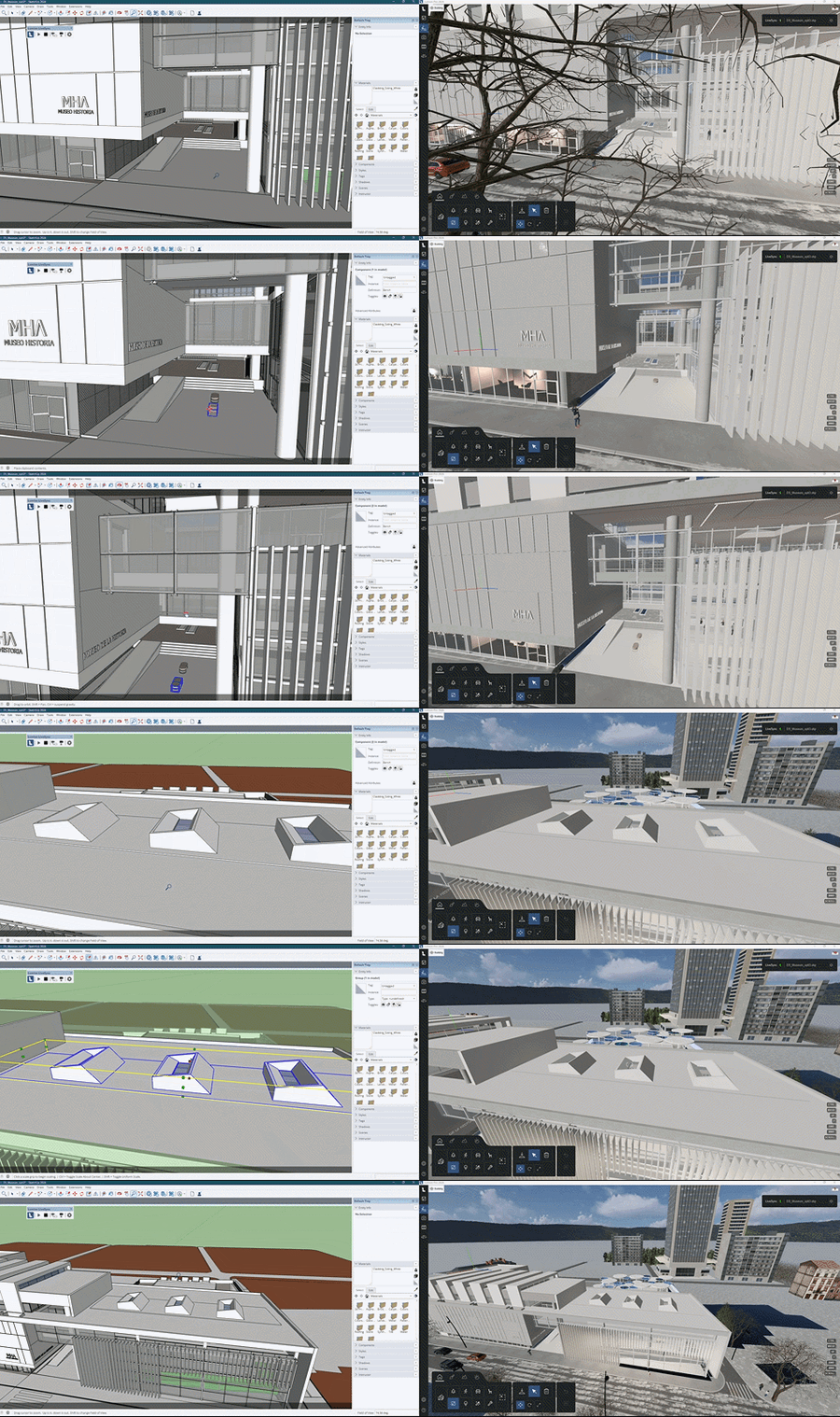
The Lumion LiveSync for SketchUp plug-in allows you to model your SketchUp design in a beautiful environment that’s so realistic, it’s like you’re pushing and pulling real-life buildings into shape.
See section 1.2: LiveSync (only) for SketchUp: (above) for supported versions.

Lumion LiveSync for SketchUp
Immediately set up a live, real-time visualization between SketchUp and Lumion. Change the SketchUp model’s shape and you’ll see these changes taking place, in real-time, in Lumion’s breathtaking, lifelike environment.
As you continue modeling in SketchUp, you can simultaneously view your project in Lumion surrounded by an immersive, fully featured landscape (mountains, water, grass). Beautiful materials make the design 'pop', while photo-realistic lighting suddenly heightens your sense of environment, realism and depth.
Real-time materials synchronization
Instantly breathe life into your synced SketchUp model by applying any of Lumion’s 1000+ high-definition materials in the Lumion editor. As you continue to develop the design, you can tweak the materials exactly to your liking and then save your material layouts for future rendering.
Live point-of-view synchronization
LiveSync now enables live point-of-view synchronization. Turn it on and immediately adopt the SketchUp camera perspective, making your work easier, faster and more enjoyable.
Automatic model imports
When establishing the LiveSync connection, Lumion will automatically import your SketchUp model. Continue working on and modifying your project even after you turn off LiveSync, and easily save the file as an .LS for future rendering or development.
See also:
- Knowledge Base: Model import guidelines for SketchUp
- Knowledge Base: How does LiveSync 3 work with existing imported models in Lumion Scenes?
- Knowledge Base: How do you replace imported 'proxy' objects with Library objects?
- Video Tutorial: LiveSync for SketchUp: Model synchronization
- Video Tutorial: LiveSync for SketchUp: Camera synchronization
- Video Tutorial: LiveSync for SketchUp: Materials synchronization