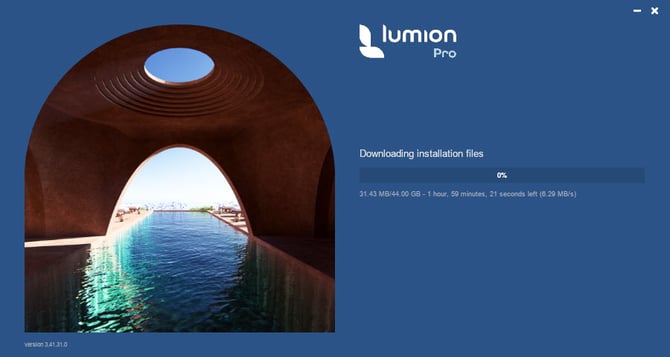
This article covers the first step in installing Lumion Pro - the download of the Installer files.
Download of the Installer files is the first step to installing Lumion Pro.
If you are having problems with how long the Installer is taking to install Lumion Pro (after all files have downloaded), then see this article:
- Knowledge Base: Why is the installer taking so long?
Further support articles are available for installation error messages here:
- Knowledge Base: Installation Section: Installation Error Messages
1. Lumion Download Slow? Quick Reference Guide:
1.1: Common Causes
- Local internet congestion or unstable Wi‑Fi.
- Antivirus/firewall interference.
- Saving to network/synced folders (OneDrive, GDrive, Dropbox etc).
- Insufficient disk space.
- ISP routing issues or corporate bandwidth limits.
- Background downloads or heavy disk activity.
1.2: Fast Troubleshooting Checklist
- Test your internet speed (e.g., Ookla).
- Switch to wired Ethernet if possible.
- Important: Reboot modem/router.
- Close bandwidth‑heavy apps.
- Pause/resume the Download Manager.
1.3: Fix Slow or Stuck Downloads
- Move all partially downloaded files to a new Desktop folder.
- Ensure the folder is not synced to cloud storage.
- Add antivirus + firewall exclusions for the Installer.
- Run the installer as Administrator.
- Ensure 150 GB free space on C: drive.
1.4: Speed Drops After Starting
- Likely Wi‑Fi interference.
- Try a wired connection or reboot your network hardware.
1.5: One PC Fast, Another Slow
- Copy Installer files from the fast PC (same license only).
- Check disk space and background tasks.
- Follow steps from Scenario 2.
1.6: Stuck at 99%
- Important: Not enough free space → free up disk space.
- Security software blocking files → add exclusions.
1.7: Alternative Workarounds
- Try a VPN or a different VPN.
- Try mobile tethering.
- Try a different ISP or network.
- Clear the browser cache or use another browser.
1.8: Still Slow?
Check through the steps below and then see Section 6. Still downloading slowly?
2: Steps to Help Resolve Download Speed Issues (more detail)
The extended duration of the installer process may be attributed to several factors. Common reasons include network issues, large file sizes, or interference from antivirus or security software. It is advisable to check your internet connection for stability and speed.
Additionally, ensure that any antivirus or firewall settings are configured correctly to allow the installer to access and download the necessary files without interruption.
We refer to:
1. The downloader, as the Download Manager: file name Lumion_[version]_Download.exe, for when it is downloading and checking files for completion and logging all its steps.
2. The Installer for Installing Lumion Pro, which his the same exe file as in 1.
3. The Installation once Lumion has fully installed and is able to open.
4. The Installation folder is where Lumion is installed to: usually C:\Program Files, but you can chose a different location, if needed.
3: Typical Scenarios you might be experiencing:
3.1: The Downloader shows it is going to take many many hours or days to fully download
You try to download the software after first downloading and saving the Download Manager: file name Lumion_[version]_Download.exe). But it is very slow, despite attempting to download from different networks, restarting your computer and restarting the downloader.
It is estimating that it will take 80 hours to download Lumion!
Is there anything wrong with the servers from Lumion's side?
3.1.1: Cause
Your local internet is not working at full capacity/speed.
3.1.2: Steps to Resolving
Unfortunately, download speed is mainly dependent on local conditions and the type of internet connection you have. If, for some reason, there is high local usage in either region, city, or local to your ISP then speeds can vary. If you are running other apps (anything that constantly uses data) while downloading, they might also be taking most of the bandwidth.
You can see the maximum speed of your network at the link below.
-
External Link: Ookla speed test
Note that there are no download speed restrictions for the Lumion files. We use cloud data center services with tens of locations across the world to provide our users with the best locally accessible bandwidth. The servers in your vicinity are almost always fully operational (Azure cloud 99.99+% uptime).
Please check that your PC is also not busy doing other downloads or disk-based tasks. Otherwise, the Installer/Download Manager can be paused or stopped if needed, and this enables you to keep the download progress until you can get access to a steadier/faster internet connection. Keep an eye on the speed and it should hopefully improve over time.
Recently, we have had some users facing a similar issue and were able to resolve it by entering a command into the Command Prompt to increase the download speed.
You can try and see if it resolves the issue:
Windows Start -> type CMD -> choose -> Run as administrator -> type in "netsh int tcp set global autotuninglevel=normal" -> press Enter key.
Also, please follow the instructions in this link:
-
Knowledge Base: Why is the Download Manager not working?
Otherwise, please try again at a later time, perhaps in about 4 or more hours.
3.1.3: Not Working?
If that does not work, first see the following further scenarios and suggestions, then Contact Us, if needed, as in Section Still downloading slowly?: below.
3.2: The download speed is very slow compared to what you get for your internet speed:
You see that the Download Manager shows the download speed at about 37 kB/s and it is not getting any faster. This is extremely slow for broadband in most regions these days. Your internet speed is very fast.
You wonder if it's a server issue or a firewall issue?
3.2.1: Cause
Some networks and company servers might not be supporting the bandwidth. Some also add further layers of file checking that may slow down any saves.
3.2.2: Steps to Resolving
1. Check if you are saving the files to a location other than your PC.
2. If so, then stop the Download Manager.
3. Then move all files downloaded so far to a new folder on your PC's Desktop folder.
4. Restart the Download Manager.
3.2.3: Not Working?
If that does not work, first see the following further scenarios and suggestions, then Contact Us, if needed, as in Section Still downloading slowly?: below.
3.3: The download speed keeps dropping back to a slow speed
For example: your internet is fast (50MB/s) but the download manager is showing download rates of less than 4MB/s.
But when you end the download and start it again the speed is fine for a couple of seconds or so, then gradually drops to 2MB/s less.
3.3.1: Cause
WIFI blockages, local internet speeds.
3.3.2: Steps to Resolving
See the steps in Scenario 1: The Downloader shows it is going to take many many hours or days to fully download:
3.3.3: Our Further Advice
As mentioned earlier, the download speed is not something we can directly control, as it depends on several external factors such as your internet connection, network congestion, and routing by your service provider.
Unfortunately, these fluctuations are outside of our control or troubleshooting scope.
We recommend trying during a different time of day or using a wired/cable connection if possible to work around any WIFI network you have, as that sometimes improves consistency.
WIFI networks can sometimes need a reboot:
Do a power reboot for all modem and/or router/s devices on your network, between the PC and the outside connection.
3.3.4: Not Working?
If that does not work, first see the following further scenarios and suggestions, then, if needed, Contact Us.
3.4: Lumion downloaded OK for one PC but not the other:
You are trying to install Lumion on 2 computers. On the first computer it installed without a hitch. However, the second computer is still trying to download the installation files. It's at about 3GB of 40GB with 14 hours to go (around 700-800 kb/s). We've tried pausing & restarting the download but the speed remains the same.
3.4.1: Cause
Server problems as in Scenario 2: The download speed is very slow compared to what you get for your internet speed:
Lack of free file space: as in Scenario 5: The Progress might get up to 99% but never complete to 100%.
3.4.2: Steps to Resolving
In this specific case you can simply copy the files already downloaded. Unless you have a different License Key for computer 2. Or you deleted the files after installing on computer 1.
See the Steps to Resolving in 2: The download speed is very slow compared to what you get for your internet speed:
Also, please check that your PC is also not busy doing other download or disk-based tasks. Otherwise, the Download Manager can be paused or stopped if needed, and this enables you to keep the download progress until you can get access to a steadier/faster internet connection. Keep an eye on the speed and it should hopefully improve over time.
These are some steps you can try to optimize the download process:
1. Make sure you have at least 150 GB of free space on your C: drive.
-
Knowledge Base: What file space do I need to download, install and use Lumion?
- Lumion website: Lumion System Requirements
- Knowledge Base: What kind of computer does Lumion 2024 and newer need?
3. Delete the Installer and any files.
-
Knowledge Base: How do you resolve antivirus and firewall problems?
6. Add an exclusion in Windows Firewall for the Installer (section 2):
7. Run the Installer again as an Administrator.
3.4.3: Not Working?
If that does not work, first check the other scenarios and suggestions, then Contact Us, if needed, as in Section Still downloading slowly?: below.
3.5: The Progress might get up to 99% but never complete to 100%
It seems to be in an endless loop of downloading files. The Installation will never take place.
3.5.1: Cause 1: Not enough free file space
Not enough free file space. The drive where you are saving the files to has less than is required to save.
3.5.1.1: Steps to Resolving
There is not enough file space for the Installer files.
Make sure you have at least 150 GB of free space on your C: drive.
-
Knowledge Base: What file space do I need to download, install and use Lumion?
This file space is required for the Installer files plus the Installation of Lumion.
You can download the Installer files to a different drive.
You can also change the location for the Installation from the Default of the OS drive (usually C:\ Drive).
Ensure you end up with at the very least 30GB and preferably 50GB of free file space after the Installation has finished.
3.5.2: Cause 2: Something on the PC is blocking or preventing smooth download of the files
3.5.2.1: Steps to Resolving
Ensure that any antivirus or firewall settings are configured appropriately to allow the installer to access and download the necessary files without interruption.
- Knowledge Base: How do you resolve antivirus and firewall problems?
3.5.3: Not Working?
If that does not work, first check the other scenarios and suggestions, then Contact Us, if needed, as in Section Still downloading slowly?: below.
4. Other Steps to Resolving:
1. Try a VPN or a different VPN.
2. Try as a test: tethering the PC to your mobile.
3. Or, connecting to a different ISP.
4. Clear your browser cache and cookies.
5. Try using a different browser (such as Google Chrome, Microsoft Edge, or Mozilla Firefox)
Sometimes you do have to wait as there can be localized issues with the internet speeds - not so much the speed but how the servers are managing the files due to other loads and priorities on the system
4.1: Not Working?
If that does not work, first check the other scenarios and suggestions, then Contact Us, if needed, as in Section Still downloading slowly?: below.
5. Checklist:
Here's a one-page PDF checklist for you:
6. Still downloading slowly?
Please contact us to get it sorted:
- Knowledge Base: Contact Lumion Technical Support