You get this message when trying to import your model:
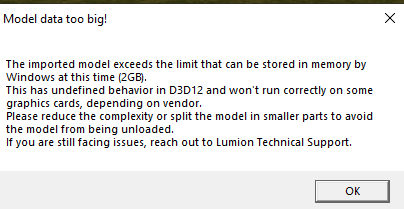
1. Background:
In the DirectX12 (D3D12) system that is part of the graphics sub-system for Lumion, there are some memory constraints that need to be managed.
While developers must manage memory themselves, the operating system (OS) imposes a budget on video memory based on available hardware, which fluctuates based on other running applications.
Lumion needs to manage that memory and set an upper limit.
In recent years, from 2024 onwards, some of the graphics card vendors have implemented a change in the graphics card drivers.
The memory management limit may affect how much of a models mesh/polygons can be imported or other buffers/memory throughout the build and rendering process.
We are actively talking to Microsoft about the impact of this change.
In release 24.3.0 we added some checks, including when importing your model, if the budgets/upper limits were going to be exceeded.
The impact is that the if an application exceeds its allotted memory budget, the driver or operating system may start "paging" memory, which can cause significant performance stutters. In extreme cases, memory allocation will fail or cause the application to crash. By imposing an upper (practical) limit for a model to be imported, Lumion then avoids the potential of severe memory issues.
You are unlikely to be aware of those when building your model and the impact from the conversion to a standard 3d mesh model needed for import. The following includes a few suggestions to assist in managing the modelling process and being aware for future models.
2. How To Avoid the Message:
Your options (as indicated in the message) are to:
1. Break up/split/subdivide the model your are trying to import into different parts and files and import separately.
2. Hide parts of the model that will not be seen or are complex in that it should be imported separately. If parts are hidden, then LiveSync export/import and Lumion will not import that part, so you do not have to remove the part to make for a more optimized model.
3. Reduce the complexity of the model before importing it.
See also this article on advice for managing your Project and model complexity:
If that is not working or you need any help, please contact Lumion Technical Support for further assistance:
- Knowledge Base: Contact Lumion Technical Support
3. Some practical guides on checking things: - precursors
You CAD file size does not reflect how complex the model is for converting to base 3D mesh data.
If you have many instances of an object/component then Lumion needs to convert each of those which quickly increase the mesh data required. In many cases that occurs from instanced interior objects.
A lot of the time you may be able to use Lumion Library optimized models or use Lumion instancing for better file and model management. See opt ions in this article for more:
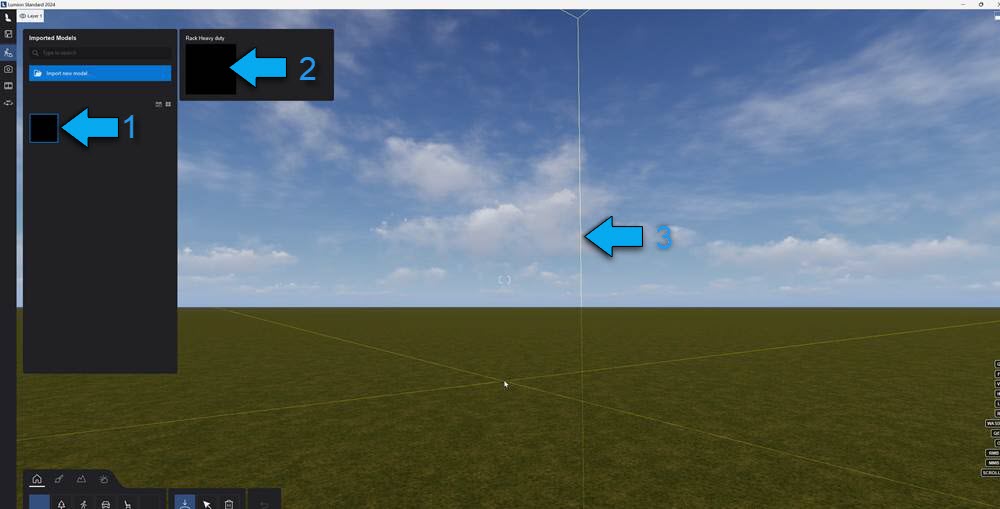
If you import the model and see these two aspects then it means the model did not import correctly and needs adjusting/reducing:
- The thumbnail is black and no model is seen (1 and 2).
- The models Bounding Box (lines around the outer regions of the model) is very large and seems to go to infinity (3):
With the new warning message the process should be interrupted for an import so you will not see the LIB file go over the 2GB maximum.
In some cases, for older models before the limit and message were implemented (Lumion 2024.3.0) then you might see something like this.
If you look at the file size in Windows File Explorer in the Lumion-Documents Library folder (for example Documents\Lumion\Library) and the file size exceeds the 2GB limit:

If however, the file is not yet fully imported it is possible you might end up with a 5KB LIB file which is the interim file created before the model data is fully saved to file.
4. Best practice:
Importing always works well with concise, precise, well designed and optimized model.