How do you resolve the “Not enough space on disk” message?
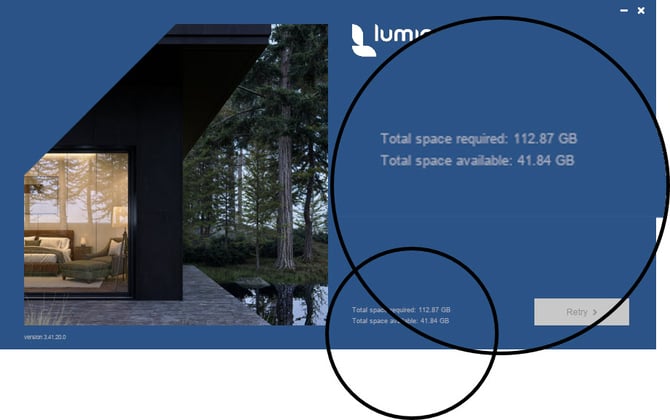
When downloading or installing Lumion, you may see one of these messages:
- Not enough space on disk
- Not enough disk space
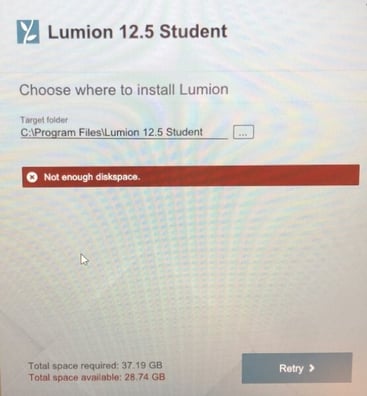
These appear when the drive used for downloading or installing Lumion does not have enough free file space. Don’t worry, these are easy enough to fix.
Then cancel the installation and clear plenty of file space on the drive or choose a different (local) drive where there is plenty of free space.
It's essential that the file space after the install is still plenty.
Here’s a quick breakdown of what’s going on and what you can do.
Why this happens
Lumion needs a lot of file space for the download and for the installation — more than you might expect. That's because there are a lot of Content files also downloaded for the Lumion Libraries - models and materials. Even if you think you have enough room, Windows or other apps might be using space in the background.
Scenario:
As an example, your PC has a 512GB OS (C:\) drive. It has 60GB of free file space. Lumion will not download and install as it needs more space for both steps.
Summary of Steps you can Take:
-
Clear further file space to make room:
-
Lumion files:
-
If you have an earlier version of Lumion, then uninstall it. that might free up a lot of space.
-
Check you do not have any other (older version) Lumion Installer files no longer needed.
-
Save the Download files to a different (local) drive. Or move them once all downloaded to a different drive.
-
-
Uninstall and Remove other Software and Files (after you have backed up or archived):
Quick Links
1. Error message explanations.
2. Required free space (summary)
4. What to do if you’re low on space.
5. Ways to free up file space.
6. Check where Lumion is being installed.
6.1: Where is Lumion being Installed to?
6.3: If you only have one C:\ drive.
7. Summary.
1. Error message explanations
“Not enough disk space” (downloading the files, before installation)
The Installer detected insufficient free space.
Fix:
Free up space on the selected drive and try again.
“Not enough disk space” (during installation)
Another process used disk space after the initial check.
Fix:
Free up space and restart the installation.
2. Required free space (summary)
To install Lumion successfully, ensure you have:
- 36 GB to download the Installer files.
- 5 GB for allowance only temporary extraction, Lumion Installer efficiently and best performance extracts and installs via System Memory.
- 100+ GB for the installation.
- * minimum 30 GB free on C:* after installation (even if installing to another drive) for regular safe PC working operations in Windows.
Important: see this article for the current version requirements:
-
Knowledge Base: What file space do I need to download, install and use Lumion?
3. Check for Free File Space:
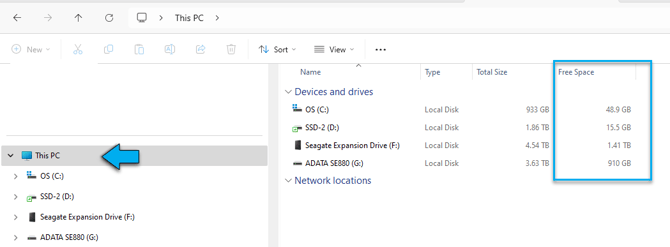
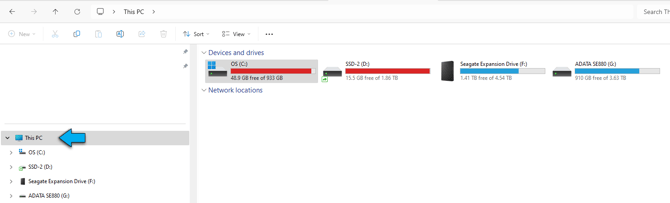
3.1: File Explorer
- Open This PC.
- Review the Free space column.
Insert screenshots: Use both File Explorer screenshots from your PDF.
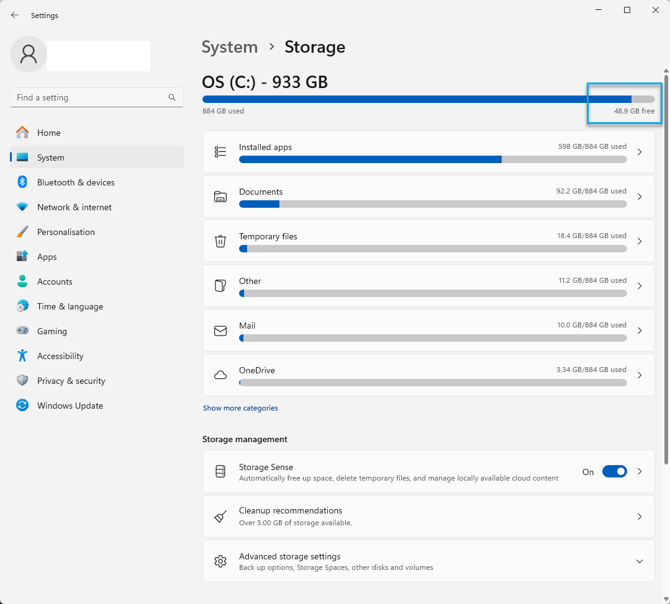
3.2: Windows Settings
- Start → Settings → System → Storage
- Review free space on each drive.
There are plenty of quick or easy ways to do this. Amounts may vary slightly.
3.2.1: Check in Windows File Explorer:
3.2.2: Check in Windows Start > Settings > Storage:
3.2.3: Use other PC System Utility software tools.
4. What to do if you’re low on space
Here are the easiest fixes:
- Empty your Recycle Bin
- Run Disk Cleanup
- Delete temporary files
- Move big files (videos, ZIPs, installers) to another drive
- Uninstall old Lumion versions (for example: Lumion 2023 frees up 75 GB!)
- Move your browser’s download folder to another drive
If you’re on a laptop with a 256–500 GB SSD, you may need to clear a decent chunk of space.
5. Ways to free up file space
See also this article:
-
Knowledge Base: What file space do I need to download, install and use Lumion?
- Microsoft guide: Free up drive space in Windows 10 and Windows 11
- Use Disk Cleanup
- Uninstall unused programs
- Delete temporary files
- Move large files to external storage
- Use cloud storage (set files to online‑only)
- Empty Recycle Bin
- Manage System Restore points
- Remove duplicate files
- Defragment HDDs (not SSDs)
- Scan for malware.
- Search for different options online from AI and also technical support for your hardware device.
6. Check where Lumion is being installed
6.1: Where is Lumion being Installed to?
By default, Lumion installs to:
C:\Program Files\Lumion [version]
If this drive does not have enough free space, the Installer will stop.
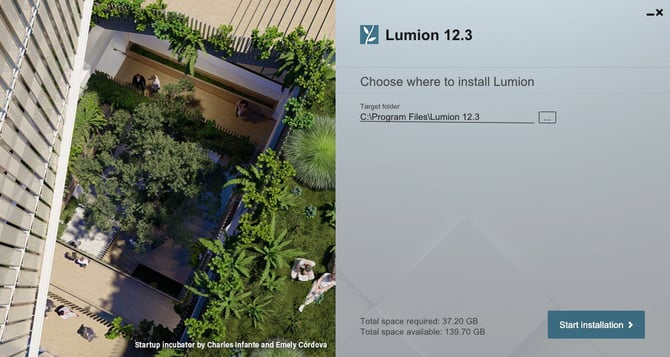
You can change the install location — just click the three dots in the Installer.
To select another drive, click the three dots in the Installer and choose a different location.
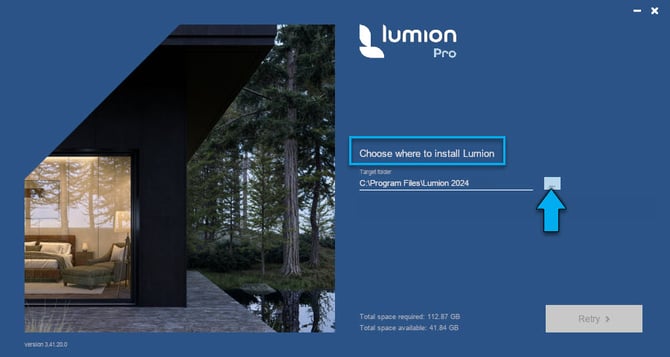
6.2: Choose where to Install
If there is not enough free file space on the primary drive - usually C:\ drive then you have the option to chose a different drive.
You can change the installation folder location by clicking on the three dots in the installation prompt and selecting the desired location:
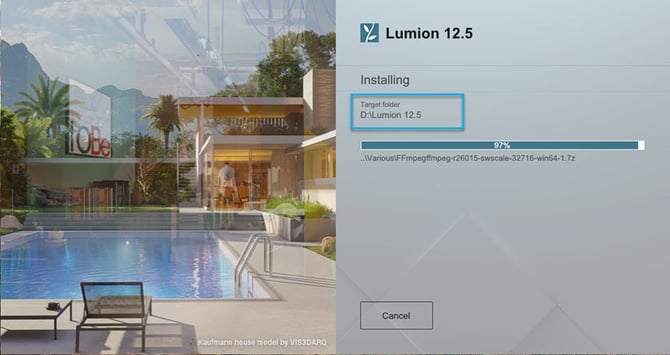
6.2: Installing on other drives
Where are you Installing Lumion to?
By default, the Lumion installation suggests the C: drive as the installation folder: C:\ProgramFiles\Lumion [version].
- Internal secondary drives: Supported, but may be slower.
- External drives: Use only if fast and stable. Never disconnect while Lumion is running.
- Network/server drives: Not recommended.
- Cloud drives (OneDrive, Google Drive, Dropbox): Not supported.
For further guidance see section: About Using Other Drives
6.3: If you only have one C:\ drive
Options include:
-
Free up space
-
Move the Installer download folder to another drive
-
Uninstall older Lumion versions (Lumion 2023 frees ~75 GB)
-
Add or upgrade storage if possible
7. Summary:
- Check free space
- Ensure you meet Lumion’s file‑space requirements
- Free up space or choose another drive
- Retry installation
If the issue continues, see:
-
Knowledge Base: How do you resolve Installer (v2) problems - Download issues?
and Contact Us:
- Knowledge Base: Contact Lumion Sales Support
ps: if you are a Mac user then see this article:
- Knowledge Base: Can you install Lumion on a Mac?
About Using Other Drives:
Other Local to PC drive:
This is a viable option for you.
Be aware that such drives are usually slower to a lot slower than the OS (C:\) drive.
External Drive:
Suitable if the connection speeds are OK. Note these might have fast read/write speeds but the connections/ports need ot support very fast speeds.
If the drives are on auto-sleep then its possible Lumion will not be able to operate all the time.
Expect a much slower response from Lumion because of the hardware.
Ensure you never disconnect the drive while Lumion is open.
Server Drive:
We do not recommend using a server.
If the data transfer rates and network connectivity are rock solid so that you do not get any dropped pack/files then iin some cases and if only absolutely necessary, you could use. There is however, a high risk of data loss if Lumion is unable to get application files during a session.
Online Drive:
We do not recommend at all using an online server such as online services such as OneDrive, GDrive or Drobox.
If there is only one C:\ drive
If there is only the one drive then your options as above are limited.
Often to make things even trickier, there is a drive with small total file space such as a 256GB to 500GB.
We recommend that you should at this point seriously consider getting a new drive with at least 1TB of file space for the OS drive, or adding another drive (SSD or harddrive) to the PC.
Doing so will minimize time spent on trying to maintain a small drive file system. Lumion file sizes can be very large - in the 100's of MB up to the 5 to 10+ GB! (depending on what models are imported).
Can you install Lumion on an external drive?
-
Yes — but only if it’s fast.
-
USB 3.1/3.2 SSDs work.
-
Slow HDDs or drives that go to sleep will cause problems.
-
Cloud drives (OneDrive, Dropbox, Google Drive) won’t work.