


Students in supported countries can apply for a free Lumion Student License Key to use Lumion for educational purposes.
It is intended for students who want to learn Lumion, develop visualization skills, and create renders, animations, and presentations as part of their studies on their own personal computers.
Important notes about the Student version:
- Lumion Student licenses are valid for 1 year. At the end of the period, if you are still enrolled at University, you can request one again.
- It is identical to the commercial version of Lumion except renders contain a small watermark.
- Not for commercial use. Projects saved in the student version cannot be opened in commercial versions of Lumion.
- This is a named user license and strictly for personal use.
- Only the latest version of Lumion is available to students. Older versions are not available.
- Students need a Lumion Account in order to download and sign in to Lumion.
Once you have confirmed that your laptop or PC meets the system requirements, here's how to get started with Lumion for Students:
Step 1: Apply for a license
If you are located in one of the 40+ supported countries, you can apply directly via the form in this webpage:
- Lumion webpage: Apply for Lumion Educational License Keys
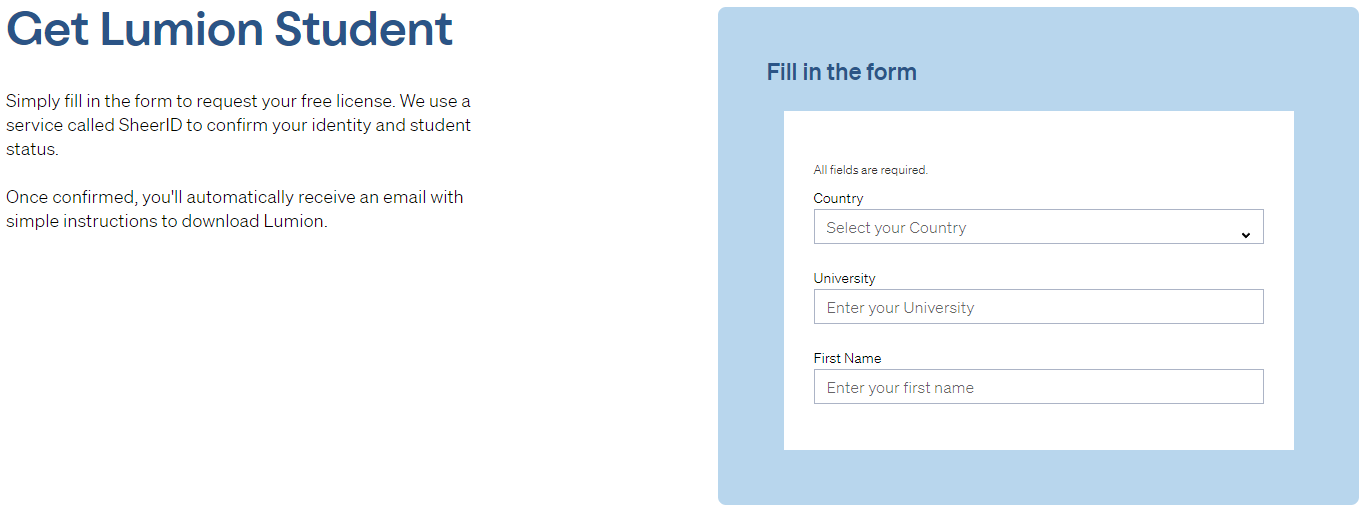
Note: It can take up to 48 hours for the application to be processed. We do not process your application directly. If you have any inquiries about the status of your application, please reach out directly to:
- External Link: Contact SheerID
If you don't see the form like the one above, you can check if your local reseller can help you obtain a student license. Partners that support student licenses are marked with a 🎓︎ icon, for example:
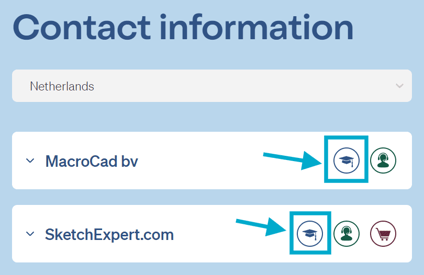
If none of your local resellers have this icon it means Lumion for Students is not yet available in your country. Make sure to check back later as we regularly evaluate new educational opportunities.
Step 2: Create a Lumion Account
Once your application has been approved, you'll be notified via email. Create a Lumion Account and login to find your license number is already automatically assigned. Here's how:
-
Knowledge Base: What is a Lumion Account?
Step 3: Download and start Lumion
Download the Installer from your Lumion Account as instructed in this article:
- Knowledge Base: Download Lumion Pro
Then run the Installer and enter your Activation Code. This found in your license number details. This article shows exactly where to find it:
-
Knowledge Base: Where can you find your Lumion License Key and Activation Code?
Then wait for the download to finish. Once it is finished, start Lumion and sign in. That's it!
Note that the license lasts for 365 days since the date of issue. Make sure to check your email regularly towards the end of the period as we notify students a few weeks before expiry so that they can prepare and request a new one if needed. More on that below:
Frequently asked Questions
1. You want to apply for a new License Key but when you try, it says that you already have one:
As a student you may have applied via our online application form.
Your application is reviewed by SheerID so that you meet the requirements of providing the 365 day free Lumion Student Pro.
If you try applying again, but a previous application already existed, and you were already approved, then you will get this message from the application steps or from SheerID.
It's likely that:
- Your application is still being reviewed
- Or you accidentally applied with a different email.
Please recheck your emails including any spam and junk bins or promotion( Gmail) or other tabs it could have gone to.
2. It says verification limit exceeded:
Your application or an email from SheerID is advising that you have already exceeded the limit. That means that you are adding too many new applications when you already have an application in progress.
Please check your emails for contact from SheerID. Based on their request for further information, or if you are unable to locate any advice from them, then contact SheerID direct, :
- External Link: Contact SheerID
3. You applied online here via our student application form and have not heard back:
The application is administered by SheerID.
Check in your email if you have received a reply from them. If you have any questions or need to provide further information for the application, then in the first instance please contact them directly:
- External Link: Contact SheerID
Still having problems? Let us know:
- Knowledge Base: Contact Lumion Technical Support
4. My PC does not meet the requirements for the latest version of Lumion. Can i download and older version?
We highly recommend using the currently released version:
- Knowledge Base: Latest News
- Knowledge Base: Lumion 2026 Pro Student is now available for Students and Faculty
It is possible to get an older version via your Lumion Account.
Note: The versions available all have very similar requirements for hardware. All versions require that your system is up-to-date for Windows and graphics card drivers:
5. I'm a beginner. Do you have any online training content?
Congratulations. We look forward to you making great visualizations with Lumion. Here's your next step:
- Knowledge Base: Your Guide to Learning Lumion
6. I can't find my License Key:
The License Key is located in your Lumion Account. It is automatically registered when the license is issued. If you cannot find it, then it is likely you applied with a different email. Make sure to create the account using the email entered on your application.
Please keep in mind that having a Lumion Account does not automatically provide you with a License Key. You need to apply.
If the email address on your application does not match the valid/correct email address you have access to then we will need to verify the issue and possibly change our records.
Contact us to get further help:
- Knowledge Base: Contact Lumion Technical Support
7. My student License Key is no longer working:
A student License Key is valid for 365 days. After that, the license becomes invalid and disabled.
You get a message in Lumion that "Your License has expired":

See this article on reapplying if you are still unenrolled:
Note that you will need to resubmit all the required info.
Need further help? Contact us:
- Knowledge Base: Contact Lumion Technical Support
See Also:
- Knowledge Base: How to request and manage a Lumion Faculty License Key?