

1. Download and Install Lumion:
Ensure that your computer meets hardware requirements.
- Knowledge Base: Download Lumion Pro
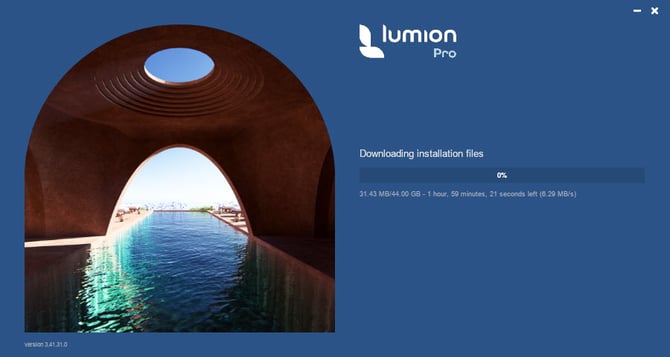
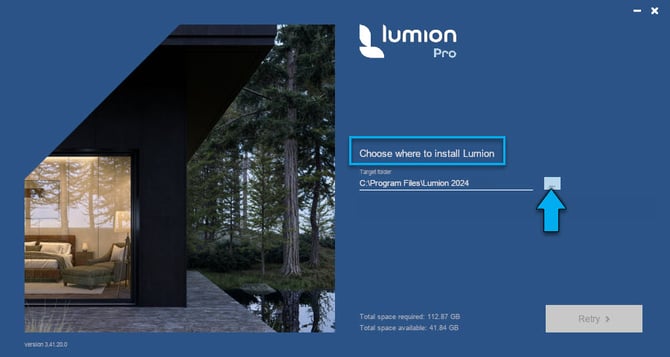
2. Launch Lumion:
Open the Lumion application.
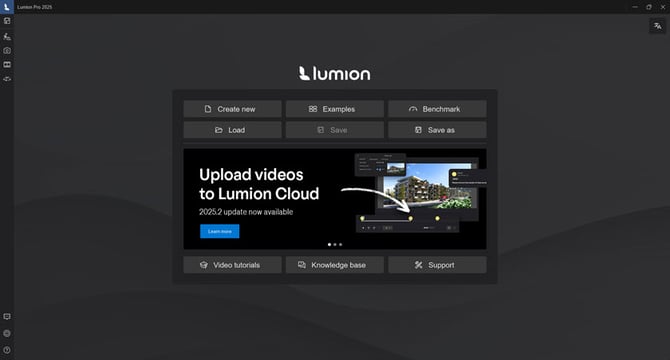
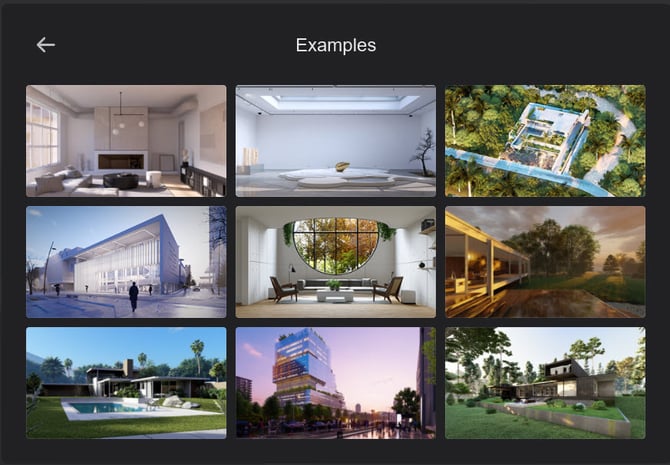
3. Select a Template or Example:
Choose a suitable Template or start a New Project(Scene).
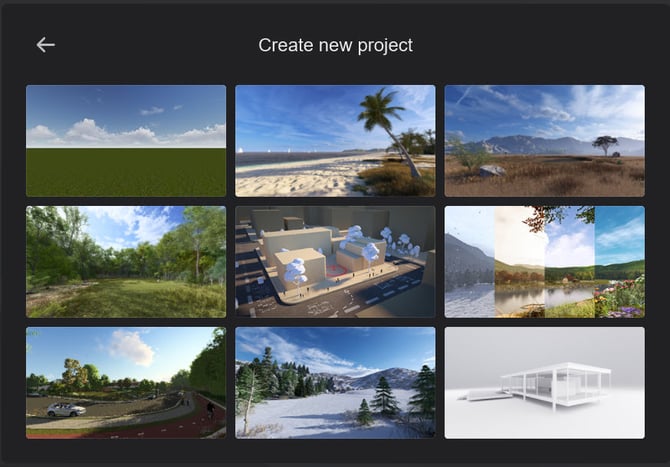
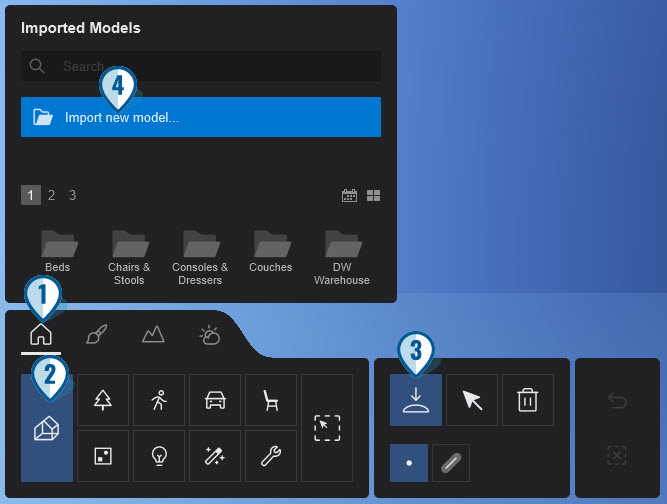
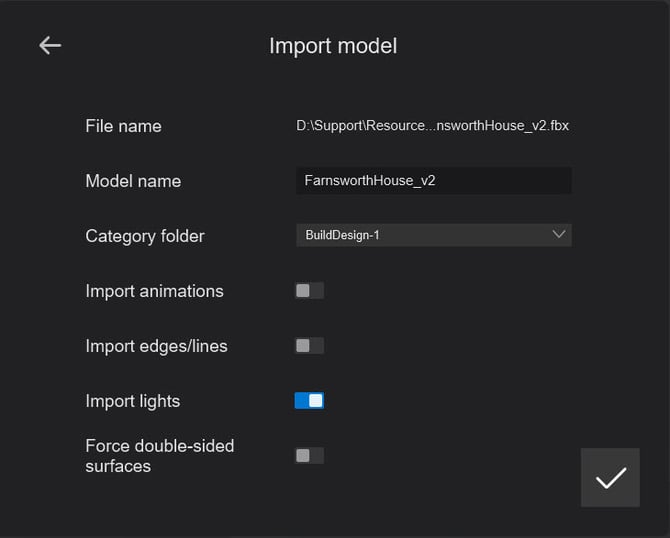
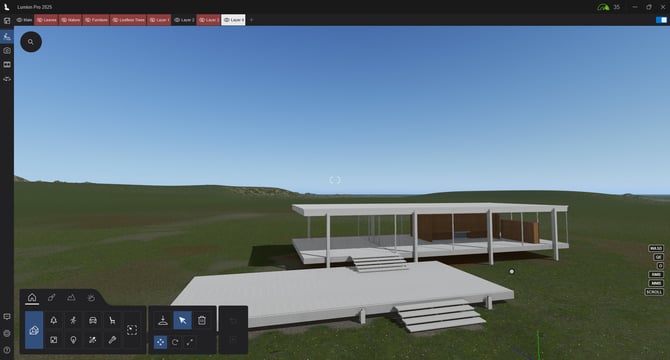
4. Import Models:
Import your 3D models into Lumion. You can use formats such as .DAE, .FBX, or .SKP.
5. Apply Materials:
Use the material library to apply realistic materials to your models.
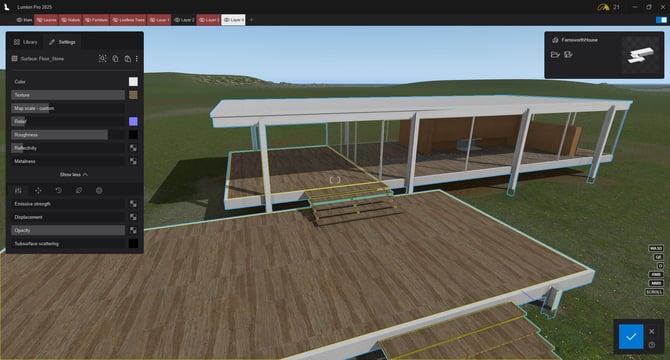
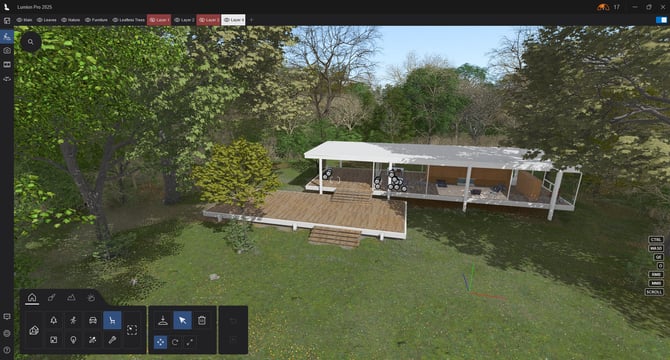
6. Add Objects:
Incorporate additional objects such as trees, people, and vehicles from the Lumion Objects Library.
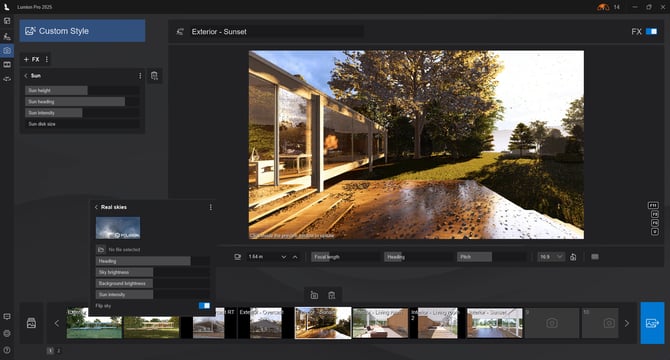
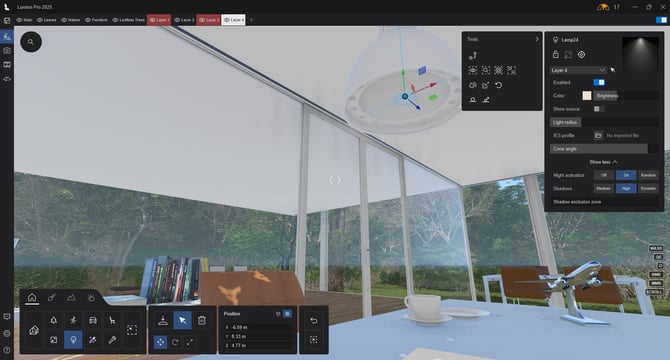
7. Set Up Lighting:
Adjust the lighting settings to enhance the visual appeal of your Scene.
Direct lighting- Sun Effect and Real Skies Effect (or Sky and Clouds Effect):
Artificial lights:
8. Render the Scene:
You can render at any time.
But once your design is complete, render the scene to produce high-quality images or videos for your clients.
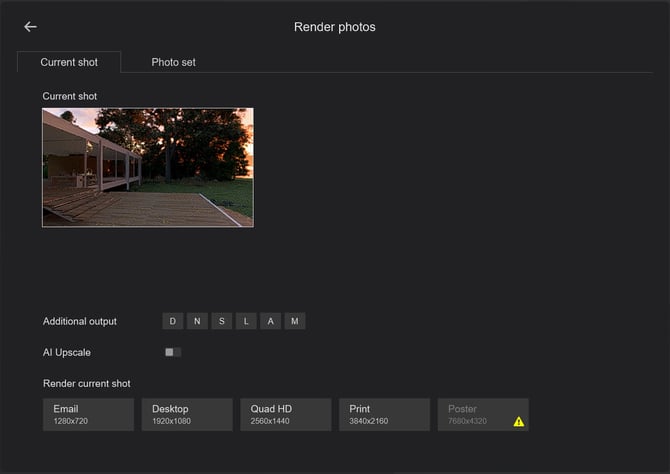
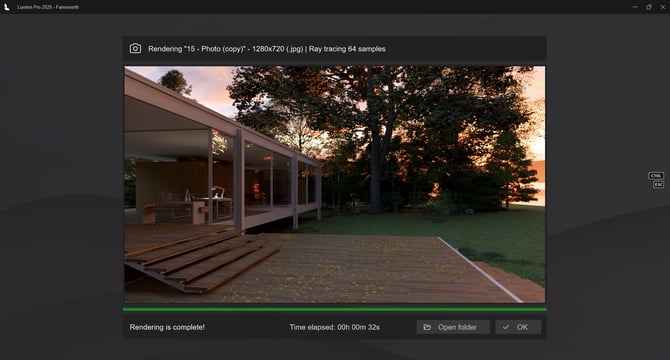
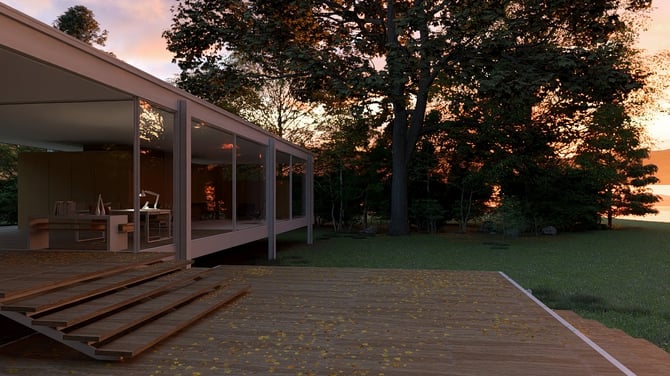
Steps 5, 6, 7, 8 can be in any order.
- Knowledge Base - Learning Pathways: Introduction to Lumion
Onboarding: Getting Started Series:
- Video Tutorial: Getting Started with Lumion: A Guide for Beginners
- Video Tutorial: Explore the welcome screen
- Video Tutorial: How to navigate your scene
- Video Tutorial: How to import your 3D model
- Video Tutorial: Materials made easy
- Video Tutorial: Discover Lumion's content library
- Video Tutorial: Ready to create your first render?