

Best Practice: Managing Imported Models and Free Disk Space in Lumion
1. Scenarios:
Lumion Projects and Imported Models can require large amounts of storage (hundreds of MB or several GB and up to 20GB!), so regular file management is recommended.
Over time, the Library folder can grow significantly in size.
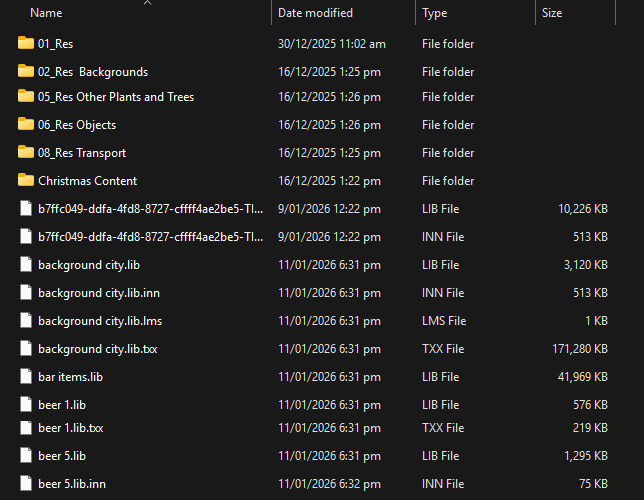
This is especially important for users working with limited storage capacity or small SSD drives, where maintaining sufficient free space is essential for the stable operation of both Windows and Lumion.
For good operation of the PC and Lumion we recommend always having at least a minimum free file space on the PC. See Section 5. Free up File Space:
-
Knowledge Base: What file space do I need to download, install and use Lumion?
Old projects that are no longer needed should be archived. Archiving of Projects and Lumion-Documents data files is a best practice in managing your files.
More recent Projects that may be recalled for some revisions over the next year or so can also follow the above steps. But the choice of which ones to archive may be also based on expected future need.
Archiving is an additional workflow management step from your routine, regular file backups.
We look here at your other data files. LSF Project/Scene files that are saved to any folder of your choice are expected to be backed up and archived also.
2. Background:
Lumion stores all Imported Models used in your Projects in the following location:
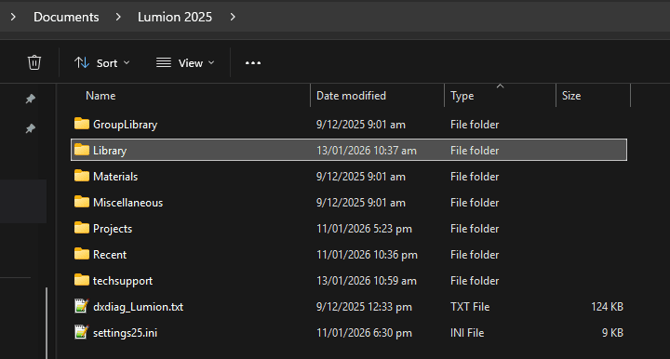
Documents\Lumion (Version)\Library
- Knowledge Base: Why does Lumion need access to your computer's Documents folder?
Depending on your system configuration, this folder may be located in one of the following places:
- On your local PC under your Windows user profile
(e.g. C:\Users[your user name]\Documents\Lumion 8.0\Library) - In a redirected Documents folder on a network server
- In a custom Lumion-Documents folder if you have changed the path in Lumion (available from specific versions onward)
3. Types of Imported Models:
Most users will accumulate two categories of Imported Models:
-
Project‑specific models
Models created or imported solely for a particular Project. -
General-use Resource/Library models
Models used across multiple Projects and intended to be kept for future work.
Understanding which models belong to which category helps you decide what can be safely removed.
4. Archiving Old Projects:
Projects that are no longer needed for active work can/should be archived. Before archiving:
- Ensure you have saved a final LSF Scene file for the Project.
- If an LSF Scene file already exists, consider saving (saveAs) a new one to ensure it reflects the most recent state of the Project.
Important:
An LSF Scene file contains both the Scene data and all Imported Model data used in that Lumion Project.
When you later load the LSF file, Lumion automatically restores the Imported Models to the Library folder.
5. Safely Removing Imported Models:
Once you have archived the LSF Scene file to a location outside your active storage (for example, an external drive or archive server), you can safely delete the corresponding Imported Models from your Imported Models Library.
5.1: Recommended Method
Delete Imported Models only via the Lumion interface:
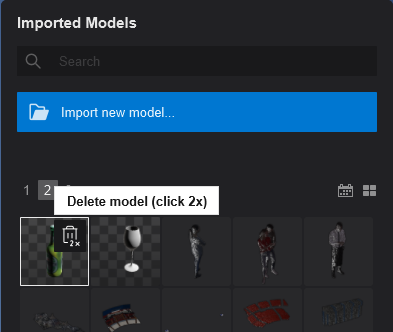
- Open the Imported Model Library
- Click the bin icon on the model thumbnail to delete it
Important:
This deletes all four files for the model. They are not sent to the Windows Recycle Bin, so please make sure you want to delete the Imported Model.Deleting Imported Model files directly from Windows Explorer is not recommended and may cause missing assets or unexpected behavior.
5.2: For Recently Used Projects
-
If you expect to revisit a Project within the next year or so, you may still archive it using the same method.
Loading the archived LSF Scene file will restore the Imported Models when needed.
-
Always ensure that at least one valid, up‑to‑date LSF Scene file exists before deleting anything.
6. Reviewing General Resource Models:
After archiving older Projects, review your general-use Resource/Library models.
Remove any that are no longer needed to free up additional disk space.
7. Recommended Good Practices:
7.1 Back up your Lumion-Documents folder:
Before performing any cleanup or archiving:
- Create a backup of the entire Lumion-Documents folder.
- Use file compression to reduce storage requirements.
7.2 Save Material Sets:
For added safety:
Create Material Sets- for each Imported Model: (Section 3. Saving and loading a Material Set file:)
- Archive these files along with your LSF Scene files.
This allows you to reapply materials quickly if you re-import a model in the future.
8. Clearing Cached Files:
Lumion also stores cached data such as:
- Video textures.
- WAV sound files.
These are located in:
Lumion-Documents folder\Lumion (Version)\Miscellaneous\ (or) Documents\Lumion (Version)\Miscellaneous\
You may safely delete cached files except those used in your current active and open Project.
9. Need any further or some specific advice about archiving and file management?
Contact us in Technical Support any time:
- Knowledge Base: Contact Lumion Technical Support