

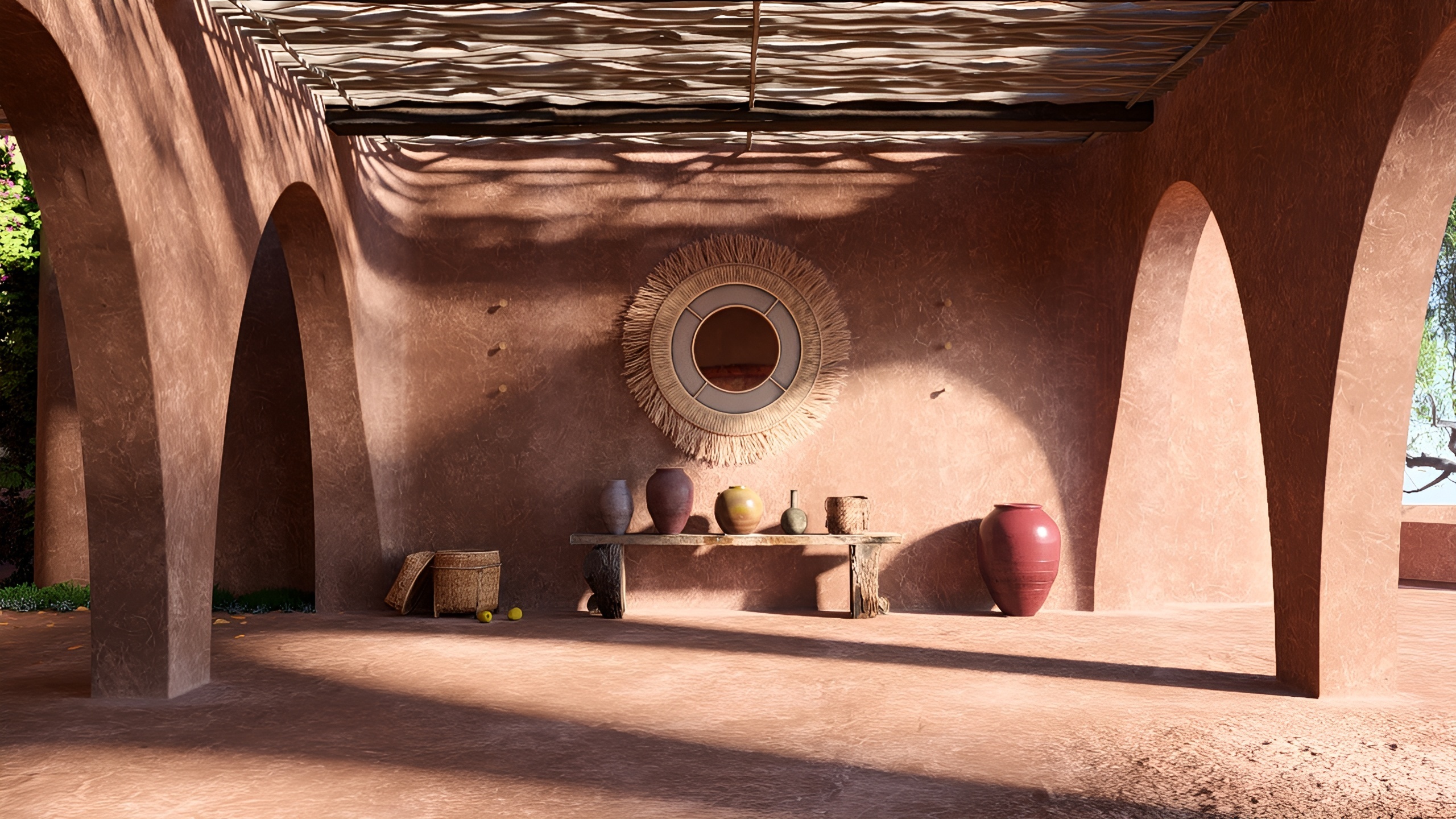
Lumion 2025 introduced a powerful new feature for Photo Mode: AI Upscaling.
Built to improve rendering performance and quality, this tool enables faster generation of high-resolution images without compromising rendering speed or requiring higher-end hardware.
1. How it works:
The AI Upscaler in Lumion allows users to render still images at lower resolutions and then use artificial intelligence to increase the final output resolution, significantly reducing rendering times and GPU load.
This means you can now output at 8K or even 16K a Ray Traced image, even if your hardware does not support it.
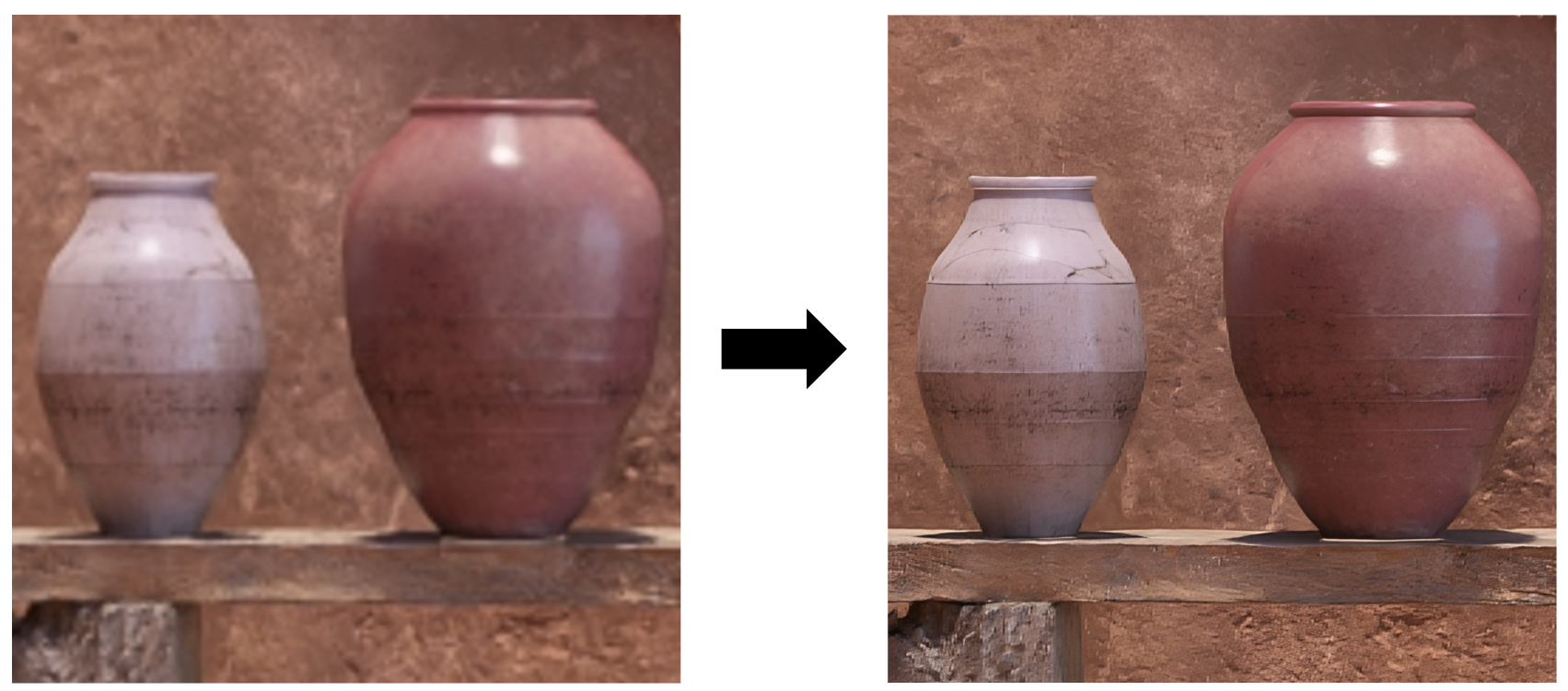
Note that the Lumion Upscaler runs locally on your PC. High CPU usage and fan speeds are normal during the Upscaling process.
Lumion Cloud also features a separate AI upscaler, which runs entirely on the cloud via your browser:
- Knowledge Base: How do you use the AI Upscaler in Lumion Cloud?
While not a replacement for native full-resolution rendering, Lumion’s AI Upscaler offers a smart and efficient alternative for users who want quality without the hardware strain. It’s an ideal solution for previewing, drafting, and producing high-definition visuals quickly and reliably.
2. How to use:
2.1 Lumion:
This feature is available as a toggle in the Photo Mode export window:
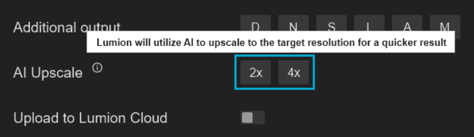
There are two options:
-
2X: When enabled, Lumion will render the image at half the selected resolution (dimensions) and then upscale it (locally) to the target size. This renders and uses the Color Map, Depth Map, and Normal Map for the Upscaling process and unlocks 8K renders for Ray Tracing.
- 4X: When enabled, Lumion will render the image at 1\4 the selected resolution (dimensions) and then upscale it (locally) to the target size. This unlocks 16K renderings for both rasterization and Ray Tracing.
Note: Both the original and AI-upscaled images are saved, giving you the option to compare or use either version.
2.2. Lumion Cloud
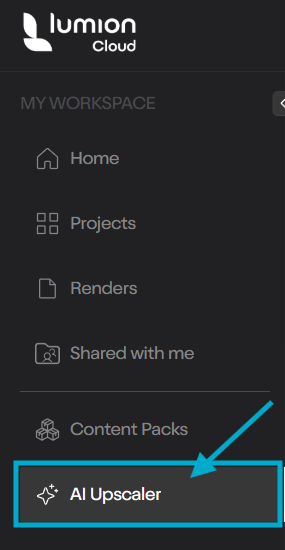
Head over to Lumion Cloud and log in. You'll find the AI upscaler on the left menu:
You can upload .JPG, .JPEG, and .PNG files up to 4096x4096 and 50MB in size.
It is also possible to Upscale an image that has already been uploaded to a Project or folder via the viewer by clicking on this button:
At the moment, the maximum output resolution for AI Upscales via Lumion Cloud is 96 MP.
Depending on the source image, you can select between 2X, 4X, and 8X. Larger upscales will take more time to process.
Note: you can leave the page while the image is processing and come back later to your Creations to check out and compare the result.
3. Benefits of upscaling:
- Improved Performance: Especially useful on machines with less than 12GB of VRAM.
- Higher Resolution Drafts: Allows faster iterations and testing in higher fidelity.
- More Efficient Rendering: Significantly faster than native 4K Ray Tracing renders.
- Better Than Traditional Resizing: Prevents having to use 3rd party resizing methods.
- Flexible Output: Supports all of the available export resolutions (e.g. render at Print size and upscale to Poster).
4. Current Limitations:
- No Map Upscaling: Outputs like Depth, Specular, Lighting, and Material ID maps remain at their native resolution.
- Detail Loss: In certain cases, AI upscaling may blur or smooth out fine textures, especially in low-contrast areas.
See Also:
- Knowledge Base: How do you use the AI Upscaler in Lumion Cloud?
- Knowledge Base: Which resolutions are available for Ray Trace rendering in Photo Mode?
- Knowledge Base: How do you render images at a higher resolution than Poster renderings?
- Knowledge Base: How do you adjust the DPI (or PPI) for your renderings?
- Knowledge Base: What Aspect Ratios and Resolutions are available in Lumion?