


Beginning with version 2025.1, all users will be required to log in with a Lumion Account when launching Lumion for the first time. That includes those using a Studio (Floating) or Faculty (Floating) License Key.
If you are already using a Named-User license or a Trial, the way you access Lumion does not change, and you likely already have an Account.
If not, don't worry, it's a quick and easy process. See this article for more information on how to set up and use your Lumion Account:
-
Knowledge Base: What is a Lumion Account?
Login via Google is also supported for quick access.
Important: Note that Lumion Account can only be signed into Lumion on one PC a time. It is not possible to sign in on multiple PCs with the same account simultanously, even if your License Key has multiple Seats.
For this reason, companies with multi-seat floating licenses still need all users to have individual Lumion Accounts in order to use Lumion on multiple PCs simultanouesly. This is a new and evolving system, and improving the experience for multi-seat users is one of our current priorities.
1. How Signing in works
Commercial License Keys
1.1. Named-User License Keys
Before starting Lumion, you need to have the License Key assigned from the administrator Lumion Account.
Section 1.2 in the article below explains how the administrator can assign users to the license:
- Knowledeg Base: Access and User Management for Named User Licenses
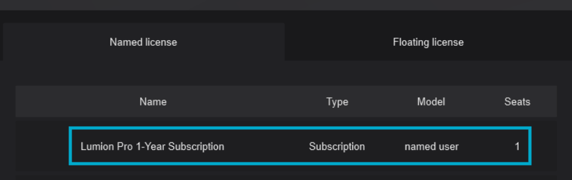
Once you've had a seat assigned, start Lumion, sign in, and select your License Key from the 'Named license' tab and you'll be good to go:
ForTrial users, the license is automatically regisered and assigned to the Lumion Account when issued. For login, make sure to use the same email used when requesting the license.
1.2. Studio License Keys
Studio License Key users do not need to have the License Key registered on their Lumion Account or select a license to use Lumion.
Instead, after starting Lumion and logging in, they can enter the License Key Activation Code in the 'Floating License' tab.
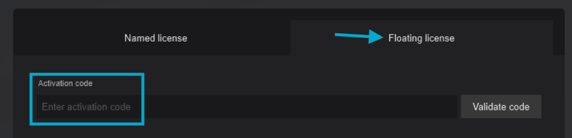
This code can be found alongside the License Key number on the administrator Lumion Account.
Note: The License Key will be automatically registered if the email used to create the Lumion Account is the same one as the one you used to order or purchase Lumion.
Educational License Keys
1.3. Student License Keys
Student License Keys are Named-User licenses and use the same sign-in system described in section 1.1.
The license is automatically regisered and assigned to the Lumion Account when issued. For login, make sure to use the same email used when applying for the license.
1.4. Faculty License Keys
These are floating License Keys meant to be installed on University Lab PCs. Faculty license administrator are advised to lock the License Key on the PC after installing Lumion so that different Students can easily log in and out without changing the license installed on the PC (and without needing the Faculty License Key Activation Code).
See his article for more information on how to use this setting:
- Knowledge Base: How do you lock a Lumion License Key to a PC?
Note: Ifyou are unsure wha type of license you have, check this article:
- Knowlede Base: Lumion Products and Pricing: Commercial FAQ
2. Why This Change?
With the introduction of Lumion Cloud and our new authentication system, Lumion now requires users to sign in before starting the application. This ensures connectivity, improves security, and enables new services such as cloud uploads and project management.
Lumion Cloud lets you upload and share renders, get feedback, and manage approvals in one centralized space. Your Lumion Account is what connects you to that experience, securely and seamlessly.
Learn more about Lumion Cloud below:
-
Knowledge Base: What is Lumion Cloud?
We're also future-proofing Lumion by unifying how users access our tools. Logging in makes it easier for us to support new features, customization options, and integrations moving forward.
More information on this topic can be found in the article below:
- Knowedge Base: Why do I need a Lumion Account?
3. Troubleshooting login issues

If the browser is not starting when attempting to sign in to Lumion, even after clicking on 'relaunch browser', please try the following before clicking on 'relaunch browser' :
1. Disable all the browser plugins to rule out a conflict with one of the plugins.
2. Try clearing the browser's cache, function key F5, or Ctrl + F5. You can access this setting in your browser by pressing Ctrl + Shift + Delete.
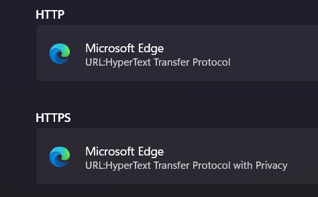
3. Try setting a different browser as the default one via Windows settings. Here's how to do that:
- External Link: Change Default Apps in Windows
Make sure to check the browser assigned under HTTPS:
In case the problems persist, it could be related to your network environment settings (such as using proxy servers). Please contact us to get help:
- Knowledge Base: Contact Lumion Technical Support
See Also:
- Knowledge Base: Why can't you access your Lumion Account?
- Knowledge Base: Why are you not able to Reset the Password on a Lumion Account?
- Knowledge Base: Named-User based Login for Lumion Pro and Lumion View
- Knowledge Base: What options does your Lumion Account provide?