

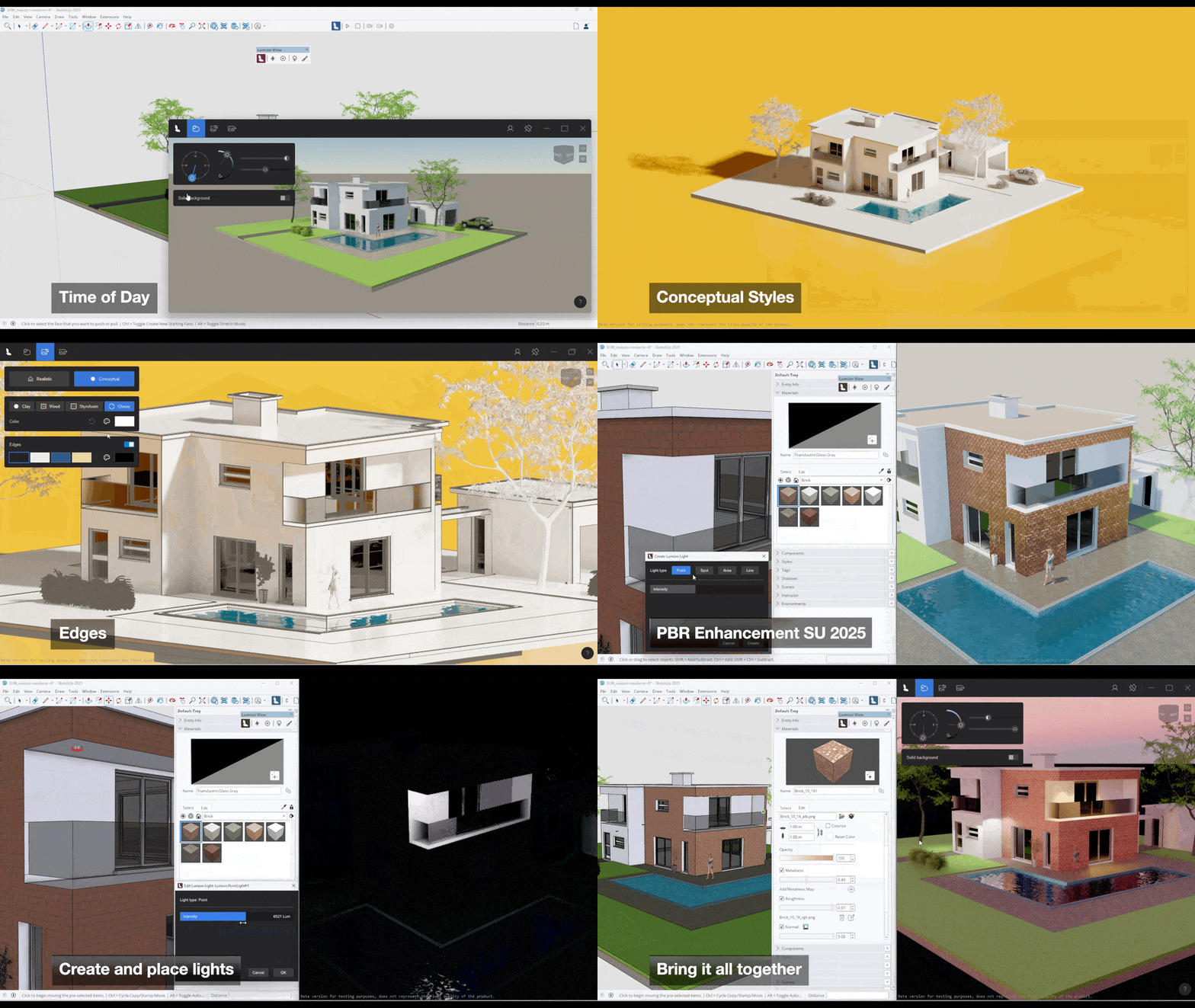
(User interface may vary slightly for Mac edition of Lumion Live for SketchUp)
Menu:
1. About Lumion View 5.2. Set the Visual Style
2. Access to Lumion View 5.3 Set your Output render options and Render
3. Steps to get going 6. Other Editor tools on the View window bar
4. Overview 7. Use the Lumion View Toolbar
5. Run Lumion View - The Editor 8. Getting Help and Support
5.1 Edit the Environment settings: Sun, Sky, and Background
1. About Lumion View
1.1: Lumion View Is:
-
Directly used from within your CAD software.
-
Highly focused on fast internal or client-facing renders.
-
Released so far for SketchUp 2025.0 +, Revit 2022 +, ArchiCAD 25+
1.2: What Can Lumion View do?
Help with the collaboration, sharing, and refinement of the design process of your project.
-
Knowledge Base: All About View: When should you use Lumion View?
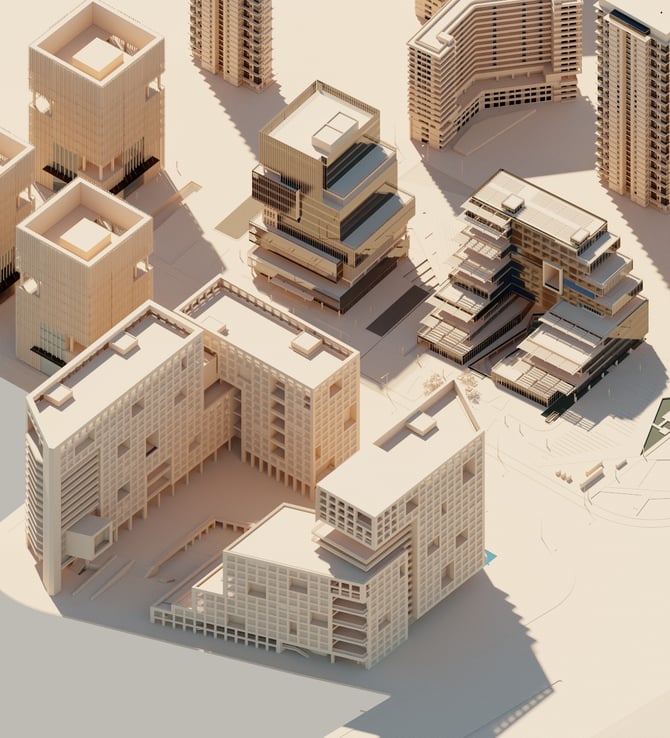
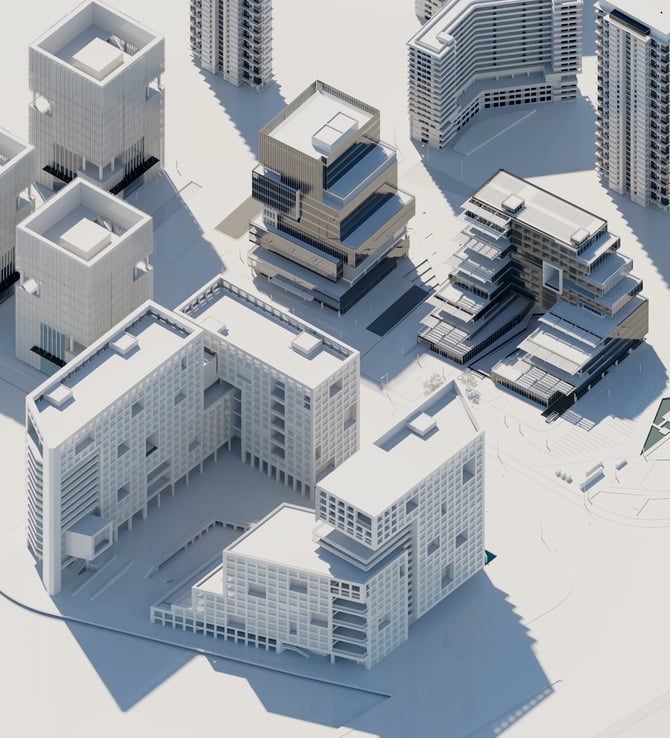
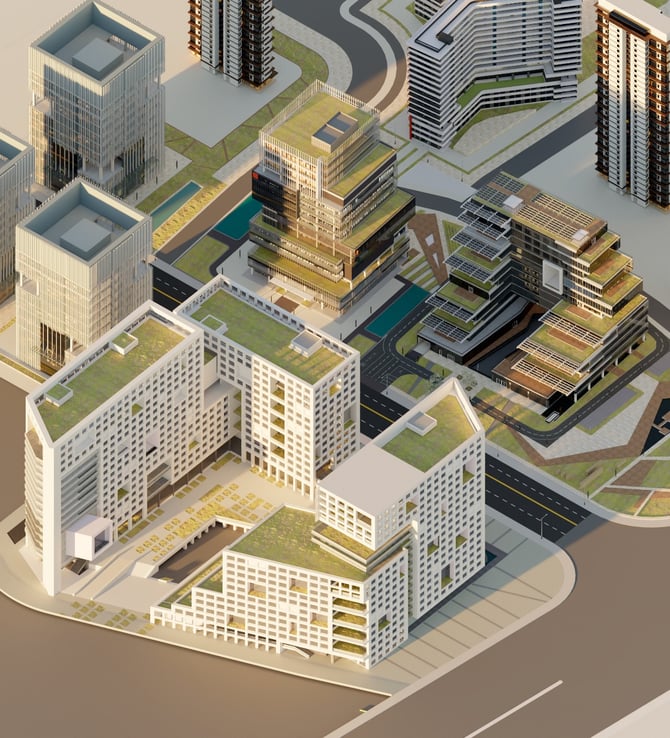
1.3: Lumion View Boundaries - What it does do, and some of the, what it does not do:
-
Knowledge Base: All About View: When should you use Lumion View?
2. Access to Lumion View
See this guide:
-
Knowledge Base: All About View: How do you get access to Lumion View?
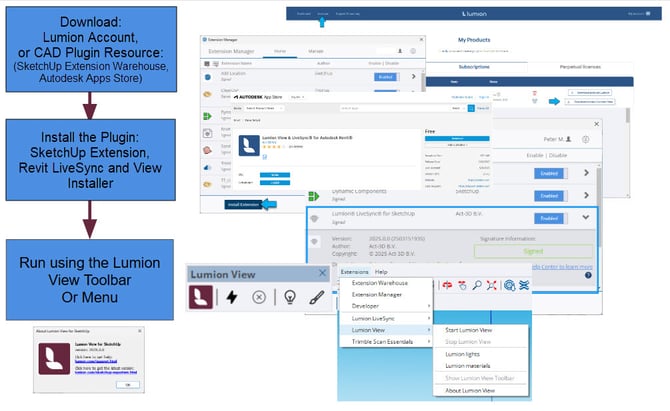
3. Steps to get going
-
Install from your Lumion Account, or
-
Install via the CAD plugin resource: SketchUp: Extension Warehouse, Revit: Autodesk Apps Store.
-
Start the Lumion View Editor.
-
Knowledge Base: Lumion View for SketchUp (Win): Installation guide
-
Knowledge Base: How do you get Access and Install Lumion View for SketchUp (Mac)?
-
Knowledge Base: How do you get Access and Install Lumion View for Revit (Win)?
-
Knowledge Base: How do you get Access and Install Lumion View for ArchiCAD (Win)?
4. Overview:
There are two work areas:
- Lumion View Toolbar.
- Lumion View Editor window.
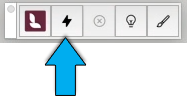
The Lumion View Toolbar:
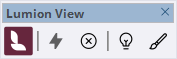
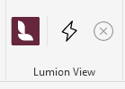

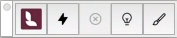
SketchUp (Win) Revit (Win) ArchiCAD (Win) SketchUp (Mac)
-
To Start and Stop the Lumion View Editor window.
-
For setting Material properties or adding and editing Lights.
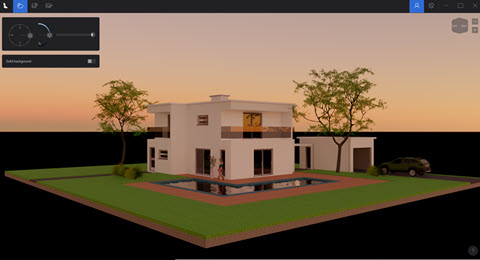
The Lumion View Editor Window:
-
Set the look and feel of the Scene using features:
-
Environment
-
Styles
-
Render
-
-
Manage the Editor and your access.
5. Run Lumion View - the Editor:
SketchUp (Win) Revit (Win) ArchiCAD (Win) SketchUp (Mac)
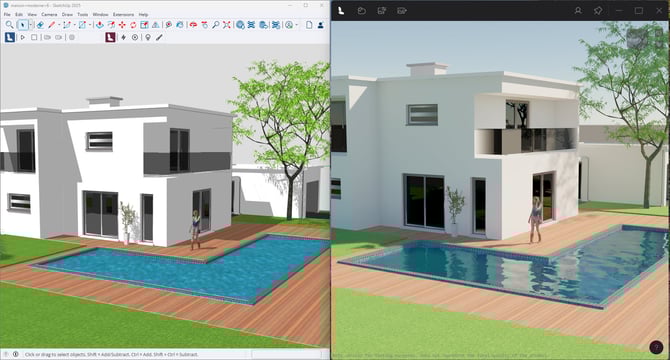
The Editor Window
-
Real-time view of your CAD model with Ray Trace rendering (where available).
-
You control the Environment and Conceptual Style.
-
Render as a high quality Ray Traced image.
-
Water materials are auto-converted to a Lumion Water, great for Ray Trace rendering.
-
Glass materials are auto-converted to Lumion glass with transparency/opaqueness levels and real reflections of the environment.
Access tools from the window bar in the Editor window:

- Knowledge Base: Working in the Lumion View Editor
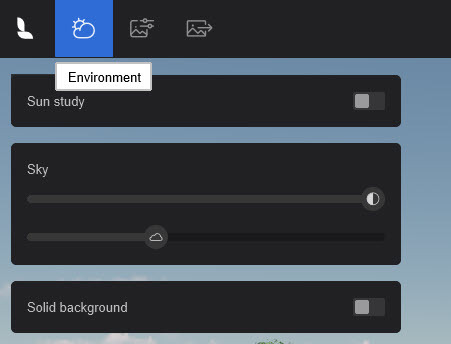
5.1: Edit the Environment settings: Sun, Sky and Background:
-
Set the Sun Height, Heading, and Sun Brightness.
-
Use a solid background for a difference in style than a sky.
For further:
-
Knowledge Base: All About View: Working in the Lumion View Editor
-
Knowledge Base: All About View: Working in the Lumion View Editor: Environment: Sun, Sky and Background
5.2: Set the Visual Style:
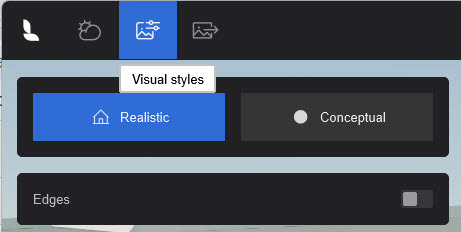
How do you want to communicate the feeling for your design to the client? Set one of two overall Styles:
Realistic:
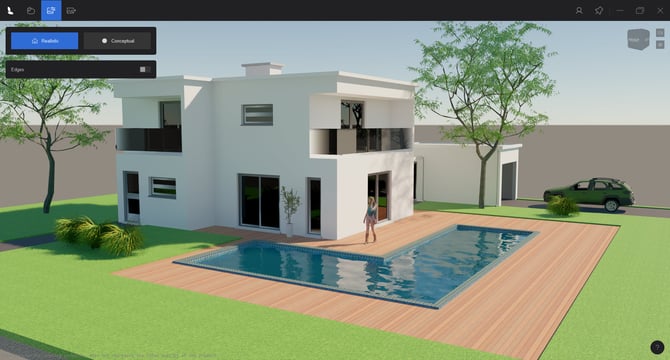
Conceptual:
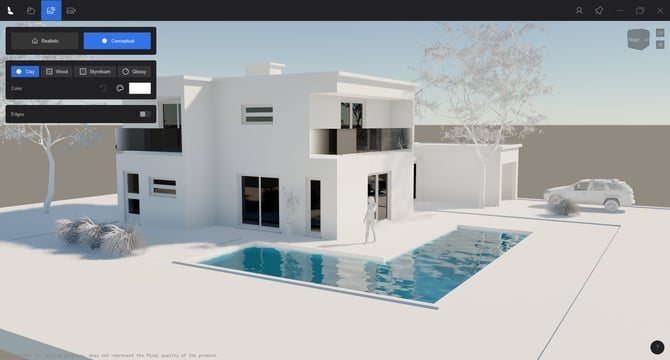
Include Edges as part of your style choices:
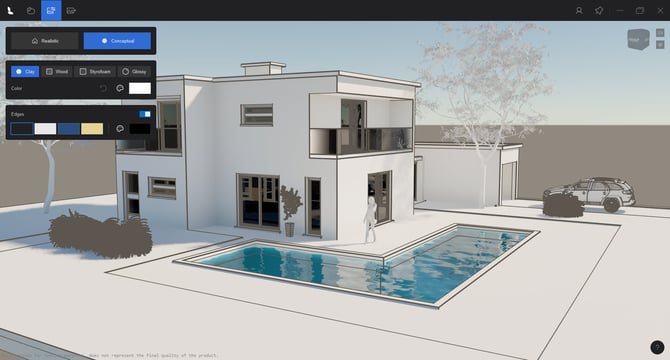
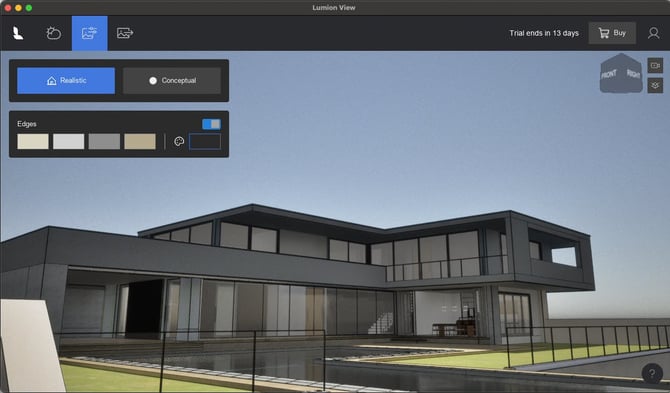
For further:
-
Knowledge Base: All About View: Working in the Lumion View Editor
-
Knowledge Base: Working in the Lumion Live editor - Styles
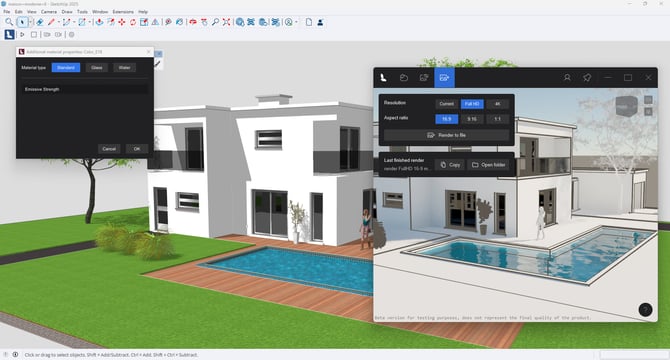
5.3: Set your Output render options and Render
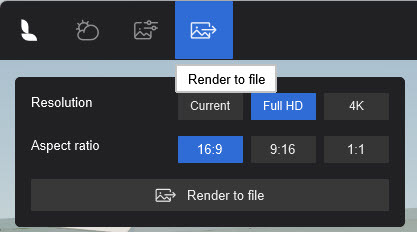
-
Real-time view and update of your CAD model with Ray Trace rendering (Windows edition).
-
Mac edition currently supports Rasterization for screen and final rendering.
-
Options for Resolution, Aspect Ratio, and Output for copying to Clipboard, opening saved file, upload to Lumion Cloud.
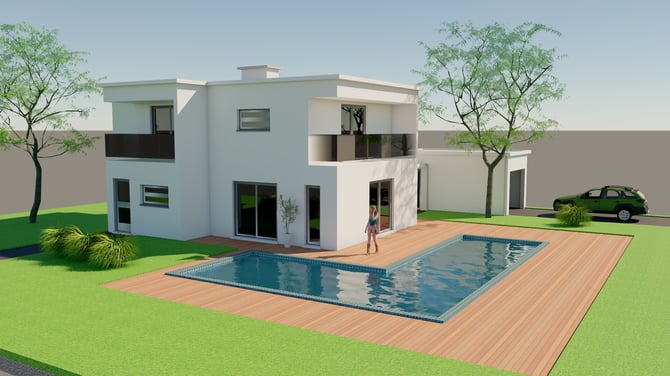
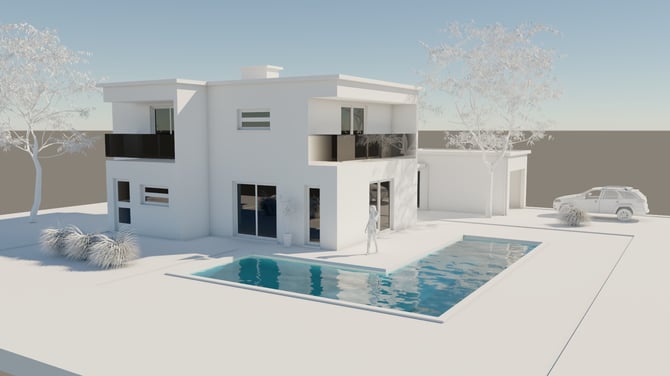
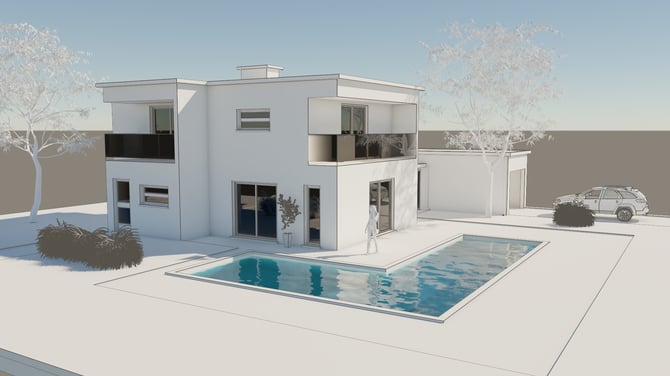
Make the final output for your client as:
Realistic:
Conceptual:
Conceptual With Edges:
For further:
-
Knowledge Base: All About View: Working in the Lumion View Editor
-
Knowledge Base: All About Lumion View: Working in the Lumion View Editor: Output
6. Other Editor tools on the View window bar:
Account and Feedback:
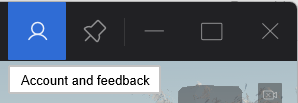
Manage the Window:

-
Minimize, maximize, close (Stops Lumion View)
For further:
-
Knowledge Base: All About View: Working in the Lumion View Editor
7. Use the Lumion View Toolbar:
7.1: For SketchUp
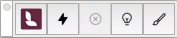
(Win) (Mac)
-
Start and Stop the Lumion View window.
-
Set Light Properties.
-
Set Material Properties.
-
Lights and Materials are in development for Lumion View for Revit (early release 25.4.x)
-
Does support Revit Materials and Revit Lights, just not the full Editors for enhanced rendering and compliance with LiveSync for sync to Lumion Pro.
-
7.2: For Revit
Lumion View for Revit 25.4.2 and newer supports Revit Light Objects and Revit Materials directly.
There are no View Toolbar buttons and Editors for Lights and Materials.
7.3 For ArchiCAD
Lumion View for ArchiCAD 25 and newer supports ArchiCAD Light Objects and ArchiCAD Materials directly.
There are no View Toolbar buttons and Editors for Lights and Materials.
7.4: Start/Display the Lumion View window with the model and Stop/Close the window
-
Start/Stop the Lumion View window as you need.
-
As a flexible window, size and position where you need, full screen size, including on a dual monitor.
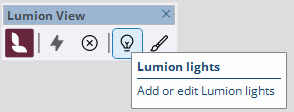
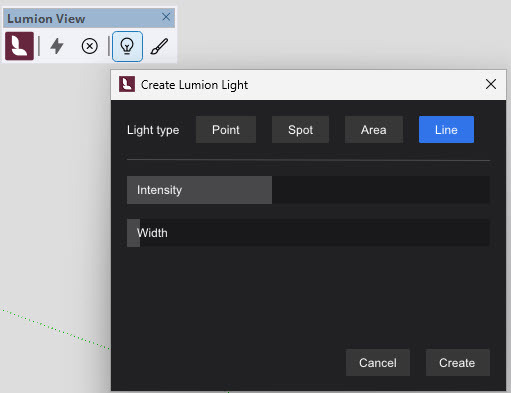
7.5: Use the Lights Editor to add Light Sources for Day and Night ambience
(SketchUp Editions)
-
The four main types of artificial light are supported.
-
Set the properties for a light type as you add them, or later on, change the properties.
-
These are special Lumion View Objects/components added into the SketchUp model.
See further:
-
Knowledge Base: All About View: Lumion View Toolbar: Using the Lights Editor
-
Knowledge Base: Lumion View Toolbar for SketchUp (Win): Using the Lights Editor
-
Knowledge Base: Lumion View Toolbar for SketchUp (Mac): Using the Lights Editor
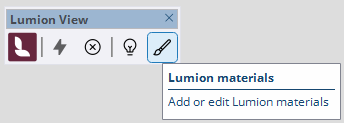
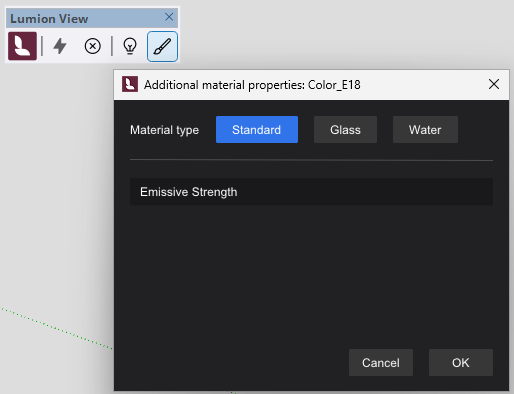
7.6: Use the Materials Editor to affect the look of your model
(SketchUp Editions)
-
Supports three core PBR (Physically Based Rendering) material Types.
-
The interface provides for additional properties.
-
Otherwise, View uses the properties of a Material from SketchUp.
8. Getting Help and Support:
Share your best Practice and workflows:
We invite you to discuss your use of Lumion View for approaches to Best Practice for your design workflows:
-
Lumion Community: Discuss all things Lumion with other users
(Please make sure to include the Prefix for Lumion View)
To showcase your designs and Lumion View renders:
-
Lumion Community: Showcase your Lumion renderings & movies
(Please make sure to include the Prefix for Lumion View)
Technical Support for any issues and questions, please use this channel:
-
Knowledge Base: Contact Lumion Technical Support for Lumion View
