Skip to content
English - United States
  • There are no suggestions because the search field is empty.

Placing and Changing Objects

Available tools for placing and organizing your Imported Models and Lumion Library Objects.

The content of your Scene will consist of one ore more of your Imported Models and the entourage that provides context and surrounding to your design.

Lumion provides a range of tools to help you with Placement and arranging the Objects in your Scene.

Your design models are available when importing via LiveSync or direct import.  They are available via the Imported Model Library.

The Imported Model Library also includes external models imported into Lumion from 3rd party resources.

Add other content such from the Lumion Object Library

Lumion's robust Library features over 7,500 assets, including 3D models (Trees and Plants to FurnitureDecorationVehicles, and People), Light Profiles, Special Effects, and Utilities:


 ⤓  Placement Tools

Place one or more Objects in your Scene. Tools for rapidly placing and randomizing for variation the content and context of your ProjectSee Section: Placement Tools for a Category.  And Section 2: Placement Tools.

Object Manipulation

Unlock the full potential of the extensive Library with a formidable array of tools designed to help you expertly arrange elements in your Projects.  See Section: Object Manipulation

▞  Groups

Sometimes you want to make changes to a group of Objects, such things as - rotate, move, place in a different Layer.  See Section: Groups.

⌨ Useful Shortcuts

To help you use these tools quickly and efficiently Lumion provides keyboard shortcuts.  See Section:  Useful Shortcuts.

General - Place

1.  ⤓  Placement Tools for each Category

Each Category of an Object (model) provides you with a choice of different tools for placing that Object or a selection of Objects in your Scene in Build Mode.

See the extended information about each tool in the sections for Placement Tools.


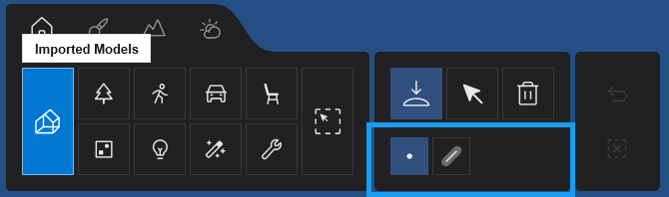
1.1: Imported Models

Single and Line Placement

ImportedModels Placement Tools-b_hlt

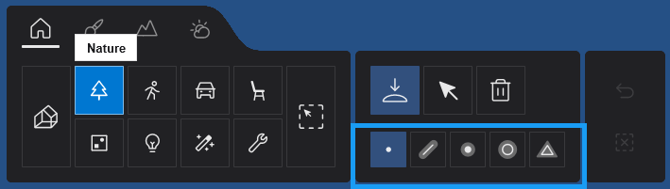
1.2: Nature

All Placement Tools: Single, Line, Cluster, Paint and Area (Surface and Area Shape) Placement Tools.

Nature Placement Tools-b_hlt

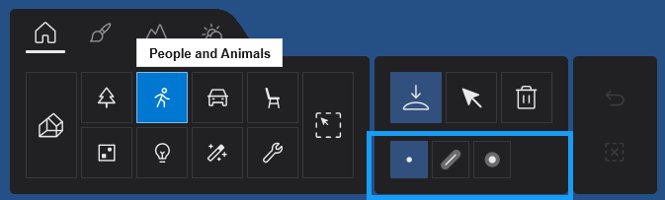
1.3: People

Single, Line, and Cluster Placement Tools.

People Placement Tools _hlt

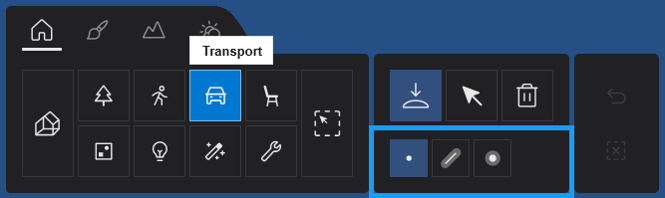
1.4: Transport

Single, Line, and Cluster Placement Tools.

Transport Placement Tools _hlt

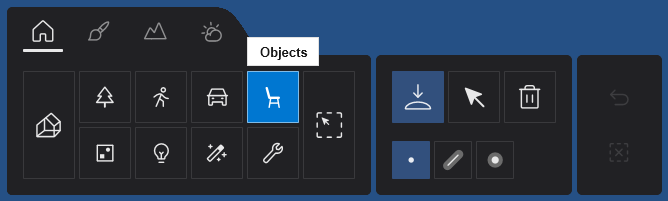
1.5: Objects

Single, Line, and Cluster Placement Tools.

Objects Placement Tools _hlt

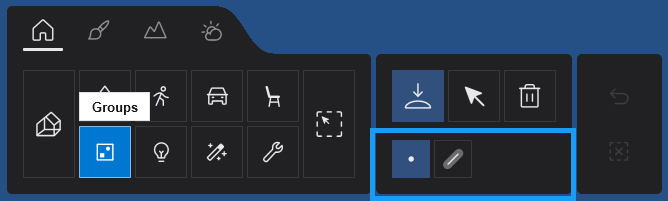
1.6: Groups

Single and Line Placement Tools.

Groups Placement Tools _hlt

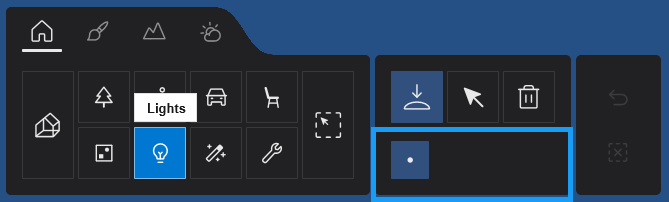
1.7: Lights

Single Placement Tool only.

Lights Placement Tools _hlt

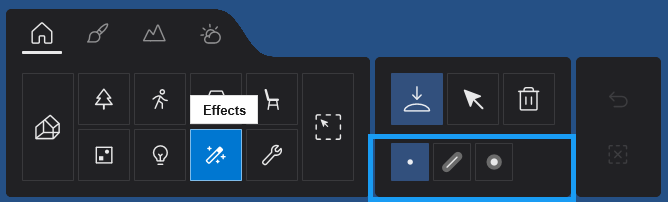
1.8: Effects

Single, Line, and Cluster Placement Tools.

Effects Placement Tools _hlt

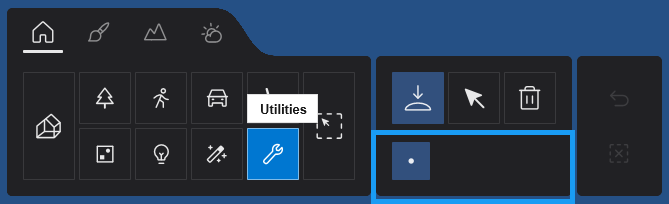
1.9: Utilities

Single Placement Tool only.

Utilities Placement Tools _hlt


2. Placement Tools:

Nature Objects:- This Category has the widest range of Placement Tools, so let's take a look at these as they also apply to the other Categories.

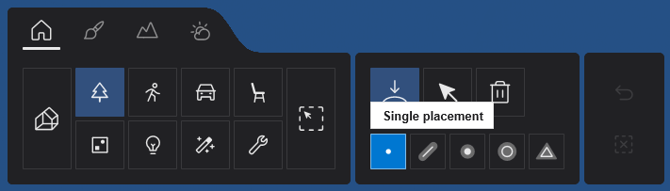
2.1: Single Placement  Single PLacement button

Nature Placement Tools - Single Placement

One Object at a time is placed.

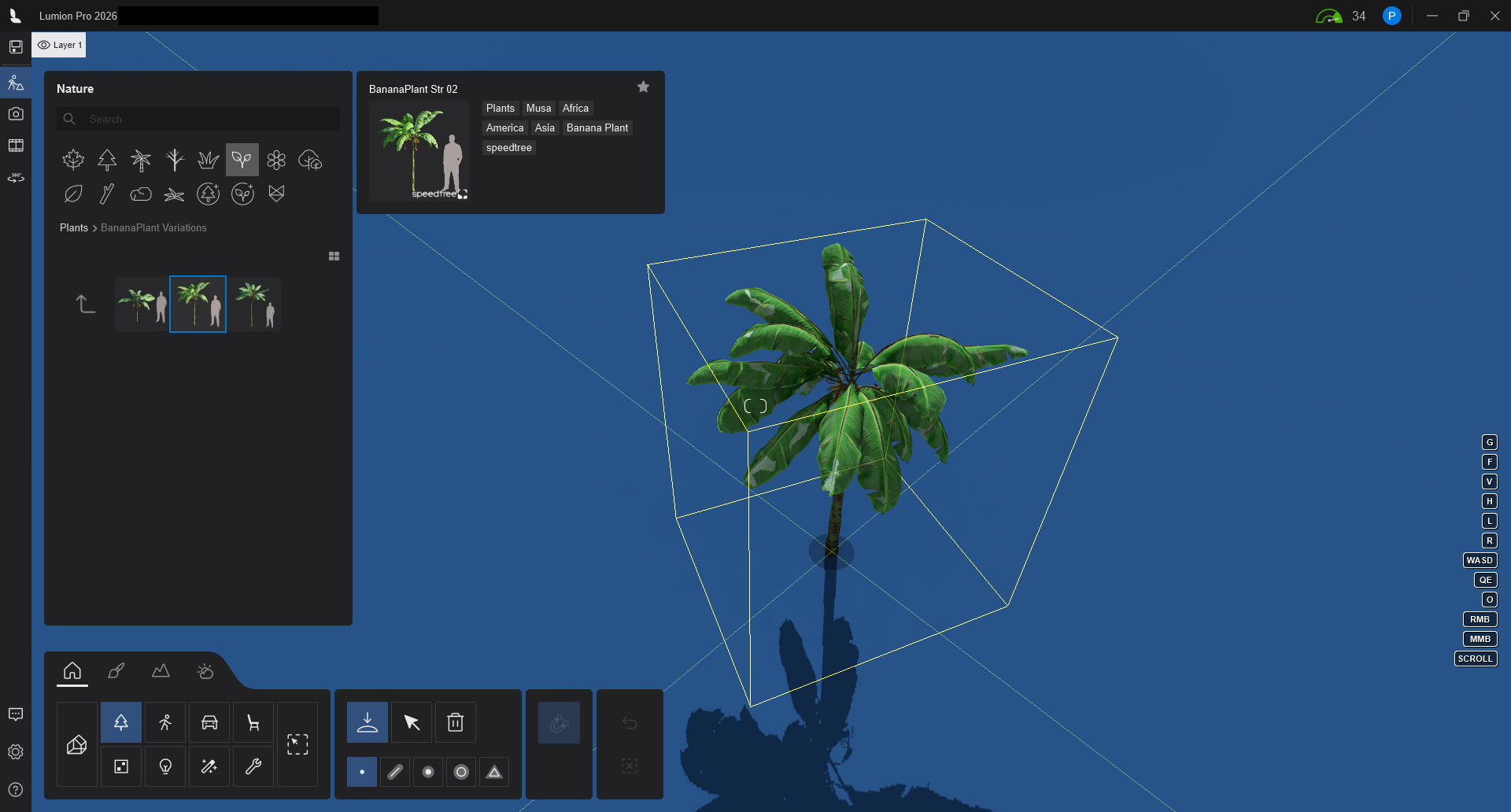
Select the Object from the Library - Imported Model Library or Lumion Object Library, and move your mouse to the position you want to locate it.  

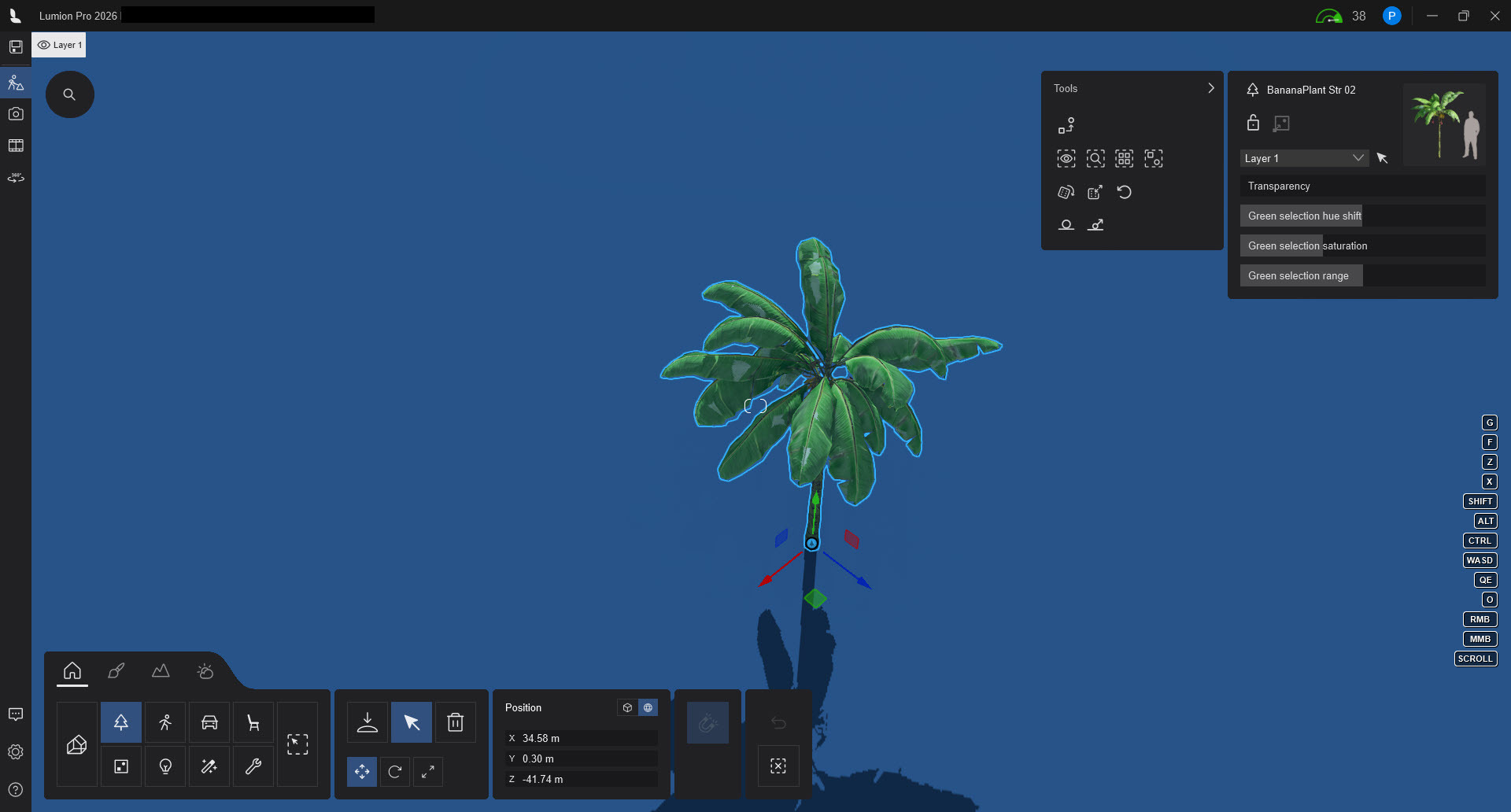
Note: Not all Objects need to be very specifically placed, but if you do need exact coordinates, then you can type those in once placed.

Placement Tools - Single - Nature 1 Palm

Click the left mouse button to place the Object on a surface.

Placement Tools - Single - Nature 1 Palm -Placed


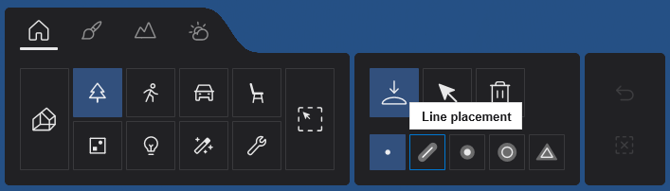
2.2: Line Placement 

Nature Placement Tools - Line Placement

line placement.gif

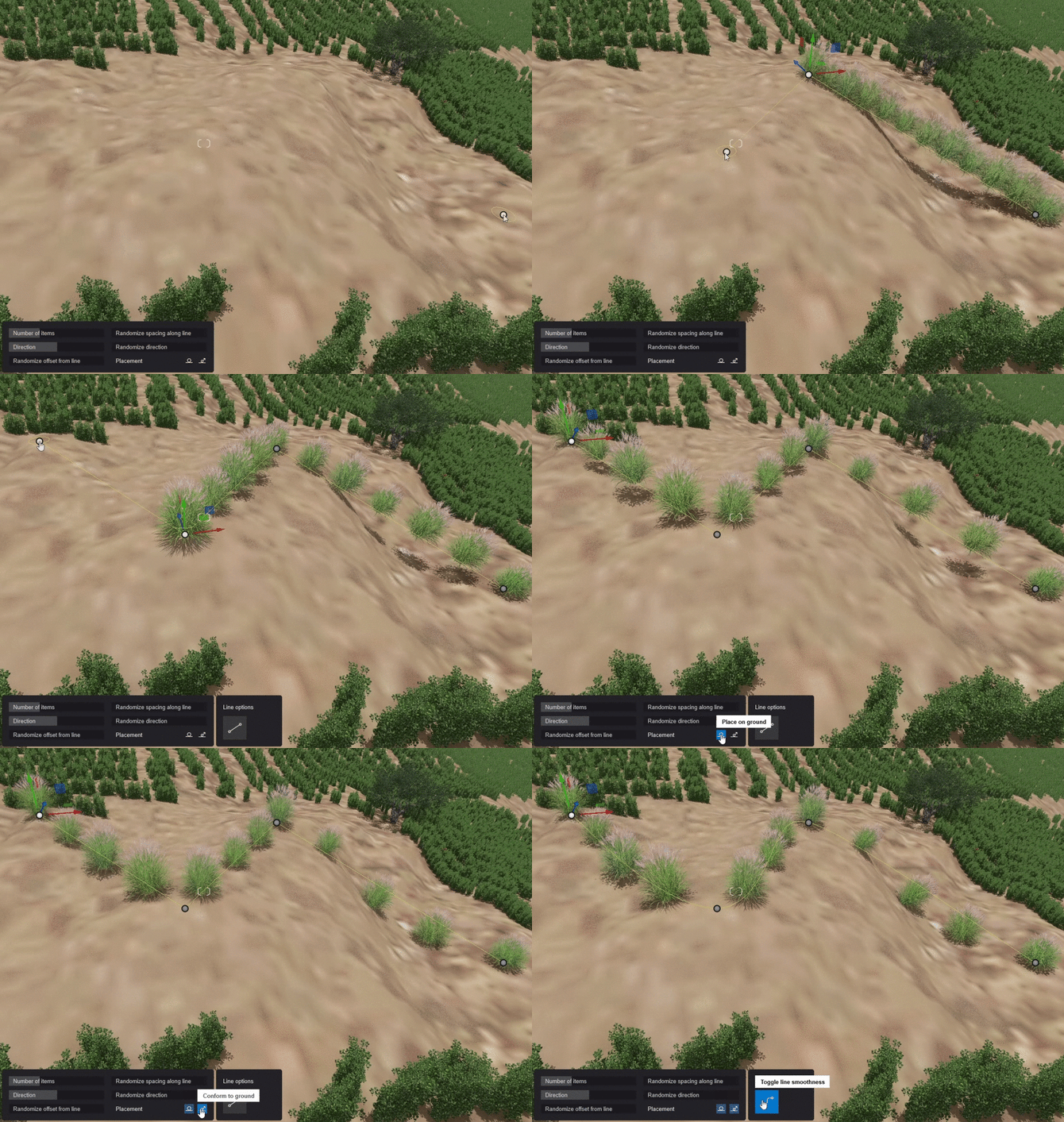
  • Select a Pool of Objects, then draw a Spline to place them.

  • You can then configure the line's Smoothness, the Number of Items to be placed, their Rotation,
    Spacing and Offset. To create more points, hold the Ctrl Key. 


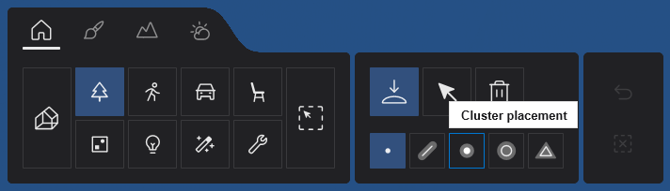
2.3: Cluster Placement  

Nature Placement Tools - Cluster Placement

cluster.gif

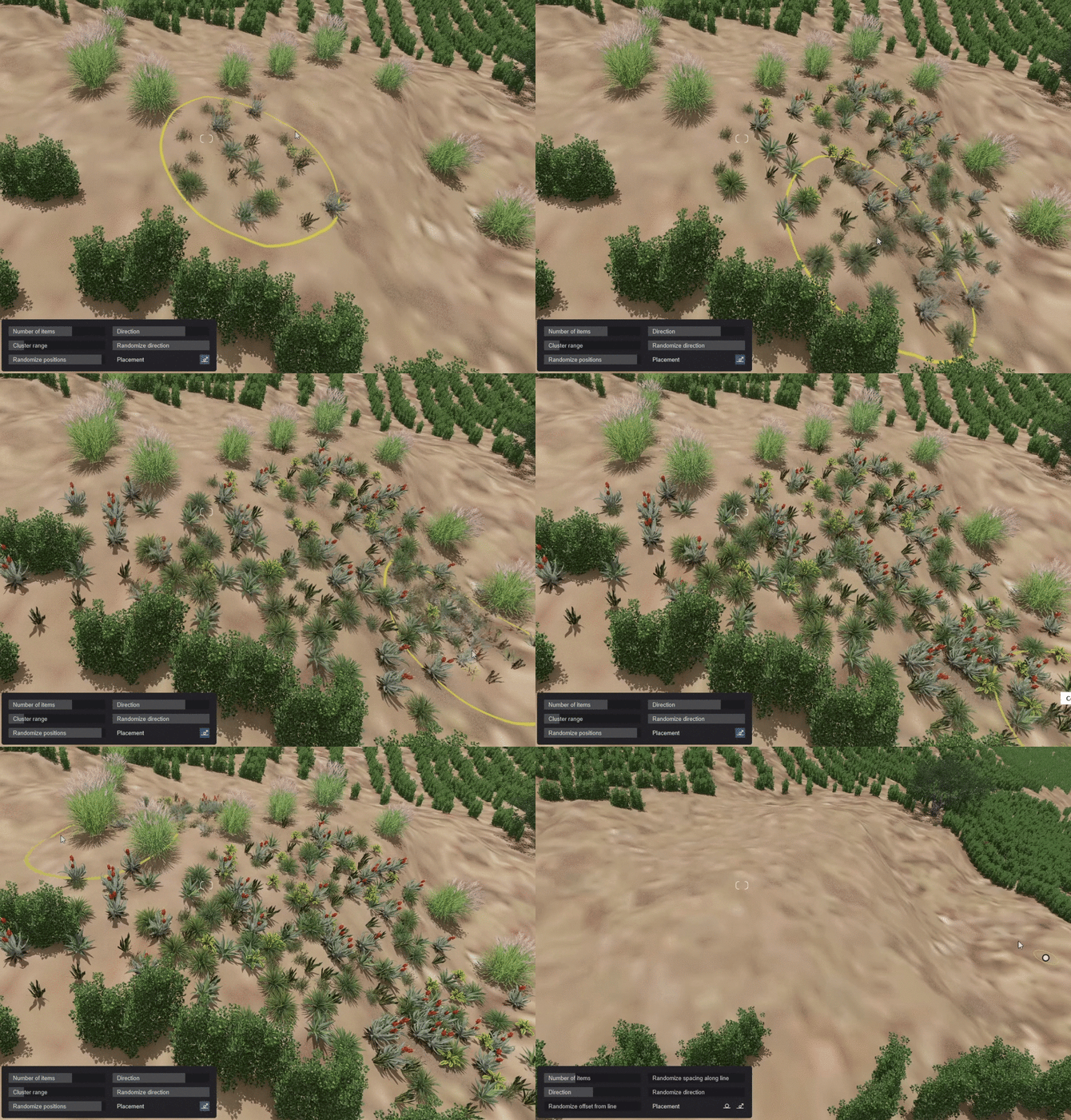
  • Select a Pool of Objects and Scatter them randomly inside a Circle.
  • The Range of the circle, the Number of Items to be placed, and their Direction can be configured.
  • You can also hold Ctrl while placing a single item to place 10 randomly scattered Objects.


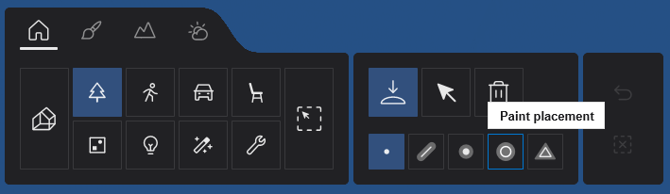
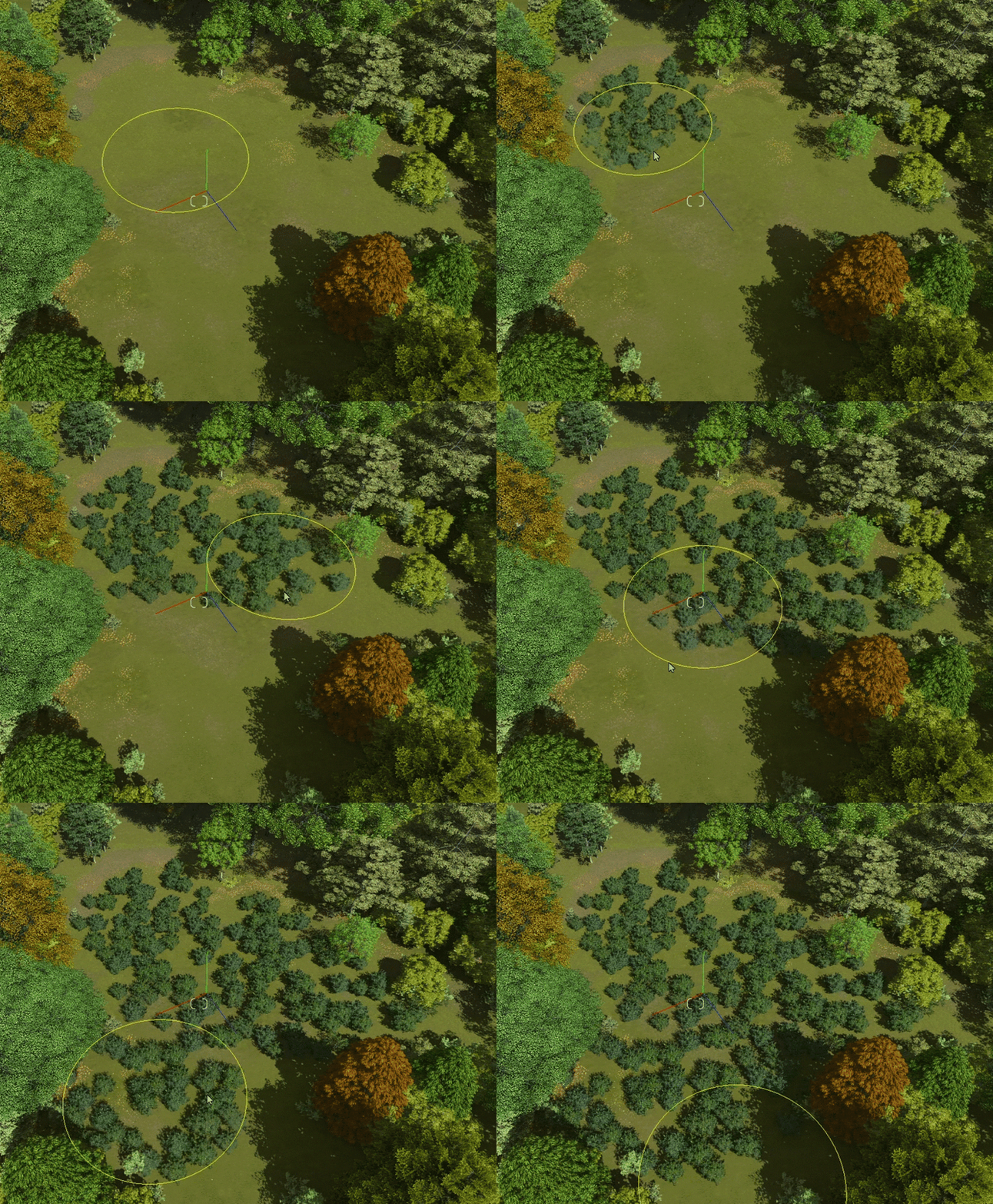
2.4: Paint Placement  

Nature Placement Tools - Plaint Placement

paint placement.gif

  • This is available for Nature Library  content and is an easy way to fill the scene with vegetation simply by Drawing.
  • You can adjust the Density of the placed Objects.


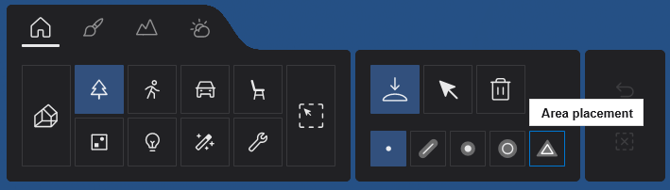
2.5: Area Placement

New in Lumion 2026.

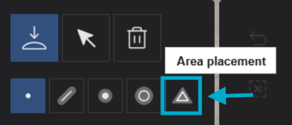
Nature Placement Tools - Area Placement

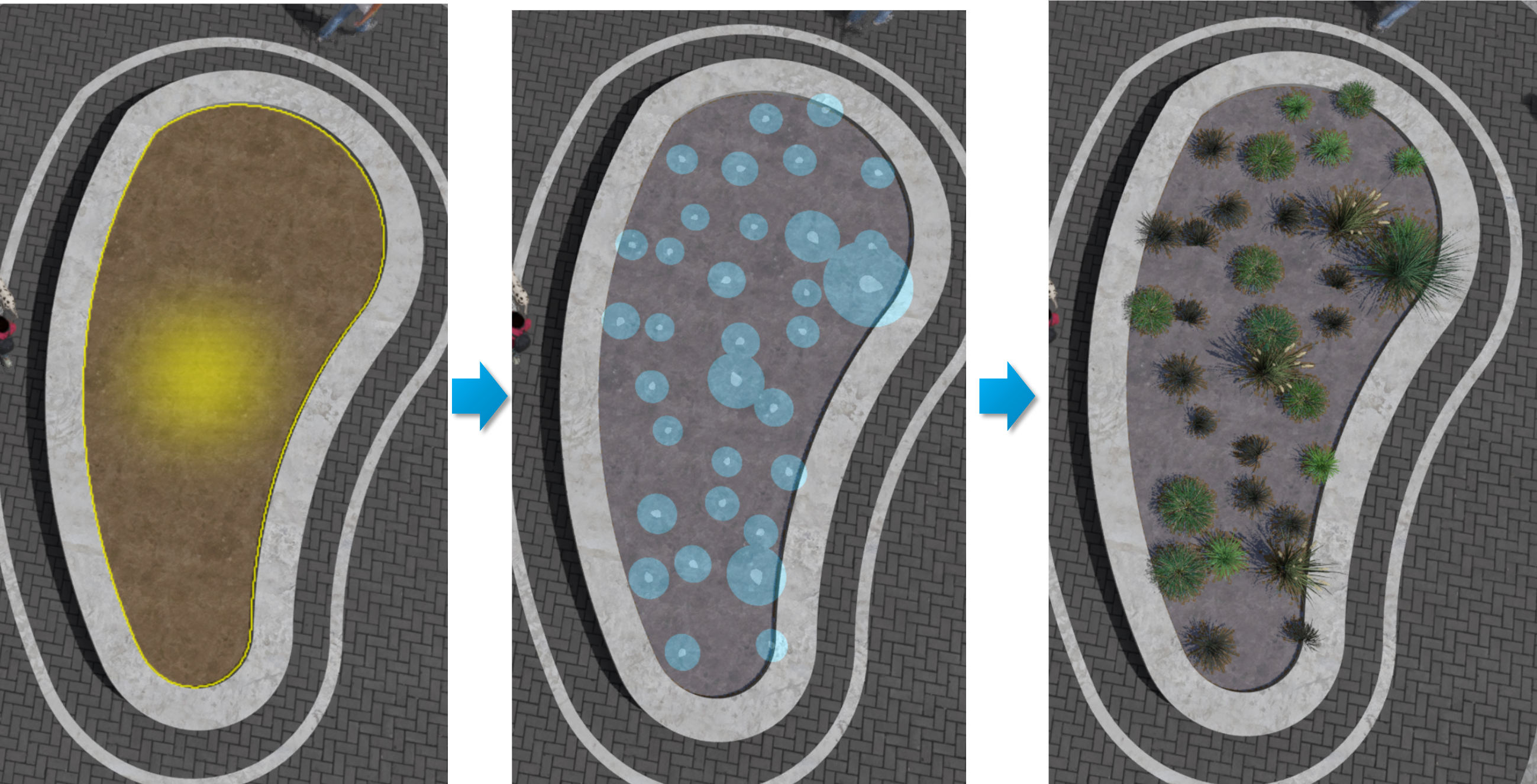
This dual tool set allows you to populate large outdoor spaces with multiple different Objects at once while maintaining a high level of control over distribution and variation. 

image-png-Feb-17-2026-02-43-20-9702-PM


It is currently available when placing Nature Library items:

>>>  L26.0 Area Placement-Area-Surface _common-Tools

Similar to Line and Cluster Placement, you can select a pool of up to 20 items from the Library to place at once

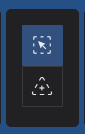
Tools for placing items:

2.5.1: Placement on a surface:  L26.0 Area Placement-Area-Surface _common-SurfacePlacementTool
When this mode is activated, you can select a Material to scatter the Objects over that surface. 

2.5.2: Create Area  L26.0 Area Placement-Area-Surface _common-AreaPlacementTool

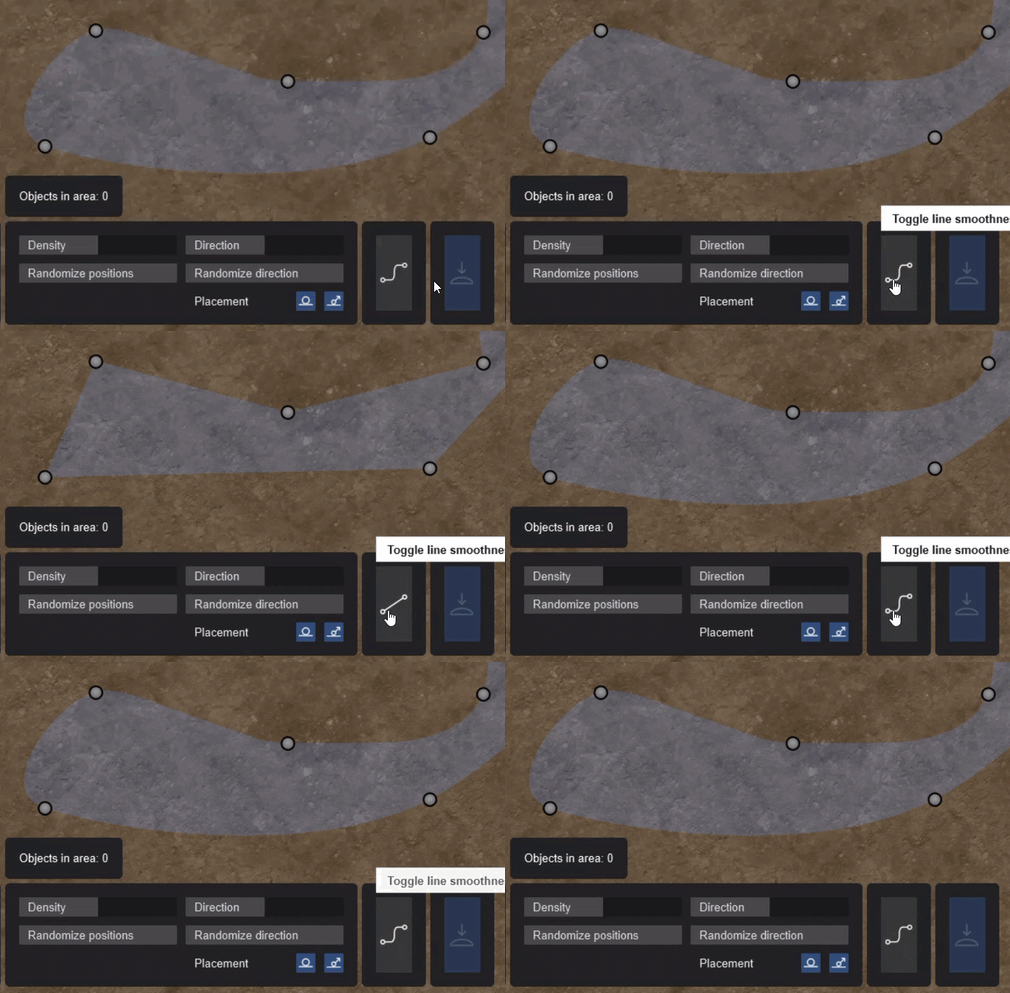
Draw a custom area by defining a perimeter, dragging the nodes, or adding additional nodes by holding the Ctrl key. 

Area Placement 1

Note: You can also choose between straight or curved edges by clicking on Toggle Line Smoothness:

linesmoothness-1

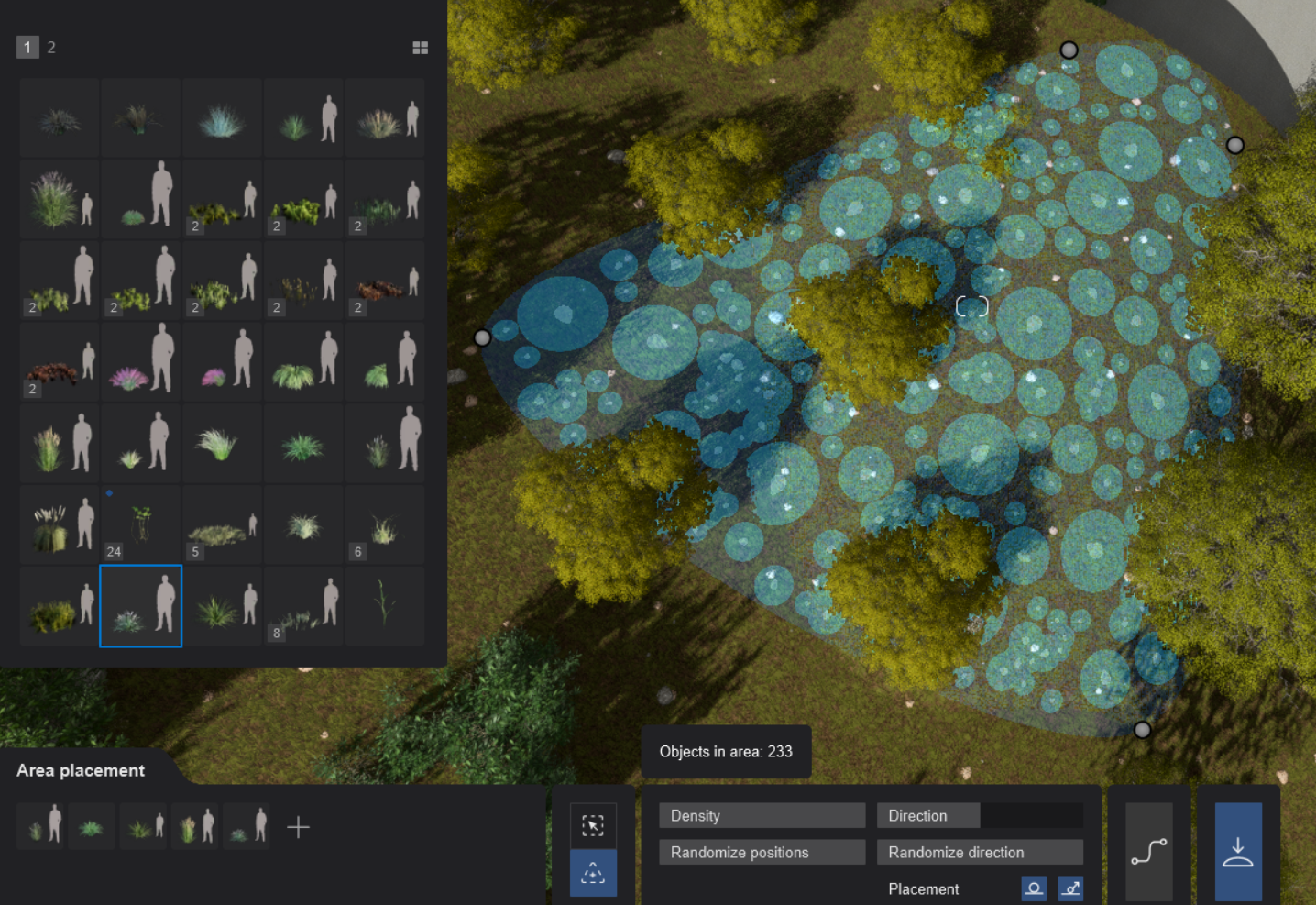
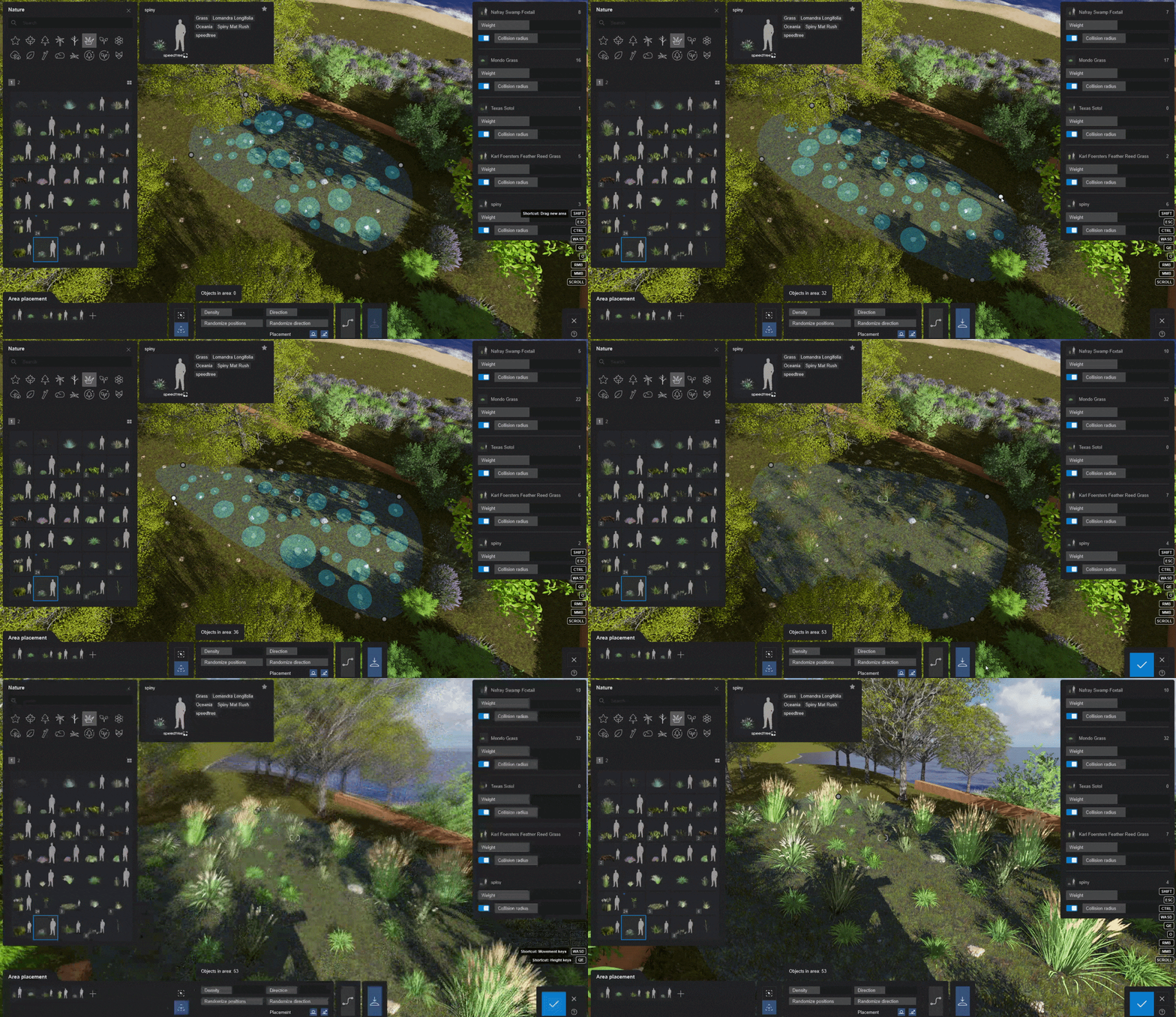
Once the Surface is selected or the Area is defined, you can adjust the following settings:

  • Density.  Randomize Positions.  Direction.  Randomize Direction. Placement:  Place on ground, Conform to ground.

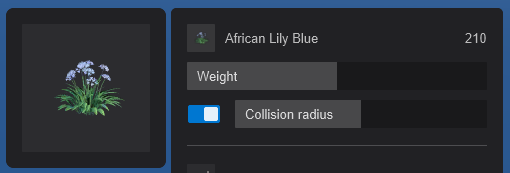
On the right side of the Build Mode screen, you also have a counter and settings for each Object - the: Object Properties Panel:

L26.0 Area Placement-Area-Surface _common-ModelSettings-Example1-WeightCollisionRadius

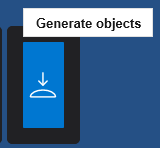
You will see a highlighted preview as a diagram of the items to be placed while adjusting these settings. Once you are ready to place the Objects, click on the Generate Scene Items button:

L26.0 Area Placement-Area-Surface _common-GenerateObjects

Then confirm and go to Build Mode to finish placement. 


This tool makes it especially useful for landscaping workflows, such as placing mixed vegetation, underbrush, trees, or ground cover with natural variation and minimal repetition.

See Also:


3. ✥ Object Manipulation Tools:

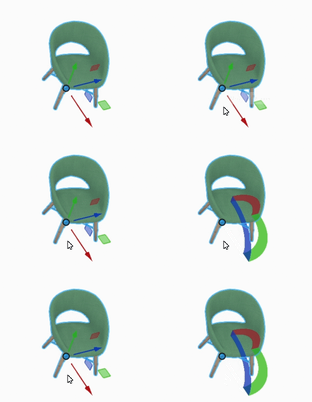
3.1: Gizmo

When you select an Object.

Move

Gizmo-Move

Rotate

Gizmo-Rotate

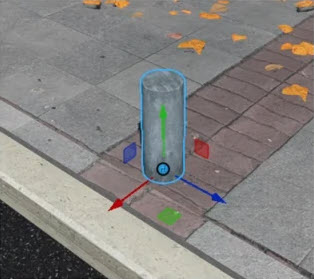
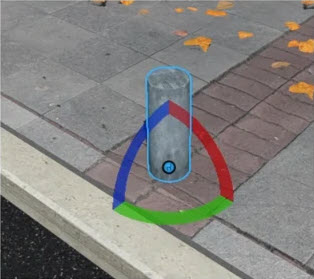
  • The Gizmo is a small, semitransparent indicator that appears next to the Object you have selected while in Move or Rotate mode.
  • It allows you to move or rotate Objects using three handles, one for each axis:
    Red for the X AxisGreen for the Y Axis, and Blue for the Z Axis.

  • Press the M key as a shortcut to Move Objects and R to Rotate them. 


3.2: Auto Snap

ezgif.com-cut.gif

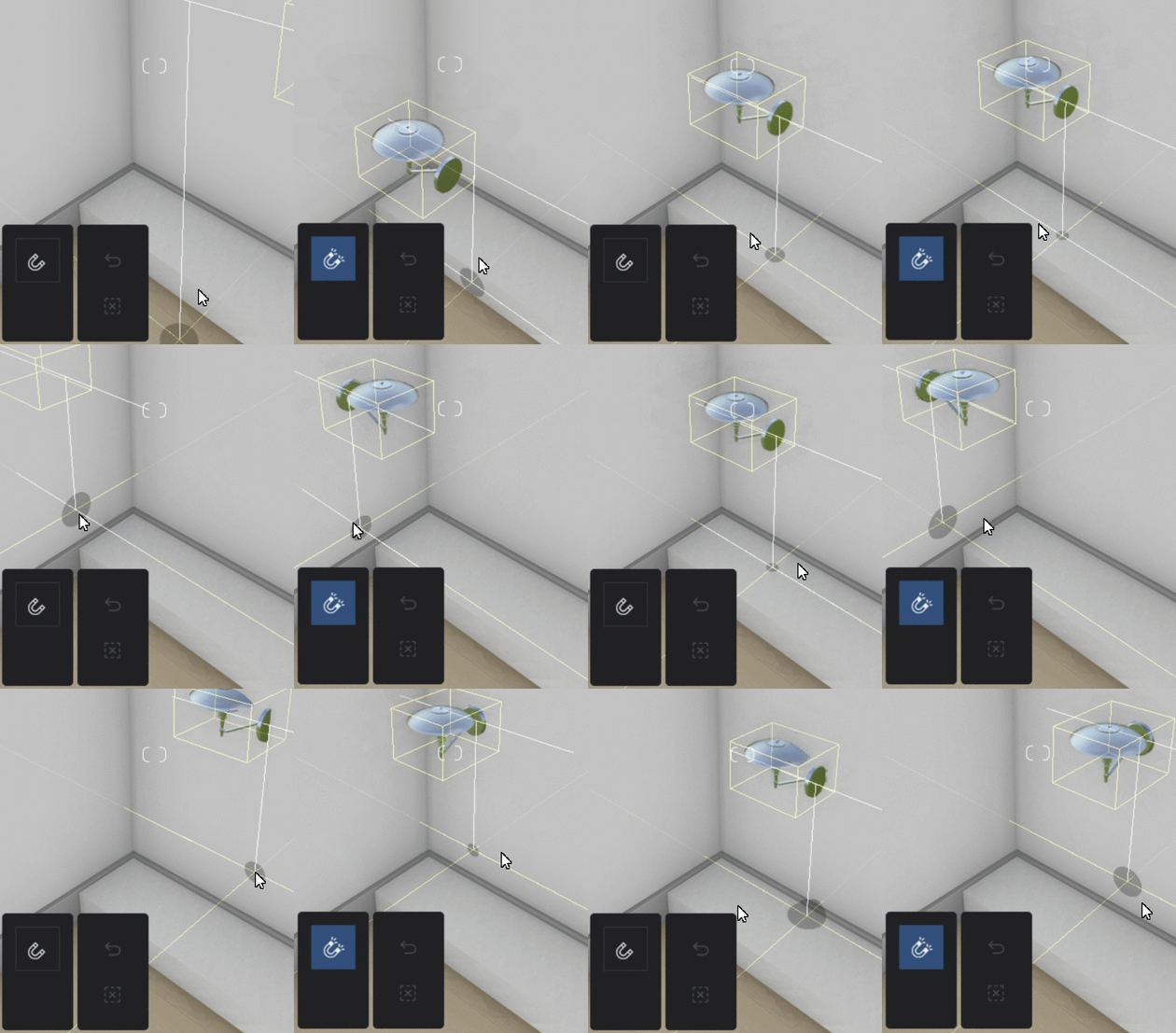
  • Having this setting enabled while placing certain Objects will make them automatically Snap to the
    Nearest Surfaces with the right Orientation

  • Models from the Objects Category snap and align to the surfaces of Imported Models  depending
    on their spatial designation (for example: a chair will snap and align to the closest horizontal surface,
    while a painting will align its orientation to the closest vertical surface).

  • Models from the People Category containing the 'Seated' tag snap and align to the closest Seating Object.


4. Advanced Object Settings:

You can also use the Tools in the Advanced Options menu while Objects are selected to perform the following actions:
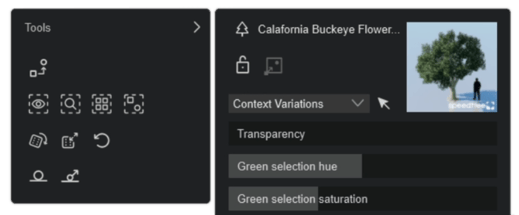
                  image (50).png

Replace Selection

This allows you to select an Object from the Library to Replace the current Object with.

Focus on Selection

Clicking on this button will make the Camera Jump to a position where this Object is directly In View.

Find Object in Library

Clicking on this button will take you to that Object in the Library (works for Imported Models as well).

Select all identical Objects

Selects All Copies of an Object, whether it's a Library model or an Imported Model.

Select all Objects in the Same Category

Clicking this will select all Objects in the same Category as the one selected (Imported ModelsNatureTransportObjectsPeople and AnimalsGroupsLightsEffects, and Utilities).


Randomize Rotation

Randomizes the Heading of selected Objects.

Randomize Size

Randomizes the Size of selected Objects. The maximum size can be adjusted with a slider (0%-50%).

Reset Size/Rotation

Resets the ScaleHeadingPitch, and Bank values back to default.

Flip Object

Mirrors the selected Object. Currently only available for Library models from the Transport and Objects categories. 

Place on Landscape 

Will move the Object down to the nearest Imported Model surface or the Lumion Landscape terrain. Hold the G key while placing or moving a model to use this function.

Conform to Landscape

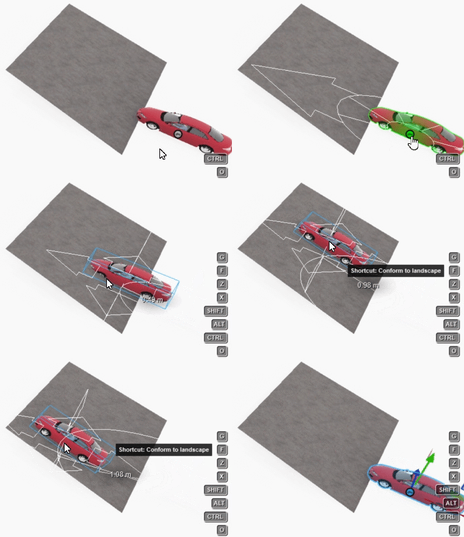
This will automatically adjust the Object's Rotation values so that it Conforms to the Surface where it was placed. Great for placing Objects on slopes or other inclined surfaces. Hold the F key while placing or moving an Object to use this function.


When multiple Objects are selected, you also get the following options:

Space Objects Evenly

Allows you to specify the Distance Between each of the selected Objects (0.1 - 50m). 

Align Positions

This will Move All selected Object to the position of the First selected Object

Align Rotation

This will set the Rotation values of All selected Objects to the values of the First selected Object

Align Size

This will set the Scale value of All selected Objects to the value of the First selected Object

Align Height

This will Move All selected Objects to the Height of the First selected Object


When selecting Imported Models, you get an additional option:

Place Object on Node

This allows you to Replace multiple Proxy Objects in the model with Library Objects All At Once


The article below explains this feature in more detail:
 

5. ▞  Groups 

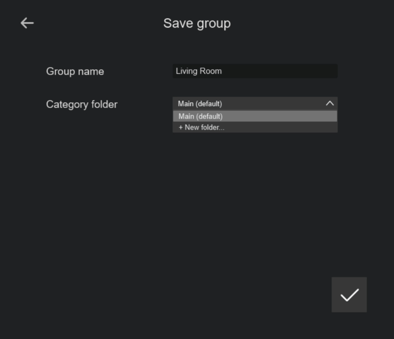
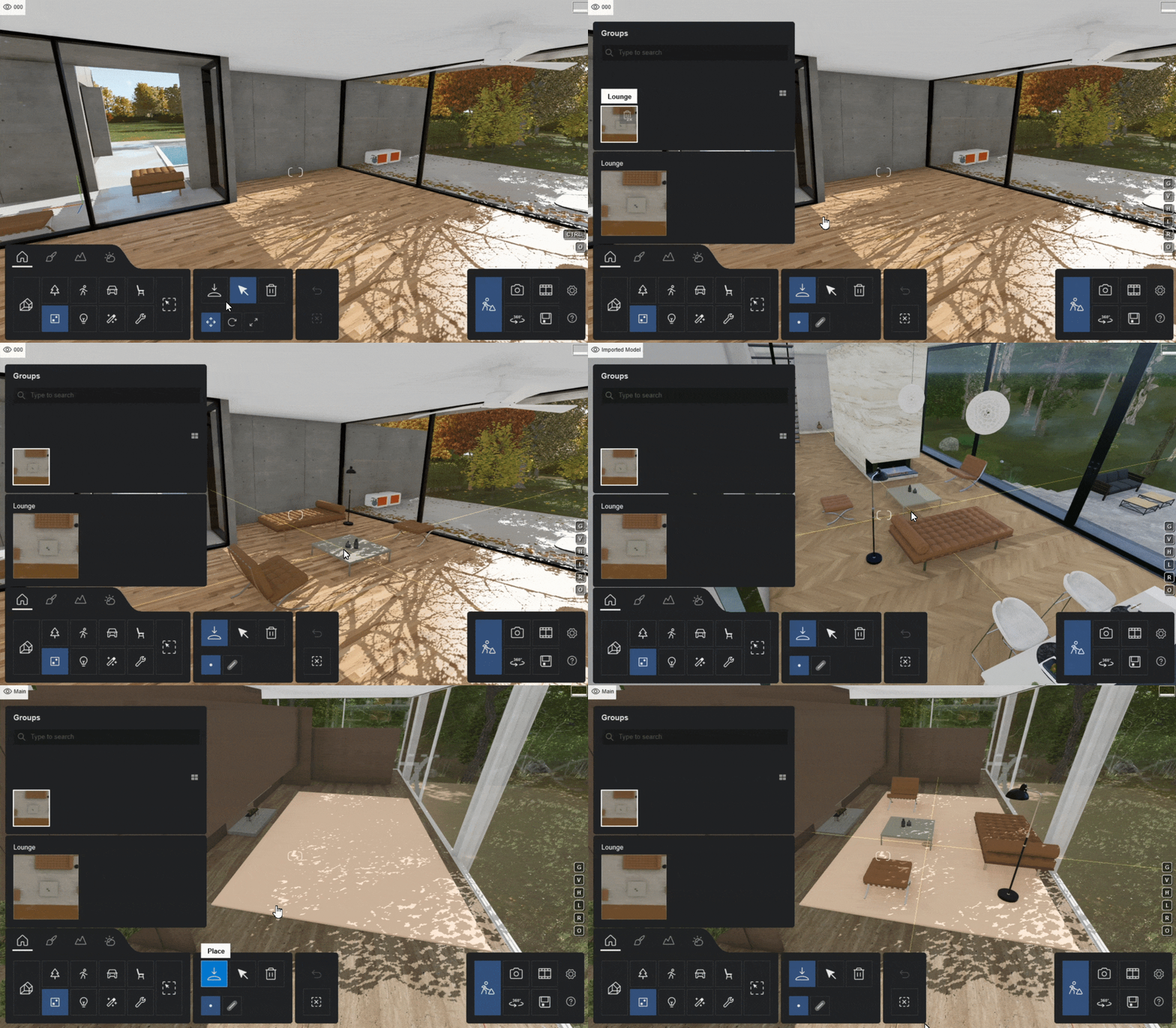
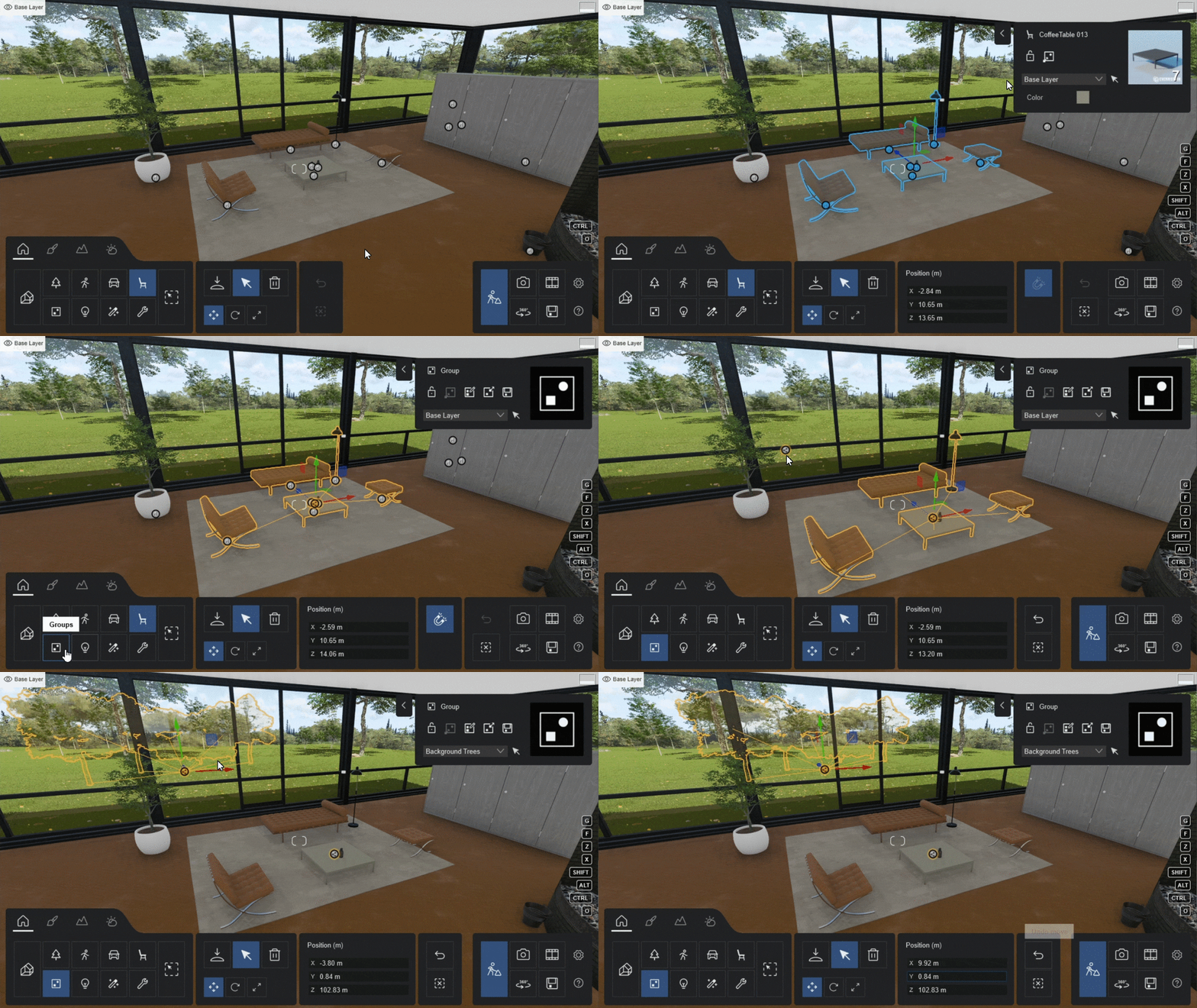
Grouping Objects in Lumion can be an effective tool for keeping your Projects in order. You can swiftly manage and rearrange Related Elements Together as cohesive units, providing a seamless and time-saving approach to achieving a well-structured and Organized scene.

Ks1SIIeVFR-ezgif.com-optimize.gif

This feature becomes even more valuable as you can Save and Load Groups in Category Folders to build your own Group Library, enabling the easy reuse of meticulously arranged Objects across different Projects


This can accelerate workflow efficiency, allowing for the seamless transfer of well-organized and pre-configured elements to use in different architectural visualizations.

ezgif.com-optimize.gif

See this Tutorial to learn more about Groups and how to use them to manage your scenes effectively:


6. ⌨ Useful Shortcuts

Switch between Move and Rotate

         dCkzaboDP9.gif

  • Press the M Key to enter Move Mode and R to enter Rotate Mode.

         UHVnIOYARQ.gif

  • You can also rotate Objects while they are being placed by holding R and moving the cursor.

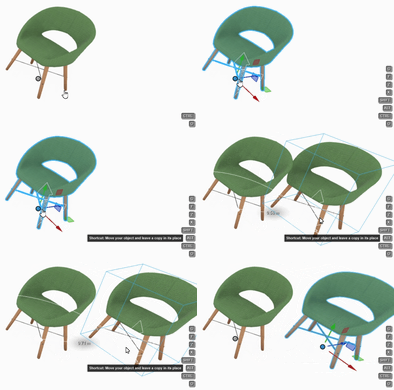
Copy Objects

       xALnxunRrR.gif

  • Holding the Alt Key while moving an Object will leave a copy in its place. 

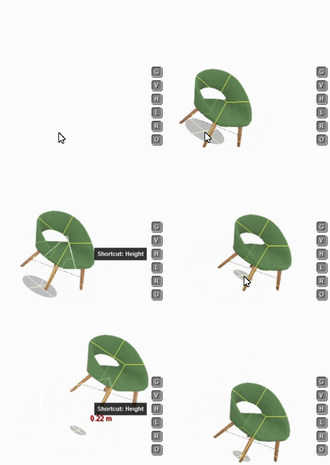
Raise/Lower Objects

       IGmz8myyUC.gif

  • While Placing Objects, hold the H Key and move the cursor to raise/lower the Object. 

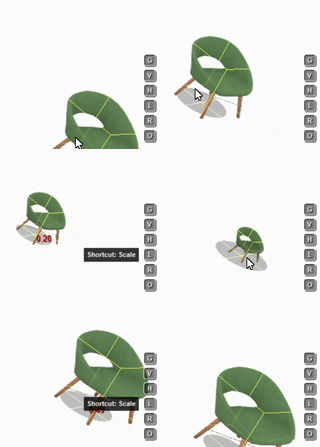
Scale Objects

       GaHE7N0k6M.gif

  • While Placing or Moving Objectshold the H Key and move the cursor to resize the Object

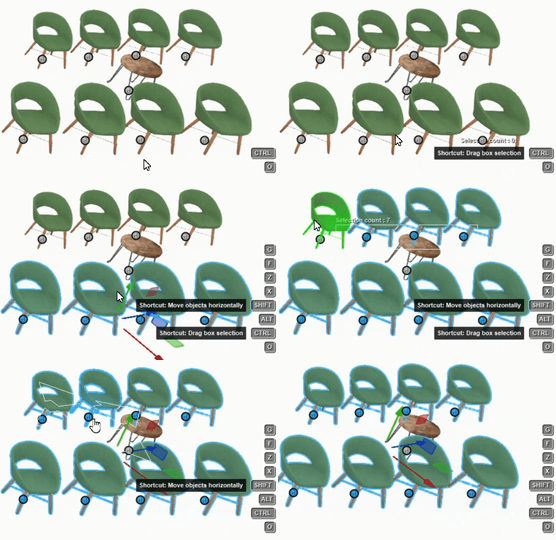
Multi Selection

       CIuBr3zGkT.gif

  • Hold the Ctrl Key and create a box around the Objects icons to select them simultaneously. You can also hold Shift to continue the Drag Box Selection

Conform to Landscape

       MmzSeYUQT9.gif

  • Hold the F Key while Moving an Object to align it with the surface below.

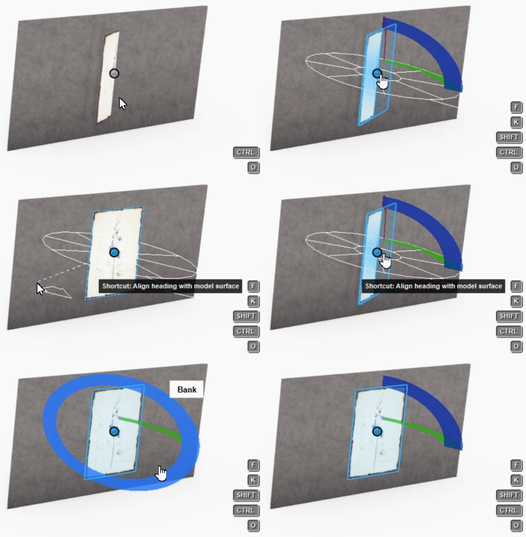
Align heading to surface

       9EApcOeaT0.gif

  • Hold the F Key while Rotating an Object to align its heading with the nearest surface.

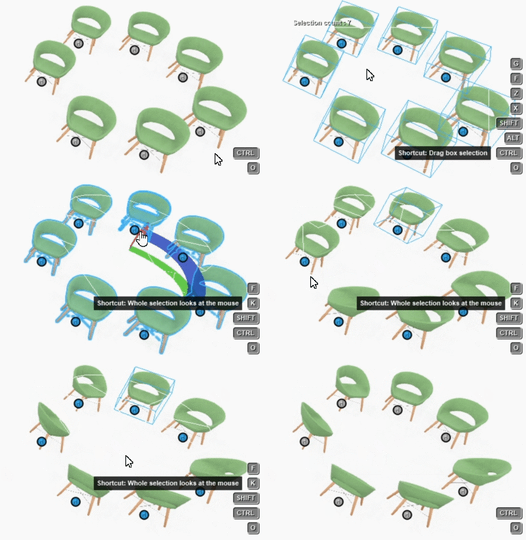
Whole selection looks at mouse

      NVTSJv7XMd.gif

  • Hold the K Key while Rotating multiple Objects to align their heading with the cursor's position.

To see all available shortcuts, follow this article:


Inspiration:

Need some inspiration on how to set up your scenes? Follow our Visualization Guides:



See Also:
     

More Learning Pathways: