

You might also have these similar questions:
- How can I install Lumion if my PC is low on free file space?
- How can I save space when downloading or installing Lumion?
You need a minimum amount of free file space to download and install Lumion. Also when using Lumion. There are some options to where you put the files.
The large file sizes are due to the extensive Content Library of Models and Materials that need to be installed to the Installation folder.
Essential:
You need lots of free file space for the Install and when using Lumion. We suggest that you check how much free file space there is on the PC before starting the Download and Installation.
See Sections: 1. Required File Size and Space and 5. Free up File Space:
1. Required File Size and Space (Pro and Standard):
Current version: Lumion 2026 (as at 26.0):
- Full version Installation Option:
- Download of the installation files: 46.4GB.
- Installation: 115GB.
Prior version: Lumion 2025 (as at 25.1):
- Full version Installation Option:
- Download of the installation files: 44GB.
- Installation: 113GB.
Prior version: Lumion 2024 (as at 24.4.0):
- Full version Installation Option:
- Download of the installation files: 40GB.
- Installation: 112GB.
Earlier version: Lumion 2023:
- Download of the installation files: 29GB
- Installation: 75GB
Older version: Lumion 12.5:
- Download of the installation files: 23GB
- Installation: 40GB
These are minimums.
See also section 5. Free up File Space:
2. Main File Types:
There are three main file types for an installation:
For Lumion 2023.0.0 and newer:
- The Installer (includes both the downloader and the installer) - Lumion_[Major version_Minor version_Sub Minor version][Edition]_Download.exe.
For example, Lumion_2023_0_Download.exe. - The Install files - Lumion_[Major version_Minor version_Sub Minor version][Edition]_Download.0XX.
For example: Lumion_2023_0_Download.000 through to Lumion_2023_0_Download.019. - The .cache file. Lumion_2023_0_Download.cache.
- Lumion Updater for this version, see this article:
-
- Knowledge Base: How does the Updater for Lumion work?
For Lumion 12.3.0 and 12.5.0:
- The Installer (includes both the downloader and the installer) - Lumion_[Major version_Minor version_Sub Minor version][Edition]_Download.exe.
For example, Lumion_12_3_1_Download.exe. - The Install files - Lumion_[Major version_Minor version_Sub Minor version][Edition]_Download.0XX.
For example: Lumion_12_3_1_Download.000 through to Lumion_12_3_1_Download.016. - The .cache file.
Prior to Lumion 12.3.0:
- The Download Manager - Lumion_[version]_Download.exe, for example: Lumion_12_0_Download.exe.
- The Installer - Lumion_[version]_LUM[MajorVersion][Edition].exe: for example: Lumion_12_0_LUM12PRO.exe.
- The Install files - Lumion_[version]_LUM[MajorVersion][Edition].BIN: for example: Lumion_12_0_LUM12PRO-1a.bin.
3. Where are the Installer Files?
By default, the Download Manager - the first file you get when you click on the link in your Lumion Account is saved to the Windows 'Downloads' folder on C:\ (operating system) drive.
Or some other location:
- If you have changed the default save location in your browser.
- Or you have created a different folder for the files to be downloaded to.
The Download Manager will do a check before downloading the Installer files to see what space is available, and provide a message if it is less than is required for the Download. At this step, it needs only to check that there is enough space for the Installer files. Another check is done later on when Installing.
4. Where are the files Installed?
The installer will create the application and content files in:
4.1: The default location of [OS drive]\Program Files, usually C:\Program Files\Lumion [version].
4.2: At the time of installation, you can choose a different location (drive and folder).
Exception - unless the install is a full install for a hotfix update.
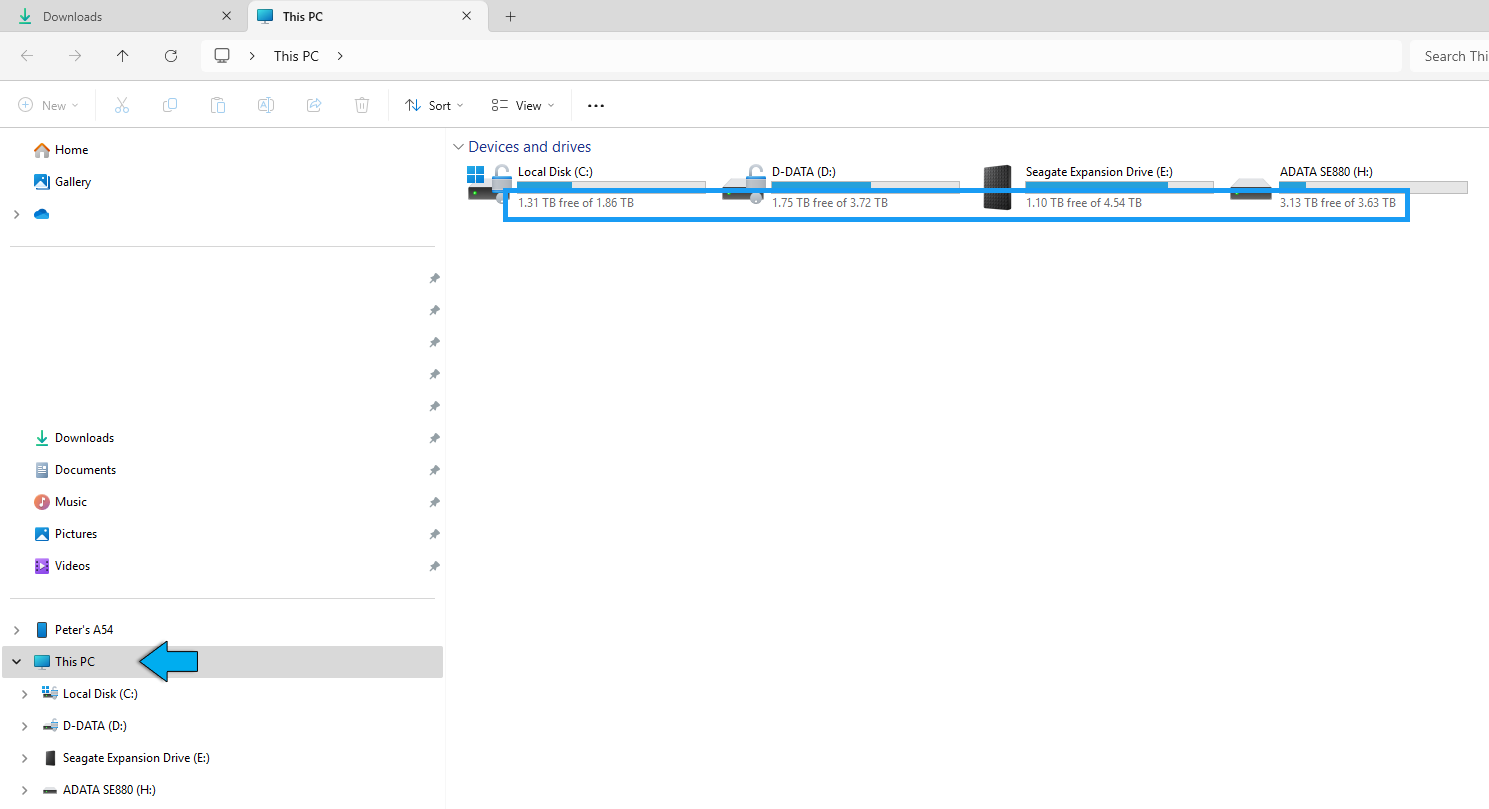
4.3: We suggest that you check how much free file space there is on the PC before starting the Download and Installation.
Example before installation: check how much free file space there is, then during the install choose a suitable drive
Example message from the Installer during installation: if during there is insufficient file space:
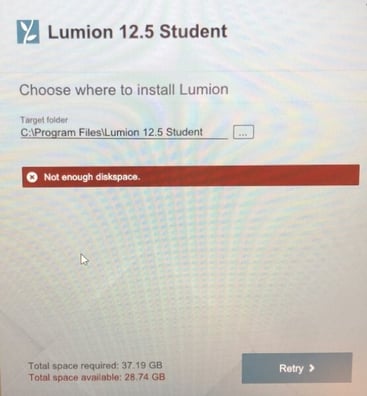
In this case, you need to cancel the Installation and choose a different (local) drive where there is plenty of free space.
See Section 5. Free up File Space.
4.3: Our release article - Everything You Need to Know in the News Section will advise on the type of installation and where it will be installed to.
4.4: If you are installing an Update then the files are installed to the original Installation folders as in 1 or 2 above. See also:
- Knowledge Base: How does the Updater for Lumion work?
5. Free up File Space:
5.1: Important note when using Lumion:
Your PC should always have at the very least 30GB (preferably 50GB +) of free file space on the C: drive after installing Lumion. Windows requires 20GB free, Lumion and other 3D applications another 10GB.
You can always monitor free file space via Windows File Explorer or Windows 10 Disk Management.
Here are some other links to help find out where you are using file space:
- External Link: WinDirStat
- External Link: SpaceSniffer
5.2: How can you free up some file space?
Here are some suggestions for freeing file space. This applies mainly to Lumion 12 and newer but also to older versions:
- Download the Lumion Installer file to a different drive than C:\ drive (see also Section 1.4.2: 1.4: Where are the files Installed? and 1.3: Where are the Installer Files?). The installation files will then be saved to that drive.
- If needed, you can install Lumion on another drive. Caution: if it is a removable drive then do not remove the drive when Lumion is open. Removable drives tend to have a much slower read/write speed than your OS (SSD) drive so use only as a last resort.
- If you no longer require the prior version, then uninstall it using Windows 'Installed Apps'. If it is Lumion 2023, then that will release about 75GB. If it is Lumion 12, then that will release about 40GB.
If you have a License Key for an older version, you can always download it later on if needed from your Lumion Account. - Once you have successfully installed Lumion and checked that it can open OK, then you can safely delete the Installation files (see section 1.2: Main File Types), if you wish to.
Also, follow the suggestions from the Microsoft Help website:
-
- External Link: Free up drive space in Windows 10 and Windows 11
See also this article for further ways to free up file space:
-
Knowledge Base: How do you resolve the "Not enough space on disk" message?
6. Not sure on what is needed or what to do?
Let's take a look at your PC settings
Contact us:
- Knowledge Base: Contact Lumion Technical Support
and attach this Diagnostics Report (via Step 3 - Windows):
-
Knowledge Base: How do you provide a Diagnostics Report?
Or, you can attach this Windows report on the PC:
- Knowledge Base: How do you generate a Microsoft System Information report?
See Also:
For versions 12.3 and newer:
- Knowledge Base: How do you resolve Download issues (for the Installer v2)?
- Knowledge Base: How do you resolve Installer (v2) problems - Installation issues?
For versions prior to 12.3:
- Knowledge Base: Why is the Download Manager not working?
- Knowledge Base: How do you resolve installation problems?