

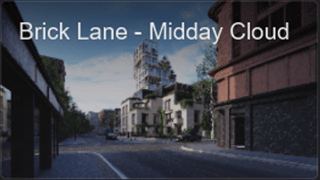
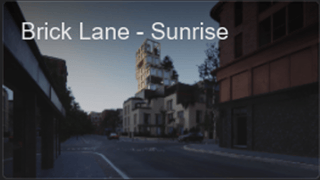
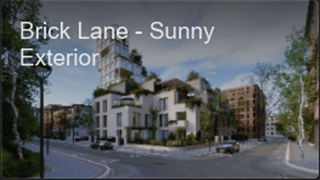
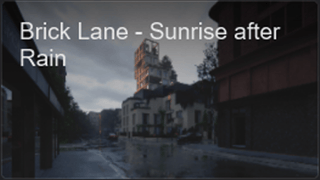
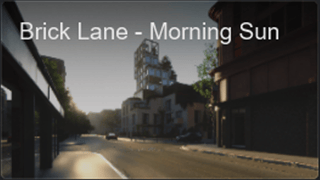
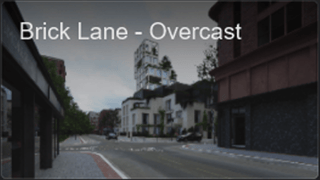
Lumion has long supported saving and loading Effect settings as .LME files, providing a simple way to reuse visual settings between Projects.
- Knowledge Base: How do you save and load Effects in Photo and Movie Mode?
Lumion 2026.1 takes this workflow a step further with the introduction of Custom Styles (LMS file). Your saved visual settings can now be stored in a dedicated Style library, making them easier to access, organize, and apply while editing Photos and Movies.
1. How it works
1.1 Saving a Custom Style:
To create a Custom Style, first adjust the visual settings of your Photo or Movie until you're happy with the result.
In the Effect list, click the vertical three-dot menu (⋮), 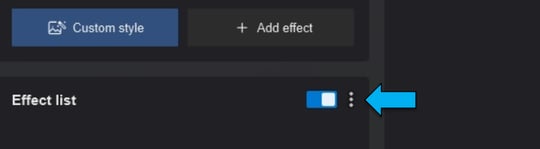
Select Save as custom style,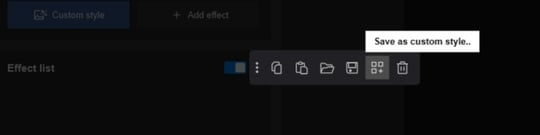
Enter a name for your Style, and click the check mark (✓) to save it. 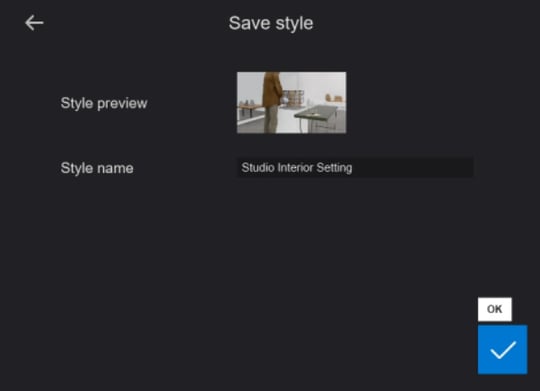
1.2 Applying a Custom Style
Once added, it will appear in the 🗁Custom tab in the Select Style window. 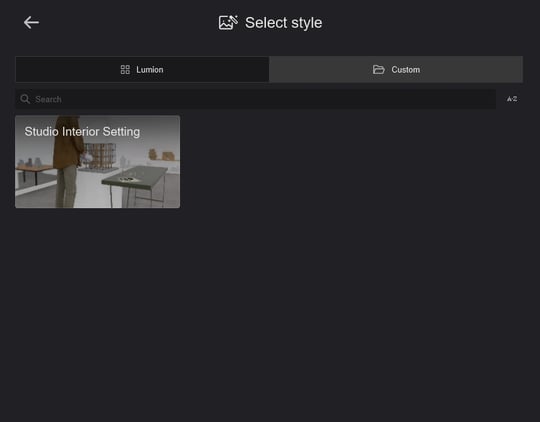
1.3 Deleting a Custom Style
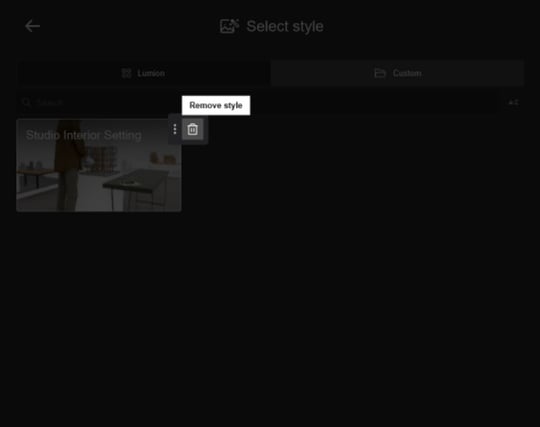
If you no longer need a Custom Style, click the vertical three-dot menu (⋮) next to it and select Remove style
Note: Deleting a Custom Style only removes it from your Style library. It does not affect any Photos or Movies where the Style has already been applied.
Important notes:
- Each Custom Style must have a unique name.
- Custom Styles cannot be overwritten. To update a Style, save it as a new Style with a different name.
- A Custom Style only saves the Effects Stacks (LME). It does not include imported models, materials, or Objects etc.
- Custom Styles are only available in Photo and Movie mode.
2. Example Use Case
2.1 Brand Consistency
A visualization studio creates a collection of Custom Styles that match its preferred rendering style and branding. Every project uses the same lighting, atmosphere, and color grading, giving clients a consistent visual experience across all presentations.
2.2 Client-Specific Presentation Standards
A studio regularly works with the same clients, each with their own preferred presentation style. Instead of recreating those settings every time, they save dedicated Custom Styles for each client, making it easy to deliver renders that match previous presentations.
2.2 Team Workflow Standardization:
A visualization studio may create a collection of Custom Styles for different presentation types, such as daylight exteriors, interior renders, evening scenes, or marketing visuals.
By sharing these Styles across the team, every artist can quickly apply the same visual settings, helping maintain a consistent look and reducing the time spent recreating lighting and atmosphere for each project.
Note: To quickly distribute Custom Styles across multiple workstations or projects, simply copy the Styles folder from the Documents\Lumion 2026 folder on the source PC and paste it into the same location on the destination PC.
-
Knowledge Base: How do you migrate Projects and Files to Lumion 2025 and newer?
3. Other notes:
-
Effect Stack (.LME files) created in older Lumion versions can be saved as Custom Styles. Any deprecated or unsupported effects will be automatically omitted from the Effect Stack.
-
The thumbnail for a Custom Style is generated from the Photo or Movie frame used when the Style is saved. If the Photo or Movie does not use a 16:9 aspect ratio; the thumbnail will be stretched to fit the preview.
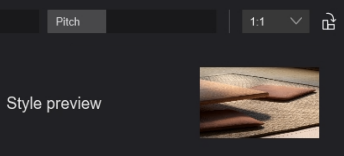
For the best thumbnail appearance, set the Photo or Movie aspect ratio to 16:9 before saving the Custom Style.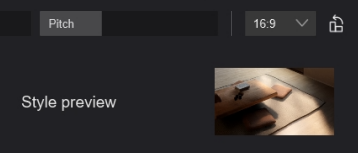
See Also:
-
Knowledge Base: 2026.1 Release Notes
-
Knowledge Base: How do Custom Templates work in Lumion?