


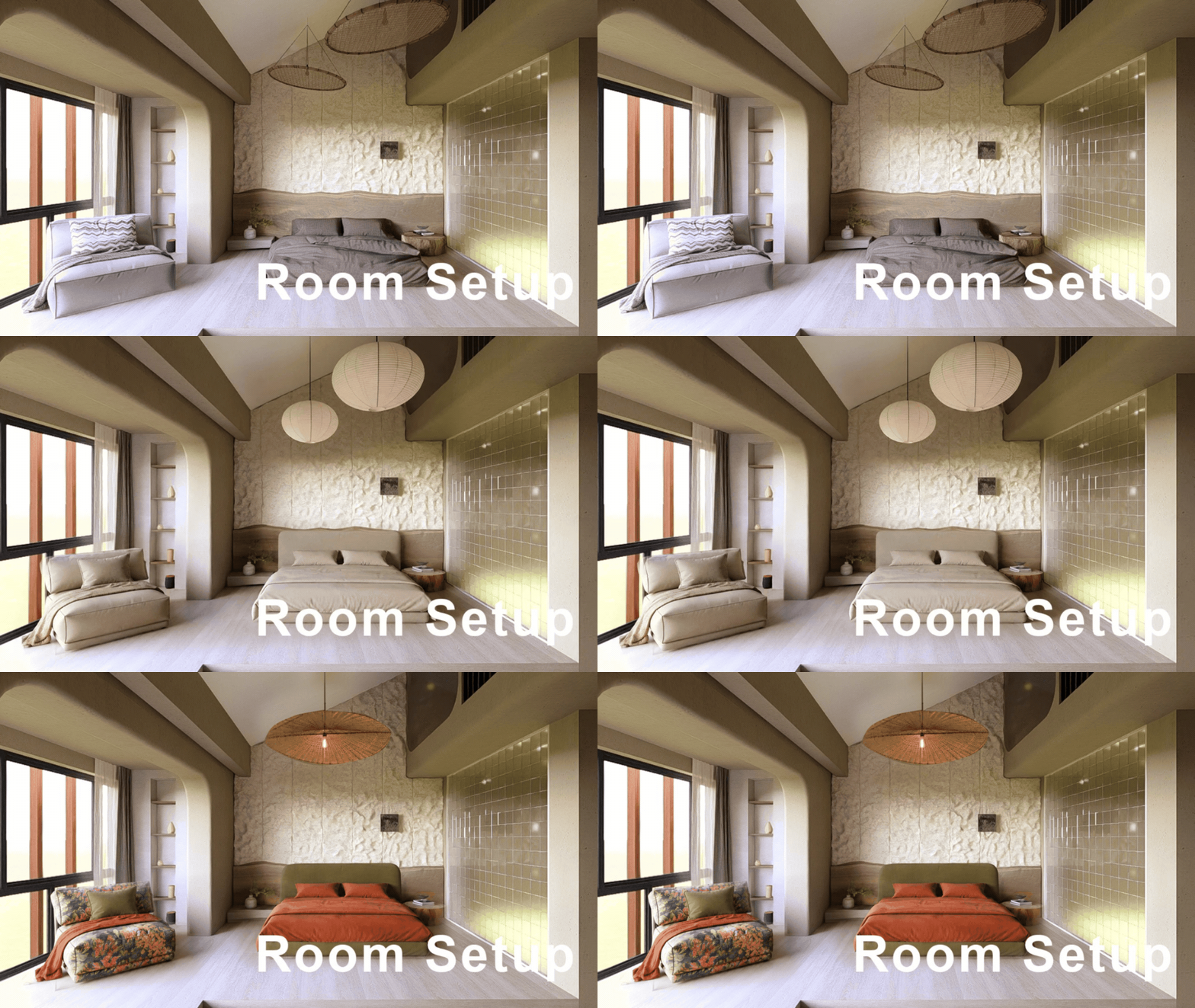
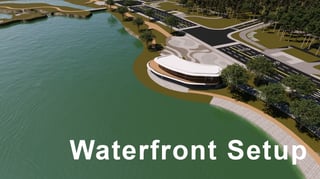


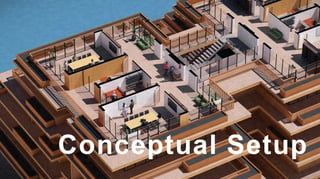
Custom Templates allow you to save your own Project setups and access them directly from the 🗁 Custom tab in the Create new project screen.
This makes it easier to reuse commonly used environments, assets, and scene configurations across multiple Projects.
1. How it works
1.1 Saving a Custom Template
To create a Custom Template from an existing project, simply add the project's LSF file via the "Add a custom template from disk" option. 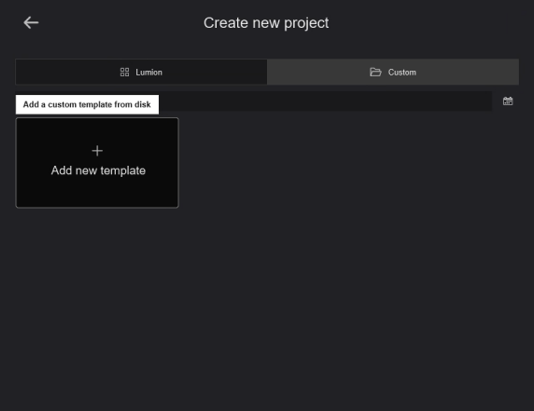
1.2 Loading a Custom Template
Once added, it will appear in the 🗁Custom tab in the Create new project window. 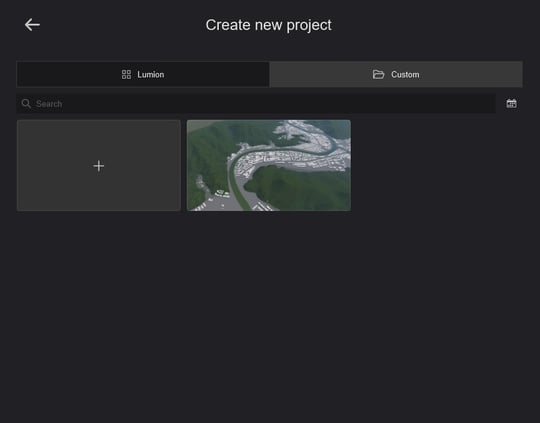
1.3 Deleting a Custom Template
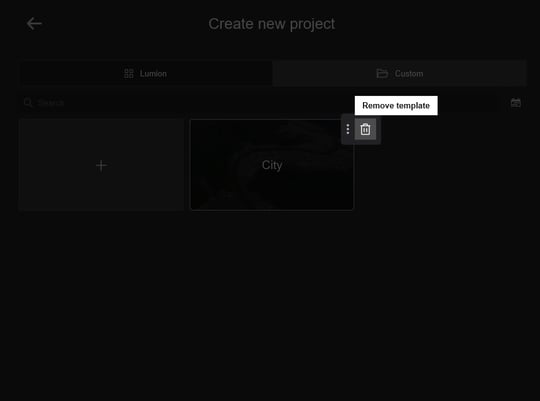
Select the vertical three-dot menu (⋮) on the Custom Template you want to remove, then click Delete.
Note: Deleting a Custom Template only removes the template itself and does not affect original LSF projects created from it.
Important Notes:
- A Custom Template is saved as a separate project snapshot. Any changes made to the original project after saving the template will not automatically be reflected in the template.
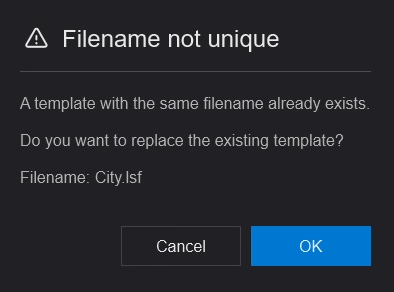
- To update a Custom Template, add the updated LSF file again using the same filename. Lumion will detect that a template with the same filename already exists and display a pop-up asking whether you want to replace the existing template.
2. Example Use Cases
2.1 Residential Project Workflow:
Imagine working on multiple residential projects where every scene starts with similar surroundings, such as terrain, landscaping, environmental settings, and camera perspectives.
Instead of manually rebuilding these elements for every new project, you can save them as a Custom Template. When starting a new project, simply load the template, import the new model, and continue working with your preferred scene setup already in place.
2.2 Landscape Design Workflow:
A landscape designer regularly creates visualizations for residential backyard projects. Since most projects require a similar starting setup, such as terrain shaping, grass, trees, outdoor lighting, and camera angles, they create a Custom Template containing these preconfigured elements.
When a new client project begins, they simply load the template, import the new design, and continue working instead of rebuilding the entire scene from scratch.
2.3 Team Workflow Standardization:
A visualization studio working across multiple projects may create standardized Custom Templates for different project types, such as residential, commercial, or landscape scenes.
By sharing these templates across the team, artists can maintain consistent scene setups and rendering quality while reducing project preparation time.
To quickly distribute Custom Templates across multiple workstations or projects, simply copy the Templates folder from the Documents\Lumion 2026 folder on the source PC and paste it into the same location on the destination PC.
-
Knowledge Base: How do you migrate Projects and Files to Lumion 2025 and newer?
3. Notes on Compatibility
-
If a Custom Template (LSF file) contains missing Imported Models or assets that are no longer available, those specific elements may not load correctly.
- Templates created in older Lumion versions may also behave differently if assets or features have changed.
- Knowledge Base: Transitions from prior versions to using Lumion 2025/2026
-
Large templates containing many Imported Models or assets may take longer to load.
-
For faster performance, keep templates optimized and avoid unnecessary heavy assets.
- Knowledge Base: How can you improve performance within Lumion?
- Knowledge Base: How can you improve performance within Lumion?
4. Missing Objects
If a template references missing imported files or unavailable Objects, those elements may not load correctly.
Ensure all required project files remain accessible.
- Knowledge Base: Why are there red question marks in a Project?
- Knowledge Base: Why does Lumion need access to your computer's Documents folder?
See Also:
-
Knowledge Base: 2026.1 Release Notes
-
Knowledge Base: How do Custom Styles work in Lumion?