---
title: Ray Trace rendering in Lumion Pro - guides for great renders
description: Ray Trace rendering in Lumion Pro - guides for great renders
---
Solutions
[Architectural design All you need to bring your residential, commercial or institutional designs to life](https://lumion.com/product/architectural-design) [Landscape architecture Beautiful terrains and fine-detailed nature for any climate or season](https://lumion.com/product/landscape-architecture)
[Interior design Realistic light, high-quality textures, and an extensive asset library](https://lumion.com/product/interior-design) [Students and Faculties Lumion is free for students, educators, and faculties around the world](https://lumion.com/product/educational-licenses)
[SketchUp](https://lumion.com/compatibility/sketchup-rendering) [Revit](https://lumion.com/compatibility/revit-rendering) [ArchiCAD](https://lumion.com/compatibility/archicad-rendering) [Rhino](https://lumion.com/compatibility/rhino-rendering) [Autocad](https://lumion.com/compatibility/autocad-rendering) [See more](https://lumion.com/compatibility/)
Product
[Discover Axogram New Live architectural diagramming](https://lumion.com/product/axogram) [Lumion Cloud Where design meets collaboration](https://lumion.com/product/lumion-cloud)
[Lumion Pro Advanced visualization solution](https://lumion.com/product/lumion-pro) [Discover AI tools New AI built for architectural work](https://lumion.com/product/ai)
[Lumion Pro 2026.1 is out now! 🚀](https://lumion.com/product/latest-version-pro) [Compatibility](https://lumion.com/compatibility/) [System Requirements](https://lumion.com/product/system-requirements) [Roadmap](https://lumion.com/product/roadmap)
[Pricing](https://lumion.com/product/buy) Resources
[Made with Lumion Get inspired by the stories behind the designs](https://lumion.com/made-with-lumion)
[Tips & Guides Make the most out of Lumion with helpful guides and tutorials](https://lumion.com/tips-guides)
[Knowledge base](https://support.lumion.com/knowledge-base?hsLang=en-us) [Community](https://community.lumion.com/index.php) [Downloads](https://support.lumion.com/downloads?hsLang=en-us)
About
[Who we are Learn about our story and mission](https://lumion.com/about) [Careers - We're hiring Let's build the future of architectural visualization](https://lumion.com/about/careers)
[News Discover the latest product news and more](https://lumion.com/news)
[Find your local reseller](https://lumion.com/about/find-reseller) [Contact us](https://lumion.com/about/contact)
[](http://lumion.com)
[My Account](https://account.lumion.com)
Solutions
[Architectural design](https://lumion.com/product/architectural-design) [Interior design](https://lumion.com/product/interior-design) [Landscape architecture](https://lumion.com/product/landscape-architecture) [Students and Faculties](https://lumion.com/product/educational-licenses)
---
[SketchUp](https://lumion.com/compatibility/sketchup-rendering) [Revit](https://lumion.com/compatibility/revit-rendering) [ArchiCAD](https://lumion.com/compatibility/archicad-rendering) [Rhino](https://lumion.com/compatibility/rhino-rendering) [Autocad](https://lumion.com/compatibility/autocad-rendering) [See more](https://lumion.com/compatibility/)
Product
[Axogram New](https://lumion.com/product/axogram) [Lumion Cloud](https://lumion.com/product/lumion-cloud) [Lumion Pro](https://lumion.com/product/lumion-pro) [Discover AI tools New](https://lumion.com/product/ai)
---
[Lumion Pro 2026.1 is out now! 🚀](https://lumion.com/product/latest-version-pro) [Compatibility](https://lumion.com/compatibility/) [System Requirements](https://lumion.com/product/system-requirements) [Roadmap](https://lumion.com/product/roadmap)
[Pricing](https://lumion.com/product/buy) Resources
[Made with Lumion](https://lumion.com/made-with-lumion) [Tips & Guides](https://lumion.com/tips-guides)
---
[Knowledge base](https://support.lumion.com/knowledge-base?hsLang=en-us) [Community](https://community.lumion.com/index.php) [Downloads](https://support.lumion.com/downloads?hsLang=en-us)
About
[Who we are](https://lumion.com/about) [Careers - We're hiring](https://lumion.com/about/careers) [News](https://lumion.com/news)
---
[Find your local reseller](https://lumion.com/about/find-reseller) [Contact us](https://lumion.com/about/contact)
[My Account](https://account.lumion.com)
[Submit a request](https://support.lumion.com/hc/en-us/requests/new?hsLang=en-us)
Lumion Knowledge Base
How can we help?
- There are no suggestions because the search field is empty.
[Skip to content](https://support.lumion.com/knowledge-base/ray-trace-rendering-in-lumion-pro-guides-for-great-renders#main-content)
English - United States
Show submenu for translations

Open main navigation
Close main navigation
- English - United States
Show submenu for translations
- Contact us
Contact us
How can we help you?
- There are no suggestions because the search field is empty.
1. [Knowledge Base](https://support.lumion.com/knowledge-base?hsLang=en-us)
2. [Rendering Questions](https://support.lumion.com/knowledge-base/rendering-questions?hsLang=en-us)
3. [General Rendering Questions](https://support.lumion.com/knowledge-base/rendering-questions?hsLang=en-us#general-rendering-questions)
# Ray Trace rendering in Lumion Pro - guides for great renders
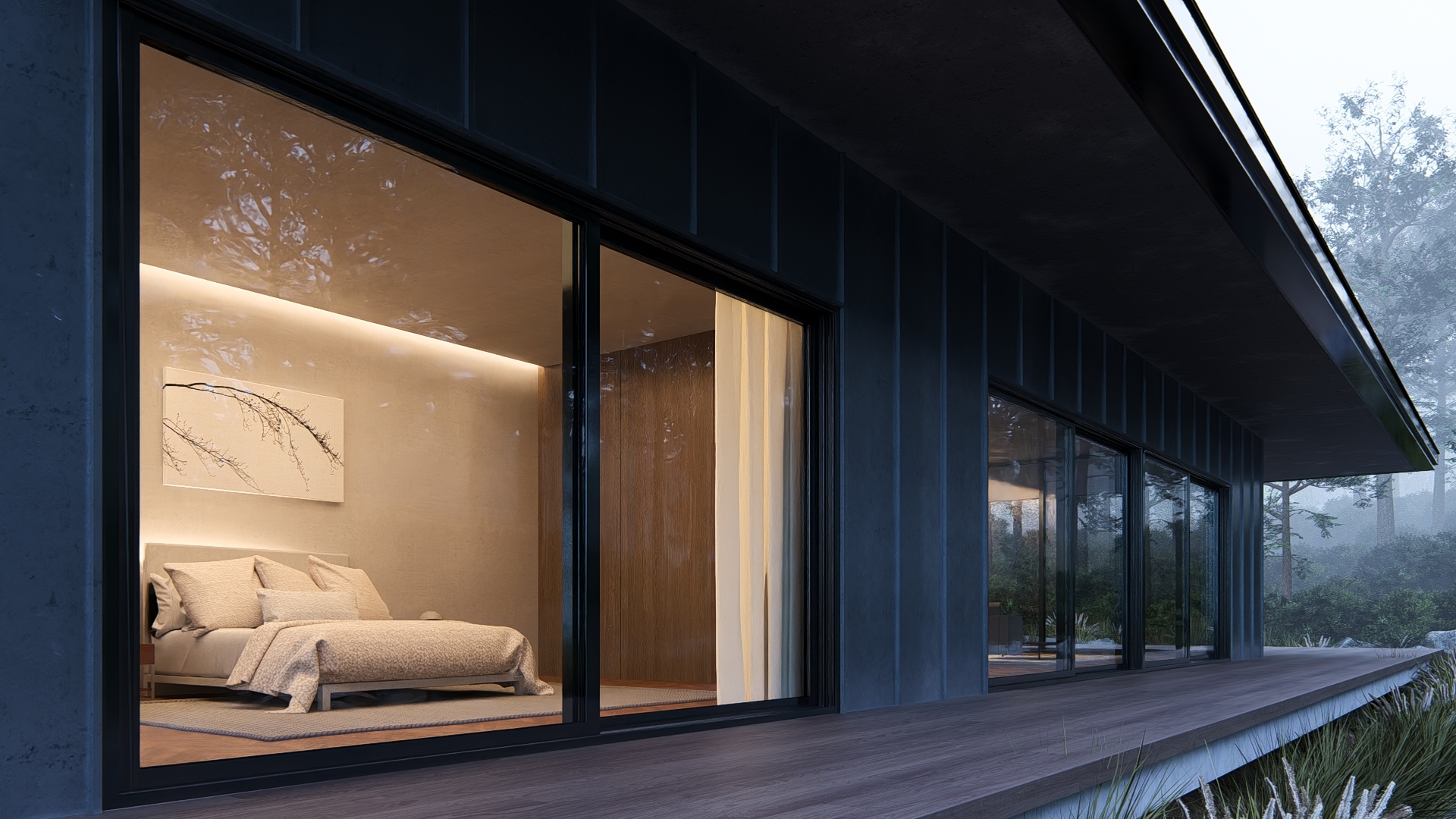
## Create appealing visualizations using Ray Tracing with the help of these guides on setting up your Scenes.
[](https://support.lumion.com/hubfs/Knowledge%20Base%20Import/RT%20Overview%20Guides/Example%20Projects%20_Lakehouse%20_asIs-PS1%20_Desktop_RT%20Close-up%20-%20Bedroom.jpg?hsLang=en-us)
[1. How do you set the artificial lighting to show during the daytime in Build Mode](https://support.lumion.com/knowledge-base/ray-trace-rendering-in-lumion-pro-guides-for-great-renders#H_Howdoyousettheartificiallightingto).
[2. How do you improve the rendering of artificial lighting for day time renders?](https://support.lumion.com/knowledge-base/ray-trace-rendering-in-lumion-pro-guides-for-great-renders#H_Howdoyouimprovetherenderingof)
[3. On Emissive Material for Lighting](https://support.lumion.com/knowledge-base/ray-trace-rendering-in-lumion-pro-guides-for-great-renders#H_OnEmissiveMaterialforLighting).
[4. How do you get softer shadows for Ray Traced or Rasterization renders?](https://support.lumion.com/knowledge-base/ray-trace-rendering-in-lumion-pro-guides-for-great-renders#H_HowdoyougetsoftershadowsforRayTraced)
### 1. How do you set the artificial lighting to show during the daytime in Build Mode:
Need answers for these lighting issues when building your Scene in Build Mode?
- Why are my lights not visible in the day?
- How do you make artificial lighting visible during the daytime?
- You find that in Build Mode and also Photo/Movie Mode, that the artificial lighting you have placed in your Scene is not visible in the daytime.
- How do you improve the visibility of artificial lighting during the day?
The lighting system underwent significant changes to enhance realism in version 2023. With the new engine, artificial lighting competes with the *Brightness* of the *Sky* and *Sun*, just like in real life. This means that artificial lighting may appear less prominent during very bright daylight scenes compared to previous versions.
Here's some suggestions to help make it easier to see your artificial lighting in Build Mode:
- Change the Sun Height
- Change to a Real Skies with low light levels or a Night sky
- Use Simple Workflows by using Master Effects
- And combine that with Using Build With Effects
For a more in-depth look, including suggestions for making it easier to see your artificial lighting in Build Mode see this article:
- **Knowledge Base:** [How do you set the artificial lighting to show during the daytime in Build Mode](https://support.lumion.com/knowledge-base/how-do-you-set-the-artificial-lighting-to-show-during-the-daytime-in-build-mode?hsLang=en-us)
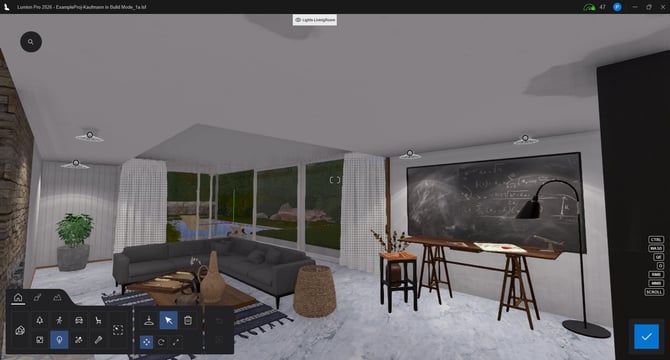
### 2. How do you improve the rendering of artificial lighting for day time renders?:
Need answers for these lighting issues when rendering - for Previews and final outputs?
- Why are my lights not visible in the day?
- How do you make artificial lighting visible during the daytime?
- You find that in Build Mode and also Photo/Movie Mode, that the artificial lighting you have placed in your Scene is not visible in the daytime.
- How do you improve the visibility of artificial lighting during the day?
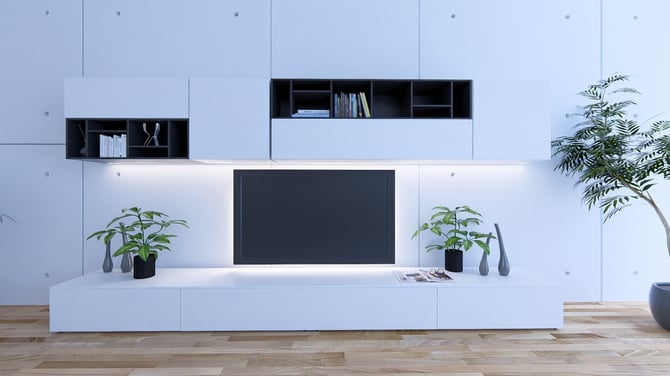
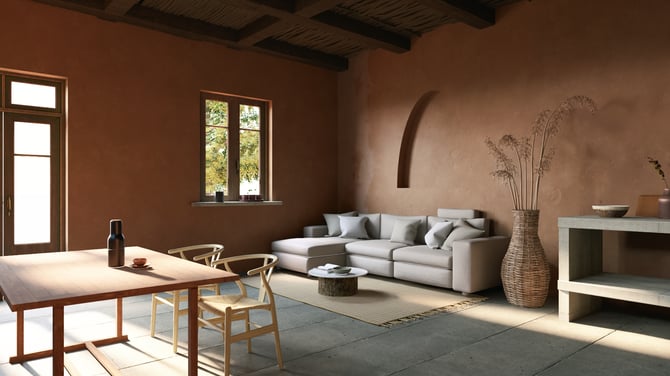
Reducing the direct light levels allows for artificial lights to be seen better. you may also need to increase the artificial lights Brightness. Adjust the Color Correction Effect early on to make it easier to finalize light levels.
In Lumion 2023+ the lighting system is more realistic: midday Sun and Sky are *much* brighter than any artificial light or emissive material. If you leave Sun/Sky at full strength, interior lights, facade uplights and emissive strips will look very weak or invisible, even at high lumen/nit values.
To make your lights visible in daytime Scenes:
1. **Lower Sun / Sky / Real Skies Brightness** until your artificial lights and emissive materials start to read clearly. The less sun/sky light there is, the brighter artificial lighting will appear.
2. In **Photo/Movie Mode**, choose an appropriate **Style** (Day, Interior, Overcast) and a Real Sky that isn’t the brightest clear‑midday option, then adjust its Brightness and Sun intensity.
For a more in-depth look, including steps you can take to set good lighting values for your Scene, see this article:
- **Knowledge Base:** [How do you improve the rendering of artificial lighting for day time renders?](https://support.lumion.com/knowledge-base/how-do-you-improve-the-rendering-of-artificial-lighting-for-day-time-renders?hsLang=en-us)
[](https://support.lumion.com/hubfs/Knowledge%20Base%20Import/Artificial%20Lights%20Not%20Seen%20in%20Daytime/InOutputModes/Lounge_RT-S96B6-Cloudy7%20-brighterSky+Intensity-CC-Exposure-tweaks-adjLumens-BkLite.jpg?hsLang=en-us)
### 3. On Emissive Material for Lighting:
Emissive materials can cast light (Lumion 2023 +) as well as have a glow. But how do you get the settings right so the light is seen?
- **Knowledge Base:** [How do you Manage the Emissiveness of a Material \[for Lighting\]](https://support.lumion.com/knowledge-base/how-to-manage-the-emissiveness-of-a-material?hsLang=en-us)
### 4. How do you get softer shadows for Ray Traced or Rasterization renders?
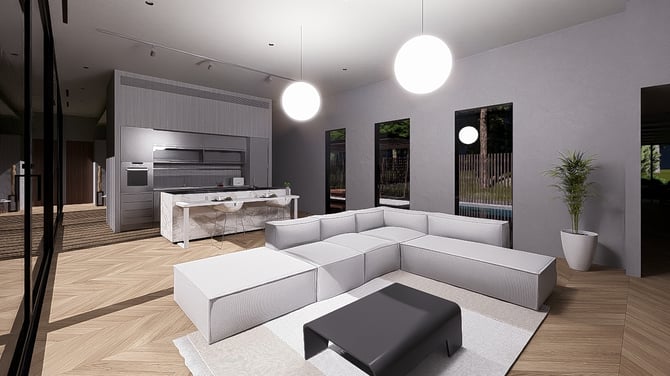
This Tip will help you to create quality variations in your renders when you need a Scene with softer shadows.
Getting softer, more realistic Ray Traced shadows in Lumion Pro involves adjusting light source sizes, utilizing appropriate sky/sun settings, and optimizing Ray Tracing effect parameters.
The size - the Lights Radius of the light source will let you control the amount of softness.
This applies to ***Omni Lights***, ***Spotlights***, ***Area Lights***, and importantly the Sun (via the ***Sun Disk Size*** slider value - ***Sun Effect***).
- A larger radius results in a softer penumbra.
- A smaller radius - less soft or sharper shadows.
For more details and a closer look at making great soft shadows, see:
- **Knowledge Base:** [How do you get softer shadows for Ray Traced or Rasterization renders?](https://support.lumion.com/knowledge-base/ray-trace-rendering-in-lumion-pro-guides-for-great-renders#rangeid=822602480)
- [Visit our other Sections](https://support.lumion.com/knowledge-base/visit-our-other-sections?hsLang=en-us)
- [Contact Us](https://support.lumion.com/knowledge-base/contact-us?hsLang=en-us)
- [Lumion Account](https://support.lumion.com/knowledge-base/lumion-account?hsLang=en-us)
- [Latest News](https://support.lumion.com/knowledge-base/latest-news?hsLang=en-us#main-content)
- [Major Known Issues](https://support.lumion.com/knowledge-base/latest-news?hsLang=en-us#major-known-issues)
- [Lumion 2025: Major Version Release Details](https://support.lumion.com/knowledge-base/latest-news?hsLang=en-us#lumion-2025-major-version-release-details)
- [Lumion 2024: Major Version Release Details](https://support.lumion.com/knowledge-base/latest-news?hsLang=en-us#lumion-2024-major-version-release-details)
- [Lumion 2023: Major Version Release Details](https://support.lumion.com/knowledge-base/latest-news?hsLang=en-us#lumion-2023-major-version-release-details)
- [Lumion 2023: Update Release Notes](https://support.lumion.com/knowledge-base/latest-news?hsLang=en-us#lumion-2023-update-release-notes)
- [Lumion 12](https://support.lumion.com/knowledge-base/latest-news?hsLang=en-us#lumion-12)
- [Lumion 11](https://support.lumion.com/knowledge-base/latest-news?hsLang=en-us#lumion-11)
- [Lumion 10](https://support.lumion.com/knowledge-base/latest-news?hsLang=en-us#lumion-10)
- [Sales Questions](https://support.lumion.com/knowledge-base/sales-questions?hsLang=en-us)
- [Subscriptions](https://support.lumion.com/knowledge-base/subscriptions?hsLang=en-us)
- [New User Questions](https://support.lumion.com/knowledge-base/new-user-questions?hsLang=en-us)
- [Learning Resources](https://support.lumion.com/knowledge-base/learning-resources?hsLang=en-us)
- [System Requirements Questions](https://support.lumion.com/knowledge-base/system-requirements-questions?hsLang=en-us#main-content)
- [Determining the 'Complexity' of your Projects](https://support.lumion.com/knowledge-base/system-requirements-questions?hsLang=en-us#determining-the-complexity-of-your-projects)
- [System Messages from Lumion](https://support.lumion.com/knowledge-base/system-requirements-questions?hsLang=en-us#system-messages-from-lumion)
- [Requirements for Prior Versions](https://support.lumion.com/knowledge-base/system-requirements-questions?hsLang=en-us#requirements-for-prior-versions)
- [Download & Installation Questions](https://support.lumion.com/knowledge-base/download-installation-questions?hsLang=en-us#main-content)
- [Download/Installation: General Questions](https://support.lumion.com/knowledge-base/download-installation-questions?hsLang=en-us#download-installation-general-questions)
- [Download Questions](https://support.lumion.com/knowledge-base/download-installation-questions?hsLang=en-us#download-questions)
- [Installation Questions](https://support.lumion.com/knowledge-base/download-installation-questions?hsLang=en-us#installation-questions)
- [Lumion Pro Updater](https://support.lumion.com/knowledge-base/download-installation-questions?hsLang=en-us#lumion-pro-updater)
- [Plugins to CAD software](https://support.lumion.com/knowledge-base/download-installation-questions?hsLang=en-us#plugins-to-cad-software)
- [License and General Product Questions](https://support.lumion.com/knowledge-base/license-and-general-product-questions?hsLang=en-us#main-content)
- [License System Messages from Lumion](https://support.lumion.com/knowledge-base/license-and-general-product-questions?hsLang=en-us#license-system-messages-from-lumion)
- [Import & Export Questions](https://support.lumion.com/knowledge-base/import-export-questions?hsLang=en-us#main-content)
- [Model Import Guidelines](https://support.lumion.com/knowledge-base/import-export-questions?hsLang=en-us#model-import-guidelines)
- [Lumion LiveSync and import plugins](https://support.lumion.com/knowledge-base/import-export-questions?hsLang=en-us#lumion-livesync-and-import-plugins)
- [System Messages from Lumion when importing](https://support.lumion.com/knowledge-base/import-export-questions?hsLang=en-us#system-messages-from-lumion-when-importing)
- [General Questions](https://support.lumion.com/knowledge-base/general-questions?hsLang=en-us#main-content)
- [Keyboard Shortcuts in Lumion](https://support.lumion.com/knowledge-base/general-questions?hsLang=en-us#keyboard-shortcuts-in-lumion)
- [Upgrading and Updating your Lumion Version](https://support.lumion.com/knowledge-base/general-questions?hsLang=en-us#upgrading-and-updating-your-lumion-version)
- [Using Lumion 2023](https://support.lumion.com/knowledge-base/general-questions?hsLang=en-us#using-lumion-2023)
- [System Messages from Lumion](https://support.lumion.com/knowledge-base/general-questions?hsLang=en-us#system-messages-from-lumion)
- [Build Mode Questions](https://support.lumion.com/knowledge-base/build-mode-questions?hsLang=en-us#main-content)
- [Landscape and Terrains](https://support.lumion.com/knowledge-base/build-mode-questions?hsLang=en-us#landscape-and-terrains)
- [OpenStreetMap](https://support.lumion.com/knowledge-base/build-mode-questions?hsLang=en-us#openstreetmap)
- [Lighting: Sun and Artificial Lights](https://support.lumion.com/knowledge-base/build-mode-questions?hsLang=en-us#lighting-sun-and-artificial-lights)
- [Questions mainly for older versions than Lumion 12](https://support.lumion.com/knowledge-base/build-mode-questions?hsLang=en-us#questions-mainly-for-older-versions-than-lumion-12)
- [Library Content](https://support.lumion.com/knowledge-base/library-content?hsLang=en-us#main-content)
- [Library Content in Lumion 2026](https://support.lumion.com/knowledge-base/library-content?hsLang=en-us#library-content-in-lumion-2026)
- [Library Content in Lumion 2025](https://support.lumion.com/knowledge-base/library-content?hsLang=en-us#library-content-in-lumion-2025)
- [Library Content in Lumion 2024](https://support.lumion.com/knowledge-base/library-content?hsLang=en-us#library-content-in-lumion-2024)
- [Library Content in Lumion 2023](https://support.lumion.com/knowledge-base/library-content?hsLang=en-us#library-content-in-lumion-2023)
- [Library Content in Lumion 12](https://support.lumion.com/knowledge-base/library-content?hsLang=en-us#library-content-in-lumion-12)
- [Movie & Photo Mode Questions](https://support.lumion.com/knowledge-base/movie-photo-mode-questions?hsLang=en-us#main-content)
- [Photo Mode](https://support.lumion.com/knowledge-base/movie-photo-mode-questions?hsLang=en-us#photo-mode)
- [Movie Mode](https://support.lumion.com/knowledge-base/movie-photo-mode-questions?hsLang=en-us#movie-mode)
- [Animation in Movie Mode](https://support.lumion.com/knowledge-base/movie-photo-mode-questions?hsLang=en-us#animation-in-movie-mode)
- [Effects in Photo or Movie Mode](https://support.lumion.com/knowledge-base/movie-photo-mode-questions?hsLang=en-us#effects-in-photo-or-movie-mode)
- [Reflections](https://support.lumion.com/knowledge-base/movie-photo-mode-questions?hsLang=en-us#reflections)
- [Material Questions](https://support.lumion.com/knowledge-base/material-questions?hsLang=en-us#main-content)
- [Materials in versions 12 and earlier](https://support.lumion.com/knowledge-base/material-questions?hsLang=en-us#materials-in-versions-12-and-earlier)
- [Using LiveSync for Revit and a Section Box](https://support.lumion.com/knowledge-base/material-questions?hsLang=en-us#using-livesync-for-revit-and-a-section-box)
- [Rendering Questions](https://support.lumion.com/knowledge-base/rendering-questions?hsLang=en-us#main-content)
- [General Rendering Questions](https://support.lumion.com/knowledge-base/rendering-questions?hsLang=en-us#general-rendering-questions)
- [Rendering of Photos](https://support.lumion.com/knowledge-base/rendering-questions?hsLang=en-us#rendering-of-photos)
- [Rendering of Clips and Movies](https://support.lumion.com/knowledge-base/rendering-questions?hsLang=en-us#rendering-of-clips-and-movies)
- [Tips to getting the best renders](https://support.lumion.com/knowledge-base/rendering-questions?hsLang=en-us#tips-to-getting-the-best-renders)
- [Rendering Performance](https://support.lumion.com/knowledge-base/rendering-questions?hsLang=en-us#rendering-performance)
- [Technical Issues when Rendering](https://support.lumion.com/knowledge-base/rendering-questions?hsLang=en-us#technical-issues-when-rendering)
- [Panorama Mode Questions](https://support.lumion.com/knowledge-base/panorama-mode-questions?hsLang=en-us#main-content)
- [Technical questions when rendering with Panorama Mode](https://support.lumion.com/knowledge-base/panorama-mode-questions?hsLang=en-us#technical-questions-when-rendering-with-panorama-mode)
- [File & BackUp Questions](https://support.lumion.com/knowledge-base/file-backup-questions?hsLang=en-us#main-content)
- [Saving and Backup](https://support.lumion.com/knowledge-base/file-backup-questions?hsLang=en-us#saving-and-backup)
- [File Saving Issues](https://support.lumion.com/knowledge-base/file-backup-questions?hsLang=en-us#file-saving-issues)
- [Lumion-Documents](https://support.lumion.com/knowledge-base/file-backup-questions?hsLang=en-us#lumion-documents)
- [Transfer, Move or Migrate Files](https://support.lumion.com/knowledge-base/file-backup-questions?hsLang=en-us#transfer-move-or-migrate-files)
- [Troubleshooting](https://support.lumion.com/knowledge-base/troubleshooting?hsLang=en-us#main-content)
- [Reports about your PC](https://support.lumion.com/knowledge-base/troubleshooting?hsLang=en-us#reports-about-your-pc)
- [Photo and Movie Mode Issues](https://support.lumion.com/knowledge-base/troubleshooting?hsLang=en-us#photo-and-movie-mode-issues)
- [Rendering Issues](https://support.lumion.com/knowledge-base/troubleshooting?hsLang=en-us#rendering-issues)
- [Error Messages from Lumion](https://support.lumion.com/knowledge-base/troubleshooting?hsLang=en-us#error-messages-from-lumion)
- [Hardware related Issues](https://support.lumion.com/knowledge-base/troubleshooting?hsLang=en-us#hardware-related-issues)
- [Other Troubleshooting Issues](https://support.lumion.com/knowledge-base/troubleshooting?hsLang=en-us#other-troubleshooting-issues)
- [Article Developments](https://support.lumion.com/knowledge-base/article-developments?hsLang=en-us#main-content)
- [Devs - Multi‑Image Button Viewer](https://support.lumion.com/knowledge-base/article-developments?hsLang=en-us#devs-multi-image-button-viewer)
[](https://lumion.com/)
[mailto:email@email.com](mailto:email@email.com)
Copyright © 2026, Lumion - Act3D B.V.
#### Product
[Plans and pricing](https://lumion.com/product/buy)
[Discover Lumion](https://lumion.com/product/discover-lumion)
[Compatibility](https://lumion.com/compatibility/)
[System Requirements](https://lumion.com/product/system-requirements)
[Find a reseller](https://lumion.com/about/find-reseller)
[Free trial](https://lumion.com/product/free-trial)
#### Solutions
[Architectural design](https://lumion.com/product/architectural-design)
[Interior design](https://lumion.com/product/interior-design)
[Landscape architecture](https://lumion.com/product/landscape-architecture)
[Urban planning](https://lumion.com/product/urban-planning)
[3D rendering](https://lumion.com/product/3d-rendering-software)
[Education](https://lumion.com/product/educational-licenses)
#### Compatibility
[Trimble SketchUp](https://lumion.com/compatibility/sketchup-rendering)
[Autodesk Revit](https://lumion.com/compatibility/revit-rendering)
[Graphisoft ArchiCAD](https://lumion.com/compatibility/archicad-rendering)
[Rhinoceros](https://lumion.com/compatibility/rhino-rendering)
[Autodesk Autocad](https://lumion.com/compatibility/autocad-rendering)
[Autodesk FormIt Pro](https://lumion.com/compatibility/lumion-for-autodesk-formit-pro)
[Nemetschek Allplan](https://lumion.com/compatibility/allplan-rendering)
[Nemetschek Vectorworks](https://lumion.com/compatibility/vectorworks-rendering)
[BricsCAD](https://lumion.com/compatibility/bricscad-rendering)
[3D Studio Max](https://lumion.com/compatibility/3ds-max-rendering)
#### Resources
[Made with Lumion](https://lumion.com/made-with-lumion)
[Tutorials](https://support.lumion.com/video-tutorials?hsLang=en-us)
[Support and learning](https://support.lumion.com/knowledge-base/api/v2/help_center/en-us/articles/360044608053.json?hsLang=en-us)
[Downloads](https://support.lumion.com/downloads?hsLang=en-us)
[Community](https://community.lumion.com/index.php)
#### About
[Our Story](https://lumion.com/about)
[We're hiring!](https://lumion.com/about/careers)
[News](https://lumion.com/news)
[Contact us](https://lumion.com/about/contact)
[Terms & conditions](https://lumion.com/legal/terms-of-service) [EULA](https://lumion.com/legal/eula) [Privacy statement](https://lumion.com/legal/privacy-statement) [CEIP](https://lumion.com/legal/ceip) [Disclaimer](https://lumion.com/legal/disclaimer) © 2026 Lumion