---
title: "Ray Tracing in Lumion - Part 2: Using Lumion for Ray Trace Rendering"
description: "Ray Tracing in Lumion - Part 2: Using Lumion for Ray Trace Rendering"
---
Solutions
[Architectural design All you need to bring your residential, commercial or institutional designs to life](https://lumion.com/product/architectural-design) [Landscape architecture Beautiful terrains and fine-detailed nature for any climate or season](https://lumion.com/product/landscape-architecture)
[Interior design Realistic light, high-quality textures, and an extensive asset library](https://lumion.com/product/interior-design) [Students and Faculties Lumion is free for students, educators, and faculties around the world](https://lumion.com/product/educational-licenses)
[SketchUp](https://lumion.com/compatibility/sketchup-rendering) [Revit](https://lumion.com/compatibility/revit-rendering) [ArchiCAD](https://lumion.com/compatibility/archicad-rendering) [Rhino](https://lumion.com/compatibility/rhino-rendering) [Autocad](https://lumion.com/compatibility/autocad-rendering) [See more](https://lumion.com/compatibility/)
Product
[Discover Axogram New Live architectural diagramming](https://lumion.com/product/axogram) [Lumion Cloud Where design meets collaboration](https://lumion.com/product/lumion-cloud)
[Lumion Pro Advanced visualization solution](https://lumion.com/product/lumion-pro) [Discover AI tools New AI built for architectural work](https://lumion.com/product/ai)
[Lumion Pro 2026.1 is out now! 🚀](https://lumion.com/product/latest-version-pro) [Compatibility](https://lumion.com/compatibility/) [System Requirements](https://lumion.com/product/system-requirements) [Roadmap](https://lumion.com/product/roadmap)
[Pricing](https://lumion.com/product/buy) Resources
[Made with Lumion Get inspired by the stories behind the designs](https://lumion.com/made-with-lumion)
[Tips & Guides Make the most out of Lumion with helpful guides and tutorials](https://lumion.com/tips-guides)
[Knowledge base](https://support.lumion.com/knowledge-base?hsLang=en-us) [Community](https://community.lumion.com/index.php) [Downloads](https://support.lumion.com/downloads?hsLang=en-us)
About
[Who we are Learn about our story and mission](https://lumion.com/about) [Careers - We're hiring Let's build the future of architectural visualization](https://lumion.com/about/careers)
[News Discover the latest product news and more](https://lumion.com/news)
[Find your local reseller](https://lumion.com/about/find-reseller) [Contact us](https://lumion.com/about/contact)
[](http://lumion.com)
[My Account](https://account.lumion.com)
Solutions
[Architectural design](https://lumion.com/product/architectural-design) [Interior design](https://lumion.com/product/interior-design) [Landscape architecture](https://lumion.com/product/landscape-architecture) [Students and Faculties](https://lumion.com/product/educational-licenses)
---
[SketchUp](https://lumion.com/compatibility/sketchup-rendering) [Revit](https://lumion.com/compatibility/revit-rendering) [ArchiCAD](https://lumion.com/compatibility/archicad-rendering) [Rhino](https://lumion.com/compatibility/rhino-rendering) [Autocad](https://lumion.com/compatibility/autocad-rendering) [See more](https://lumion.com/compatibility/)
Product
[Axogram New](https://lumion.com/product/axogram) [Lumion Cloud](https://lumion.com/product/lumion-cloud) [Lumion Pro](https://lumion.com/product/lumion-pro) [Discover AI tools New](https://lumion.com/product/ai)
---
[Lumion Pro 2026.1 is out now! 🚀](https://lumion.com/product/latest-version-pro) [Compatibility](https://lumion.com/compatibility/) [System Requirements](https://lumion.com/product/system-requirements) [Roadmap](https://lumion.com/product/roadmap)
[Pricing](https://lumion.com/product/buy) Resources
[Made with Lumion](https://lumion.com/made-with-lumion) [Tips & Guides](https://lumion.com/tips-guides)
---
[Knowledge base](https://support.lumion.com/knowledge-base?hsLang=en-us) [Community](https://community.lumion.com/index.php) [Downloads](https://support.lumion.com/downloads?hsLang=en-us)
About
[Who we are](https://lumion.com/about) [Careers - We're hiring](https://lumion.com/about/careers) [News](https://lumion.com/news)
---
[Find your local reseller](https://lumion.com/about/find-reseller) [Contact us](https://lumion.com/about/contact)
[My Account](https://account.lumion.com)
[Submit a request](https://support.lumion.com/hc/en-us/requests/new?hsLang=en-us)
Lumion Knowledge Base
How can we help?
- There are no suggestions because the search field is empty.
[Skip to content](https://support.lumion.com/knowledge-base/ray-tracing-in-lumion-part-2-using-lumion-for-ray-trace-rendering#main-content)
English - United States
Show submenu for translations

Open main navigation
Close main navigation
- English - United States
Show submenu for translations
- Contact us
Contact us
How can we help you?
- There are no suggestions because the search field is empty.
1. [Knowledge Base](https://support.lumion.com/knowledge-base?hsLang=en-us)
2. [Rendering Questions](https://support.lumion.com/knowledge-base/rendering-questions?hsLang=en-us)
3. [General Rendering Questions](https://support.lumion.com/knowledge-base/rendering-questions?hsLang=en-us#general-rendering-questions)
# Ray Tracing in Lumion - Part 2: Using Lumion for Ray Trace Rendering
## Discover the fundamentals of Ray Trace rendering and its use in Lumion Pro.
The article section follows from the **Part 1** article on Ray Tracing for Lumion:
- **Knowledge Base: ** [Ray Tracing in Lumion - Part 1 What is Ray Tracing all about](https://support.lumion.com/knowledge-base/ray-tracing-in-lumion-part-1-what-is-ray-tracing?hsLang=en-us)
See Also:
- **Knowledge Base: ** [Introduction to Ray Trace rendering in Lumion](https://support.lumion.com/knowledge-base/introduction-to-ray-trace-rendering-in-lumion?hsLang=en-us)
### Menu:
| [1. Summary](https://support.lumion.com/knowledge-base/ray-tracing-in-lumion-part-2-using-lumion-for-ray-trace-rendering#H_Summary) [2. Introduction](https://support.lumion.com/knowledge-base/ray-tracing-in-lumion-part-2-using-lumion-for-ray-trace-rendering#H_Introduction) [3. Ray Tracing in Lumion](https://support.lumion.com/knowledge-base/ray-tracing-in-lumion-part-2-using-lumion-for-ray-trace-rendering#H_RayTracinginLumion) [3.1: Ray Tracing in Lumion](https://support.lumion.com/knowledge-base/ray-tracing-in-lumion-part-2-using-lumion-for-ray-trace-rendering#H_3.1_RayTracinginLumion) [3.2: The Implementation of Ray Tracing in Lumion](https://support.lumion.com/knowledge-base/ray-tracing-in-lumion-part-2-using-lumion-for-ray-trace-rendering#H_3.2_TheImplementationofRayTracinginLumion) [4. Technologies](https://support.lumion.com/knowledge-base/ray-tracing-in-lumion-part-2-using-lumion-for-ray-trace-rendering#H_Technologies) [5. Which RT Hardware Platform? NVIDIA or AMD or Intel](https://support.lumion.com/knowledge-base/ray-tracing-in-lumion-part-2-using-lumion-for-ray-trace-rendering#H_WhichRTHardwarePlatformNVIDIAAMDIntel) | [6. How do you use Ray Tracing in Lumion?](https://support.lumion.com/knowledge-base/ray-tracing-in-lumion-part-2-using-lumion-for-ray-trace-rendering#H_HowdoyouuseRayTracinginLumion) [7. Using the Ray Trace Rendering Features and Settings](https://support.lumion.com/knowledge-base/ray-tracing-in-lumion-part-2-using-lumion-for-ray-trace-rendering#H_UsingtheRayTraceRenderingFeaturesSettings) [8. Key Steps to Making Great Ray Trace renders](https://support.lumion.com/knowledge-base/ray-tracing-in-lumion-part-2-using-lumion-for-ray-trace-rendering#H_KeyStepstoMakingGreatRayTracerenders) [9. Where to from here](https://support.lumion.com/knowledge-base/ray-tracing-in-lumion-part-2-using-lumion-for-ray-trace-rendering#H_Wheretofromhere) [10. See Also and References](https://support.lumion.com/knowledge-base/ray-tracing-in-lumion-part-2-using-lumion-for-ray-trace-rendering#H_SeeAlsoandReferences). |
| --- | --- |
### 1. Summary:
**Ray Tracing in Lumion Pro is a physically accurate rendering and lighting system that simulates how real light behaves—producing more realistic shadows, reflections, and global illumination than Lumion’s traditional rasterized engine.** It uses ***Path Tracing*** to calculate how light rays bounce through your scene, giving you truer, more natural results.
#### 1.1: What Ray Tracing Actually Does in Lumion
- Calculates **real light paths** instead of approximations.
- Produces **accurate reflections** without Reflection Planes.
- Generates **soft, natural shadows** based on light size and distance.
- Handles **glass, subsurface scattering, emissive materials** more realistically.
- Removes screen‑space limitations (lights work even when off‑camera).
This is a major shift from Lumion’s other hybrid rendering system - Rasterization, which relied on special techniques like ***Skylight, Hyperlight, and Reflection Planes***.
#### 1.2: How Ray Tracing Works Under the Hood in Lumion
Lumion uses **Path Tracing**, a form of Ray Tracing where:
1. Rays are cast from the camera.
2. They bounce around the scene.
3. Each bounce gathers light information.
4. A denoiser tries to clean up the result.
This is why higher Sample counts produce cleaner images but take longer.
To enable Ray Tracing, simply add and turn on the ***Ray Tracing Effect***.
When that *Effect* is active, Lumion switches from its traditional *Rasterized* rendering engine to the *Ray Tracing* engine for that specific image or Clip.
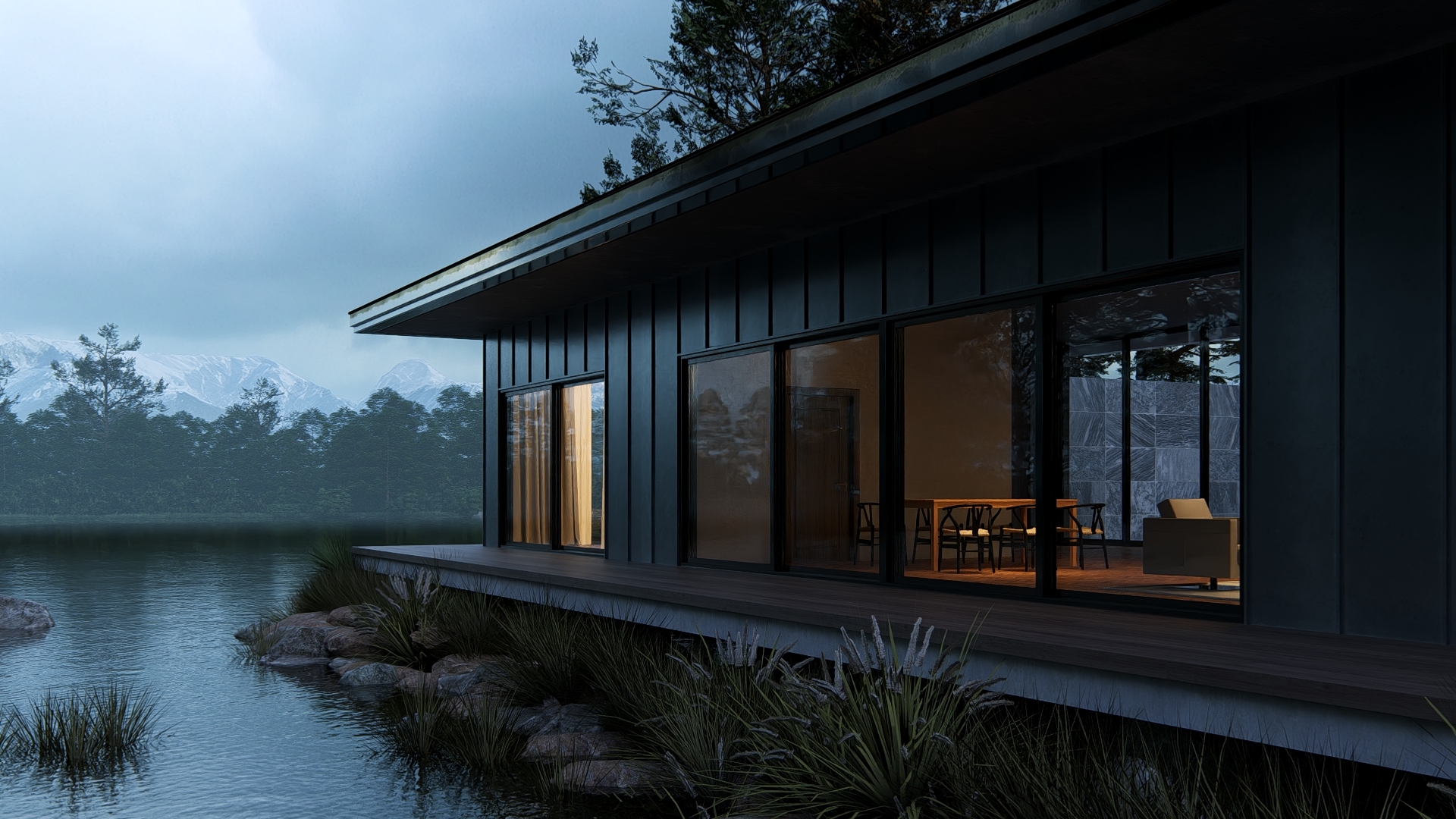
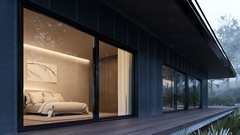
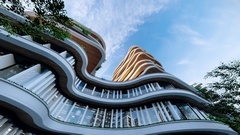
#### 1.3: A few example renders using the Lumion Example Projects
*(click on any of the thumbnails for a full screen view (new tab))*
| [](https://support.lumion.com/hubfs/Knowledge%20Base%20Import/On%20Ray%20Trace%20Rendering%20-%20top%20general%20article/Example%20Project%20Meditteranean%20Villa%20asIs%20PS1%20Desktop_RT%20Courtyard%20-%202.jpg?hsLang=en-us) | [](https://support.lumion.com/hubfs/Knowledge%20Base%20Import/On%20Ray%20Trace%20Rendering%20-%20top%20general%20article/ExProj-Mediterranean_RT-S-256B6_RT%20Interior-Shaodws-Medium%20Soft.jpg?hsLang=en-us) | [](https://support.lumion.com/hubfs/Knowledge%20Base%20Import/On%20Ray%20Trace%20Rendering%20-%20top%20general%20article/Example%20Projects%20-%20Japandi%20Photos%20_asIs%20_Desktop%201920x1080_RT%20Seating%20-%20Soft%20Lighting.jpg?hsLang=en-us) |
| --- | --- | --- |
| [](https://support.lumion.com/hubfs/Knowledge%20Base%20Import/On%20Ray%20Trace%20Rendering%20-%20top%20general%20article/Example%20Projects%20_Lakehouse%20_asIs-PS1%20_Print_RT%20Close-up%20-%20Bedroom.jpg?hsLang=en-us) | [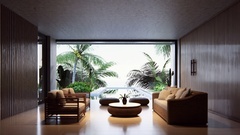](https://support.lumion.com/hubfs/Knowledge%20Base%20Import/On%20Ray%20Trace%20Rendering%20-%20top%20general%20article/Example%20Project%20-%20Tropical%20House%20_asIs%20PS1%20_Desktop1080p_RT%20Custom.jpg?hsLang=en-us) | [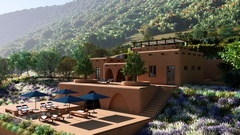](https://support.lumion.com/hubfs/Knowledge%20Base%20Import/On%20Ray%20Trace%20Rendering%20-%20top%20general%20article/Example%20Project%20Meditteranean%20Villa%20asIs%20PS1%20Desktop_RT%20Main%20shot.jpg?hsLang=en-us) |
| [](https://support.lumion.com/hubfs/Knowledge%20Base%20Import/On%20Ray%20Trace%20Rendering%20-%20top%20general%20article/Example%20Project%20-%20Curved%20High%20Rise%20_asIs%20PS1%20_Desktop1080p_RT%20Worms%20Eye.jpg?hsLang=en-us) | [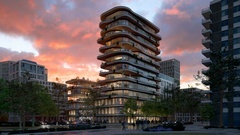](https://support.lumion.com/hubfs/Knowledge%20Base%20Import/On%20Ray%20Trace%20Rendering%20-%20top%20general%20article/Example%20Project%20-%20Curved%20High%20Rise%20_asIs%20PS1%20_Desktop1080p_RT%20Sunset.jpg?hsLang=en-us) | [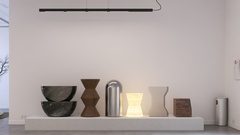](https://support.lumion.com/hubfs/Knowledge%20Base%20Import/On%20Ray%20Trace%20Rendering%20-%20top%20general%20article/Example%20Project%20-%20Model%20Gallery%20_asIs%20PS1%20_Desktop1080p_RT%20Material%20exhibit.jpg?hsLang=en-us) |
#### 1.4: Get Inspired
- **Lumion website:** [Made with Lumion: Get inspired by architectural projects visualized in Lumion, case studies, interviews, and more](https://lumion.com/made-with-lumion)
[Return to top of article](https://support.lumion.com/knowledge-base/ray-tracing-in-lumion-part-2-using-lumion-for-ray-trace-rendering#H_TOP)
### 2. Introduction:
The [Part 1 article](https://support.lumion.com/knowledge-base/ray-tracing-in-lumion---part-1-what-is-ray-tracing-all-about?hsLang=en-us) on Ray Tracing provides an overview of the Ray Trace technology and what is involved so you have the background and understanding of how to best make use of the rendering pipeline option in Lumion.
We covered among other things:
- What is Ray Trace Rendering?
- What is Rasterization Rendering?
- Ray Trace Rendering vs Rasterization Rendering? and Best of both worlds.
- Key aims: Photographic life like vs the Performance trade-off.
- Ray Tracing vs Path Tracing, what are the differences?
- **Knowledge Base:** [Ray Tracing in Lumion -](https://support.lumion.com/knowledge-base/ray-tracing-in-lumion---part-1-what-is-ray-tracing-all-about?hsLang=en-us)[Part 1](https://support.lumion.com/knowledge-base/ray-tracing-in-lumion---part-1-what-is-ray-tracing-all-about?hsLang=en-us)[What is Ray Tracing all about](https://support.lumion.com/knowledge-base/ray-tracing-in-lumion---part-1-what-is-ray-tracing-all-about?hsLang=en-us)
In **this article** we provide an overview of the Ray Trace technologies now being used in Lumion and how to make use of them.
Lumion makes it easy for you to render using Ray Tracing.
There are no highly complex groups of settings and steps to get a Ray Trace rendered image.
You can learn how to use the technology by simply enabling the ***Ray Tracing Effect*** as in this article:
- **Knowledge Base: **[How do you use the Ray Tracing Effect?](https://support.lumion.com/knowledge-base/api/v2/help_center/en-us/articles/7442305609628.json?hsLang=en-us)
And watch this tutorial to see Ray Tracing in action:
- **Video Tutorial:** [Lumion 2023: The Ray Tracing Effect](https://support.lumion.com/video-tutorials/api/v2/help_center/en-us/articles/8043238179228.json?hsLang=en-us)
### 3. Ray Tracing in Lumion
#### 3.1: Ray Tracing in Lumion
##### 3.1.1: Version History
Lumion 2023 introduced Ray Trace rendering as an optional and additional rendering method to the highly capable Rasterization renderer.
Lumion 2024 enhanced important features making it much more useable for video animation as well as enhancing the quality of output for still images.
Lumion 2025 added further capability focused on full Ray Traced Water Material, and Volumetrics. Including Radiance Cache technology for faster real-time on screen rendering when Ray Tracing is enabled.
Lumion 2026 focused on other features such as workflow improvements. But provides improved ways to upscale your Ray trace rendering..
You get a simple process via the ***Ray Tracing Effect*** to render photo-realistic Ray Traced images and animations by simply setting the number of ray cast samples and the number of light bounces.
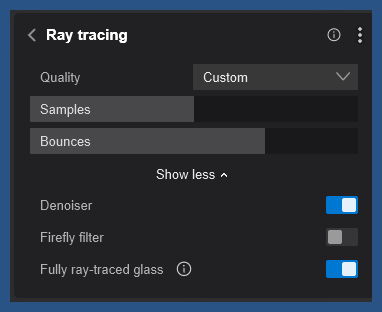
Under the hood, the rendering pipeline uses Ray Tracing as the fundamental method to determine the color of each pixel that makes up an image as viewed from the camera.
The Lumion Ray Tracing implementation is the name for the umbrella technology that uses modern technologies of:
##### 3.1.2: Ray Tracing:
The rendering technique that traces rays to calculate lighting, shadows, reflections and global illumination (light bounce). Many modern 3D graphics rendering or gaming PCs might employ one or more of these techniques in hardware implementations.
##### 3.1.3: Path Tracing:
Is a specific implementation of Ray Tracing that uses modern statistical analysis to follow rays as they bounce through the scene, calculating multiple interactions with surfaces via the PBR Materials system, and providing a much higher performance than traditional Ray Tracing.
##### 3.1.4: MIS: Multiple Importance Sampling
See Section: Technologies: [NRD and MIS for Denoised, Improved Quality and Faster Video Rendering](https://support.lumion.com/knowledge-base/ray-tracing-in-lumion-part-2-using-lumion-for-ray-trace-rendering#H_NRDandMISforDenoisedImprovedQuality)
##### 3.1.5: NRD: NVIDIA Real-Time Denoiser
See Section: Technologies: [NRD and MIS for Denoised, Improved Quality and Faster Video Rendering](https://support.lumion.com/knowledge-base/ray-tracing-in-lumion-part-2-using-lumion-for-ray-trace-rendering#H_NRDandMISforDenoisedImprovedQuality)
##### 3.1.6: The Lumion OIDN Denoiser
For highest quality denoising of still images or (some) animations. See Section: Technologies: [OIDN](https://support.lumion.com/knowledge-base/ray-tracing-in-lumion-part-2-using-lumion-for-ray-trace-rendering#H_OIDN)
##### 3.1.7: Real-time upscaling of the screen
AMDs FSR 2 (real-time GPU upsampling technology, similar to NVIDIA DLSS (Deep Learning Super Sampling)), to give a high level of performance to meet real-time editing and rendering systems. See Section: Technologies: [Denoised Ray-traced Preview](https://support.lumion.com/knowledge-base/ray-tracing-in-lumion-part-2-using-lumion-for-ray-trace-rendering#H_DenoisedRay-tracedPreview) and [Radiance Cache](https://support.lumion.com/knowledge-base/ray-tracing-in-lumion-part-2-using-lumion-for-ray-trace-rendering#H_RadianceCache).
#### 3.2: The Problem with Ray Tracing/Path Tracing
**Inherently**, Ray tracing/Path Tracing creates **noise** from the render process and requires technologies as mentioned above (for example NRD) to attempt to reduce or minimize the noise.
This is considerably easier to do and achieve in single static images/frames as compared to multi-frame movie animations. Additionally, the computations required are massive and require modern GPU hardware of which only recent products (2023+) start to meet some of the performance parameters often expected for architectural visualization, that is more fluid and open and not optimized (as compared to 3D real-time games).
Refer back to our Part 1 article:
- **Knowledge Base: **[Ray Tracing in Lumion -](https://support.lumion.com/knowledge-base/ray-tracing-in-lumion---part-1-what-is-ray-tracing-all-about?hsLang=en-us)[Part 1](https://support.lumion.com/knowledge-base/ray-tracing-in-lumion---part-1-what-is-ray-tracing-all-about?hsLang=en-us)[What is Ray Tracing all about](https://support.lumion.com/knowledge-base/ray-tracing-in-lumion---part-1-what-is-ray-tracing-all-about?hsLang=en-us)
#### 3.3: The Implementation of Ray Tracing in Lumion
(as of 26.0.0)
- Lumion implements a "full" Path Tracer.
- Not all content (model types ( decals, F/X , animated characters) are converted for data to the the Ray Trace rendering engine pipeline. See the [Roadmap](https://lumion.com/product/roadmap) and **Knowledge Base: **[Transitions from prior versions to using Lumion 2025/2026](https://support.lumion.com/knowledge-base/api/v2/help_center/en-us/articles/19338843803292.json?hsLang=en-us)
- When doing full path tracing it does do all lighting (Shadows, GI - global illumination, AO - ambient occlusion, reflections, refraction).
- The number of bounces are applied to GI rays and specular rays. Ray bounces are usually terminated after a certain number of bounces as being an optimal number of rays for best performance.
- **Performance:** Ray-traced videos in Lumion 2024+ can be up to **5× faster** for similar quality than previous versions thanks to better sampling and denoising.
- **Hardware:** You need a non-proprietary **ray-tracing capable GPU** (e.g., NVIDIA RTX) and a system that meets Lumion 2024/2025 requirements. See Section 5. [Which RT Hardware Platform? NVIDIA or AMD or Intel](https://support.lumion.com/knowledge-base/ray-tracing-in-lumion-part-2-using-lumion-for-ray-trace-rendering#H_WhichRTHardwarePlatformNVIDIAAMDIntel).
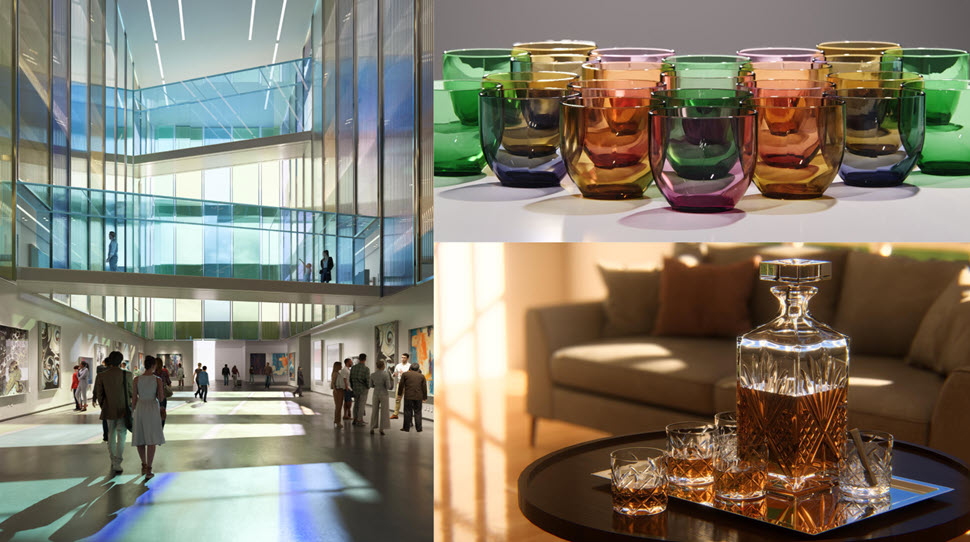
- **Effects Disabled that are Specific to Rasterization:** Because Ray Tracing takes over lighting and reflections, older lighting/reflection effects are auto‑disabled (*Reflection, Shadows, Sky Light, HyperLight, Global Illumination* (deprecated)) when you enable the ***Ray Tracing Effect***.
- Certain other Effects disabled: post-processing effects that are available for the *Rasterization rendering pipeline*, have been auto-disabled as they are no longer applicable. You won’t see much of a benefit to having a Ray Traced image for photo-realistic final output when these *Effects* are done post-process in Lumion.
- *Outlines Effect* (Concept), *Sketch Effect* (Concept), *Pastel Sketch Effect* (Concept), *Blueprint Effect* (Architectural), *Painting Effect* (Artistic), *Watercolor Effect* (Artistic), *Manga Effect* (Artistic), *Cartoon Effect* (Artistic), *Oil Painting Effect* (Artistic).
[](https://support.lumion.com/hubfs/Knowledge%20Base%20Import/About%20Ray%20Tracing/13159160776860_1753904929269-1.jpg?hsLang=en-us)*(click for full image)*
*[Return to top of article](https://support.lumion.com/knowledge-base/ray-tracing-in-lumion-part-2-using-lumion-for-ray-trace-rendering#H_TOP)*
### 4: Technologies
#### 4.1: NRD and MIS for Denoised, Improved Quality and Faster Video Rendering
Two new technologies are used to significantly improve *Ray Traced* renderings in Lumion Pro.
**NRD** not only cleans the preview, it also accelerates *Ray Traced* animation rendering because fewer *Samples* are required to get high-quality images.
It is also a **Temporal Denoiser**, meaning that it remembers data between consecutive frames to predict and better manage noise while preserving details. This greatly improves the quality and noise reduction between rendered frames. Resulting in smoother, more stable video outputs.
For *Movie Mode*.This *Denoiser* is optimized for efficiency and speed, leveraging techniques such as hardware acceleration and neural network inference to deliver fast denoising performance while keeping a good framerate, so it might not be as sharp as OIDN but is well suited for real-time rendering and rendering videos quickly.
**MIS:** **Multiple importance sampling** employs multiple sampling techniques and improves light distribution to produce a higher accuracy result. This technology is embedded in the rendering process. For simplicity, there are no settings, it just works to do its thing. The positive impact is clearly in the rendering outcome and its impact on the number of *Samples* when using *Ray Tracing*.
The following *Ray Traced Clip* was rendered with 1 *Sample* in under **2 minutes** (Full HD, 30 FPS) using an RTX 3090 graphics card:
**4.2: OIDN**
This is the *Denoiser* used in *Photo Mode* And also for *Movie Mode*. It employs sophisticated denoising algorithms that achieve high-quality results but may require more computational resources and time to process. When time is not a concern, consider trying OIDN as it might produce better-quality reflections.
#### 4.3: Denoised Ray-traced Preview
Maximum attempts at denoising. No more noisy previews when using the *Ray Tracing*. compared to earlier versions
Lumion 2024 introduces **NRD **(NVIDIA Real-Time Denoiser), a cutting-edge real-time denoising solution that harnesses the power of deep learning algorithms to swiftly remove noise from the *Preview *in *Photo *and *Movie Modes *while maintaining a responsive framerate.
This ensures a smoother and more visually appealing editing experience:
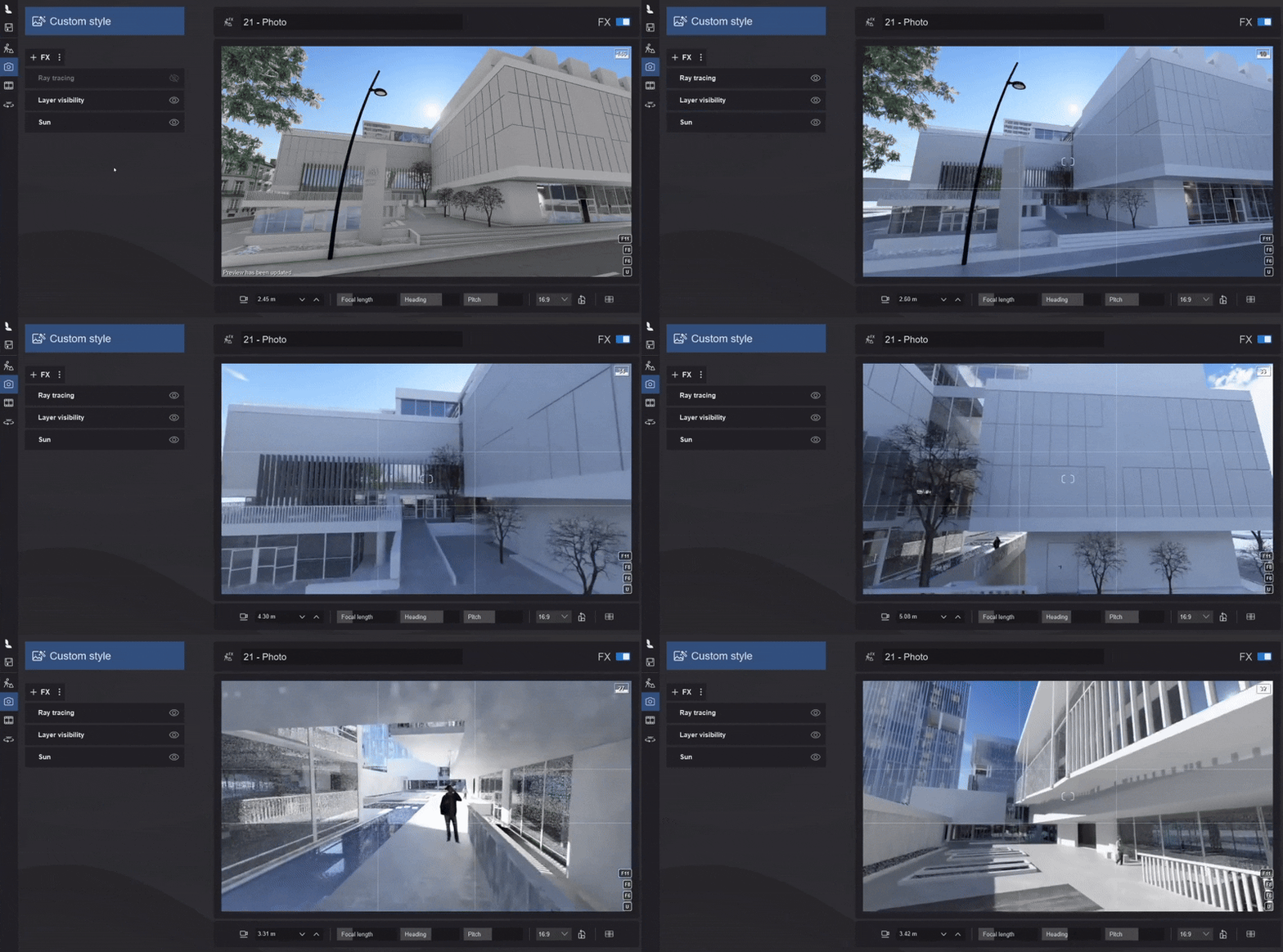
Real-time denoising is on by default when you turn on the *Ray Tracing Effect* and works on both Nvidia and AMD graphics cards. You'll get a much clearer picture of what the final rendering will be while working on *Photos*/*Clips*.
#### 4.4: Radiance Cache
Lumion 2025 introduces **Radiance Cache**, a new global illumination system that improves real-time preview quality when using *Ray Tracing*, especially in darker, indirectly lit areas.
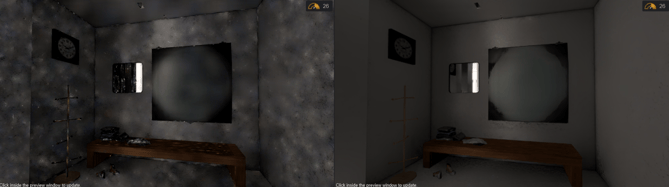
While the difference might seem subtle at first, Radiance Cache gradually builds up lighting information, which greatly reduces the flickering and blotchy artifacts that were common in older versions, leading to a cleaner and more consistent rendering experience.
### 5. Which RT Hardware Platform? NVIDIA or AMD or Intel:
We mentioned in Part 1 that it is only very recent enhancements in the hardware technology that allow for Lumion to render in practical and real-time approaches for Ray Tracing.
There are currently three main 3D graphics manufacturers. Lumion supports at this time those from NVIDIA, AMD and recently for 2025, Intel.
Lumion makes use of Microsoft DirectX 12 technology, and more specifically DXR (see below), DirectX for Ray Tracing.
#### 5.1: The advantages of DXR over proprietary RT only such as NVIDIA's RTX, AMD's RT or Intel's RT
Lumion implements Ray Trace rendering technology mindful that our customers should be able to choose the hardware platform they want from the manufacturer they want:- as specialized and optimized for Windows and DirectX based software platforms.
They should not be frozen/locked into one or another (which can happen for some realtime 3D software alternatives).
This gives you greater choice and flexibility to do your work. Especially as the graphics card hardware market is very rapidly changing.
##### 5.1.1: You are not tied into one hardware:
That means you can render your Project on any of the currently supported Ray Trace rendering hardware. Currently that is NVIDIA RTX or Quadro/A series cards, AMD Radeon RX cards (Radeon Pro), Intel A580/B580 or better. We expect maturity from other makers in the foreseeable future and will likely aim to see those are also supported.
DXR:
*DirectX Raytracing (DXR) is a feature introduced in Microsoft's DirectX 12 that implements ray tracing, for video graphic rendering. The first major update was made to DXR on May 27, 2020 with the Windows 10 May update (version 2004). The May update implemented DXR Tier 1.1, which allows game engines to make real time calculations which makes the raytracing graphics faster and more efficient.*
- Source (Wikipedia): [DirectX Raytracing](https://en.wikipedia.org/wiki/DirectX_Raytracing)
#### 5.2: What you need to run Ray Tracing in Lumion Pro
To see if you have the hardware now, (overview) see Section What you need to run Lumion in:
- **Knowledge Base: **[Introduction to Lumion](https://support.lumion.com/learning-pathways/api/v2/help_center/en-us/articles/11734305029916.json?hsLang=en-us)
Or what you might need, then see these articles:
- **Lumion website: ** [Lumion System Requirements](https://lumion.com/requirements.html)
- **Knowledge Base** (links to specific articles)**: **[What kind of computer does Lumion need?](https://support.lumion.com/knowledge-base/api/v2/help_center/en-us/articles/7281373463708.json?hsLang=en-us)
And Contact Us if you have any questions:
- **Knowledge Base:** [Contact Lumion Technical Support](https://support.lumion.com/knowledge-base/api/v2/help_center/en-us/articles/360042039073.json?hsLang=en-us)
[Return to top of article](https://support.lumion.com/knowledge-base/ray-tracing-in-lumion-part-2-using-lumion-for-ray-trace-rendering#H_TOP)
### 6. How do you use Ray Tracing in Lumion?
#### 6.1: How to Enable Ray Tracing in Lumion Pro
This step is very easy. Ray Tracing is an **Effect** you add in Photo or Movie Mode (the option may exist in 360 Panoramas - see note below):
1. Go to **Photo Mode** or **Movie Mode.**
2. Add Effect → **Ray Tracing** (under *Featured* or *Lighting*).
3. Lumion switches to the Ray Tracing engine.
It's that easy.
- **Knowledge Base: **[How do you use the Ray Tracing Effect?](https://support.lumion.com/knowledge-base/api/v2/help_center/en-us/articles/7442305609628.json?hsLang=en-us)

**Note:** 360 Panoramas, as of 2026.0 and earlier 2025/2024, the Effect is currently not directly available. If you need Ray Tracing for this Mode see this article:
- **Knowledge Base: **[How do you render using Ray Tracing for 360 Panoramas?](https://support.lumion.com/knowledge-base/api/v2/help_center/en-us/articles/9441974043932.json?hsLang=en-us)
Whilst the ***Effect*** will do a great job at Ray Trace rendering, there are some fundamentals in creating your ***Scene*** for a truly great, realistic render . Those need to happen in a workflow before you render, for example setting up good lighting, Scene context, Scene detail, quality materials via Lumions' [PBR Material System and Editor](https://support.lumion.com/learning-pathways/api/v2/help_center/en-us/articles/12213010162460.json?hsLang=en-us). You can of course, do renders at any time you want to see what things are now looking like and how your visualization is progressing.
#### 6.2. Using the Ray Trace Rendering Features:- General Guide
##### Lumion implementations include using foundational Ray Tracing algorithms along with Path Tracing for indirect/Global Illumination for light bounce.
Once you have set your materials to the type of material that will be used in your design and assigned sunlight via the ***Sun Effect***, and/or ***Real Skies Effect***, or ***Sky and Clouds Effect***, you can then render your Photo or movie animation using the ***Ray Tracing Effect***.
You only need to add the one Ray Tracing effect to do the render. The settings are simple to use:
- A slider for the number of *Samples* for each ray that is cast from the camera. (rays per pixel)
- A *Bounces* slider for indirect lighting - Global Illumination. (how many times light can bounce)
- A setting for reducing Noise that is inherent in Ray Trace rendering: Enable Noise Reduction.
- Along with the Firefly Reduction slider for reducing Firefly artifacts. Available only when Enable Denoiser is On

Again, see this article:
- **Knowledge Base: **[How do you use the Ray Tracing Effect?](https://support.lumion.com/knowledge-base/api/v2/help_center/en-us/articles/7442305609628.json?hsLang=en-us)
[Return to top of article](https://support.lumion.com/knowledge-base/ray-tracing-in-lumion-part-2-using-lumion-for-ray-trace-rendering#H_TOP)
### 7. Using the Ray Trace Rendering Features and Settings:
#### 7.1: Quality presets
Presets: **Fast, Balanced, High, Extreme**.
Higher presets = cleaner, more realistic, but slower renders.
Photo mode uses more samples than Movie mode for the same preset because movies rely on more aggressive denoising.
#### 7.2: Samples
- Controls how many rays are shot per pixel.
- More samples = less noise and more detail, but longer render times.
- For exterior or well-lit scenes, low to medium samples (e.g., 16–64) are often enough.
- For darker interiors or complex lighting, higher samples can help.
##### 7.2.1: General Guidelines for Number of Samples
Range 1 to 2048. (Lumion 2024 and newer); Default: 64.
Increasing the Samples will increase the render time to resolve the image, but will result in less noise.
Increasing the Samples increases the final quality of the photo-realistic render. As you can imagine it also requires longer times to render.
Balance the time to render with the quality desired.
Use low Sample values when doing test renders, for example, the minimum 8 Samples up to 32.
Use Samples in the range of 128 to 512 for most Scenes and you want the shortest time to render. Time to render will still be heavily subject to the complexity of the Project. (Refer other articles on Complexity).
For high level and you do not need a quick render then use 512 to 1028 Samples.
The maximum if you need it is 2056 Samples. It is rare for a Scene to require this level of Samples.
The number of light sources will also impact on the number of Samples you need.
Increasing the Samples helps to
- Resolve Noise and artifacts from the general Ray Tracing algorithms.
- Add more defined pixels in relation to the lighting and each ray of light interaction with all the surfaces in your Scene.
- Improve reflections and shadows.
##### 7.2.2: Setting Samples in Photos and 6.4.3: Setting Samples in Movie Animations
We'll cover these topics in other articles in more detail such as:
- **Knowledge Base: **[Transitions: How to Set up Lumion 2023 for Good renders](https://support.lumion.com/knowledge-base/api/v2/help_center/en-us/articles/8272654079900.json?hsLang=en-us)
- **Knowledge Base: **[Why do you get artifacts, blotches or patchy looking renders with Ray Tracing?](https://support.lumion.com/knowledge-base/api/v2/help_center/en-us/articles/8433564469916.json?hsLang=en-us)
##### 7.2.3: Setting Samples in 360 Panoramas
Current implementation limitations exist. See note earlier and this article:
- **Knowledge Base: **[How do you render using Ray Tracing for 360 VR Panorama?](https://support.lumion.com/knowledge-base/api/v2/help_center/en-us/articles/9441974043932.json?hsLang=en-us)
- **Knowledge Base:** [What does the Output Quality setting mean in Movie and 360 Panorama Modes? ](https://support.lumion.com/knowledge-base/api/v2/help_center/en-us/articles/360003476493.json?hsLang=en-us)
#### 7.3: Bounces
- Range 1 to 8. The default is depends on the Preset chosen..
- The number of bounces a ray can take in its path after intersecting with the surface of an object.
- More bounces = richer global illumination (color bleed, light in corners).
- Increase the fidelity of reflections and shadows.
- Especially important for interiors where light bounces multiple times, depending on the number and extent of reflective surfaces.
- Increasing this value will increase the render time to resolve the image, but will improve *Global Illumination*, ambient occlusion, etc.
- With 8 Bounces, Lumion supports up to 8 levels of reflection. That is, if a ray of light is going to bounce due to the material settings, then it will bounce possibly up to 8 bounces in total, depending on the other materials that the ray encounters along its path.
- You only need the number of Bounces that will suit the Scene requirements. Generally, more for interiors (5 to 8), less for exteriors (1 to 3 or perhaps 4)

*(From left to right 128 samples with respectively 1 bounce, 2 bounces, 4 bounces, and 8 bounces.)*
#### 7.4: Denoiser
Ray Tracing introduces noise (graininess, different pixels from neighboring ones when not expected). The **Denoiser** cleans all or most up in the rendered image or movie output:
- By Default it is set to On.
- **Photo mode:** Uses OIDN for high-quality denoising on final output, NRD for preview.
- **Movie mode:** You can pick between NRD (faster) and OIDN (sharper but heavier).
- Turning denoising on gives better-looking results at lower sample counts (faster rendering).
#### 7.5: Firefly Filter
- The other of the two main types of 'noise' that result from a Ray Tracing system.
- Removes isolated bright “sparkles” (fireflies) from reflective/low-light areas.
- It compares each pixel to its neighbors and clamps outliers to reduce artifacts.
#### 7.6: Fully Ray-traced Glass & Water
- **Glass:** Enables physically-based refraction and reflection, with controls like thickness, absorption, and index of refraction for very realistic glass.
- **Water:** Uses the ray-tracing pipeline for more realistic water behavior and reflections.
See this article for in-depth usage:
- **Knowledge Base: **[How do you use the Ray Tracing Effect?](https://support.lumion.com/knowledge-base/api/v2/help_center/en-us/articles/7442305609628.json?hsLang=en-us)
And watch this tutorial to see Ray Tracing in action:
- [Lumion 2023: The Ray Tracing Effect](https://support.lumion.com/video-tutorials/api/v2/help_center/en-us/articles/8043238179228.json?hsLang=en-us)
[Return to top of article](https://support.lumion.com/knowledge-base/ray-tracing-in-lumion-part-2-using-lumion-for-ray-trace-rendering#H_TOP)
### 8. Key Steps to Making Great Ray Trace renders:
Ray Tracing in Lumion 2023 and newer now gives you full scope to render interiors or exteriors.
- To render still images - Photos.
- To render video animations.
- To create amazing photo-realistic visualizations.
Using the ***Ray Tracing Effect*** means you no longer have to spend time including and adjusting the *Rasterization Effects* for: ***Reflections, Shadows, Global Illumination (deprecated), HyperLight, and Sky Light***.
Enable the ***Ray Tracing Effect*** and the rendering system itself will take care of and generate true to life light, shadows, reflections and refractions.
- Shadows:
- Are determined fully by the Ray Trace rendering system. No need to consider shadow mapping distances, if for interior or exterior, the colorization of the shadows due to other lighting settings.
- Ambient Occlusion:
- Are determined fully by the Ray Trace rendering system as for shadows.
- Reflections:
- Are determined fully by the Ray Trace rendering system. No need to add Planar Reflections for windows which for Rasterization can quickly slow down the rendering time. No need to set if you want SpeedRay Reflections. No need to consider how to use the global Reflection Control for Projected reflections. (2)
- Global Illumination:
- Determined by the Ray Trace rendering system.
- **Y**ou can further affect the quality and realism of the render by adjusting the Bounces, for example when there are reflective surfaces for an interior you might want to see more or less global illuminaiton.
- The Lighting System:
- **Managing the lighting in your Scene does become more important**. After all it is a very central and key part of how to set the tone and feeling for your design.
- We discuss some important workflow steps in some later articles.
- The Materials pipeline:
- **Managing the materials for your design does become more important**. Time spent adding the right textures, managing the resolutions and setting the properties so that the surfaces physically interact as you want them to with the lighting is central to visualization and managing the look of your design.
- Putting it all together with one simple Effect:
- Now you can focus more on your content, design and the outcomes desired.
- Choosing the right level of Samples and Bounces.
- Managing the lighting.
- Giving your models materials that will interact physically correct with light.
- Limitations:
- It's worthwhile to be aware that implementing Ray Tracing is an ongoing process. Certain limitations exist that affect your choice of content, sometimes camera views and other settings.
- **Knowledge Base: ** [Transitions from prior versions to using Lumion 2025/2026](https://support.lumion.com/knowledge-base/api/v2/help_center/en-us/articles/19338843803292.json?hsLang=en-us)
[Return to top of article](https://support.lumion.com/knowledge-base/ray-tracing-in-lumion-part-2-using-lumion-for-ray-trace-rendering#H_TOP)
### 9. Where to from here?
We have these guides and assists to help you manage your Scenes and get the best for Ray Trace rendering in Lumion:
- **Knowledge Base: **[How do you use the Ray Tracing Effect?](https://support.lumion.com/knowledge-base/api/v2/help_center/en-us/articles/7442305609628.json?hsLang=en-us)
- **Knowledge Base: **[Transitions: Why does my Project look different in Lumion 2023 and newer compared to previous versions?](https://support.lumion.com/knowledge-base/api/v2/help_center/en-us/articles/8088431180060.json?hsLang=en-us)
- **Knowledge Base: **[Transitions: How to Set up Lumion 2023 for Good renders](https://support.lumion.com/knowledge-base/api/v2/help_center/en-us/articles/8272654079900.json?hsLang=en-us)
- **Knowledge Base: **[Why do you get artifacts, blotches or patchy looking renders with Ray Tracing?](https://support.lumion.com/knowledge-base/api/v2/help_center/en-us/articles/8433564469916.json?hsLang=en-us)
Some later articles will address:
- Lighting
- Choice of Denoiser for Movies
- Resolving Flickering and Artifacts in Photos and Movies
- How do you set up a Photo to render for night time with Ray Tracing? \[lighting\]
Refer back to **Part 1** on general information about Ray Tracing, so you have an idea about the limitations and impacts of this type of rendering, if needed:
- **Knowledge Base: ** [Ray Tracing in Lumion -](https://support.lumion.com/knowledge-base/ray-tracing-in-lumion---part-1-what-is-ray-tracing-all-about?hsLang=en-us)[Part 1](https://support.lumion.com/knowledge-base/ray-tracing-in-lumion---part-1-what-is-ray-tracing-all-about?hsLang=en-us)[What is Ray Tracing all about](https://support.lumion.com/knowledge-base/ray-tracing-in-lumion---part-1-what-is-ray-tracing-all-about?hsLang=en-us)
### 10. See Also:
- **Knowledge Base:** [How do you use the new Ray Tracing Effect?](https://support.lumion.com/knowledge-base/api/v2/help_center/en-us/articles/7442305609628.json?hsLang=en-us)
- **Video Tutorial:** [Lumion 2023: The Raytracing Effect](https://support.lumion.com/knowledge/articles/8043238179228?hsLang=en-us)
- **Knowledge Base: **[How do you Determine the 'Complexity' of your Projects](https://support.lumion.com/knowledge-base/api/v2/help_center/en-us/articles/4407335206418.json?hsLang=en-us)
#### References:
- **External Link: **[Ray tracing (graphics) \[Wikipedia\]](https://en.wikipedia.org/wiki/Ray_tracing_(graphics))
- **External Link: **[Path tracing \[Wikipedia\]](https://en.wikipedia.org/wiki/Path_tracing)
- **External Link:** [RTX Technology: NVIDIA RTX Architecture \[NVIDIA\]](https://developer.nvidia.com/rtx/ray-tracing)
- **External Link:** [RTX Technology](https://developer.nvidia.com/rtx/ray-tracing)
- **External Link:** [Ray Tracing vs Rasterized Rendering – Explained](https://appuals.com/ray-tracing-vs-rasterized-rendering-explained/)
- [Visit our other Sections](https://support.lumion.com/knowledge-base/visit-our-other-sections?hsLang=en-us)
- [Contact Us](https://support.lumion.com/knowledge-base/contact-us?hsLang=en-us)
- [Lumion Account](https://support.lumion.com/knowledge-base/lumion-account?hsLang=en-us)
- [Latest News](https://support.lumion.com/knowledge-base/latest-news?hsLang=en-us#main-content)
- [Major Known Issues](https://support.lumion.com/knowledge-base/latest-news?hsLang=en-us#major-known-issues)
- [Lumion 2025: Major Version Release Details](https://support.lumion.com/knowledge-base/latest-news?hsLang=en-us#lumion-2025-major-version-release-details)
- [Lumion 2024: Major Version Release Details](https://support.lumion.com/knowledge-base/latest-news?hsLang=en-us#lumion-2024-major-version-release-details)
- [Lumion 2023: Major Version Release Details](https://support.lumion.com/knowledge-base/latest-news?hsLang=en-us#lumion-2023-major-version-release-details)
- [Lumion 2023: Update Release Notes](https://support.lumion.com/knowledge-base/latest-news?hsLang=en-us#lumion-2023-update-release-notes)
- [Lumion 12](https://support.lumion.com/knowledge-base/latest-news?hsLang=en-us#lumion-12)
- [Lumion 11](https://support.lumion.com/knowledge-base/latest-news?hsLang=en-us#lumion-11)
- [Lumion 10](https://support.lumion.com/knowledge-base/latest-news?hsLang=en-us#lumion-10)
- [Sales Questions](https://support.lumion.com/knowledge-base/sales-questions?hsLang=en-us)
- [Subscriptions](https://support.lumion.com/knowledge-base/subscriptions?hsLang=en-us)
- [New User Questions](https://support.lumion.com/knowledge-base/new-user-questions?hsLang=en-us)
- [Learning Resources](https://support.lumion.com/knowledge-base/learning-resources?hsLang=en-us)
- [System Requirements Questions](https://support.lumion.com/knowledge-base/system-requirements-questions?hsLang=en-us#main-content)
- [Determining the 'Complexity' of your Projects](https://support.lumion.com/knowledge-base/system-requirements-questions?hsLang=en-us#determining-the-complexity-of-your-projects)
- [System Messages from Lumion](https://support.lumion.com/knowledge-base/system-requirements-questions?hsLang=en-us#system-messages-from-lumion)
- [Requirements for Prior Versions](https://support.lumion.com/knowledge-base/system-requirements-questions?hsLang=en-us#requirements-for-prior-versions)
- [Download & Installation Questions](https://support.lumion.com/knowledge-base/download-installation-questions?hsLang=en-us#main-content)
- [Download/Installation: General Questions](https://support.lumion.com/knowledge-base/download-installation-questions?hsLang=en-us#download-installation-general-questions)
- [Download Questions](https://support.lumion.com/knowledge-base/download-installation-questions?hsLang=en-us#download-questions)
- [Installation Questions](https://support.lumion.com/knowledge-base/download-installation-questions?hsLang=en-us#installation-questions)
- [Lumion Pro Updater](https://support.lumion.com/knowledge-base/download-installation-questions?hsLang=en-us#lumion-pro-updater)
- [Plugins to CAD software](https://support.lumion.com/knowledge-base/download-installation-questions?hsLang=en-us#plugins-to-cad-software)
- [License and General Product Questions](https://support.lumion.com/knowledge-base/license-and-general-product-questions?hsLang=en-us#main-content)
- [License System Messages from Lumion](https://support.lumion.com/knowledge-base/license-and-general-product-questions?hsLang=en-us#license-system-messages-from-lumion)
- [Import & Export Questions](https://support.lumion.com/knowledge-base/import-export-questions?hsLang=en-us#main-content)
- [Model Import Guidelines](https://support.lumion.com/knowledge-base/import-export-questions?hsLang=en-us#model-import-guidelines)
- [Lumion LiveSync and import plugins](https://support.lumion.com/knowledge-base/import-export-questions?hsLang=en-us#lumion-livesync-and-import-plugins)
- [System Messages from Lumion when importing](https://support.lumion.com/knowledge-base/import-export-questions?hsLang=en-us#system-messages-from-lumion-when-importing)
- [General Questions](https://support.lumion.com/knowledge-base/general-questions?hsLang=en-us#main-content)
- [Keyboard Shortcuts in Lumion](https://support.lumion.com/knowledge-base/general-questions?hsLang=en-us#keyboard-shortcuts-in-lumion)
- [Upgrading and Updating your Lumion Version](https://support.lumion.com/knowledge-base/general-questions?hsLang=en-us#upgrading-and-updating-your-lumion-version)
- [Using Lumion 2023](https://support.lumion.com/knowledge-base/general-questions?hsLang=en-us#using-lumion-2023)
- [System Messages from Lumion](https://support.lumion.com/knowledge-base/general-questions?hsLang=en-us#system-messages-from-lumion)
- [Build Mode Questions](https://support.lumion.com/knowledge-base/build-mode-questions?hsLang=en-us#main-content)
- [Landscape and Terrains](https://support.lumion.com/knowledge-base/build-mode-questions?hsLang=en-us#landscape-and-terrains)
- [OpenStreetMap](https://support.lumion.com/knowledge-base/build-mode-questions?hsLang=en-us#openstreetmap)
- [Lighting: Sun and Artificial Lights](https://support.lumion.com/knowledge-base/build-mode-questions?hsLang=en-us#lighting-sun-and-artificial-lights)
- [Questions mainly for older versions than Lumion 12](https://support.lumion.com/knowledge-base/build-mode-questions?hsLang=en-us#questions-mainly-for-older-versions-than-lumion-12)
- [Library Content](https://support.lumion.com/knowledge-base/library-content?hsLang=en-us#main-content)
- [Library Content in Lumion 2026](https://support.lumion.com/knowledge-base/library-content?hsLang=en-us#library-content-in-lumion-2026)
- [Library Content in Lumion 2025](https://support.lumion.com/knowledge-base/library-content?hsLang=en-us#library-content-in-lumion-2025)
- [Library Content in Lumion 2024](https://support.lumion.com/knowledge-base/library-content?hsLang=en-us#library-content-in-lumion-2024)
- [Library Content in Lumion 2023](https://support.lumion.com/knowledge-base/library-content?hsLang=en-us#library-content-in-lumion-2023)
- [Library Content in Lumion 12](https://support.lumion.com/knowledge-base/library-content?hsLang=en-us#library-content-in-lumion-12)
- [Movie & Photo Mode Questions](https://support.lumion.com/knowledge-base/movie-photo-mode-questions?hsLang=en-us#main-content)
- [Photo Mode](https://support.lumion.com/knowledge-base/movie-photo-mode-questions?hsLang=en-us#photo-mode)
- [Movie Mode](https://support.lumion.com/knowledge-base/movie-photo-mode-questions?hsLang=en-us#movie-mode)
- [Animation in Movie Mode](https://support.lumion.com/knowledge-base/movie-photo-mode-questions?hsLang=en-us#animation-in-movie-mode)
- [Effects in Photo or Movie Mode](https://support.lumion.com/knowledge-base/movie-photo-mode-questions?hsLang=en-us#effects-in-photo-or-movie-mode)
- [Reflections](https://support.lumion.com/knowledge-base/movie-photo-mode-questions?hsLang=en-us#reflections)
- [Material Questions](https://support.lumion.com/knowledge-base/material-questions?hsLang=en-us#main-content)
- [Materials in versions 12 and earlier](https://support.lumion.com/knowledge-base/material-questions?hsLang=en-us#materials-in-versions-12-and-earlier)
- [Using LiveSync for Revit and a Section Box](https://support.lumion.com/knowledge-base/material-questions?hsLang=en-us#using-livesync-for-revit-and-a-section-box)
- [Rendering Questions](https://support.lumion.com/knowledge-base/rendering-questions?hsLang=en-us#main-content)
- [General Rendering Questions](https://support.lumion.com/knowledge-base/rendering-questions?hsLang=en-us#general-rendering-questions)
- [Rendering of Photos](https://support.lumion.com/knowledge-base/rendering-questions?hsLang=en-us#rendering-of-photos)
- [Rendering of Clips and Movies](https://support.lumion.com/knowledge-base/rendering-questions?hsLang=en-us#rendering-of-clips-and-movies)
- [Tips to getting the best renders](https://support.lumion.com/knowledge-base/rendering-questions?hsLang=en-us#tips-to-getting-the-best-renders)
- [Rendering Performance](https://support.lumion.com/knowledge-base/rendering-questions?hsLang=en-us#rendering-performance)
- [Technical Issues when Rendering](https://support.lumion.com/knowledge-base/rendering-questions?hsLang=en-us#technical-issues-when-rendering)
- [Panorama Mode Questions](https://support.lumion.com/knowledge-base/panorama-mode-questions?hsLang=en-us#main-content)
- [Technical questions when rendering with Panorama Mode](https://support.lumion.com/knowledge-base/panorama-mode-questions?hsLang=en-us#technical-questions-when-rendering-with-panorama-mode)
- [File & BackUp Questions](https://support.lumion.com/knowledge-base/file-backup-questions?hsLang=en-us#main-content)
- [Saving and Backup](https://support.lumion.com/knowledge-base/file-backup-questions?hsLang=en-us#saving-and-backup)
- [File Saving Issues](https://support.lumion.com/knowledge-base/file-backup-questions?hsLang=en-us#file-saving-issues)
- [Lumion-Documents](https://support.lumion.com/knowledge-base/file-backup-questions?hsLang=en-us#lumion-documents)
- [Transfer, Move or Migrate Files](https://support.lumion.com/knowledge-base/file-backup-questions?hsLang=en-us#transfer-move-or-migrate-files)
- [Troubleshooting](https://support.lumion.com/knowledge-base/troubleshooting?hsLang=en-us#main-content)
- [Reports about your PC](https://support.lumion.com/knowledge-base/troubleshooting?hsLang=en-us#reports-about-your-pc)
- [Photo and Movie Mode Issues](https://support.lumion.com/knowledge-base/troubleshooting?hsLang=en-us#photo-and-movie-mode-issues)
- [Rendering Issues](https://support.lumion.com/knowledge-base/troubleshooting?hsLang=en-us#rendering-issues)
- [Error Messages from Lumion](https://support.lumion.com/knowledge-base/troubleshooting?hsLang=en-us#error-messages-from-lumion)
- [Hardware related Issues](https://support.lumion.com/knowledge-base/troubleshooting?hsLang=en-us#hardware-related-issues)
- [Other Troubleshooting Issues](https://support.lumion.com/knowledge-base/troubleshooting?hsLang=en-us#other-troubleshooting-issues)
- [Article Developments](https://support.lumion.com/knowledge-base/article-developments?hsLang=en-us#main-content)
- [Devs - Multi‑Image Button Viewer](https://support.lumion.com/knowledge-base/article-developments?hsLang=en-us#devs-multi-image-button-viewer)
[](https://lumion.com/)
[mailto:email@email.com](mailto:email@email.com)
Copyright © 2026, Lumion - Act3D B.V.
#### Product
[Plans and pricing](https://lumion.com/product/buy)
[Discover Lumion](https://lumion.com/product/discover-lumion)
[Compatibility](https://lumion.com/compatibility/)
[System Requirements](https://lumion.com/product/system-requirements)
[Find a reseller](https://lumion.com/about/find-reseller)
[Free trial](https://lumion.com/product/free-trial)
#### Solutions
[Architectural design](https://lumion.com/product/architectural-design)
[Interior design](https://lumion.com/product/interior-design)
[Landscape architecture](https://lumion.com/product/landscape-architecture)
[Urban planning](https://lumion.com/product/urban-planning)
[3D rendering](https://lumion.com/product/3d-rendering-software)
[Education](https://lumion.com/product/educational-licenses)
#### Compatibility
[Trimble SketchUp](https://lumion.com/compatibility/sketchup-rendering)
[Autodesk Revit](https://lumion.com/compatibility/revit-rendering)
[Graphisoft ArchiCAD](https://lumion.com/compatibility/archicad-rendering)
[Rhinoceros](https://lumion.com/compatibility/rhino-rendering)
[Autodesk Autocad](https://lumion.com/compatibility/autocad-rendering)
[Autodesk FormIt Pro](https://lumion.com/compatibility/lumion-for-autodesk-formit-pro)
[Nemetschek Allplan](https://lumion.com/compatibility/allplan-rendering)
[Nemetschek Vectorworks](https://lumion.com/compatibility/vectorworks-rendering)
[BricsCAD](https://lumion.com/compatibility/bricscad-rendering)
[3D Studio Max](https://lumion.com/compatibility/3ds-max-rendering)
#### Resources
[Made with Lumion](https://lumion.com/made-with-lumion)
[Tutorials](https://support.lumion.com/video-tutorials?hsLang=en-us)
[Support and learning](https://support.lumion.com/knowledge-base/api/v2/help_center/en-us/articles/360044608053.json?hsLang=en-us)
[Downloads](https://support.lumion.com/downloads?hsLang=en-us)
[Community](https://community.lumion.com/index.php)
#### About
[Our Story](https://lumion.com/about)
[We're hiring!](https://lumion.com/about/careers)
[News](https://lumion.com/news)
[Contact us](https://lumion.com/about/contact)
[Terms & conditions](https://lumion.com/legal/terms-of-service) [EULA](https://lumion.com/legal/eula) [Privacy statement](https://lumion.com/legal/privacy-statement) [CEIP](https://lumion.com/legal/ceip) [Disclaimer](https://lumion.com/legal/disclaimer) © 2026 Lumion